



Why Adalo Is Ideal for Building Your iPhone Calendar App
Creating a custom calendar app for iPhone typically requires months of development time and significant coding expertise—but there's a faster path. Adalo is a no-code app builder for database-driven web apps and native iOS and Android apps—one version across all three platforms, published to the Apple App Store and Google Play. This means you can design your perfect scheduling tool once and deploy it as a fully native iPhone app that users download directly from the App Store.
For a calendar app, App Store distribution unlocks critical features your users will expect. You can send push notifications to remind them of upcoming appointments, enable offline access so they can check their schedule without an internet connection, and deliver the fast, responsive experience that keeps people coming back to your app daily. Whether you're building a personal planner or a client booking system, Adalo gives you the tools to create something that feels professionally built—because it is.
What if your perfect calendar app already exists—you just haven't built it yet? Whether you need a scheduling tool tailored to your workflow, a booking system for your business, or a personal planner with features no existing app offers, creating a custom calendar app for iPhone is more accessible than you might think.
In this guide, you'll learn exactly how to build a fully functional digital calendar app for iOS—from setting up your database and designing the interface to publishing it on the App Store. The best part? You won't need to write a single line of code. Adalo is an AI-powered app builder that creates database-driven web apps and native iOS and Android apps—published to the App Store and Google Play—from a single editor. With plans starting at $36/month (plus Apple's $99 annual developer fee), you can go from idea to published app in days rather than months.
Ready to create a calendar app that works exactly the way you need it to? Let's walk through the process step by step.
Why Adalo Is Perfect for Building Your Custom Calendar App
Building a calendar app that syncs seamlessly across devices and lives in the App Store might sound like a job for experienced developers—but it doesn't have to be. Adalo lets you create a polished, professional calendar app for iPhone without writing code, and your users can download it directly from the App Store just like any other app.
Having your calendar app in the App Store isn't just about credibility—it's about functionality. With a native iOS app, you can send push notifications to remind users of upcoming events, enable offline access to their schedules, and deliver the smooth, responsive experience iPhone users expect. Following the Adalo 3.0 infrastructure overhaul in late 2025, apps run 3-4x faster than before, with modular infrastructure that scales alongside your user base.
Whether you're building a personal productivity tool or a client-facing booking system, the platform gives you everything you need to bring your calendar app vision to life. With over 3 million apps created on the platform and a visual builder described as "easy as PowerPoint," you're working with battle-tested technology.
Step 1: Set Up Your Adalo Account and Project
Create an Adalo Account
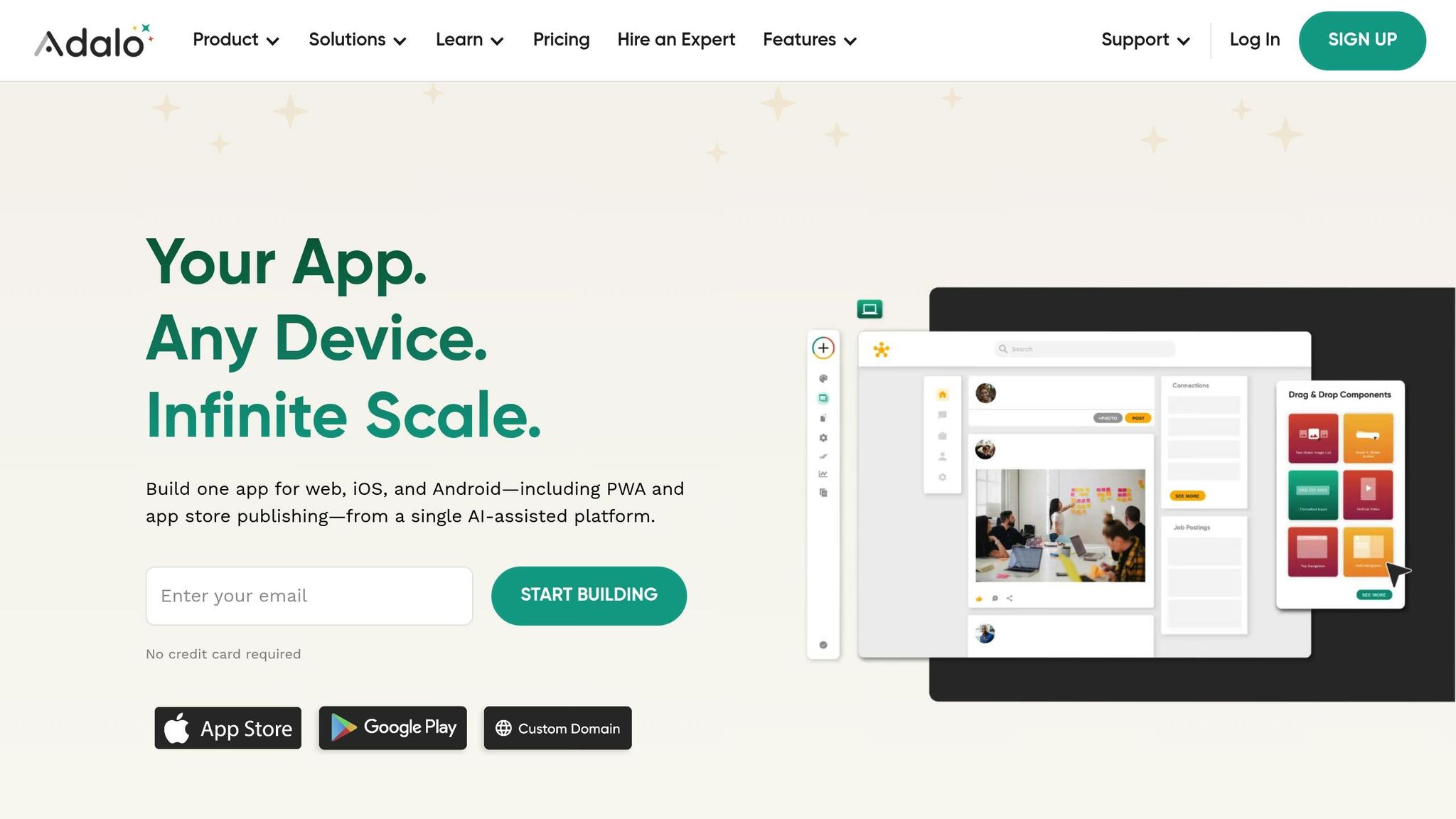
Getting started is quick—just 10 minutes from signup to building your first app. Head over to Adalo.com and sign up for a free account with no credit card required. The free plan is perfect for testing, allowing you to build unlimited test apps and work with up to 500 records per app. This makes it ideal for experimenting with your calendar's functionality and database structure before committing to a paid plan.
The user-friendly interface makes it easy to get started. Once your account is ready, log in and you're all set to begin building your iOS project.
Start a New iOS App Project
After logging in, click the "Create New App" button on your dashboard. Select "Mobile App" to ensure your calendar functions smoothly on iPhones and iPads.
You can either start from scratch or choose from one of Adalo's 40 templates, such as "Appointments" or "Event Calendar." For full control over your calendar's features, go with the "Start from Scratch" option. Give your project a name, like "Digital Calendar," and customize it by selecting your brand's primary and secondary colors as well as your preferred fonts.
Ada, Adalo's AI builder, lets you describe what you want and generates your app. Magic Start creates complete app foundations from a description, while Magic Add adds features through natural language.
Alternatively, you can use Magic Start to generate a complete app foundation from a simple description. Tell it you need a calendar app for personal scheduling, and it creates your database structure, screens, and user flows automatically—what used to take days of planning happens in minutes.
Before moving forward, keep in mind that Apple requires an annual $99 developer fee, and publishing your app with Adalo starts at $36 per month. Unlike some competitors that charge usage-based fees, all Adalo plans include unlimited usage—no surprise bills as your app grows.
The platform allows you to build your app once and publish it as both a Progressive Web App (PWA) and a native app for iOS and Android. With your project set up, it's time to start working on your app's database and key features.
Step 2: Design Your App's Database and Core Features
Build Collections for Events and Users
Your calendar app's database revolves around Collections, which function like database tables. In Adalo, collections represent the "nouns" of your app, while their properties define the details about them. To create a functional calendar, you'll need two key collections: Users and Events.
Start by setting up your Events collection. Head to the Database tab in the editor, create a new collection labeled "Events," and add these essential properties:
- Event Title (Text)
- Start Date & Time (Date & Time)
- End Date & Time (Date & Time)
- Description (Text, multiline)
Using the "Date & Time" property type ensures accurate scheduling and a clear agenda view.
If your app includes user authentication, the Users collection is prebuilt. Make sure it contains a Full Name (Text) and an Email field for authentication and notifications. To accommodate users in different regions, add a Time Zone (Text) property to handle automatic time conversions.
To confirm everything works as expected, manually add a few test records—create a sample user and a couple of events. With over 3 million apps built on the platform and 20 million+ daily data requests processed, this database structure is well-tested and scalable. Paid plans include no record limit cap on the database, so your calendar can grow without hitting storage constraints.
Once your collections are set up and tested, it's time to establish how your data connects.
Connect Collections with Relationships
To personalize the calendar for each user, link the Users and Events collections. In the Events collection, add a new property of type Relationship and connect it to the Users collection. Use the one-to-many option—this allows one user to have multiple events, while each event is tied to a single user. This setup works perfectly for personal calendars where users only see their own events.
After creating the relationship, rename both sides immediately to avoid confusion. Adalo automatically generates properties in both collections when a relationship is created. In the Events collection, rename the "User" property to something more descriptive, like "Event Creator". Similarly, rename the "Events" property in the Users collection to "Created Events". Clear naming makes managing your database much easier.
"If you want each user to interact with information that is specific to themselves, a database will be imperative!" [Learn how to use Airtable as a database for your app.] - Sonia Rebecca Menezes, Expert Tips, Adalo
If you're designing a collaborative calendar where multiple users can attend the same event, consider a many-to-many relationship instead. This setup allows events to have multiple attendees and users to join multiple events. For personal calendars, however, the one-to-many setup keeps things simple.
With the right data relationship setups, Adalo apps can scale beyond 1 million monthly active users. The modular infrastructure adapts to your app's needs, so you won't hit performance walls as your user base grows.
With your database structure in place, your app is ready to handle its core functionality. The Events collection will store all scheduling data, and the relationships ensure users only see their own appointments.
Adalo #27 How to create ToDo App-2 Advanced Calendar, Progress bar
Step 3: Build the Main Screens for Your Calendar App
Now it's time to create the core screens for your app. In this step, you'll design a visual calendar view and build screens for adding and viewing events.
Create a Calendar View Screen
Begin by installing the Calendar component from the Adalo Marketplace. Open the Marketplace tab, search for "Calendar," and add the component to a new screen in your app.
Next, bind the calendar's Start Date and End Date fields to the matching properties in your Events collection. This ensures your calendar reflects the correct data from your database.
Customize the look and feel to match your app's branding. For example:
- Set the time format to 12-hour (standard in the U.S.).
- Choose whether the week starts on Sunday or Monday.
- Adjust the colors for event bars, text, and backgrounds to align with your design.
To make the calendar interactive, configure click actions. You can set it up so tapping on a date opens either an Event Details screen (for single events) or an Agenda View (for multiple events). This interactivity enhances the user experience by making navigation intuitive.
You can also use Magic Add to add features by describing what you want. For instance, type "add a weekly view toggle" and the AI will generate the necessary components and logic. This natural language approach speeds up development significantly.
With your calendar screen ready, move on to building the screens for adding and viewing event details.
Add Event Creation and Detail Screens
Now, design the screens for adding new events and viewing event details, ensuring you write clear UX copy for your users. Start by creating a screen specifically for event creation. Include:
- Text input fields for the event's title and description.
- Date/Time Pickers for selecting the start and end times.
- A Submit button configured with a "Create" action. This action should map each form input to the relevant property in your Events collection.
After users submit an event, set the button to create the record and return them to the calendar. This flow keeps everything seamless and user-friendly.
For the Event Details screen, use Magic Text to dynamically display the selected event's data. This includes the title, date, time, and description. Magic Text ensures the information updates automatically based on what the user selects. To give users more control, consider adding buttons like Edit Event or Delete Event.
On your main calendar screen, include a prominent "+ Add Event" button that links to the event creation screen. This makes it easy for users to schedule new appointments. Don't forget to add a Back button on all sub-screens so users can quickly return to the calendar view.
The visual builder can display up to 400 screens at once on a single canvas, making it easy to see your entire app architecture and maintain consistency across screens. This bird's-eye view helps you catch navigation issues before testing.
Step 4: Add iOS-Native Features
Now that your calendar screens are ready, it's time to give your app that polished iOS feel. Adding features like push notifications, Siri integration, and iCloud sync can make managing schedules seamless for your users—without needing to open the app constantly.
Set Up Push Notifications for Event Reminders
Push notifications are a must for any calendar app. In Adalo, you can implement them in two ways: instant alerts using the "Trigger Notification" action or scheduled reminders via the Adalo API.
For immediate alerts—like confirming an event was created—attach a "Trigger Notification" action to your Submit button. This feature works on all Adalo plans. For time-based reminders, such as a notification 30 minutes before an event, you'll need the Adalo API, available on Team and Business plans. To enable it, go to Settings > App Access > Generate API Key in your editor.
If you require delayed notifications but don't want to rely solely on Adalo's native tools, external services like Zapier or Make can help. These tools can trigger reminders by reading the event's start time from your database, calculating when to send the notification (e.g., 24 hours in advance), and calling the Adalo API to push it. Keep in mind that users will only receive notifications if they've granted permission, have been active in the app within the last two weeks, and are using the native iOS version.
For a simpler setup that skips API scheduling, you can use Agical to create an "Add to Calendar" button. This method directly adds events to the user's native calendar app, and you can use Adalo's Magic Text to dynamically fill in event details. However, note that notifications sent via the Adalo API will redirect users to the app's home screen, not a specific event page.
Once notifications are in place, you can take user convenience a step further with Siri Shortcuts.
Connect Siri Shortcuts for Quick Actions
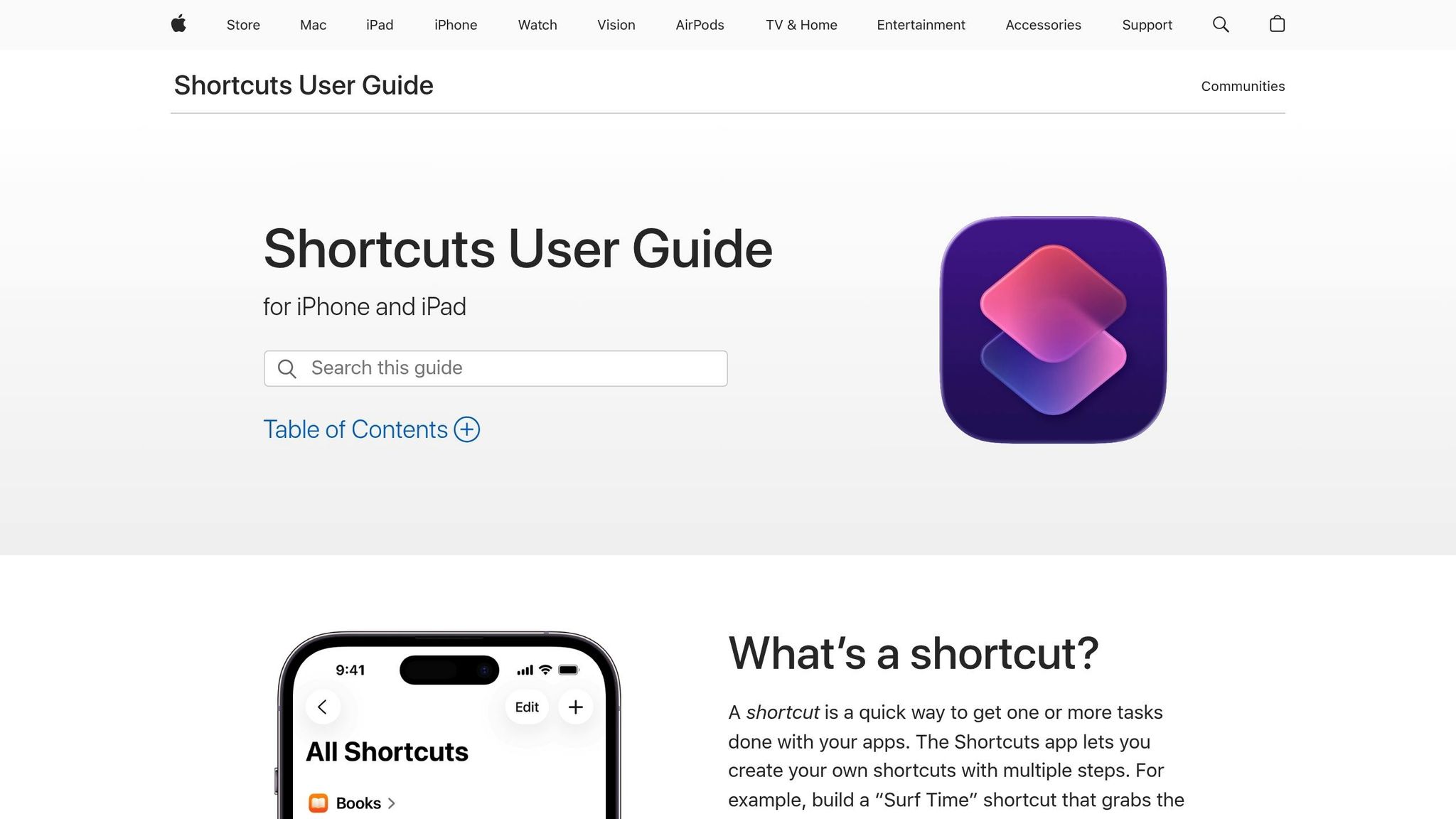
Adding Siri integration lets users interact with your app using voice commands, making it even more user-friendly. While Adalo doesn't natively support Apple's App Intents framework, you can expose app actions, like creating or viewing events, through API endpoints.
Using the iOS Shortcuts app, users can set up workflows that send a POST request to your app's API. For example, they could say, "Schedule my meeting," and Siri would trigger the shortcut to add an event. Naming your shortcuts with simple, natural phrases makes them easier to use. For developers looking to go further, implementing the App Intents framework enables system-wide shortcuts right after installation—but this requires native iOS coding.
The combination of Adalo's API capabilities and iOS Shortcuts creates a powerful voice-enabled experience without requiring you to write native Swift code.
Sync Data with iCloud
To round out the iOS experience, syncing calendar data across Apple devices with iCloud is a powerful addition. However, iCloud Calendar integration can be tricky due to its reliance on the CalDAV protocol and iCalendar format. A straightforward option is to use an "Add to Calendar" button, while full two-way syncing involves external middleware and periodic polling.
"Unlike Google Calendar, integrating iCloud Calendar is not as straightforward, as documentation is lacking, and Apple hasn't put as much effort into fleshing out what a developer needs to do."
For a basic solution, the Agical.io API can generate an "Add to Calendar" button. This allows users to either download an .ics file or add events directly to their native calendar app. To make this work, construct the URL dynamically with the event details and set Adalo's date formatting to "No Formatting," ensuring the API correctly parses the timestamp.
If you need full two-way syncing—where changes in iCloud reflect in your app—you'll need middleware like Zapier or Make to handle CalDAV requests. Users will also need to generate an app-specific password in their Apple ID settings since their primary password won't work with third-party integrations. Additionally, because iCloud doesn't support webhooks or push notifications for third-party apps, you'll need to use a polling system to detect changes. That said, for most calendar apps, the "Add to Calendar" button provides plenty of functionality without the complexity of full CalDAV integration.
As you build your mobile app without coding, Adalo makes it easy to deploy your app as a progressive web app or as native iOS and Android builds—all from a single codebase.
Step 5: Test and Publish Your Calendar App
Before releasing your app, make sure it's thoroughly tested. Start with one of the best no-code iOS app builders like Adalo and use its preview mode, then move on to testing on a physical iPhone. This helps identify issues that only show up on real devices, like battery usage, touch sensitivity, or how notifications behave in real-world conditions.
Preview and Test Your App
Start testing within Adalo's editor using the preview panel. Check if events save correctly, reminders trigger as expected, and the screens flow seamlessly. This step helps catch obvious bugs quickly but isn't enough on its own.
Before publishing, use X-Ray to identify performance issues before they affect users. This AI-powered diagnostic tool highlights potential bottlenecks in your database queries, screen loads, and component configurations—catching problems that might only appear under real-world usage patterns.
Move on to testing on actual devices. Simulators can't fully replicate real-world scenarios like battery consumption, hardware functionality, or network fluctuations. Test your app on multiple iPhone models if possible—different screen sizes and iOS versions can reveal layout glitches or compatibility issues. Confirm that the app works offline and syncs data properly when the connection is restored. Pay special attention to recurring events, push notifications, and error-free editing of events.
To gather broader feedback, distribute your app using TestFlight. Apple allows up to 10,000 external testers per build, with each build remaining active for 90 days. Internal testing (up to 100 users) skips Apple's review process, making it ideal for quick updates within your team. External testing, however, requires an initial Beta App Review and provides access to a larger pool of users who can uncover usability problems you might miss. Assign specific tasks to testers, like syncing with iCloud or setting reminders, to ensure thorough feedback.
Publish Your App to the Apple App Store
Once testing is complete, prepare your app for submission by ensuring it complies with Apple's guidelines and requirements.
To publish your app, you'll need an Apple Developer Account and a paid Adalo plan (starting at $36/month). Make sure your Bundle ID follows the format com.appname.ios with no extra spaces. Even if your app doesn't use push notifications, you must enable them in the Apple Developer portal—Adalo requires this for a successful build.
In Adalo's settings, generate an App-Specific Password from your Apple ID account (this is different from your main password). Keep a trusted Apple device nearby to approve the two-factor authentication prompt. Customize any permission request text for features like notifications or location access—Apple won't approve apps using Adalo's default placeholder text. Also, keep your app name under 30 characters and avoid using special characters like ~ or quotation marks.
Once you start the build, it usually takes about 30 minutes for the status in App Store Connect to change from "Processing" to "Ready to Submit." Most apps get approved within 48 hours. If you're worried about potential bugs affecting all users at once, use the Phased Release option. This gradually rolls out your app over seven days, giving you time to address any critical issues before full distribution.
Unlike some platforms that limit how often you can republish, Adalo includes unlimited updates to your published apps. Push bug fixes, new features, or design changes whenever you need without worrying about hitting a publishing cap.
Conclusion
You've reached the finish line: a fully functional custom calendar app for iPhone. From signing up and designing your database to incorporating key iOS features and publishing on the App Store, you've tackled each step with precision. Along the way, you've built intuitive screens, integrated features like push notifications and Siri shortcuts, and ensured everything runs smoothly through thorough testing. Now, you have a polished app ready to meet real scheduling demands.
Adalo makes this process seamless. You can even use these same skills to build a meditation app or other wellness tools. It offers the tools to create a sleek, fully functional app without writing a single line of code. Riley Jones, an Adalo Maker, sums it up perfectly:
"One impressive feat is how quickly Adalo allows you to put up a simple and clean design that's hooked up to a database. Pushing the data between screens becomes seamless once you get how the actions work."
Your app is now production-ready, offering full control over its design, branding, and functionality. It can sync with existing calendars, send automated reminders, and handle complex scheduling tasks with ease. Whether your app is for personal use, business, or clients, it's built to address real-world scheduling needs—and the platform's infrastructure scales to support millions of users as your app grows.
Related Blog Posts
- How to Launch Your First Mobile App Without Coding
- How To Get a Vibe-Coded App To The App Store
- How to Create an Invoice App
- How to Create a Voice To Text Feature For Your App
FAQ
Why choose Adalo over other app building solutions?
Adalo is an AI-powered app builder that creates true native iOS and Android apps. Unlike web wrappers, it compiles to native code and publishes directly to both the Apple App Store and Google Play Store from a single codebase—the hardest part of launching an app handled automatically. With unlimited database records on paid plans and no usage-based charges, you won't face surprise bills as your app scales.
What's the fastest way to build and publish an app to the App Store?
Adalo's drag-and-drop interface combined with AI-assisted building through Magic Start and Magic Add lets you create complete apps in days rather than months. The platform handles the entire App Store submission process, from generating builds to managing certificates, so you can focus on your app's features rather than technical requirements.
What does it cost to create a custom calendar app for iPhone using Adalo?
You can get started for free with up to 500 records per app for testing. To publish to the App Store, paid plans start at $36/month. Unlike competitors that charge usage-based fees, all Adalo plans include unlimited usage—no surprise charges as your app grows. Apple's $99 annual developer fee is also required for App Store publishing.
How long does it take to build a calendar app?
With Adalo's visual builder and AI features like Magic Start, you can have a functional calendar app ready in a few days. The platform generates complete app foundations from descriptions, and Magic Add lets you add features by simply describing what you want. Testing and App Store review typically add another 2-3 days.
Do I need coding experience to build a calendar app?
No coding experience is required. Adalo's visual builder is described as "easy as PowerPoint," letting you drag and drop components to create screens, set up databases, and configure logic. The AI Builder can generate app foundations from natural language descriptions, making the process even more accessible.
How do I add Siri Shortcuts to my custom iPhone calendar app?
Create a shortcut in the iOS Shortcuts app that sends a POST request to your Adalo app's API. Design it to add calendar events with inputs like title, date, and location. Save with a clear name like "Add Calendar Event" and enable Siri access. In your app, create a button that opens this shortcut URL. Users can then say "Hey Siri, run Add Calendar Event" to add events by voice.
Can I publish my calendar app to both iOS and Android?
Yes. Adalo lets you build once and publish to the Apple App Store, Google Play Store, and as a Progressive Web App—all from a single codebase. Updates you make automatically apply to all versions, eliminating the need to maintain separate codebases for different platforms.
What features should a calendar app have?
Essential features include event creation with title, date/time, and description; a visual calendar view; push notification reminders; and user authentication so each person sees only their events. Advanced features might include Siri Shortcuts for voice commands, iCloud sync, recurring events, and multiple calendar views (day, week, month).
How can I publish my custom calendar app to the Apple App Store?
Join the Apple Developer Program ($99/year), create a Bundle ID in your developer account, generate an app-specific password from your Apple ID settings, and configure your app details in Adalo. The platform handles the build process—typically 30 minutes—and submits to App Store Connect. Most apps receive approval within 48 hours.
Can my calendar app scale to handle many users?
Yes. Following the Adalo 3.0 infrastructure overhaul in late 2025, the platform's modular architecture scales to serve apps with over 1 million monthly active users. Paid plans include no database record limits, and the purpose-built infrastructure maintains performance under load—unlike app wrappers that can slow down as usage increases.







