

Why Adalo Is Ideal for Adding Voice-to-Text to Your App
Adalo is a no-code app builder for database-driven web apps and native iOS and Android apps—one version across all three platforms, published to the Apple App Store and Google Play. This cross-platform capability makes it perfect for implementing voice-to-text functionality that works seamlessly whether your users are on their iPhone, Android device, or accessing your app through a web browser—all from a single project.
When you're building accessibility-focused features like speech recognition, reaching users on their preferred platform is essential. With Adalo, you can integrate powerful speech-to-text APIs, store transcribed text in your database, and deliver a polished experience to app stores without managing separate codebases. Plus, push notifications let you alert users when their voice recordings have been processed, keeping engagement high across all devices.
What if your app could understand exactly what users say—no typing required? Voice-to-text technology has evolved from a novelty into an essential feature that enhances accessibility, enables hands-free interaction, and breaks down language barriers for global audiences. Whether you're building a note-taking app, a customer service tool, or an accessibility-focused platform, adding speech recognition can dramatically improve your user experience.
In this guide, you'll learn how to integrate voice-to-text functionality into your app without writing a single line of code. We'll walk you through selecting the right speech-to-text API, connecting it to your app, and deploying across multiple platforms. Adalo, an AI-powered app builder, lets you create database-driven web apps and native iOS and Android apps—published to the App Store and Google Play—from a single editor, making it an ideal platform for implementing this feature quickly and efficiently.
By combining Adalo's visual development tools with powerful AI-driven APIs like Google Cloud Speech-to-Text or Microsoft Azure Speech Services, you can create a polished voice-to-text experience that rivals apps built by full development teams. Let's dive into the tools and techniques you'll need to get started.
Why Adalo Is Ideal for Adding Voice-to-Text to Your App
Adalo is an AI-powered app builder for database-driven web apps and native iOS and Android apps—one version across all three platforms, published to the Apple App Store and Google Play. This cross-platform capability makes it perfect for implementing voice-to-text features, since you can build once and deploy everywhere—ensuring users on any device can benefit from hands-free speech recognition without you maintaining separate codebases.
App store distribution is especially important for voice-to-text applications because users expect native performance when speaking into their devices. With Adalo, your app gains access to device microphones and delivers the responsive experience that speech recognition demands. The platform's modular infrastructure scales to serve apps with millions of monthly active users, with no upper ceiling—critical when your voice-enabled app gains traction and usage spikes.
Combined with push notifications to keep users engaged, you can create accessibility-focused apps that truly compete with those built by traditional development teams. Over 3 million apps have been created on Adalo, with the visual builder described as "easy as PowerPoint" and AI-assisted features promising even faster creation speed.
Tools and Platforms You'll Need
To create a voice-to-text feature, you'll need an app building platform to handle the interface and logic, as well as a speech-to-text API to convert audio into text. Platforms like Adalo allow you to visually design your app and integrate voice transcription by connecting to external APIs such as Google Cloud Speech-to-Text or Microsoft Azure Speech Services.
Building with AI-Powered App Builders
Adalo simplifies app development with its visual tools and Custom Actions, which let you connect to external APIs by configuring endpoints, API keys, and data mapping. Features like Magic Text make it easy to display API responses directly in your app's interface, so transcriptions appear in real-time. To ensure a smooth user experience, it is also important to write clear UX copy for your transcription interface.
Adalo also includes a built-in database to store audio file URLs alongside their transcriptions—with no record limits on paid plans, you won't hit storage caps as your voice transcription library grows. For secure API management, the API Connector in the platform's settings handles authentication keys. To streamline the process further, Adalo offers specialized components like audio recorders and a Version History feature for testing and refining your app configurations.
Ada, Adalo's AI builder, lets you describe what you want and generates your app. Magic Start creates complete app foundations from a description, while Magic Add adds features through natural language.
The platform's AI-assisted features accelerate development significantly. Magic Start generates complete app foundations from descriptions—tell it you need a voice memo app, and it creates your database structure, screens, and user flows automatically. Magic Add lets you add features from natural language requests, so you can describe the voice-to-text functionality you want and have the platform scaffold it for you.
Speech-to-Text APIs Explained
APIs like Google Cloud Speech-to-Text and Microsoft Azure Speech Services use advanced AI to transcribe speech into text. Google Cloud's Chirp 3 model supports over 125 languages and costs approximately $0.016 per minute. Microsoft Azure, on the other hand, offers a pay-as-you-go pricing model and a 30-day free trial. Both services include features like automatic punctuation and speaker diarization, and they allow you to adapt the models for domain-specific needs.
If you're a new user, you can explore these services with free credits—Google offers $300 in credits, while Azure provides a 30-day trial. These credits give you ample room to test your voice-to-text integration with real audio data before committing to ongoing costs.
How to Choose the Right Tools
When picking tools for your voice-to-text feature, look for seamless integration with your app building platform. Adalo's Custom Actions make it easy to connect with REST APIs, ensuring smooth communication with speech-to-text services. Consider whether you need real-time streaming for live captions or asynchronous processing for pre-recorded audio (up to 480 minutes).
For best results, record audio at a sample rate of 16,000 Hz, as lower rates can reduce transcription accuracy. Using free credits to test your setup with real voice data is a smart way to validate functionality before full deployment.
Adalo's single-codebase approach makes updates simple—modify your app once, and you can deploy it as a Progressive Web App or natively to iOS and Android app stores without rebuilding. This is a significant advantage over platforms like Bubble, where the mobile app is essentially a wrapper for the web app, meaning updates don't automatically sync across all deployment targets.
How to Build a Voice-to-Text Feature
Designing the User Interface in Adalo
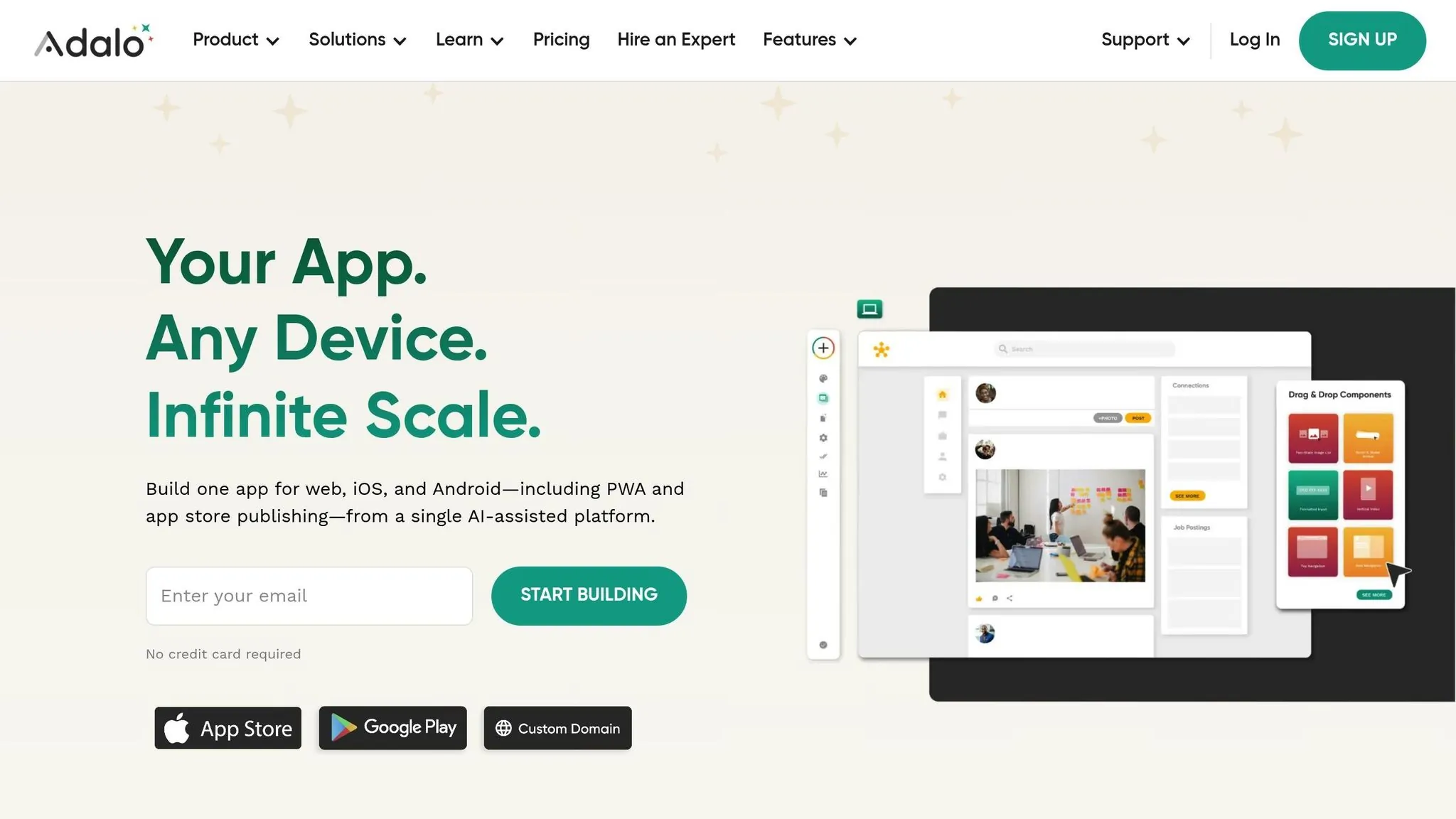
Start by opening Adalo's visual builder and clicking the + button to add components. The drag-and-drop interface makes it easy to place buttons, text boxes, and other elements onto your canvas—users describe it as "easy as PowerPoint." Add a button that users can tap to start voice recording, and place a text component below it to display the transcribed results.
To link the transcribed text to your app, use Magic Text (marked by the red "T" icon). Connect Magic Text to the response from your speech-to-text API so the transcriptions appear automatically once the processing is done. Since there might be a small delay during speech processing, include a progress indicator to keep users informed. Aim for a clean and straightforward interface to ensure a smooth user experience.
Adalo's canvas can display up to 400 screens at once if needed, giving you a bird's-eye view of your entire app architecture. This is particularly useful when building complex voice-to-text workflows that span multiple screens—you can see how the recording screen connects to the transcription display and any subsequent editing or sharing screens.
Connecting to a Speech-to-Text API
To integrate a speech-to-text API, you'll need an Adalo Professional Plan, which allows access to Custom Actions for API connections. Before diving into Adalo, test your API request using Postman to confirm the headers, authentication, and request body are set up correctly.
For example, if you're using Google Cloud Speech-to-Text V2, your endpoint will look something like this:
https://speech.googleapis.com/v2/projects/PROJECT_ID/locations/global/recognizers/_:recognizeSet up a POST request with Bearer token authentication. Ensure the audio data is Base64-encoded when making JSON-based REST API calls. Then, configure your Custom Action in Adalo to map the API's JSON response—specifically the transcript field—to an Adalo-supported output type, such as Text, Number, or Date/Time.
For short voice commands (under one minute), use synchronous recognition for immediate results. For longer recordings (up to 480 minutes), asynchronous recognition is the way to go. To achieve the best accuracy, record audio at 16,000 Hz.
Once the API connection is set up, test it thoroughly and make any necessary adjustments. Adalo's X-Ray feature can help identify performance issues before they affect users, ensuring your voice-to-text integration runs smoothly under real-world conditions.
Testing and Improving the Feature
Test your setup in the Google Cloud Console using sample audio files, and tweak the settings as needed. Pay attention to the transcription's confidence score, which ranges from 0.0 to 1.0. For low-confidence results, consider prompting users to confirm the transcription. If your app deals with specialized terminology or uncommon words, enable model adaptation to improve accuracy by providing hints.
Use Adalo's Staging Preview to test the feature on various devices—like iPhones, Android phones, and tablets—to ensure consistent performance across platforms. Following the Adalo 3.0 infrastructure overhaul, apps run 3-4x faster than before, which is particularly noticeable when processing voice transcriptions that require quick feedback loops.
If your app includes niche vocabulary, explore domain-specific models tailored for use cases like phone calls or accents. Keep prompts concise and limit extra actions within Adalo to reduce processing time, as both speech APIs and large language models may take a moment to deliver results.
Deployment and Scaling Your App
Publishing Your App with Adalo
Once you've thoroughly tested your app, it's time to publish it. Adalo makes this process straightforward by allowing you to deploy your app across three platforms from a single build: the web (using custom domains), the Apple App Store, and the Google Play Store. For native mobile apps, this ensures reliable access to features like the microphone—essential for voice-to-text functionality.
Before submitting your app, make sure you have these essentials ready: a clear and concise app description, high-quality screenshots, and an eye-catching app icon. Apple typically reviews submissions within 24 to 48 hours, while Google Play Store approvals can range from a few hours to several days. To gather early feedback, you can use Apple's TestFlight program, which supports up to 10,000 testers.
Keep in mind, publishing requires developer accounts: the Apple Developer Program costs $99 per year, and the Google Play Console has a one-time fee of $25. For web deployment, simply go to Settings → Domain in Adalo to connect your custom web address.
A key advantage of Adalo is that all plans now include unlimited usage—no usage-based charges or "App Actions" that could cause bill shock as your voice-to-text app gains users. This predictable pricing model makes it easier to budget for growth.
Scaling for More Users
As your app's voice-to-text feature becomes more popular, scaling efficiently is critical. Start by keeping a close eye on API usage. For instance, the Google Cloud Speech-to-Text V2 API costs about $0.016 per minute. Use your analytics dashboard to monitor usage and manage costs effectively.
Adalo's modular infrastructure is designed to scale with your app's needs. With the right data relationship setups, Adalo apps can scale beyond 1 million monthly active users—there's no upper ceiling on the platform's architecture. This is a significant advantage over platforms that hit performance constraints under load or require expensive expert consultants to optimize for scale.
Make sure you're using the right recognition method for the audio length your app processes. If your app deals with specialized terminology, you can improve accuracy by enabling model adaptation and using boost values for key phrases. To handle increased traffic, integrate robust error-handling systems and retry mechanisms. These measures ensure smooth operations even during high-demand periods when API request limits might be reached.
Maintaining and Updating Your App
Scaling is just the beginning—keeping your app reliable and up-to-date is an ongoing process. Regular maintenance is essential. Use your analytics dashboard to monitor user behavior: track where your users are located, identify the most popular screens, and detect any areas where users might be struggling with the voice-to-text feature. Address issues promptly to maintain your app's quality.
Adalo's Version History tool allows you to save and access up to 10 versions of your app, making it easy to test updates without losing stable builds. You can also use the Staging Preview or Share Your App features to collect feedback from testers before rolling out significant updates. Additionally, keep an eye on the confidence scores (which range from 0.0 to 1.0) returned by your speech-to-text API. If these scores drop consistently, investigate potential audio quality problems or adjust your model settings.
For apps with varying voice-to-text setups, be mindful of how custom actions are managed in Adalo. Changes to a custom action in one app will affect all apps using that action within your team. To avoid unexpected global changes, create separate custom actions for each app when necessary.
Adalo simplifies deployment by enabling you to release your app as a progressive web app (PWA) and as native iOS and Android apps—all from a single build. Unlike platforms that use web wrappers for mobile, Adalo compiles to true native code, ensuring your voice-to-text feature performs optimally on every device.
Comparing Voice-to-Text Implementation Across Platforms
When choosing a platform for your voice-to-text app, understanding the trade-offs between different solutions helps you make an informed decision. Here's how Adalo compares to other popular options:
| Platform | Starting Price | App Store Publishing | Database Limits | Best For |
|---|---|---|---|---|
| Adalo | $36/month | iOS & Android native | Unlimited on paid plans | Native mobile apps with API integrations |
| Bubble | $69/month | Web wrapper only | Limited by Workload Units | Complex web apps with heavy customization |
| Glide | $60/month | Not supported | Limited rows + charges | Simple spreadsheet-based apps |
| FlutterFlow | $70/month per user | iOS & Android | External DB required | Technical users comfortable with code |
Bubble offers more customization options, but this often results in slower applications that can struggle under increased load. Their mobile app solution is a wrapper for the web app, which can introduce challenges at scale—and one app version doesn't automatically update web, Android, and iOS deployments simultaneously. Many Bubble users end up hiring experts to optimize performance, adding significant costs beyond the platform subscription.
Glide excels at spreadsheet-based apps but doesn't support App Store publishing at all. For voice-to-text apps that need native microphone access and app store distribution, this is a significant limitation. Adalo's SheetBridge feature offers similar spreadsheet connectivity while still enabling full native app publishing.
FlutterFlow is a low-code (not no-code) platform designed for technical users. You'll need to set up and manage your own external database, which requires significant learning complexity—especially when optimizing for scale. The ecosystem is rich with consultants precisely because so many users need help navigating these complexities.
Conclusion and Next Steps
You've now explored the steps to integrate a voice-to-text feature into your app using AI-powered tools.
What You've Learned
You've gained a clear understanding of how to seamlessly add voice-to-text functionality to your app. This includes designing a user-friendly interface, connecting to speech-to-text APIs like Google Cloud Speech-to-Text (which supports over 125 languages), and following best practices to ensure high transcription accuracy. Using tools like Adalo's visual builder and AI-powered APIs, you can implement features such as automatic punctuation, noise handling, and multilingual support in just days or weeks.
Key Takeaways:
- Voice-to-text APIs like Google Cloud ($0.016/minute) and Azure integrate seamlessly with Adalo's Custom Actions
- Record audio at 16,000 Hz for optimal transcription accuracy
- Adalo's single codebase deploys to web, iOS, and Android simultaneously—no separate builds required
The key takeaway? Picking the right tools and optimizing for practical use can drastically cut development time—AI-assisted platforms can reduce timelines by as much as 90%, turning months of work into weeks. Plus, with Google Cloud offering up to $300 in free credits for new users, you can experiment and fine-tune your app without upfront expenses.
Start Building with Adalo
This feature is just the beginning of your app's growth. By 2026, it's expected that 70% of new apps developed by enterprises will rely on low-code or no-code platforms, giving you an edge in this rapidly evolving space.
With your feature ready and a clear plan in place, the next step is to launch and scale your app. Start by selecting Adalo's Professional Plan to unlock Custom Actions for API integrations, and take advantage of developer accounts to publish your app across web, iOS, and Android platforms. Use Adalo's staging previews to test your app on various devices before going live, and monitor user engagement through the built-in analytics dashboard to refine your features.
Adalo's platform is designed to let you deploy your app as a Progressive Web App (PWA) while also publishing natively to iOS and Android app stores—all without needing separate builds. It's a streamlined, production-ready solution to bring your voice-to-text app to users quickly and effectively.
Related Blog Posts
- How to Launch Your First Mobile App Without Coding
- Best Practices for NLP in No-Code Chatbots
- Build a No-Code Ticketing System in 3 Days
- How To Create an AI Scanning and Checking App
FAQ
Why choose Adalo over other app building solutions?
Adalo is an AI-powered app builder that creates true native iOS and Android apps. Unlike web wrappers, it compiles to native code and publishes directly to both the Apple App Store and Google Play Store from a single codebase—the hardest part of launching an app handled automatically. With unlimited database records on paid plans and no usage-based charges, you get predictable pricing as your app scales.
What's the fastest way to build and publish an app to the App Store?
Adalo's drag-and-drop interface and AI-assisted building let you go from idea to published app in days rather than months. Magic Start generates complete app foundations from descriptions, and the platform handles the complex App Store submission process—so you can focus on your app's features instead of wrestling with certificates, provisioning profiles, and store guidelines.
What are the benefits of adding a voice-to-text feature to my app?
Adding a voice-to-text feature lets users interact with your app using their voice, offering both convenience and accessibility. This feature is especially useful for those who prefer hands-free input, have mobility challenges, or need to multitask while on the move. Voice-to-text can also enhance your app with automatic transcription, voice search, and real-time captioning.
How can I improve the accuracy of speech-to-text transcriptions in my app?
Record audio in mono format with a sample rate of 16 kHz or 44.1 kHz, and reduce background noise during recording. Use advanced models tailored to your language, and if your app has unique terms or commands, upload a list of frequently used words to help the API recognize them. Specify the language or locale code (like en-US) and provide context hints whenever possible.
Which is more affordable, Adalo or Bubble?
Adalo starts at $36/month with unlimited usage and app store publishing with unlimited updates. Bubble starts at $69/month with usage-based charges (Workload Units) and limits on app re-publishing. Bubble's mobile solution is also a web wrapper rather than true native, which can affect performance for voice-to-text features that need responsive microphone access.
Which is easier for beginners, Adalo or FlutterFlow?
Adalo is significantly easier for beginners. FlutterFlow is a low-code platform designed for technical users who are comfortable managing external databases and dealing with code. Adalo's visual builder is described as "easy as PowerPoint" and includes a built-in database, eliminating the need to source, set up, and pay for separate database infrastructure.
Can I publish a voice-to-text app to the App Store with Glide?
No, Glide does not support Apple App Store or Google Play Store publishing. For voice-to-text apps that need native microphone access and app store distribution, Adalo is a better choice—it publishes true native iOS and Android apps from a single codebase.
What speech-to-text APIs work best with Adalo?
Google Cloud Speech-to-Text and Microsoft Azure Speech Services both integrate well with Adalo's Custom Actions. Google's Chirp 3 model supports over 125 languages at approximately $0.016 per minute, while Azure offers a pay-as-you-go model with a 30-day free trial. Both include automatic punctuation and speaker diarization.
Do I need coding experience to integrate voice-to-text features?
No coding experience is required. Adalo's Custom Actions feature allows you to connect to speech-to-text APIs by configuring endpoints, API keys, and data mapping through a visual interface. You can test your API setup using tools like Postman before integrating, and Adalo's Magic Text automatically displays transcription results in your app.
How long does it take to build a voice-to-text app?
With Adalo's AI-assisted features like Magic Start and Magic Add, you can build a functional voice-to-text app in days rather than weeks. The platform's visual builder accelerates UI design, and Custom Actions simplify API integration. Most users can have a working prototype ready for testing within a few days of starting.

Build your app fast with one of our pre-made app templates
Begin Building with no codeRelated Content

How To Create An App using SAP Data
Step-by-step guide to connect SAP OData/REST APIs to a no-code app builder, configure auth, map data, test, and deploy to web and mobile.

How To Create An App using SAP Hana Data
Step-by-step guide to connect SAP HANA to a no-code builder using DreamFactory APIs and Adalo for CRUD, auth, performance, and cross-platfor

How To Create An App monitoring CISCO Hardware, Including Servers and Switches?
Step-by-step guide to build a no-code Cisco hardware monitoring app with Adalo: connect via SNMP or APIs, visualize metrics, and set alerts.

How To Create An App using IBM DB2 Data
Step-by-step guide to connect IBM DB2 to no-code apps using DreamFactory APIs and Adalo: setup, security, CRUD, optimization, testing, and p