
Why Adalo Makes Publishing to App Stores Simple
Adalo is a no-code app builder for database-driven web apps and native iOS and Android apps—one version across all three platforms, published to the Apple App Store and Google Play. This unified approach eliminates one of the biggest headaches first-time publishers face: managing separate codebases and submission processes for each platform. Instead of juggling different development environments and technical requirements, you build once in a visual editor and Adalo generates the platform-specific files you need.
Getting your app listed on the App Store and Google Play opens the door to billions of potential users who rely on these marketplaces to discover new tools. With native publishing, your app also gains access to push notifications—a powerful way to re-engage users and keep them coming back. Let's walk through how to prepare, test, and successfully submit your app to reach your audience.
You've built something incredible—an app that could change how people work, connect, or solve everyday problems. But there's one final hurdle standing between your creation and the millions of users waiting on the Apple App Store and Google Play Store: the publishing process. For many first-time developers, this step feels like navigating a maze of requirements, fees, and review guidelines that can quickly become overwhelming.
This guide breaks down everything you need to know about publishing your app to both major app stores, from understanding the differences in their submission requirements to preparing the assets and files that will get your app approved. Whether you're launching an MVP or a polished product, you'll learn the exact steps to move from development to download-ready.
The good news? You don't need to be a coding expert to get there. Adalo, an AI-powered app builder, lets you create database-driven web apps and native iOS and Android apps—published to the App Store and Google Play—from a single visual editor. This means you can focus on refining your app's features and user experience while the platform handles the technical complexity of generating platform-specific files. Let's walk through how to prepare, test, and successfully submit your app to reach your audience.
Why Adalo Makes Publishing to App Stores Simple
Adalo is an AI-powered app builder for database-driven web apps and native iOS and Android apps—one version across all three platforms, published to the Apple App Store and Google Play. This unified approach eliminates one of the biggest headaches first-time publishers face: managing separate codebases and submission processes for each platform. Instead of juggling different development environments, you build once and publish everywhere.
Getting your app into the hands of real users through official app stores unlocks powerful features like push notifications, which keep your audience engaged and coming back. It also builds instant credibility—users trust apps they download from the Apple App Store and Google Play far more than alternatives. With Adalo handling the technical generation of platform-specific files, you can focus on what matters most: creating an app experience worth downloading.
Ada, Adalo's AI builder, lets you describe what you want and generates your app. Magic Start creates complete app foundations from a description, while Magic Add adds features through natural language.
The platform's Magic Start feature generates complete app foundations from simple descriptions. Tell it you need a booking app for a dog grooming business, and it creates your database structure, screens, and user flows automatically—what used to take days of planning happens in minutes. Magic Add then lets you expand functionality by describing what you want in natural language, while X-Ray identifies performance issues before they affect your users.
App Store Submission Guide (2026): Publish Your iOS App to the Store (Xcode & App Store Connect)
Preparing Your Adalo App for Submission
Before you submit your app, it's essential to make sure it's fully functional and meets the standards of the platform you're targeting. This involves building a stable app, testing it thoroughly, and collecting all the necessary assets for your store listing. Start by creating a solid app using Adalo's intuitive tools, then move on to testing and preparing your assets.
Building and Testing Your Adalo App
Adalo's drag-and-drop interface—described by users as "as easy as PowerPoint"—makes it straightforward to build your app, whether you're starting from scratch or using one of its 40+ customizable templates. Once your app is built, focus on ensuring it runs smoothly—no crashes, freezes, or excessive battery drain. For Apple's App Store, your app must handle data efficiently and adhere to their Human Interface Guidelines.
Test key features like user authentication, database loading, and push notifications to confirm they work as intended. With Adalo 3.0's overhauled backend infrastructure, apps now run 3-4x faster than before, with modular infrastructure that scales with your app's needs. This means no record limits on paid plans—your database can grow as large as your user base demands.
For iOS, use TestFlight to distribute your app to up to 100 internal testers or as many as 10,000 external testers via email links. Android apps should be tested using Google Play's Internal, Closed, or Open testing tracks, as .AAB build files can't be installed directly onto devices.
In Adalo's settings, customize permission request texts for features like Camera, Photos, and Location. Apple requires clear explanations for how your app uses these features. Also, make sure the "Publish" toggle is enabled in Adalo before generating builds. A common error to avoid is leaving extra spaces before or after the Bundle ID when setting up iOS builds, as this can cause build failures.
Collecting Required Assets
Once your app is stable and tested, focus on gathering the graphics and text required for your store listing. For the Apple App Store, you'll need:
- A 1024 x 1024px app icon
- Up to 10 screenshots per device type
- An app name and subtitle (each up to 30 characters)
- A description of up to 4,000 characters
- Keywords totaling 100 characters
For the Google Play Store, the requirements include:
- A 512 x 512px app icon
- At least 3 phone screenshots
- Screenshots for each tablet size (7-inch and 10-inch)
- A feature graphic
- A short description (80 characters)
- A full description (4,000 characters)
To capture screenshots of your app in action, use Adalo's device previewer along with tools like Snipping Tool (Windows) or Screen Capture (Mac). Make sure your screenshots highlight the app's functionality rather than just showing login or welcome screens. Tools like Canva or Adobe Express can help you design professional-looking, compliant assets.
Both stores also require a publicly accessible Privacy Policy URL. This is especially important if your app requests permissions or handles sensitive user data.
Meeting App Store Requirements
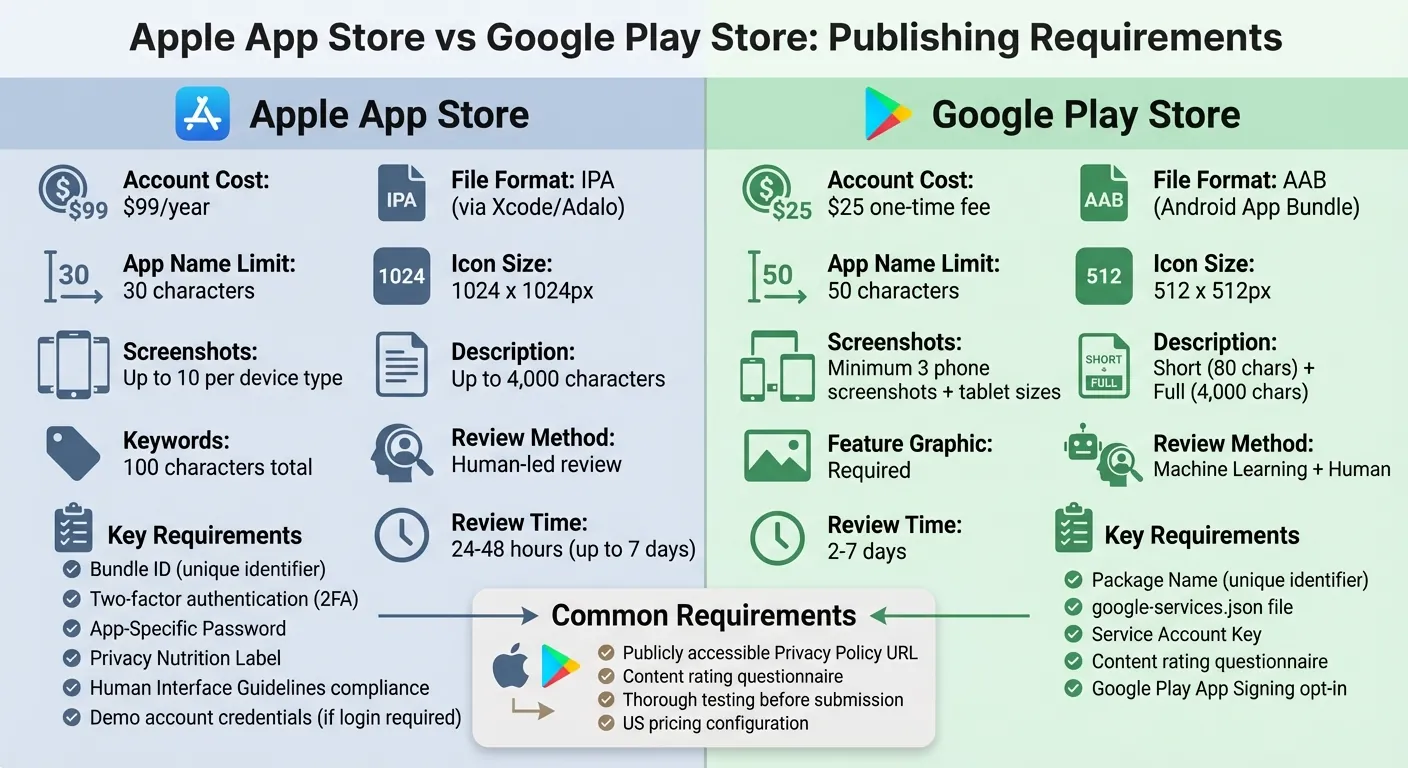
Apple App Store vs Google Play Store Requirements Comparison
Once your app assets are ready, the next step is to ensure they meet the specific requirements of each platform. Apple and Google have distinct submission formats, review processes, and account fees. Understanding these details in advance can help you avoid delays or rejections during the app review process.
Apple App Store Requirements
To publish on the Apple App Store, you'll need a $99/year Developer Account. The process starts by creating a unique Bundle ID in App Store Connect, which serves as your app's permanent identifier.
Apple mandates two-factor authentication (2FA) through a Mac, iPhone, iPad, or Apple Watch, as SMS-based 2FA is being phased out. Additionally, you'll need to generate an App-Specific Password in your Apple ID to allow Adalo to submit your app builds.
"In order to publish an iOS build in Adalo, you must be able to approve sign-ins from Mac, iPhone, iPad, or Apple Watch with 2FA enabled." - Adalo Help Documentation
If your app has login features, you must provide active demo account credentials for Apple's review team to test all functionalities. For apps that integrate with hardware, Apple requires a video demonstration showing how the app interacts with the hardware.
Apple's review process is conducted by a human reviewer for every app and update. Reviews usually take 24 to 48 hours but can extend to 7 days in some cases. Once approved, apps may take up to 24 hours to appear live on the store. Starting in April 2026, all iOS and iPadOS apps must be built using the iOS & iPadOS 26 SDK or later.
Your app must align with Apple's Human Interface Guidelines and include a complete Privacy Nutrition Label in App Store Connect. This label should detail all data collection practices, including those of third-party analytics or advertising networks. A publicly accessible Privacy Policy URL is required if your app handles sensitive data or requests permissions. Apps aimed at children face stricter rules: they cannot include external links or allow purchases without a parental gate, and they must not share personally identifiable information with third parties.
After meeting Apple's requirements, it's time to look at Google Play's submission process.
Google Play Store Requirements
To publish on Google Play, you'll need a one-time $25 Developer Console account. Starting in August 2021, all new apps must be submitted in the Android App Bundle (AAB) format, which Adalo automatically generates for you.
"Starting August 2021, new apps are required to publish with the Android App Bundle (AAB) on Google Play." - Adalo Resources
Each app requires a unique Package Name (e.g., com.sample.app), which acts as its permanent application ID.
Google Play's review process begins with automated machine learning scans and may escalate to human review if needed. This hybrid approach allows Google to handle the high volume of submissions—more than three times as many as Apple.
Both platforms require you to complete content rating questionnaires to determine the appropriate age classification for your app. It's important to answer these accurately, as incorrect ratings could result in regulatory issues or app removal. You'll also need a publicly accessible Privacy Policy URL, especially if your app requests device permissions or processes sensitive user data.
| Requirement | Apple App Store | Google Play Store |
|---|---|---|
| Account Cost | $99/year | $25 one-time |
| Primary File Format | IPA (via Xcode/Adalo) | AAB (Android App Bundle) |
| App Name Limit | 30 characters | 30 characters |
| Icon Size | 1024 x 1024px | 512 x 512px |
| Review Method | Human-led | Machine Learning + Human |
Localizing Your Adalo App for the US Market
Before submitting your app, tailoring it for the US market is an essential step. This involves aligning your app with US-specific language and technical preferences, such as date formats and measurement systems.
Building apps in different languages can significantly impact its performance. Studies have shown a 128% increase in downloads and 26% higher revenue per country when apps are localized. Even among English-speaking users, adapting app store listings to match their native formats can boost downloads by 38%. This is a key strategy to increase your app store rankings and visibility. Below, we'll outline the key US formatting and language standards your app should meet.
US Formatting and Language Standards
US users expect specific formatting conventions that differ from international norms. For instance:
- Dates: Use the MM/DD/YYYY format (e.g., 01/13/2026) and display time with a 12-hour clock using AM/PM indicators (e.g., 2:00 PM) instead of the 24-hour clock.
- Numbers and Currency: Write numbers with a period (.) as the decimal separator and a comma (,) as the thousands separator (e.g., 1,234.56). Currency is shown with the dollar sign ($) as a prefix (e.g., $100.00).
- Measurements: Use the Imperial system for distances, weights, and temperatures (e.g., miles, feet, lbs, and °F).
- Language: Follow American English spelling, such as "color" instead of "colour", "localize" instead of "localise", and "theater" instead of "theatre".
In Adalo, you can easily adjust how dates and numbers appear. Simply click the pencil icon within the Magic Text chip for any Number or Date property to customize formatting. When saving numbers in the database, enter them as whole numbers without symbols, using a period for decimals to ensure compatibility with US standards. For formal contexts, spell out full dates, like "January 1, 2026", for maximum clarity.
"The United States is one of the few countries that use 'mm-dd-yyyy' as their date format–which is very very unique!" - MIT International Students Office
Default vs. en-US Format Comparison
Here's a quick breakdown of how US (en-US) standards differ from international defaults:
| Format Type | International/Default Format | US (en-US) Standard |
|---|---|---|
| Date (Numeric) | DD/MM/YYYY or YYYY-MM-DD | MM/DD/YYYY |
| Date (Formal) | 1 January 2026 | January 1, 2026 |
| Time | 24-hour clock (14:00) | 12-hour clock (2:00 PM) |
| Decimal Separator | Comma (1,23) | Period (1.23) |
| Thousands Separator | Period or Space (1.000) | Comma (1,000) |
| Currency | €100,00 or 100,00€ | $100.00 |
| Temperature | Celsius (°C) | Fahrenheit (°F) |
| Measurement | Metric (km, meters, kg) | Imperial (miles, feet, lbs) |
| Spelling Example | Localisation, Colour, Theatre | Localization, Color, Theater |
To ensure your app adheres to US standards, set the locale to "en_US" in the app settings. On Google Play, English (United States, en-US) is typically the default for new apps, making it an excellent choice for targeting US users.
Step-by-Step Submission Process Using Adalo
Exporting Your App from Adalo
Once you're done testing your app in Adalo, exporting it is quick and easy. Head over to the Launch tab in your Adalo dashboard, then choose your platform—iOS App for the Apple App Store or Android App for the Google Play Store.
For iOS, you'll need to input your Bundle ID (no spaces), your Apple ID email, and an App-specific Password. Next, set your app's Display Name (up to 30 characters), upload a Launch Screen graphic, and provide explanations for any permissions your app requests (Apple requires specific justifications for each one).
For Android, you'll need to upload your google-services.json file and your Service Account Key from your Firebase project. Ensure your Package Name matches your Firebase setup. Once everything is configured, start your build: tap Start New Testflight Build for iOS or begin the Android build process. Adalo will email you when your build is ready—usually within 5 minutes.
iOS apps are exported as .IPA files, ready for App Store Connect, while Android apps come as Android App Bundles (.AAB files), ready for the Google Play Console. Starting April 2026, all iOS apps must comply with the iOS 26 SDK requirement using Xcode 16 or later—Adalo handles this automatically during the export process.
Once your app is exported, you can move on to submitting it to the appropriate app store. After submission, you should begin marketing your app to ensure a successful launch.
Submitting to App Store Connect and Google Play Console
With your app exported in the correct format, you're ready to complete the submission process.
For iOS, Adalo sends your build to TestFlight for testing. In App Store Connect, create a new app record and enter all required metadata: title, subtitle, description, keywords, and support URL. Make sure your app icon meets the 1024px specification, and upload 3–5 screenshots using Adalo's device previewer. Complete the age rating questionnaire—this must be updated by January 31, 2026, to avoid submission delays. Set your app's pricing in US dollars and choose a release strategy: Manual (you decide when the app goes live), Automatic (it goes live immediately upon approval), or Phased rollout (a gradual 7-day release). Apple typically reviews apps within about 48 hours, though first-time submissions may take longer if there are metadata issues.
For Android, log into the Google Play Console and create a new app entry with English (United States) set as the default language. Under your chosen track—whether Production or Internal Testing—upload the .AAB file you exported from Adalo. Opt into Google Play App Signing when prompted. Fill out your store listing with details including a title (up to 50 characters), a short description (around 80 characters), a full description, a 512x512px high-resolution icon, a feature graphic, and at least 3 phone screenshots. Set your pricing in US dollars, complete the content rating questionnaire, and select your distribution regions (including the United States). Google Play reviews typically take 2–7 days. Make sure your Package Name matches your Firebase configuration to avoid issues with updates.
| Platform | Export Format | Submission Portal | Typical Review Time | Key Pre-Submission Checks |
|---|---|---|---|---|
| Apple App Store | .IPA | App Store Connect | ~48 hours | iOS 26 SDK compliance; updated age rating; 1024px app icon; custom permission explanations |
| Google Play Store | .AAB | Google Play Console | 2–7 days | Store listing details including content rating, 512px icon, feature graphic, and US pricing |
How Adalo Compares to Other App Builders for Publishing
When choosing an app builder for publishing to the App Store and Google Play, the differences between platforms become critical. Not all builders offer the same path to the app stores, and some create significant limitations that only become apparent after you've invested time building.
Native Apps vs. Web Wrappers
Adalo compiles to true native iOS and Android apps from a single codebase. This means one build updates your web app, iOS app, and Android app simultaneously—all published to their respective stores. Competitors like Bubble take a different approach: their mobile solution wraps a web app, which can introduce performance challenges at scale and means separate management for each platform version.
Bubble's web and mobile wrapper offering starts at $69/month with usage-based charges through Workload Units, plus limits on app re-publishing and database records. These usage calculations can be unclear, leading to unexpected costs. Adalo's web and true-native mobile builder starts at $36/month with unlimited usage and unlimited app store publishing updates once published—no bill shock from usage spikes.
Database and Scalability Considerations
Adalo's paid plans include unlimited database records—no caps on how much data your app can store. With the right data relationship setups, Adalo apps can scale beyond 1 million monthly active users. The Adalo 3.0 infrastructure overhaul in late 2025 delivered 3-4x faster performance with modular infrastructure that scales with your app's needs.
FlutterFlow, often positioned as an alternative, is actually a "low-code" platform designed for technical users. Users must set up and manage their own separate database, which requires significant learning complexity—especially when optimizing for scale. Suboptimal database setup can create serious scalability problems, which is why the FlutterFlow ecosystem has many experts available for hire. Their pricing starts at $70/month per user for easy app store publishing, but that still doesn't include a database, which users must source, set up, and pay for separately.
Glide focuses on spreadsheet-based apps with set templates. While this makes building fast, it creates generic, simplistic apps with limited creative freedom. Glide pricing starts at $60/month for custom domain apps, but it's still limited by app updates and data record rows that attract additional charges. Critically, Glide does not support Apple App Store or Google Play Store publishing at all.
Softr pricing starts from $167/month to publish a Progressive Web App, which is still restricted by records per app and records per datasource. Like Glide, Softr does not support App Store and Play Store publishing or native iOS and Android app creation.
Key Takeaways
- Adalo creates true native apps from a single codebase at $36/month with unlimited usage
- Competitors either charge more, limit database records, or don't support app store publishing at all
- Adalo's modular infrastructure scales to 1M+ MAU without performance degradation
Common Mistakes and How to Avoid Them
Before submitting your app, it's crucial to double-check everything to avoid common roadblocks that could delay your launch.
Mistakes to Avoid
One of the biggest reasons apps get rejected is technical instability—things like crashes, freezing, or broken links can halt your submission immediately. To minimize the risk, test every screen, button, and form using tools like Staging Preview and TestFlight for iOS. Early testing can help catch bugs and uncover issues you might have overlooked. Adalo's X-Ray feature can help identify performance issues before they affect users during review.
Another frequent issue is metadata errors. Incomplete descriptions, placeholder text, or broken support URLs can slow down the review process. Make sure every field in App Store Connect and Google Play Console is filled out properly, leaving no placeholder text like "Coming Soon."
Apple also pays close attention to permission explanations. If your app asks for access to the camera, photos, or location, you must provide a custom, clear explanation for why. Replace generic placeholder text with something specific. For instance, instead of saying, "This app needs camera access", use something like, "This app requires camera access to let you upload profile photos and scan QR codes".
Formatting errors in Bundle ID and Package Name can also cause problems. A single space before or after your Bundle ID can lead to build failures. Additionally, if you change your Package Name after creating a Google Play listing, Google will treat it as a new app. Set these correctly from the beginning and avoid special characters like "~" or quotation marks in your app name when using the Adalo builder, as these can cause build errors that are easy to miss.
By addressing these common mistakes, you'll create a strong foundation for a smoother publishing process.
Adalo Publishing Tips
Adalo offers several tools to simplify your app launch. Start by using one of Adalo's 40+ feature templates, which include pre-configured screens and databases. These templates are designed to meet basic functional standards, reducing the likelihood of structural errors that could lead to rejection.
Leverage Internal Testing tracks in the Google Play Console and consider a phased rollout for your app. You can invite up to 100 testers to try your app before it goes public. Don't forget to add your own email to the testing list so you can personally verify the build on your device.
"The bottom line is that your app will be reviewed by different people at different times, each with a slightly different perspective and opinion. ... If you go into the process expecting at least one rejection for something you missed, you may be pleasantly surprised." - Wendi Hansen, Inventive.io
Keep in mind that roughly 30% of successful apps release monthly updates. Plan to allocate 15–20% of your initial development budget for ongoing updates and maintenance. For updates, use a Phased Release option, which gradually rolls out changes over seven days. This allows you to monitor performance and address any critical issues before they impact all users. It's a smart way to manage risk and ensure a better experience for your audience.
With Adalo's unlimited app store publishing updates on paid plans, you can push updates as frequently as needed without worrying about additional charges or republishing limits—a significant advantage over platforms that cap how often you can update your published apps.
Conclusion
Launching an app might seem daunting at first, but breaking it down into clear steps—from preparing your assets to meeting platform guidelines—makes the process much more manageable. Setting up developer accounts is straightforward: Apple charges $99 annually, while Google Play requires a one-time fee of $25. Once that's handled, thorough testing and proper preparation ensure your app is ready for submission.
Adalo's AI-powered platform eliminates the usual technical hurdles tied to app publishing. With its visual builder, you can handle everything from generating Bundle IDs to creating build files for submission, all without writing a single line of code. This approach not only simplifies the process but also gets your app to market faster.
"Adalo is an intuitive and powerful app builder that requires absolutely zero coding or technical experience to create and publish an app on the App Store." - The Adalo Team
With over 650 million weekly visitors to the Apple App Store, the opportunity to connect with a massive audience is within your reach. After launch, it's wise to allocate 15–20% of your initial development budget for updates and maintenance. This ensures your app stays competitive and adapts to user feedback. With over 3 million apps created on the platform and streamlined tools for publishing, you'll be well-equipped to navigate the submission process and bring your app to life.
Related Blog Posts
- 5 Steps to Monetize Your No-Code Mobile Application
- Top 7 Database Integration Options for No-Code Apps
- How to Launch Your First Mobile App Without Coding
- App Idea Generator for Creative Minds
FAQ
Why choose Adalo over other app building solutions?
Adalo is an AI-powered app builder that creates true native iOS and Android apps from a single codebase. Unlike web wrappers, it compiles to native code and publishes directly to both the Apple App Store and Google Play Store—the hardest part of launching an app handled automatically. Starting at $36/month with unlimited usage and no database record caps, it's more affordable than alternatives like Bubble ($69/month with usage limits) or FlutterFlow ($70/month without a database included).
What's the fastest way to build and publish an app to the App Store?
Adalo's drag-and-drop interface and AI-assisted building let you go from idea to published app in days rather than months. Magic Start generates complete app foundations from descriptions, and the platform handles the complex App Store submission process—certificates, provisioning profiles, and store guidelines—so you can focus on your app's features instead.
What are the main differences between submitting to the Apple App Store and Google Play Store?
Apple requires a $99/year Developer Account and human review for every submission (typically 24-48 hours). Google Play charges a one-time $25 fee and uses automated scanning with human review when needed (2-7 days). Apple has stricter design guidelines and requires specific permission explanations, while Google focuses more on app stability and responsiveness.
Which is more affordable, Adalo or Bubble?
Adalo starts at $36/month with unlimited usage, unlimited database records, and unlimited app store publishing updates. Bubble starts at $69/month with usage-based Workload Unit charges, record limits, and restrictions on app re-publishing. Adalo's pricing is more predictable with no risk of bill shock from usage spikes.
Which is faster to build with, Adalo or FlutterFlow?
Adalo is faster for most users because it includes an integrated database and requires no coding knowledge. FlutterFlow is a low-code platform designed for technical users who must set up and manage their own separate database. Adalo's visual builder has been described as "as easy as PowerPoint," while FlutterFlow requires more technical expertise.
Is Adalo better than Glide for mobile apps?
For app store publishing, yes. Adalo creates true native iOS and Android apps that publish to the Apple App Store and Google Play Store. Glide does not support app store publishing at all—it only creates web apps. Glide is faster for simple spreadsheet-based apps, but Adalo offers more creative freedom and native mobile capabilities.
Can I migrate from Bubble to Adalo?
While there's no automatic migration tool, you can rebuild your Bubble app in Adalo using Magic Start to generate your app foundation from a description. Adalo's unlimited database records and native mobile compilation may provide better performance and scalability than Bubble's web wrapper approach, especially for mobile-focused apps.
Do I need coding experience to submit my Adalo app to app stores?
No coding experience is required. Adalo handles all technical aspects of generating platform-specific files (.IPA for iOS and .AAB for Android) and guides you through the submission process with step-by-step instructions. The platform automatically handles SDK compliance and build requirements.
What assets do I need to prepare before submitting my app?
For Apple: a 1024x1024px app icon, up to 10 screenshots per device type, app name and subtitle (30 characters each), description (4,000 characters), and keywords. For Google Play: a 512x512px icon, at least 3 phone screenshots, a feature graphic, and short and full descriptions. Both platforms require a publicly accessible Privacy Policy URL.
How long does it take for apps to get approved on app stores?
Apple's review process typically takes 24-48 hours but can extend to 7 days for some submissions. Google Play reviews usually take 2-7 days, using a combination of automated scans and human review when needed. First-time submissions may take longer if there are metadata issues.

Build your app fast with one of our pre-made app templates
Begin Building with no codeRelated Content
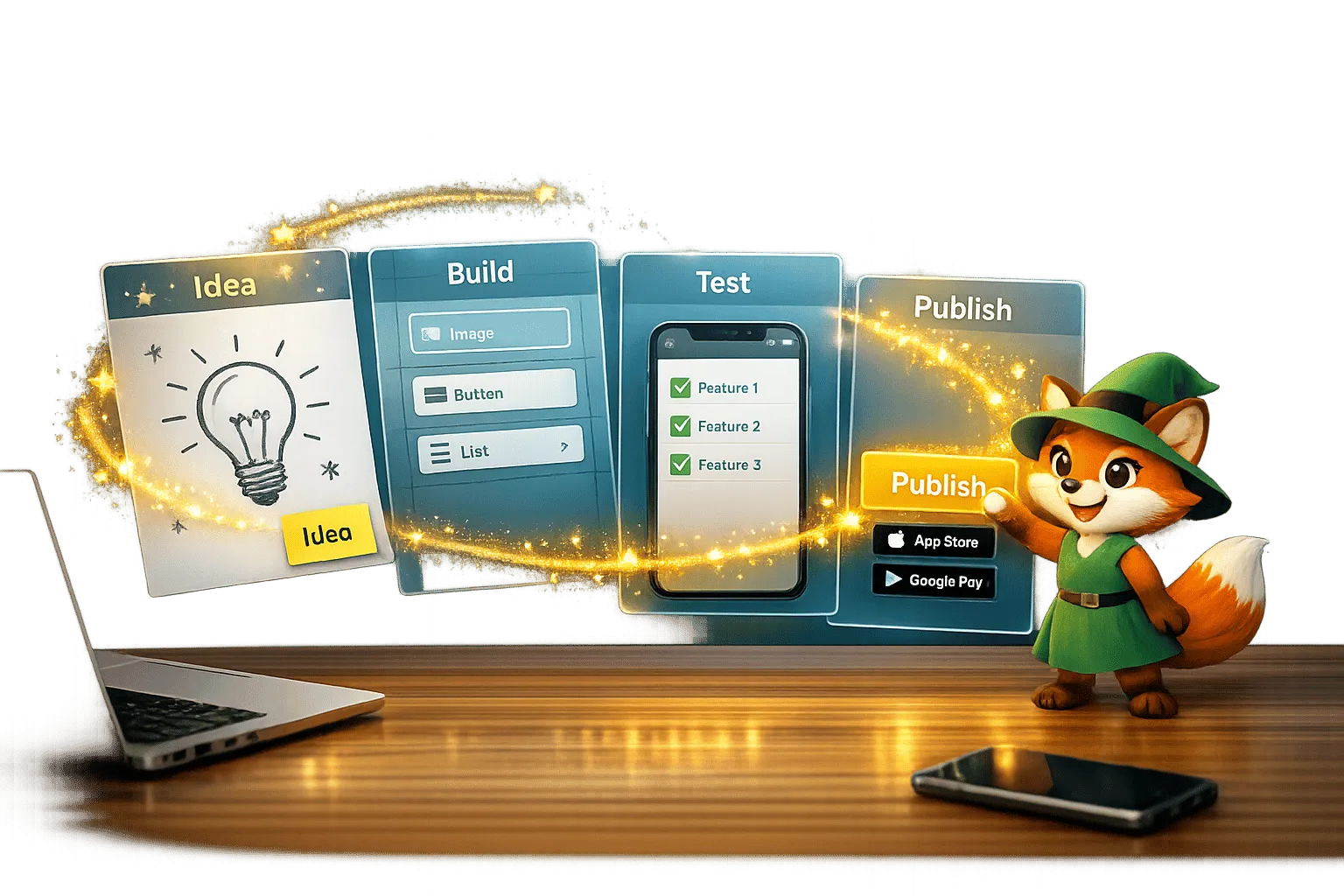
From Idea to App Store: How Solopreneurs Launch with Adalo
Step-by-step guide for solopreneurs to validate, build, test, and publish a native iOS and Android app using a no-code platform.

How Hard Is It To Publish To the App Stores? And Maintain The Apps?
Fees, review times, rejection causes, and maintenance needs for iOS and Android apps — plus how no-code tools reduce submission time and com

How to Build a Mobile App Without Coding (2026 Guide) | Adalo
Learn how to plan, design, and launch iOS & Android apps with Adalo’s no-code builder. This step-by-step guide covers tools, templates, etc.
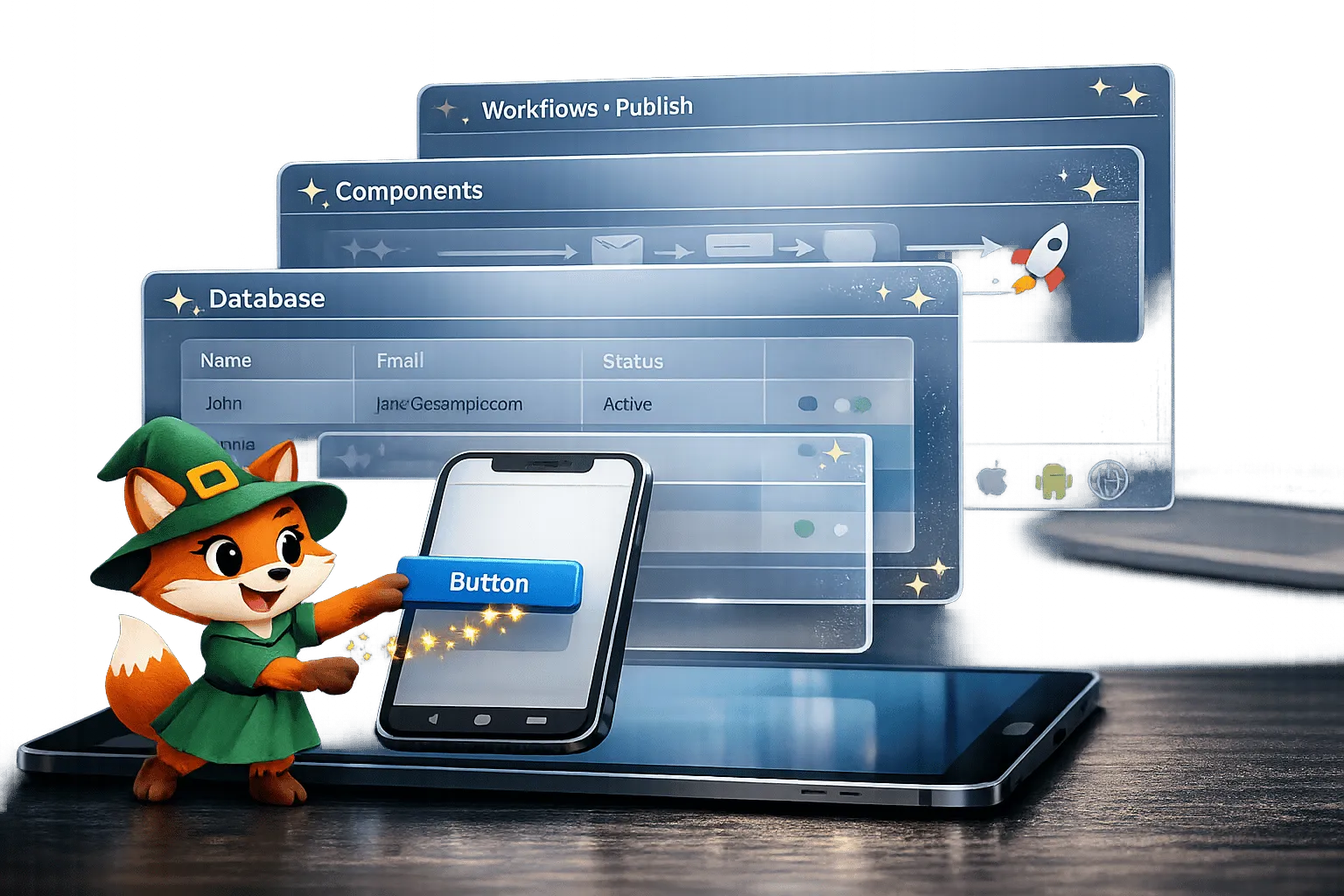
Drag-and-Drop App Building: Adalo's Visual Builder Guide
Build iOS, Android, and web apps with Adalo's drag-and-drop visual builder. Learn components, databases, workflows, and publishing.