
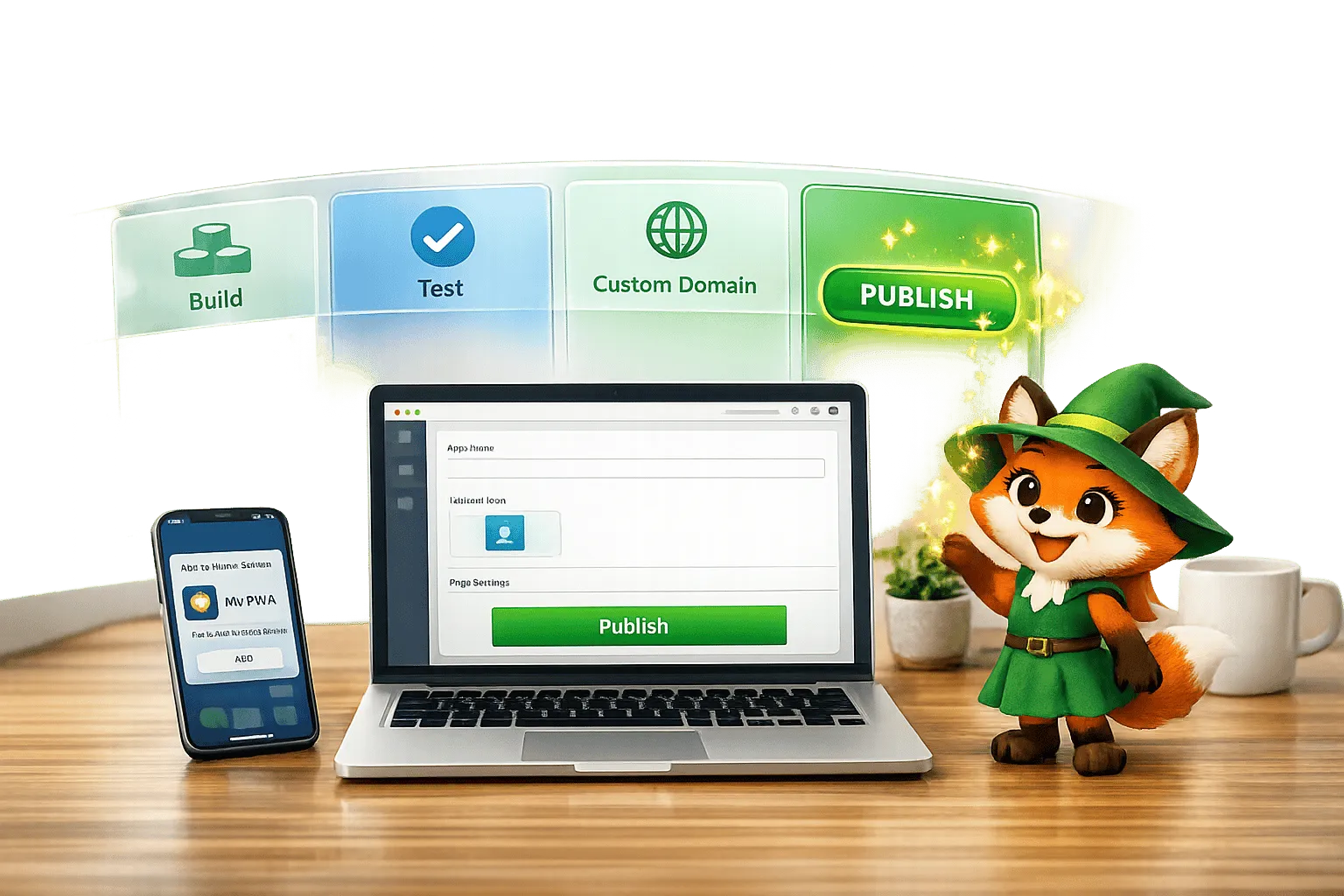
Publishing a Progressive Web App (PWA) is easier than you think, even if you have no coding experience. Adalo, a no-code app builder for database-driven web apps and native iOS and Android apps published to the Apple App Store and Google Play, lets you design, test, and launch a PWA using a simple drag-and-drop interface. Here's how you can do it:
- Create your app: Start with Adalo’s visual builder to design screens, add features, and manage data with zero coding.
- Enable PWA features: Activate PWA settings with a few clicks - Adalo handles technical details like caching and offline functionality.
- Test thoroughly: Use Adalo’s preview tools and Chrome DevTools to ensure your app works seamlessly across devices.
- Publish on a custom domain: For mobile functionality, connect a custom domain (costs $10–$45/year) and go live with Adalo’s $36/mopaid plan.
- Manage updates easily: Make changes in a draft environment and publish updates instantly without disrupting users.
PWAs combine the best of websites and apps - installable, offline-capable, and instantly shareable via a link. With Adalo, you can launch one in days, not months. Ready to get started? Let’s dive in.
What is a Progressive Web App (PWA)?
A Progressive Web App (PWA) is essentially a website designed to feel and function like a native app. You can access it through a browser, but it also offers the option to add it to your home screen for quicker use. PWAs work effortlessly across mobile and desktop devices, eliminating the need for separate versions for different platforms. This streamlined approach bypasses the complexities of publishing apps to app stores while delivering a user-friendly experience.
At the heart of a PWA are two key components: the web app manifest and service workers. The manifest tells the operating system how to present the app, while service workers handle offline functionality and caching. Together, these tools ensure fast loading times, offline usability, and automatic background updates—all from a single codebase.
"The best apps don't have borders. Users should be able to use your app wherever and however they like—whether on the web, directly from the app store, or downloaded as a PWA." - Adalo Team
PWAs also stand out because they can access device hardware like cameras and GPS, though with some limitations. They're fully searchable by search engines, making them easy to discover. They update instantly without requiring app store approval, and sharing them is as simple as sending a link. These features make PWAs an attractive option for builders using AI-powered platforms like Adalo. With mobile devices accounting for an estimated 59% of global web traffic by 2026, PWAs provide a practical way to connect with users across devices.
Main Benefits of PWAs
PWAs offer three standout advantages, especially for small businesses and startups. First, they cut development costs by requiring only one version of the app instead of separate builds for iOS, Android, and web. Second, they enhance user experience with features like instant loading, offline access, and seamless automatic updates that don't require user action. Third, they work across platforms, ensuring a consistent experience whether the app is accessed on a smartphone, tablet, or desktop.
Automatic updates are a game-changer. Unlike native apps that require users to manually download updates, PWAs refresh themselves in the background whenever they're opened. This eliminates the lengthy app store approval process, allowing you to fix bugs or roll out new features immediately.
| Feature | Native Apps | Progressive Web Apps (PWAs) | Traditional Web Apps |
|---|---|---|---|
| Distribution | App Stores (Apple/Google) | Web URL / Browser | Web URL / Browser |
| Installation | Required download | Optional "Add to Home Screen" | Not installable |
| Offline Mode | Full support | Supported via caching | Generally not supported |
| Hardware Access | Full (Camera, Sensors) | Partial/Restricted | Very Limited |
| Updates | Requires store approval | Instant (Server-side) | Instant (Server-side) |
| SEO | Not indexed by search engines | Fully indexable by Google | Fully indexable by Google |
PWAs are particularly suited for internal tools where app store visibility isn't necessary and for launching MVPs quickly. For example, in July 2026, product manager Antonio Gallo created "RouteMyWay", a fully functional travel planning PWA, in under 24 hours without writing any code. The app achieved complete offline functionality and a perfect Lighthouse PWA score, with deployment taking just five seconds.
Why PWAs Work Well for No-Code Users
For those without coding experience, PWAs are a perfect fit. Modern AI-powered app builders handle all the technical details—like service workers and caching strategies—behind the scenes. This means you can focus entirely on designing your app and its functionality.
"If you can open an email account, you have enough skills to learn a PWA app builder." - Adalo Team
Ada, Adalo's AI builder, lets you describe what you want and generates your app. Magic Start creates complete app foundations from a description, while Magic Add adds features through natural language.
With drag-and-drop tools and AI-powered features like Magic Start, creating a PWA becomes incredibly straightforward. Describe your app idea, and the platform generates the entire structure for you—database, screens, and user flows included. This approach, sometimes called "vibe-coding", allows complete apps to be built in hours rather than weeks. Publishing is just as simple—no need for deployment scripts or server configurations.
The biggest challenge for PWAs lies in educating users, as many people don't know how to add a website to their home screen. However, this is a minor issue compared to the time and cost savings of avoiding traditional app development. With Adalo's Starter Plan at $36/month, you can publish a professional-grade PWA with a custom domain and no caps on database records, making app creation accessible to everyone.
Step 1: Build and Set Up Your PWA in Adalo
Create Your Adalo Account
Start by signing up for a free account on Adalo. This gives you access to the platform where you can design and test your app without any upfront costs. Once logged in, you'll land on the dashboard, ready to kick off a new project. If you decide to publish your app to a custom domain, you'll need a paid plan starting at $36 per month—the lowest price point for native app store publishing among major app builders. With your account ready, you can dive straight into the app-building process using Adalo's visual editor and AI-assisted tools.
Design Your App with the Visual Editor
Choose "Responsive Apps" as your App Layout Type in the Settings sidebar to ensure your app works seamlessly on mobile, tablet, and desktop screens. The drag-and-drop interface makes it simple to add Screens (individual pages) and Components (like buttons, lists, or text fields). Behind the scenes, Adalo's relational database manages all your app data with no storage limits on paid plans.
"One impressive feat is how quickly Adalo allows you to put up a simple and clean design that's hooked up to a database. Pushing the data between screens becomes seamless once you get how the actions work." - Riley Jones
Use the Screen Size Switcher to preview how your components will look across devices. Add interactivity by linking actions, such as "Link to Screen" or "Create Data." To save time, explore the Feature Templates library, which includes pre-built sections like user profiles and account settings. These templates come with screens, actions, and database collections already set up for you.
For even faster development, use Magic Start to generate complete app foundations from a simple description. Tell it you need a booking app for a dog grooming business, and it creates your database structure, screens, and user flows automatically—what used to take days of planning happens in minutes. You can then refine everything with Magic Add, describing new features you want and watching them appear in your app.
Turn On PWA Features
Once your app design is complete, it's time to activate its PWA capabilities. Adalo automatically configures apps as PWAs, so you don't need to code anything. Simply click the Publish button in the left toolbar and toggle the "Publish" switch to enable PWA features. In the Publish section, use the "Progressive Web App" dropdown to set up your domain settings.
For desktop web apps, you can use Adalo's free subdomain (e.g., yourteam.adalo.com). However, PWAs for mobile require a custom domain to function properly. You'll need to purchase a domain, such as app.yourdomain.com, through a domain provider. These typically cost between $10 and $45 per year. Adalo handles all the technical PWA configurations—service workers, manifest files, caching strategies—leaving you free to focus on building the app you envision.
Step 2: Preview and Test Your PWA
With your PWA settings activated, it's time to dive into testing. This step ensures your app delivers a seamless experience across devices and catches potential issues before launch. Adalo offers tools to preview and fine-tune your app in real-time.
Use Adalo's Web Preview
Click Preview in the top-left corner to see your app instantly. Within the Publish panel, you can choose between two options: Mobile App Preview, which applies a mobile interface, or Responsive App, which gives you a full web view. To simulate different screen sizes, resize your browser or enable Device Mode in Chrome DevTools. For even more accurate mobile app testing, consider installing the Mobile Simulator Chrome Extension.
Adalo also provides a Screen Size Switcher above each screen in the builder. This tool lets you check how your design adjusts across mobile, tablet, and desktop views, ensuring that components scale and anchor properly. If you want feedback from others, toggle Publish to "on", then click the Share button in the top-left to generate a shareable link.
Test PWA Functions
Once you're happy with how your app looks across devices, shift your attention to its functionality. Open Chrome DevTools by selecting "Inspect" and head to the Application panel. In the Manifest tab, check for "Installability" errors, such as missing icons or configuration issues that might block the "Add to Home Screen" prompt.
Next, go to the Service Workers tab. Check the "Offline" box to simulate a disconnected state and confirm your app's offline capabilities. During testing, enable the "Update on reload" checkbox to ensure the service worker refreshes every time you reload the page, preventing outdated cached versions from appearing. You can also test restart behavior by clicking stop to terminate the service worker. For a clean slate, use the Clear Storage tab to unregister service workers and clear caches and local storage, simulating a first-time user experience.
If you're using a custom domain, keep in mind that DNS records can take up to 24 hours to propagate, though they often resolve within 30 minutes. Note that Adalo subdomains (like yourteam.adalo.com) work only for desktop web apps, so a custom domain is required to fully test mobile PWA functionality.
Adalo's X-Ray tool provides additional performance insights, highlighting potential bottlenecks and scalability concerns before they affect your users. This AI-powered diagnostic helps you identify issues that might not be obvious during manual testing.
Once testing is complete, you're ready to move on to finalizing your custom domain settings in the next step.
Step 3: Connect a Custom Domain or Use Adalo's Subdomain
When publishing your Progressive Web App (PWA), you have two choices: use a custom domain for a polished, branded look or opt for Adalo's subdomain for quick and easy deployment. Custom domains work across both desktop and mobile PWAs, while Adalo's subdomain is mainly suited for desktop web apps. If you're targeting mobile PWA functionality, a custom domain is essential.
Add a Custom Domain
To set up a custom domain, you'll need an Adalo paid plan (starting at $36/month) and a domain purchased from a provider like GoDaddy, Namecheap, or Google Domains. Most domains typically cost between $10 and $45 annually. Once you have your domain, follow these steps:
- Go to Settings > Domains in the Adalo Builder and enter your domain. For example, if you want your app to appear as
yourdomain.com, inputwww.yourdomain.comduring setup. - Adalo will provide specific CNAME record details. Use these to configure your DNS settings with your domain provider.
- In your domain provider's DNS management panel, create a CNAME record pointing to Adalo's target (usually something like
proxy.adalo.app). - Wait for DNS changes to propagate, which can take up to 24 hours.
- Return to Adalo and click Test Setup to confirm the connection. Once verified, go to the Publish tab, open the Progressive Web App dropdown, and select your custom domain.
A few things to remember: Only Account Owners can manage domains, and your domain name cannot include "adalo" or "adalo.com" to avoid impersonation risks. Adalo also takes care of SSL certificates automatically, so your app stays secure without additional setup.
If this seems like too much hassle or you need a quick solution, consider using Adalo's subdomain instead.
Use Adalo's Subdomain
For those on the Free plan or looking for a fast deployment option, Adalo's subdomain lets you publish your app instantly without configuring DNS. Simply click Publish, then Share to generate a live link.
However, keep in mind that Adalo subdomains (e.g., yourteam.adalo.com) are optimized for desktop web apps and don't support full mobile PWA features like install prompts or offline functionality. To create a production-ready mobile PWA, upgrading to a paid plan and connecting a custom domain is necessary. Be aware that downgrading from a paid plan will unpublish your custom domain app.
The good news: at $36/month, Adalo's Starter plan is significantly more affordable than competitors requiring custom domains. Glide, for example, requires their $60/month Maker plan for custom domain support, while Softr's PWA functionality requires their $167/month plan.
Step 4: Publish and Launch Your PWA
Once you've set up your custom domain and thoroughly tested your app, it's time to make it available to users. Publishing your Progressive Web App (PWA) not only marks a significant milestone but also ensures your audience can start engaging with your creation. Adalo's manual publishing feature gives you full control over when updates go live, so you can build and test in a draft environment without disrupting the experience for current users.
Publishing Your App in Adalo
To get started, confirm that the Publish toggle is switched ON in your app settings. Then, head to your dashboard and click on the Publishing button. Choose the Progressive Web App option. If this is your app's first launch, simply hit the main Publish button. For apps that are already live, select Publish Latest Changes to roll out your updates.
"With the launch of Adalo 2.0, we've introduced manual publishing. You can now choose when your changes go live for the web app version of your app." - Adalo
When you publish, Adalo generates a unique URL and a QR code. These tools make it easy to share your app across social media or embed it directly on your website. Before sharing your app with the world, use the Staging Preview and X-Ray tool to identify and fix any performance issues. The X-Ray feature uses AI to highlight potential bottlenecks, helping you optimize before launch.
One major advantage of Adalo's approach: your PWA can later be published as a native iOS and Android app to the Apple App Store and Google Play Store—all from the same codebase. This flexibility means you're not locked into a single distribution method.
Managing Updates
Adalo's draft environment allows you to work on new features without affecting the live version of your app. Any major updates to your app's design or functionality will require a manual publish. This approach lets you bundle multiple changes into one update, ensuring users only experience polished, completed features.
Once your app is live, you can continue improving it without causing downtime. Keep in mind that PWA caching might delay updates for users. If this happens, let your users know they may need to restart the app to see the latest changes. This proactive communication can help maintain a seamless user experience.
Unlike native apps that require app store approval cycles, PWA updates deploy instantly. This means bug fixes and new features reach your users immediately—a significant advantage when responding to user feedback or market changes.
Step 5: Check PWA Installation and Performance
Once your PWA is published, it's time to make sure everything runs smoothly for your users. This step ensures the installation process works as intended and that your app delivers a solid experience across various devices and network conditions.
Test Installation Prompts
Start by opening your PWA in Chrome on a desktop. If your manifest file is set up correctly, you'll see an Install icon in the address bar. Click it to test the installation process. To dig deeper, use Chrome DevTools' Application panel to identify any installability issues, such as errors in your Web App Manifest or missing assets like icons.
Remember, Chrome DevTools' Device Mode can only simulate desktop environments. For accurate testing on mobile, use remote debugging with a real device.
If your PWA is hosted on an Adalo subdomain (e.g., yourteam.adalo.com), note that it supports desktop apps only. To unlock mobile PWA features, you'll need to use a custom domain. Be sure to account for DNS propagation time when making this switch.
In the Application panel, review the Installability section for errors that could block installation. Use the Clear Storage tab to unregister service workers and clear cached data, allowing you to test the installation prompt as if you were a first-time visitor. Enable the Update on Reload option in the Service Workers tab to ensure you're working with the latest version of your app.
Once you've confirmed the installation process works, move on to performance testing. If you're looking for other ways to simplify your workflow, you can also convert Google Sheets into a web app using Adalo.
Run Performance Checks
Adalo's X-Ray tool is your go-to for identifying performance bottlenecks and scalability concerns. This AI-powered diagnostic highlights issues that might not be obvious during manual testing, helping you optimize your app before users encounter problems.
To test offline functionality, enable the Offline checkbox in the Service Workers tab of Chrome DevTools. This ensures your app continues to function without an active network connection. Verify that critical features work as expected and that users see appropriate fallback content when offline.
For the most reliable results, always test on actual mobile devices. This allows you to confirm that your PWA performs well across web, iOS, and Android platforms. Adalo's modular infrastructure is designed to scale to serve apps with millions of monthly active users, processing over 20 million daily requests with 99%+ uptime—so performance at scale is built into the platform.
Fixing Common PWA Publishing Problems
Publishing a PWA can sometimes hit a few snags. Here's how to tackle the most frequent issues.
Domain Verification Problems
If you need to make changes to your domain settings in Adalo, only the Account Owner has the ability to do so. Make sure to reach out to them when necessary.
Next, confirm you've added the CNAME record provided by Adalo to your DNS settings. If you're working with a root domain (like mydomain.com), include the "www" prefix—enter it as www.mydomain.com. To avoid impersonation issues, steer clear of using "adalo" in your custom domain name.
Once that's done, click "Test Setup" in Adalo to confirm your DNS configuration. DNS updates typically take between 10 and 30 minutes to propagate, but in some cases, it might take up to 24 hours. If the "Published On" section in Adalo doesn't update, try refreshing the Editor page.
After verifying your domain setup, you may need to handle caching issues to ensure updates show up right away.
Caching and Update Delays
Caching can sometimes cause users to see an older version of your app. To make sure the latest version is visible:
- Add a version parameter to resource URLs (e.g.,
image.jpg?v=2). - Use the
Cache-Controlheader set to no-cache. - Configure your service worker to use a "Network First" strategy.
- Include a "Tap to refresh" button for users who keep the app open for long periods.
Once caching is under control, test your PWA's performance across different browsers to ensure compatibility.
Browser Compatibility Problems
If your PWA isn't working on mobile browsers, check whether you're using an Adalo subdomain (like yourteam.adalo.com). Subdomains provided by Adalo only support Desktop Web apps and don't include mobile PWA features. For full PWA functionality, switch to a custom domain.
Here's a quick comparison:
| Feature | Adalo Subdomain | Custom Subdomain |
|---|---|---|
| Desktop Web Apps | ✅ Supported | ✅ Supported |
| PWA (Mobile Apps) | 🚫 Not Supported | ✅ Supported |
| Plan Required | Free/Any | Paid (Starter+) |
Make sure the "Publish" toggle in your builder settings is set to ON. If issues persist, use the "Test Setup" button to double-check your DNS configuration.
Still having trouble? Revisit your custom domain settings and make sure everything is aligned. Solving these common problems will help ensure a smooth experience for your users.
Conclusion
Publishing a PWA without hiring a developer is entirely possible when you have the right tools. This guide walked through the key steps: building your app using Adalo's visual builder to build a web app, enabling PWA features, thorough testing, connecting a custom domain, and addressing common issues like domain verification, caching delays, and browser compatibility.
Adalo breaks down the traditional barriers of coding with its drag-and-drop interface and AI-driven tools like Magic Start and Magic Add. This means you can take your idea from concept to a fully published PWA in just days, not months. Its modular infrastructure already powers over one million apps and handles 20 million+ daily data requests with 99%+ uptime, so you can trust it to deliver at scale.
You can start building for free and upgrade to the paid plan ($36/month) when you're ready to publish on a custom domain. Unlike competitors with usage-based charges and unpredictable costs, Adalo offers unlimited usage—no caps on actions, users, records, or storage. And here's the best part: the app you create as a PWA can later be published to the Apple App Store and Google Play Store without starting over.
With this streamlined approach, you can create an app that's ready to grow with your needs. Why wait? Start building your PWA today!
Related Blog Posts
- How to Launch Your First Mobile App Without Coding
- How To Build An Internal Employee Message Board App
- Ultimate Guide to PWA Store Publishing
- How to Build a Responsive Mobile App Without Code
FAQ
Why choose Adalo over other app building solutions?
Adalo is an AI-powered app builder that creates true native iOS and Android apps from a single codebase. At $36/month, it offers the lowest price for native app store publishing with unlimited usage—no caps on actions, users, records, or storage. Unlike competitors with unpredictable usage-based charges, Adalo provides predictable monthly costs while publishing directly to both the Apple App Store and Google Play Store.
What's the fastest way to build and publish an app to the App Store?
Adalo's AI Builder with Magic Start generates complete app foundations from a simple description—database structure, screens, and user flows in minutes. Combined with the drag-and-drop interface and Magic Add for adding features, you can go from idea to published app in days rather than months. Adalo handles the complex App Store submission process automatically.
Can I easily publish a Progressive Web App without coding experience?
Yes, with Adalo's AI-powered app builder, you can easily publish a Progressive Web App without any coding experience. The drag-and-drop interface handles all technical details like service workers and caching, letting you design, test, and launch your PWA in days rather than weeks.
Do I need a custom domain to publish a mobile PWA with Adalo?
Yes, for full mobile PWA functionality including install prompts and offline capabilities, you'll need a custom domain. Adalo's free subdomain only supports desktop web apps. Custom domains typically cost $10-$45 per year and require Adalo's paid plan starting at $36/month—significantly more affordable than competitors like Glide ($60/month for custom domains) or Softr ($167/month for PWA features).
How do PWA updates work in Adalo?
Adalo uses a manual publishing system that gives you full control over when updates go live. You can work on changes in a draft environment without affecting your live app, then publish updates instantly when ready. Unlike native apps that require app store approval, PWA updates deploy immediately—bug fixes and new features reach users right away.
What are the main benefits of building a PWA instead of a native app?
PWAs cut development costs by requiring only one version instead of separate builds for iOS, Android, and web. They offer instant updates without app store approval delays, work offline, and are easily shareable via a simple link. PWAs are also fully indexable by search engines, making them easier to discover than native apps.
How can I test my PWA before launching it?
Adalo provides built-in preview tools to test your app across different screen sizes. You can also use Chrome DevTools to verify PWA functionality, check for installability issues, and test offline capabilities. Adalo's X-Ray tool uses AI to identify performance bottlenecks before they affect users. Always test on actual mobile devices for the most accurate results.
How much does it cost to build and publish a PWA with Adalo?
You can start building for free on Adalo's Free plan. To publish a PWA with a custom domain, you'll need the Starter plan at $36/month—the lowest price for native app store publishing among major app builders. Unlike competitors with usage-based charges (like Bubble's Workload Units), Adalo offers unlimited usage with predictable monthly costs.
Can I later publish my PWA as a native app to the App Store?
Yes, one of Adalo's key advantages is that the same app you build as a PWA can be published as a native iOS and Android app to the Apple App Store and Google Play Store—all from the same codebase. You don't need to rebuild anything or start over.
How long does it take to build a PWA with Adalo?
With Adalo's AI-powered tools like Magic Start and Magic Add, you can build a functional PWA in hours rather than weeks. Magic Start generates complete app foundations from a description, and the drag-and-drop interface lets you customize everything without coding. Many users go from idea to published PWA in just a few days.

Build your app fast with one of our pre-made app templates
Begin Building with no codeRelated Content

How to Build a Custom Web Application and Convert Users with Adalo
Step-by-step guide to build a responsive web app with Adalo, use AI-generated foundations, design onboarding, publish as a PWA, and track co

Building Your Mobile App: Adalo's Complete Development and Deployment Guide
Step-by-step guide to design, build, test, and publish cross-platform mobile apps and PWAs with AI tools, databases, testing, and app store

From Idea to App Store: How Solopreneurs Launch with Adalo
Step-by-step guide for solopreneurs to validate, build, test, and publish a native iOS and Android app using a no-code platform.

Building a Restaurant Mobile App with Adalo: Complete Tutorial
Step-by-step guide to build and publish a restaurant app with Adalo, covering menus, online ordering, reservations, delivery tracking, loyal