
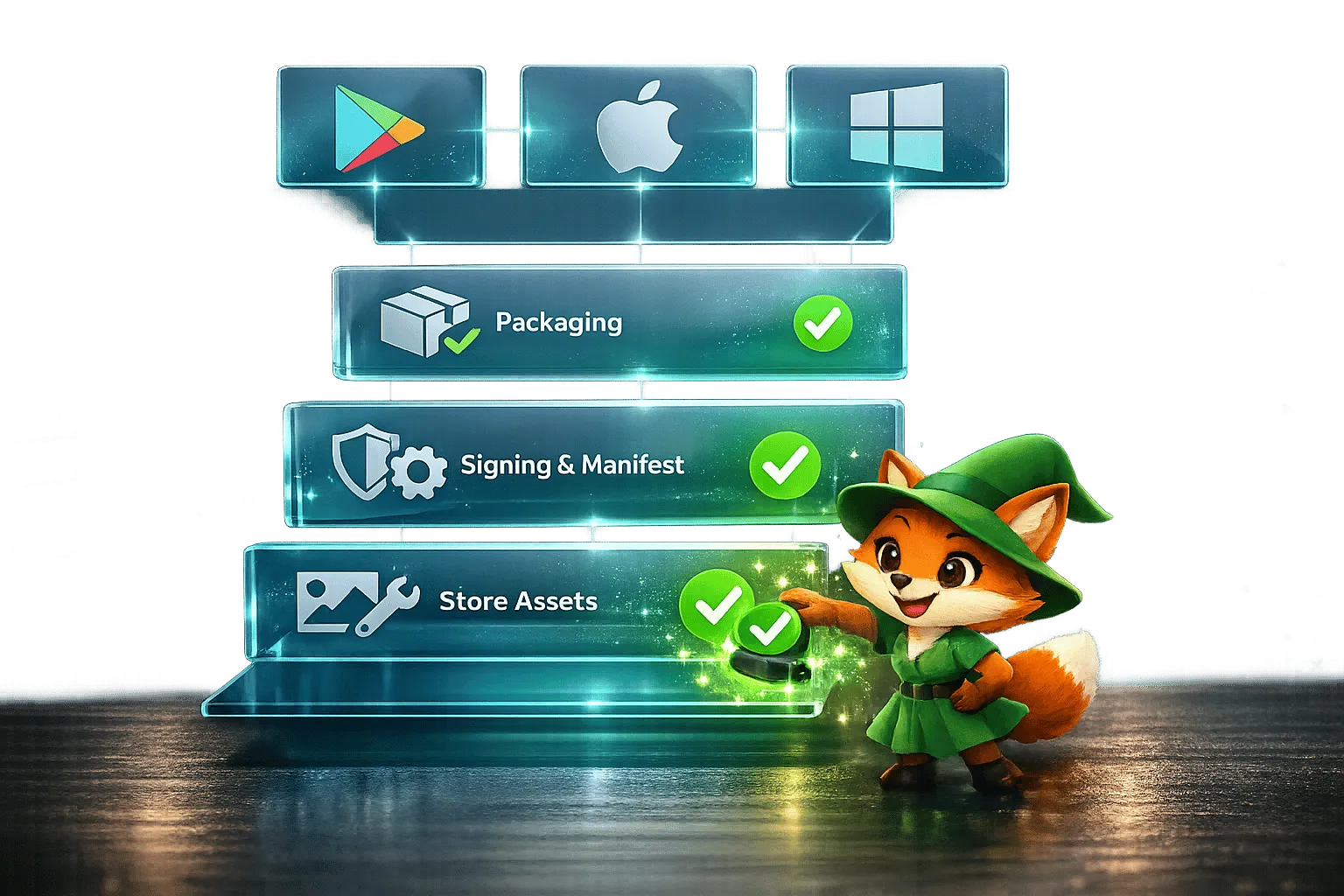
Progressive Web Apps (PWAs) are web-based applications that function like native apps. They can be installed on devices, work offline, send push notifications, and offer a native-like user experience - all with a single codebase. Publishing PWAs in app stores like Google Play, Apple App Store, and Microsoft Store enhances visibility, builds trust, and ensures compliance with platform standards.
For those looking to simplify the PWA development process, platforms like Adalo, a no-code app builder for database-driven web apps and native iOS and Android apps—one version across all three platforms, published to the Apple App Store and Google Play, offer an accessible alternative. These tools allow creators to build and deploy apps without extensive coding knowledge while still meeting app store requirements.
To prepare your PWA for app stores, you’ll need:
- HTTPS hosting for security.
- A Web App Manifest with metadata (name, icons, start URL, etc.).
- A Service Worker for offline functionality.
Tools like PWABuilder and Bubblewrap make packaging easier by generating platform-specific files:
- Google Play:
.aab(Android App Bundle). - Apple App Store: Native wrapper.
- Microsoft Store:
.msixbundle.
Each platform has unique requirements:
- Google Play: Requires a signed
.aabfile andassetlinks.jsonfor fullscreen mode. - Apple App Store: Annual developer membership and strict content guidelines.
- Microsoft Store: Allows direct submission of PWAs with minimal changes.
Follow these steps for a smooth submission process:
- Optimize your PWA’s performance (e.g., fast load times, responsive design).
- Prepare assets like icons, screenshots, and a privacy policy.
- Use tools like Lighthouse for audits and PWABuilder for packaging.
- Submit your app, adhering to platform-specific rules.
Publishing your PWA on app stores ensures broader reach and adds credibility to your app. Whether you’re targeting Android, iOS, or Windows users, this guide covers everything you need to get started.
The Journey of Publishing a PWA to the App Stores
Preparing Your PWA for App Store Submission
Submitting your PWA to app stores requires meeting technical standards and properly packaging the app. While each platform has its own rules, the core requirements are fairly consistent across the board.
Technical Requirements for PWAs
To qualify as a valid PWA, your app must meet these key criteria:
- Serve content over HTTPS for secure delivery.
- Include a Web App Manifest with essential metadata like the app name, start URL, and display mode (options include
standalone,fullscreen,minimal-ui, orwindow-controls-overlay). - Use a Service Worker with a fetch handler to enable offline functionality.
Your Web App Manifest should also feature high-quality icons, including a 192x192px icon and a 512x512px icon. For Android devices, add maskable icons with 40% padding to ensure proper display.
Performance is another critical factor. Aim for a First Contentful Paint (FCP) under 1.8 seconds and a Time to Interactive (TTI) under 3.8 seconds on mobile devices. Running regular Lighthouse audits can help you maintain a strong PWA score before submission.
Once your app meets these technical requirements, it’s time to package it for app store submission.
Packaging PWAs for App Stores
Packaging your PWA involves wrapping it in a native container that meets app store standards. Tools like PWABuilder simplify this process by generating packages for multiple platforms, including:
- Google Play: Creates an Android App Bundle (
.aab). - Microsoft Store: Outputs
.msixbundleand.classic.appxbundleformats. - Apple App Store: Provides a native wrapper.
For Android-specific packaging, Bubblewrap is another option. It creates Trusted Web Activity (TWA) packages that integrate your PWA with Android’s ecosystem.
When submitting to Google Play, you’ll need to digitally sign your .aab file with a self-signed certificate. Keep this key secure - losing it means you can’t update your app. Additionally, host an assetlinks.json file in your domain’s .well-known/ directory. This file contains your app’s SHA-256 certificate fingerprint and enables fullscreen mode by removing the browser URL bar through Digital Asset Links verification.
For the Microsoft Store, you’ll need to reserve your app in the Microsoft Partner Center. This process provides a Package ID, Publisher ID, and Publisher Display Name, which are required during packaging. Some platforms, like Adalo, streamline this entire process by generating and submitting packages for web, iOS, and Android from a single build.
Meeting App Store Guidelines
Beyond technical and packaging requirements, each app store has specific rules for metadata, privacy, and content. You’ll need to prepare promotional assets, including:
- App descriptions tailored to each platform.
- High-quality screenshots of your app.
- A clear privacy policy, which is mandatory across all stores.
While updates to your app’s web code (HTML, CSS, JavaScript) are instantly deployed to users, changes to your Web App Manifest - such as updating the app name or icons - require you to generate and resubmit a new package to the app stores. Plan updates carefully to minimize resubmissions.
It’s also worth noting the fee structures for each platform:
- Google Play and Microsoft Store charge a one-time developer registration fee.
- The Apple App Store requires a recurring annual membership fee.
| Platform | Packaging Format | Key Requirement | Fee Structure |
|---|---|---|---|
| Google Play | .aab (Android App Bundle) | Digital Asset Links (SHA-256) | One-time fee |
| Microsoft Store | .msixbundle | Partner Center App Reservation | One-time fee |
| Apple App Store | Native Wrapper | Apple Payment Mechanisms | Annual recurring fee |
Finally, ensure your app meets WCAG 2.1 Level AA accessibility standards and is fully responsive across all screen sizes and orientations. To enhance user experience during connectivity issues, include a custom offline page instead of relying on the browser’s default "no internet" message. This small touch helps maintain a polished, native-like experience.
Publishing Your PWA to Major App Stores
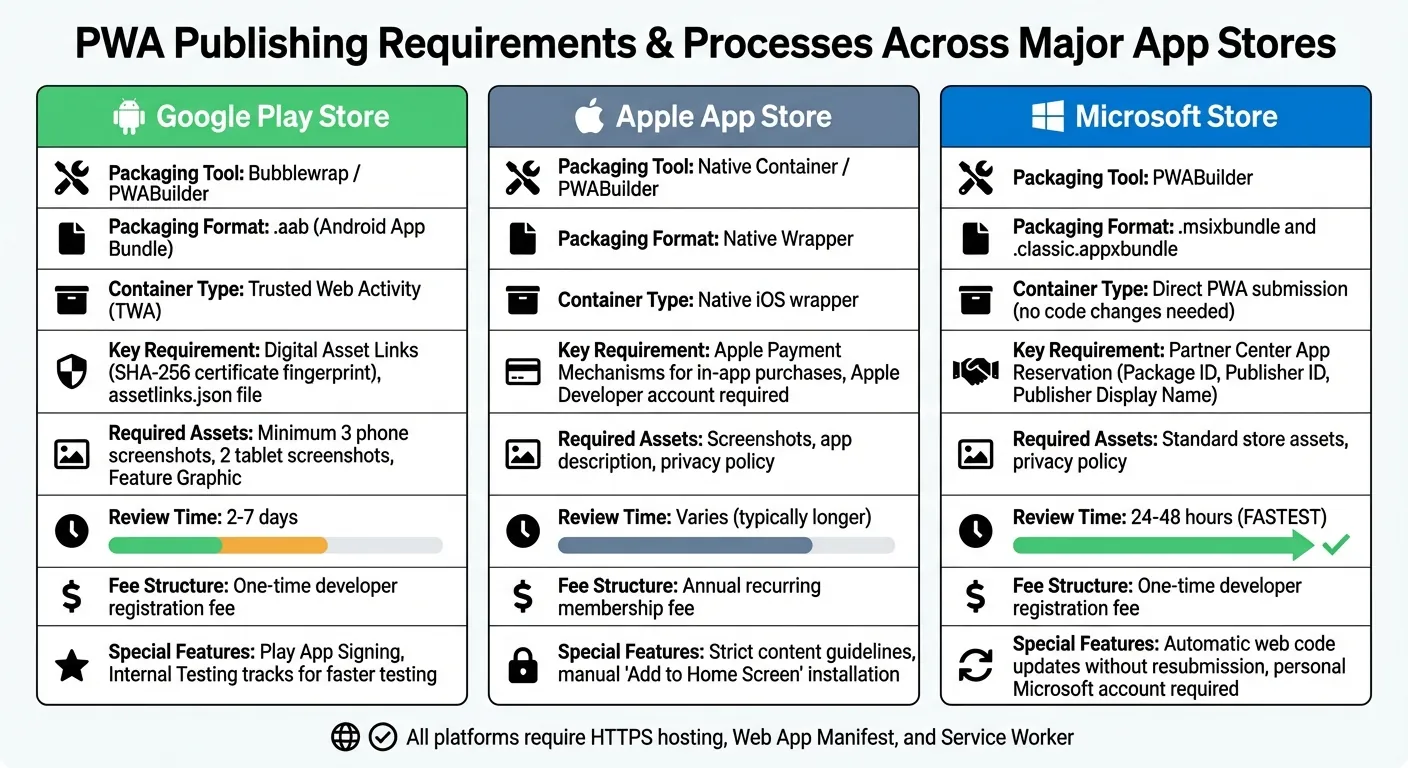
PWA App Store Publishing Requirements Comparison: Google Play vs Apple vs Microsoft
Once your PWA is packaged and meets the necessary criteria, the next step is to submit it to the major app stores. Each platform has its own process, but with a clear understanding of the requirements, the task becomes manageable.
Publishing to the Google Play Store
To publish on Google Play, your PWA needs to be wrapped in a Trusted Web Activity (TWA) container. This can be efficiently handled using Bubblewrap.
Start by running bubblewrap init --manifest=[URL] to convert your PWA's manifest into an Android project. Then, use bubblewrap build to create an Android App Bundle (.aab) file, which is ready for upload. Bubblewrap also allows you to either generate a new signing key or use an existing one - this key is essential for future updates. Make sure to enable Play App Signing in the Google Play Console, which helps Google manage your signing key securely.
Before submission, prepare the required assets: at least three phone screenshots, two tablet screenshots, and a Feature Graphic. Additionally, complete the "App Content" declarations, which include privacy policies, age ratings, and other compliance details. Reviews on Google Play typically take 2 to 7 days, but you can speed up testing by using the "Internal Testing" tracks. This feature lets you release your PWA to a select group of testers without undergoing the full review process.
Publishing to the Apple App Store
For the Apple App Store, your PWA needs to be wrapped in a native container before submission. Tools like PWABuilder can simplify this step, but you'll still need an active Apple Developer account, which requires an annual fee.
After wrapping your PWA, submit it through Apple's review process. Keep in mind that Apple has strict guidelines, and if your app includes in-app purchases or subscriptions, you may need to use Apple's payment systems. Carefully review Apple's content and functionality standards to ensure a smooth submission process.
Publishing to the Microsoft Store
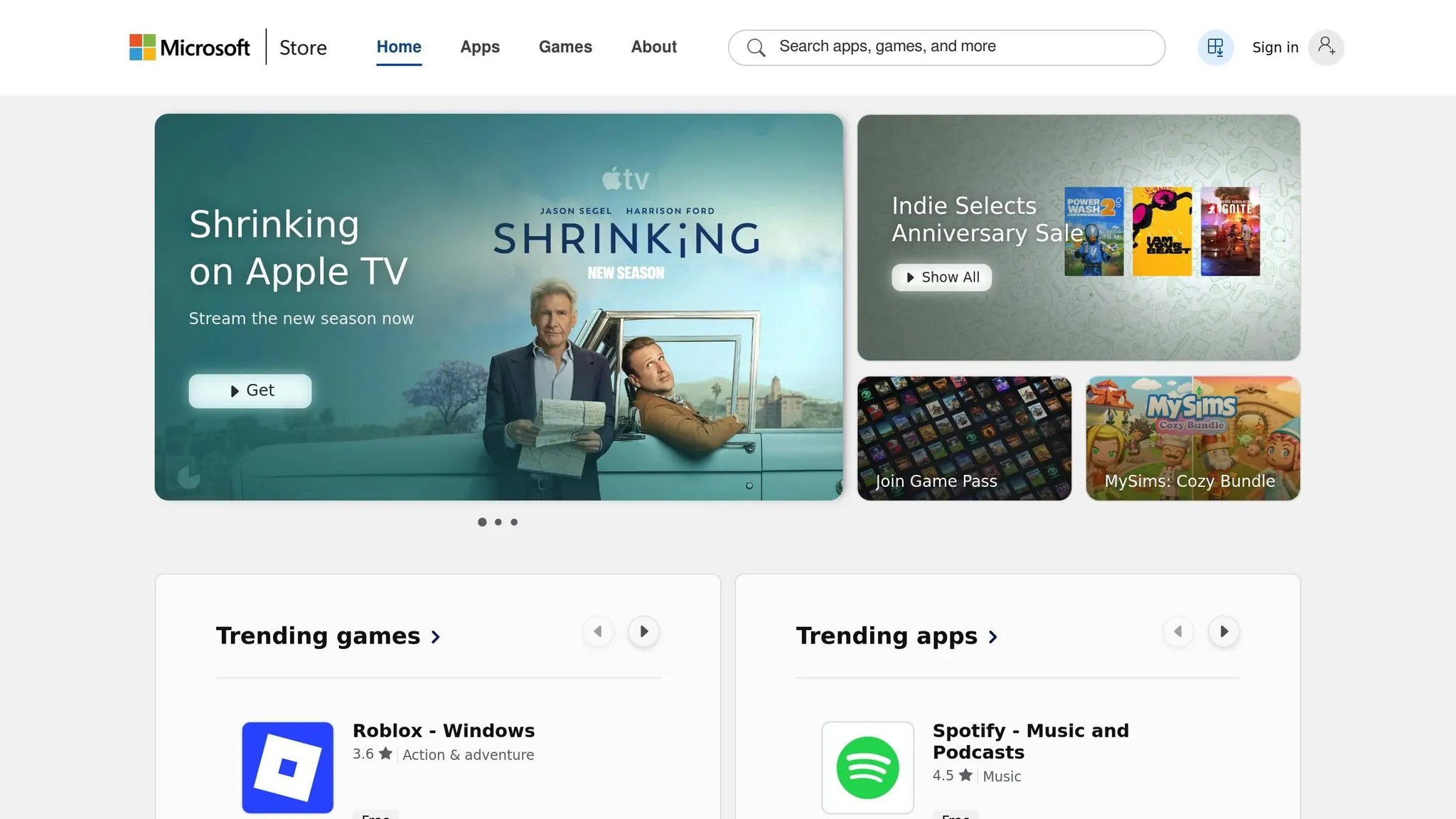
Unlike Google and Apple, the Microsoft Store allows PWAs with a valid Web App Manifest to be submitted without any code changes.
Begin by creating an app reservation in the Microsoft Partner Center using a personal Microsoft account (work or school accounts aren't accepted for this step). This reservation provides the Package ID, Publisher ID, and Publisher Display Name needed for packaging.
Next, use PWABuilder to package your PWA by providing its URL and the Partner Center IDs. The tool generates .msixbundle and .classic.appxbundle files, which you can upload to the Partner Center. Microsoft’s review process is quick - most apps are reviewed within 24 to 48 hours.
One key benefit of the Microsoft Store is that updates to your web code (HTML, CSS, JavaScript) are automatically deployed to users without requiring a new submission. However, changes to your Web App Manifest, such as updating icons or the app name, will require generating and submitting a new package. To track traffic from store-installed PWAs, you can query document.referrer in JavaScript for the string microsoft-store.
| Platform | Packaging Tool | Review Time | Fee Structure |
|---|---|---|---|
| Google Play | Bubblewrap / PWABuilder | 2–7 days | One-time fee |
| Apple App Store | Native Container / PWABuilder | Varies | Annual fee |
| Microsoft Store | PWABuilder | 24–48 hours | One-time fee |
Best Practices for PWA Store Publishing
Improving PWA Performance and User Experience
Start by running a Lighthouse audit and aim for a score of 90 or higher. This ensures your app meets high standards for performance, accessibility, and best practices. Tools like PWABuilder can then help you fine-tune your app with a store-readiness report that outlines specific improvements. Don’t skip the essentials in your web app manifest - include name, short_name, start_url, a display mode (like standalone or fullscreen), and properly sized icons (at least 192px and 512px). Keep in mind that for Google Chrome, the install prompt will only appear if users spend at least 30 seconds on your page and interact with it at least once.
To enhance offline functionality, create a custom offline page and use service workers to cache critical assets. Test under slow network conditions with WebPageTest. For mobile usability, ensure all tap targets are at least 44x44px, making navigation smooth on touchscreens.
Once performance is optimized, focus on delivering a seamless experience across all platforms.
Testing Cross-Platform Compatibility
Check compatibility with major browsers like Chrome, Firefox, Safari, and Edge by using feature detection. Test usability across a wide range of screen sizes - from compact 320px mobile screens to expansive 4K monitors - and ensure your text is readable with a minimum font size of 16px.
On iOS, users need to manually select "Add to Home Screen" from the share menu, while Android devices automatically generate installation prompts. For desktop platforms, confirm that the install badge appears in the URL bar on Chrome and Edge. Special attention is needed for iOS: make sure the apple-touch-icon is defined in your HTML <head>; otherwise, iOS may default to using a generic screenshot as your app icon.
Be cautious with locale-specific domain redirects (e.g., .com to .co.uk), as these can trigger an "out-of-scope" interface, such as a visible URL bar, disrupting the app's native-like feel. Also, verify that your PWA handles browser navigation (back and forward) properly and supports unique URLs for different app states.
After ensuring compatibility, shift your focus to meeting privacy and security standards for store approval.
Meeting Privacy and Security Requirements
Always serve your PWA over HTTPS, and add CSP headers and Subresource Integrity (SRI) to protect against XSS attacks and code injection.
Platforms like Adalo simplify the process by using a single codebase, ensuring that any privacy or security updates are immediately applied across web, iOS, and Android versions.
Conclusion
Publishing a PWA takes thoughtful planning, but with the right steps, it can be a smooth process. Start by confirming your app meets all technical requirements: HTTPS hosting, a complete web app manifest, and a public URL. These are non-negotiable for PWA functionality. Next, set up your developer accounts early and prepare polished store assets - icons, feature graphics, and screenshots - to ensure your app makes a strong first impression.
Gone are the days of platform-specific coding for packaging. Tools like Adalo's unified build system simplify the process, allowing you to create one build that updates seamlessly across web, iOS, and Android platforms.
"By publishing everywhere, you're giving them the greatest opportunity for success and to utilize your app when they need it the most." – Adalo
Keep in mind that store approval timelines can vary by platform. Use this downtime to thoroughly test your app on different devices and refine your launch strategy.
Balancing technical accuracy with a focus on user experience is key to a successful PWA launch. Ensure your app is fast, secure (with HTTPS), and works flawlessly across platforms. With over 70% of mobile users on Android and 650 million weekly visitors to the Apple App Store, publishing on both platforms significantly boosts your app's visibility. Take the first step toward cross-platform distribution and let your PWA reach its full potential.
Related Blog Posts
- How to Launch Your First Mobile App Without Coding
- How Hard Is It To Publish To the App Stores? And Maintain The Apps?
- Top 5 Fixes for Common App Store Rejections
- Checklist for Cross-Platform App Testing
FAQs
What are the main advantages of publishing a PWA to app stores?
Publishing a Progressive Web App (PWA) to app stores offers several advantages that can boost your app's reach and usability. By making your app available on platforms like the Apple App Store and Google Play, you open the door to a larger audience. These stores act as discovery hubs, allowing users to find and install your app with ease, which can lead to better accessibility and higher engagement.
Another perk is the native-like experience app stores enable. Features such as push notifications and offline functionality become more seamless, giving users an experience closer to traditional native apps. Updates are also more straightforward - changes can be pushed out automatically, so users don’t have to worry about manual downloads. Publishing your PWA in app stores effectively combines the strengths of web apps and native apps, providing a well-rounded solution for both developers and users.
What steps should I take to ensure my PWA meets app store security standards?
To align your PWA with app store security standards, start by enforcing HTTPS-only connections to safeguard user data. This is a basic yet critical step to ensure secure communication between your app and its users.
Next, make sure your app includes a valid web app manifest and a service worker. The service worker should handle fetch events properly to maintain both reliability and security, ensuring your app functions smoothly even offline or during network interruptions.
Don't forget to check the specific security guidelines for each app store you plan to target, such as Apple's App Store or Google Play. These often require compliance with privacy policies, user authentication protocols, and secure data handling measures. Staying informed about the latest app store requirements is crucial to ensure a smooth publishing process.
What are some tools that make it easier to publish PWAs to app stores?
Publishing Progressive Web Apps (PWAs) to app stores doesn’t have to be a complicated process. Tools like PWABuilder and Bubblewrap are designed to simplify the journey from web app to store-ready application.
PWABuilder is a go-to solution for generating app packages for platforms such as the Google Play Store, Apple App Store, and Microsoft Store. It handles tasks like creating signing keys and setting up digital asset links, taking much of the technical burden off developers.
For Android-specific needs, Bubblewrap is another excellent choice. It packages PWAs into Android apps using Trusted Web Activities (TWAs), producing APK files that are ready for the Google Play Store. Both tools make it easier and faster to convert PWAs into apps fit for app stores, saving developers a significant amount of time and effort.

Build your app fast with one of our pre-made app templates
Begin Building with no codeRelated Content

A Quick Guide To Publishing Your Mobile App in 2026
Preparing a mobile app to submit to the Apple App Store or the Google Play Store doesn’t need to be a guessing game. Follow this easy guide!

Why You Need The App Stores For Your App - Push Notifications!
Learn why publishing to Apple App Store or Google Play is required for push notifications, how they boost retention, and how no-code tools s
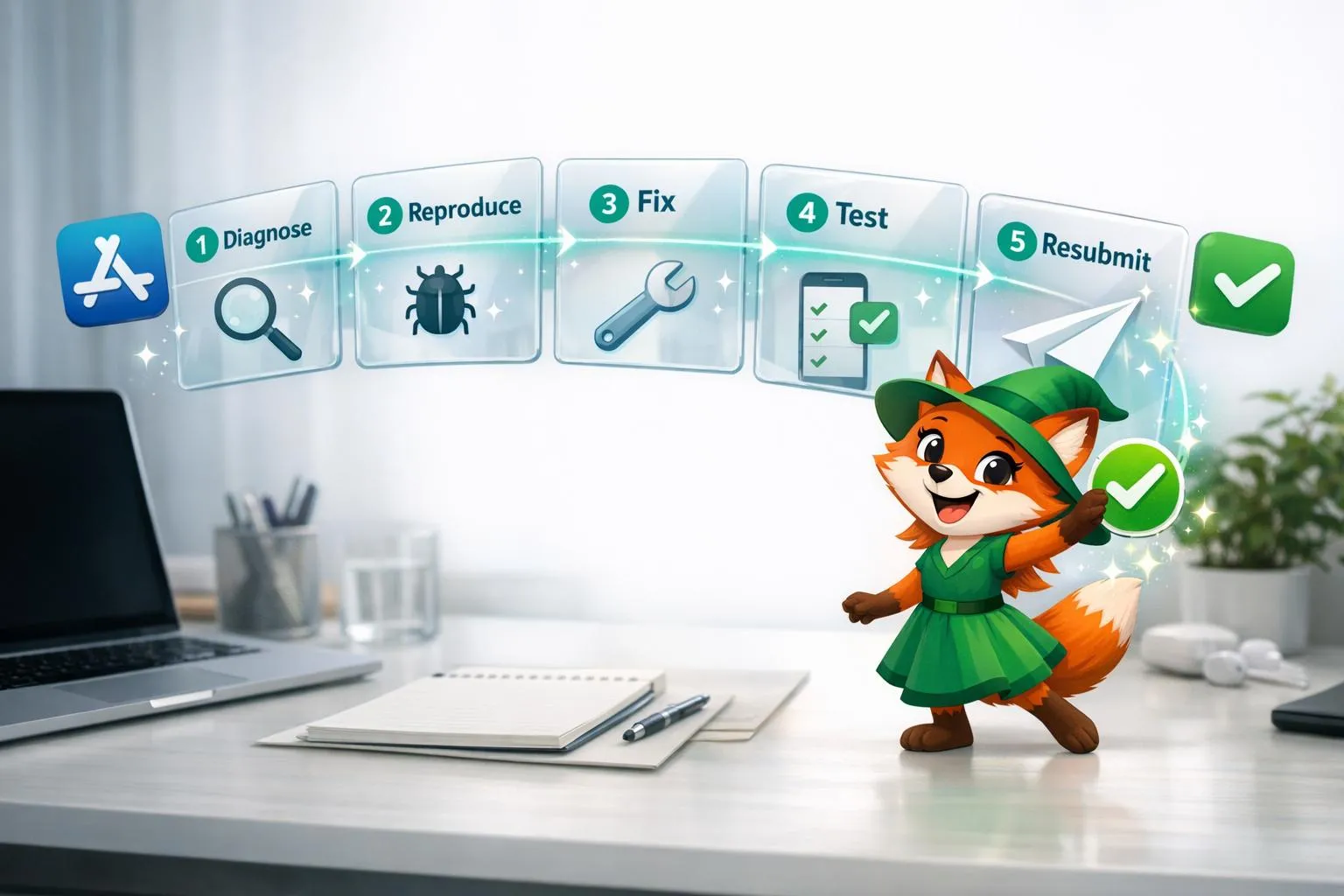
How to Fix App Store Rejections Step-by-Step
Step-by-step guide to diagnose and fix App Store and Google Play rejections, from common policy violations to resubmission.
Checklist for Adalo App Store Submission
Complete checklist for preparing, testing, and submitting your app to the App Store and Google Play without delays.