



Why Adalo Is the Smart Choice for Building a Custom CRM
Adalo is a no-code app builder for database-driven web apps and native iOS and Android apps—one version across all three platforms, published to the Apple App Store and Google Play. This makes it the perfect foundation for creating a CRM that's tailored to your exact business processes—without writing a single line of code or hiring expensive developers.
With a custom CRM built in Adalo, your sales team can access customer data, update deals, and manage relationships from any device. Native app distribution means your CRM lives right on their phone with instant push notifications for new leads, follow-up reminders, and deal closures. No more clunky browser tabs or forgetting to check the system—your customer relationships stay at your fingertips.
Why Adalo Is Perfect for Building Your Custom CRM
Adalo is an AI-powered app builder for database-driven web apps and native iOS and Android apps—one version across all three platforms, published to the Apple App Store and Google Play. This makes it the ideal solution for creating a custom CRM that your team can access anywhere—whether they're at their desk or meeting clients in the field.
With native app distribution, your sales team stays connected through push notifications for new leads, deal updates, and task reminders. Unlike browser-based CRM tools that get lost among tabs, a dedicated mobile app keeps your customer relationships front and center. Let's walk through how to build a CRM that actually fits your business.
Creating a custom CRM tailored to your business needs is easier than you think. Off-the-shelf CRMs often fall short—they include features you don't need, lack the ones you do, and force your team to adapt to rigid workflows. A custom CRM, on the other hand, aligns with your operations, integrates seamlessly with your tools, and eliminates inefficiencies.
Ada, Adalo's AI builder, lets you describe what you want and generates your app. Magic Start creates complete app foundations from a description, while Magic Add adds features through natural language.
Here's the simple process to build your own CRM using Adalo:
- Define Your Needs: Outline your workflows, data fields, and automation requirements. Think about what your business truly needs—contact management, deal tracking, or client portals.
- Build in Adalo: Use Adalo's drag-and-drop tools and AI-powered features to create your CRM. Magic Start generates complete app foundations from descriptions, while Magic Add lets you add features by simply describing what you want. No coding required.
- Integrate Systems: Connect your CRM to tools like QuickBooks or legacy databases using APIs. Adalo supports over 5,500 integrations for smooth data flow.
- Test and Launch: Preview your CRM, fix any issues, and deploy it as a Progressive Web App (PWA) or native apps for iOS and Android—all from a single build.
- Iterate and Improve: Gather feedback, monitor performance, and make updates to ensure your CRM grows with your business.
Adalo simplifies the entire process, cutting costs and development time significantly. Whether you're a freelancer or a large team, you can build a CRM for your business that fits your exact needs without the high price tag or long timelines of custom development.
The good news is that building a custom CRM no longer requires a development team or a massive budget—platforms like Adalo have made it accessible to anyone. With the Adalo 3.0 infrastructure overhaul launched in late 2025, apps now run 3-4x faster than before, and paid plans include unlimited database records with no usage-based charges. This means your CRM can scale from a handful of contacts to millions without hitting arbitrary limits or surprise bills.
Step 1: Define Your CRM Requirements
Before diving into Adalo, take a step back and figure out exactly what your CRM needs to do for your business. This isn't about copying someone else's software—it's about creating something that fits your operations like a glove.
Identify Your Core CRM Functions
Start by listing the essentials. Most CRMs revolve around a few key features: contact management (think names, emails, and company details), a deal pipeline to track sales progress, and a dashboard to keep an eye on key metrics. But what's essential for one business might not be for another.
For instance, a freelance consultant might only need four pipeline stages: Lead, Proposal Sent, Negotiation, and Won/Lost. Meanwhile, an agency handling complex projects could need five: Inquiry, Discovery Call, Proposal, Contract Review, and Signed/Lost. A recruiter? Their flow might look more like Applied, Phone Screen, Interview, Offer, and Hired/Rejected.
Jot down the bare minimum data fields you'll need. For contacts, this often includes Name, Email, and Last Contacted Date. For deals, you'll probably want Title, Value, Stage, and Linked Contact. Keep it simple for now—there's always room to expand later.
Don't forget about industry-specific needs. A service business might need scheduling tools. Agencies could benefit from client portals for sharing documents. Contractors might want the ability to upload site photos. Figure out what makes your workflow unique and prioritize those features.
Map Out Your Current Workflow
Take a close look at how your team operates today. Did you know employees lose 26% of their day to unnecessary administrative tasks? Your CRM should aim to eliminate that kind of inefficiency.
Start by documenting a full workflow from start to finish. For example, track what happens from the moment a lead fills out a contact form to when the contract is signed and the first payment is received. Write down every single step—manual or automated.
Ask your team some key questions: Where do mistakes usually happen? Which tasks feel like they take forever? Where are leads slipping through the cracks? The answers will pinpoint exactly what your CRM should help with. For example, service businesses, agencies, and consultants waste up to 15 hours a week on manual data entry and follow-ups that could easily be automated.
Look for patterns in repetitive tasks using the best no-code tools. Does someone always send a welcome email when a new lead is added? Does your team need an alert when a deal moves to "Proposal"? These are perfect opportunities for automation within your CRM.
Set Clear, Measurable Goals
Figure out what success looks like—and put numbers to it. Track metrics like Pipeline Value (the total value of all active deals), Win Rate (the percentage of deals won versus closed), and the number of Active Deals. These numbers will tell you if your CRM is actually helping your business or just adding another tool to manage.
Set specific goals for efficiency. For example, marketing agencies using automated portals have cut client approval times from an average of 5 days to just 1.5 days. What's your current approval time? How much could you realistically improve it?
Use your CRM to monitor the Last Contacted Date for every lead. If a high-value prospect hasn't been reached out to in 30 days, your CRM should flag it. Measure your average response time for leads now, then aim to cut it in half.
Finally, when deals are lost, require your team to select a Lost Reason (e.g., Budget Cut, Went Silent, Chose Competitor). This data can reveal patterns that help you tweak your sales strategy. Track how often each reason comes up and adjust your process accordingly.
Once you've nailed down these requirements, you're ready to start building your CRM in Adalo.
Step 2: Build Your CRM Foundation in Adalo
Now that you've outlined your requirements, it's time to dive into building your CRM. Adalo's visual builder—described by users as "as easy as PowerPoint"—and AI tools make the process quick and straightforward. No coding needed. Let's walk through the steps to efficiently set up your CRM foundation.
Create Your Adalo Account and Project
Start by visiting adalo.com and clicking either "Sign Up" or "Get Started for Free." Enter your email, create a password, and confirm your account through the email they send. You won't need a credit card to get started.
Once logged in, click "New App" on your dashboard. You'll have the option to start from scratch or use a pre-designed template. For a CRM, you can choose "Start from Scratch" for complete control or select a CRM template if one is available. Templates often include basic screens and a prebuilt database structure. Name your project something intuitive like "Custom Business CRM", and decide if you want it optimized for Mobile, Web, or both. Select en-US localization to ensure your app uses US date formats (MM/DD/YYYY), dollar signs ($) for currency, and imperial units like feet and miles.
Once your project is set up, it's time to use AI to simplify the CRM structure.
Generate Your CRM Structure with AI
Adalo's Magic Start feature can save you hours of manual setup by generating complete app foundations from simple descriptions. In your dashboard, look for the AI creation option. Describe your vision in plain English, such as: "Build a CRM for sales teams with contacts, deals, tasks, and an analytics dashboard."
Magic Start lets collections like Contacts, Deals, and Tasks, along with initial screens such as login pages, list views, and a kanban-style pipeline. What used to take days of planning happens in minutes. If you need adjustments, use Magic Add to add features by describing what you want—simply tell it "add a notes section to contact profiles" or "create a weekly activity report screen" and watch it build.
The AI Builder, due for release in early 2026, will extend this further with prompt-based app creation and editing throughout the entire development process. For now, Magic Start and Magic Add handle the heavy lifting of initial setup and feature additions.
Set Up Your Database Tables
A well-structured database is essential for smooth integrations and efficient data management. Whether you used the AI generator or started from scratch, you'll need to fine-tune your database tables to fit your specific needs. Click the Database tab in the left toolbar to begin. You should see at least three main collections: Contacts, Tasks, and Deals.
Here's a breakdown of what to include in each collection:
- Contacts: Add fields like Full Name, Email, Phone, Company, Status (e.g., Lead, Opportunity, Customer), Last Contacted (MM/DD/YYYY), and Notes.
- Tasks: Include fields such as Title, Assignee (linked to the Users collection), Due Date, Priority (Low, Medium, High), Status (Open, In Progress, Done), and Related Contact (linked back to Contacts).
- Deals: Add fields like Deal Name, Value (formatted as currency with $ and US-style commas, e.g., $1,000.00), Stage (Prospect, Qualified, Proposal, Closed), Expected Close Date, and Related Contact (linked to Contacts).
Use relationship properties to connect your tables. For example, link each Deal to a specific Contact so you can easily view all deals associated with a person. Similarly, link Tasks to individual Users so team members only see their assigned work. These relationships keep your data organized and scalable as your CRM grows.
With Adalo's paid plans offering no data caps, you don't need to worry about hitting record limits as your contact list expands. Start with no more than 10 fields per table—you can always expand later based on your needs. The platform's modular infrastructure scales to serve apps with over 1 million monthly active users, so your CRM database can grow alongside your business without performance degradation.
Adalo's platform is designed to ensure your app is ready for deployment as a Progressive Web App (PWA) or a native app for iOS and Android without additional rebuilding. This means your CRM is production-ready from the start.
Step 3: Build Your CRM Features
Turn your database into a fully functional CRM using Adalo's visual builder. With its drag-and-drop interface, you can easily add components, connect them to your data, and configure user access to create an intuitive application for your team.
Design Your CRM Screens
Start by creating the essential screens your team will need: a dashboard, contact profiles, task lists, and a pipeline view. Use the "+" button in the left toolbar to add new screens. For the dashboard, include summary cards to display key metrics like total deals, upcoming tasks, and recent contacts. Use the List component to show contacts, tasks, and deals. By linking these lists to your database, your team will always have up-to-date information at their fingertips.
When designing contact profiles, organize key details, interaction timelines, and linked deals or tasks into clear sections. Add a "Link to" action to each list item so that clicking on a contact's name opens their full profile. To ensure the CRM aligns with your company's branding, use the Branding tab to set a consistent color scheme and font.
For visualizing your sales pipeline, use the List component and filter deals by stage (e.g., Prospect, Qualified, Proposal, Closed). To enhance this view, install chart components from the Adalo Marketplace—like bar graphs or pie charts—to illustrate deal distribution. Adalo's canvas can display up to 400 screens at once if needed, giving you a comprehensive view of your entire app architecture as you build. Always preview your screens on both mobile and desktop devices to confirm they look and function as intended.
Add User Login and Permissions
Once your screens are designed, secure the app by setting up user logins and permissions. Adalo includes a default Users collection with fields like Email, Password, Username, and Full Name. Add a new Text property called "Role" to assign user types such as "Admin", "Manager", or "Sales Rep." This allows you to control what different users can access.
Add login and signup screens by selecting pre-built authentication components from the library. These screens automatically connect to your Users collection. To restrict access, use Conditional Visibility. For example, you can configure certain components to appear only when "Logged-in User > Role" equals "Admin", ensuring sensitive features are accessible only to authorized users.
For sales reps who should only see their own records, add filters to lists. For instance, set the Contacts list to show only records where "Assigned Rep" matches the "Logged-in User." You can assign roles manually in the Users collection or create an admin screen that lets managers update roles through a form.
Build Analytics and Reports
With your app structure and user access in place, it's time to leverage data for smarter decision-making. Use Adalo's built-in Analytics tab to view user locations, daily active users, and most-visited screens. For more specific metrics like sales pipeline value or conversion rates, build custom dashboards using components from the Adalo Marketplace.
Install chart components such as bar charts, line graphs, or pie charts and add them to a new "Reports" screen. Connect these charts to your database to display metrics. For example, a bar chart showing deals by stage can pull data from your Deals collection, grouped by the "Stage" field. Use Number properties and custom formulas to calculate figures like average deal size or sales cycle length.
To enhance your reports, connect external data sources. For example, integrate revenue data from QuickBooks or marketing metrics from Mailchimp through the "Add Action" menu. Adalo supports over 5,500 integrations, so you can combine financial performance, email campaign results, or customer support metrics with your CRM data. For deeper insights, embed Google Analytics to track user behavior and identify the most-used features.
Automate reporting by setting up scheduled actions that email summary data to stakeholders. For instance, send weekly reports showing total deals closed, pipeline value by stage, and top-performing sales reps. Add filters to your reports, such as dropdown menus for date ranges like the past 7 days or the current quarter. Test your analytics screens in preview mode to ensure charts update correctly as new data is added.
Adalo's X-Ray feature helps identify performance issues before they affect users—particularly valuable as your CRM grows and handles more complex reporting queries. The single-codebase platform allows you to deploy your app as responsive web apps or as native iOS and Android applications, all from the same build.
Step 4: Connect to External Systems
Once you've built your CRM features, the next step is to integrate external systems to consolidate your data. Many businesses manage information across various platforms—like accounting software or legacy databases. Instead of manually re-entering data or juggling duplicate records, you can link your Adalo CRM directly to these systems. A tool like DreamFactory can help by generating REST APIs for over 20 database types, including MySQL, PostgreSQL, SQL Server, and Snowflake.
Identify Your Integration Needs
Start by mapping out the external systems that hold critical data. These might include accounting platforms for revenue tracking, inventory systems for stock updates, or HR databases for employee records. Pinpoint the exact data you need—such as contact information, transaction histories, or product details—and decide whether your CRM should only access this data or also update it.
For instance, if you close a sale in your CRM, you might want the transaction to automatically appear in your accounting software. If you're dealing with older systems that lack modern APIs, DreamFactory can step in to wrap these databases in a RESTful interface, making them compatible with Adalo. Once you've outlined your integration needs, you're ready to connect legacy systems using DreamFactory.
Connect Legacy Systems with DreamFactory
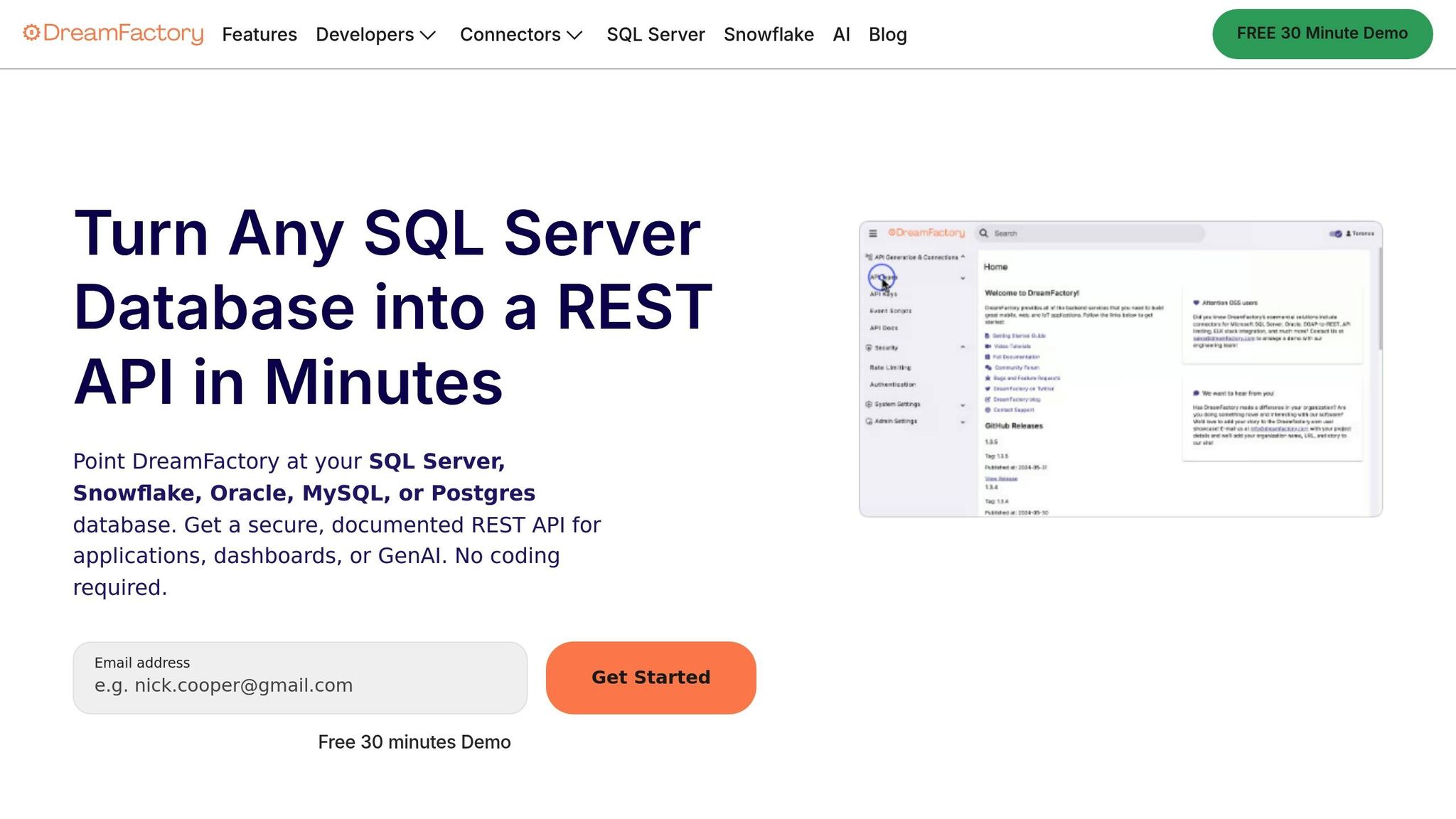
DreamFactory serves as a crucial link between Adalo and databases that weren't built for modern integrations. By entering your database credentials in DreamFactory, you can automatically generate a REST API. This tool supports not only traditional databases but also file systems like AWS S3 and SFTP, and it can even convert Excel files into JSON. After generating the API, set up role-based permissions in DreamFactory and link them to an API key to ensure your CRM has access only to the data it needs.
In Adalo, go to your project settings and add an External Collection. You can also set up Airtable as an external collection if you prefer using it over a traditional database. You'll need a Professional, Team, or Business plan to use this feature. Enter the API Base URL provided by DreamFactory, then add a header called X-DreamFactory-API-Key and include your generated key as the value. In the "Get All" endpoint settings, specify the Results Key as resource, as DreamFactory organizes record collections under this JSON key. Before saving, check that your external database uses numeric IDs, as Adalo currently doesn't support text-based IDs or UUIDs for External Collections. Use the "Run Test" feature to verify the API returns the correct data structure, then save your collection.
With this setup, your CRM can perform full CRUD operations (Create, Retrieve, Update, Delete) on the external database. Any updates made in Adalo will instantly reflect in the legacy system, giving your team a modern interface to interact with older technologies. If you need to add custom business logic—like data validation or format transformations—DreamFactory's server-side scripting capabilities can handle it, offering support for languages like JavaScript, PHP, or Python.
Connect Spreadsheets with SheetBridge
For teams already managing customer data in Google Sheets, Adalo's SheetBridge offers the easiest path to a functional CRM. SheetBridge turns a Google Sheet into an actual database for your app—no database learning required. Simply connect your existing spreadsheet, and your CRM can read and write data directly to it.
This approach is particularly valuable for teams transitioning from spreadsheet-based workflows. Your sales team can continue updating the familiar spreadsheet interface while the CRM app provides a polished mobile experience for field work. Unlike other spreadsheet-based app builders that restrict you to rigid templates, Adalo gives you full creative control over how that data is displayed and interacted with.
Step 5: Test, Deploy, and Improve
Once your external systems are connected, it's time to ensure your CRM is running smoothly and ready for your team. This step is all about catching bugs, deploying your CRM across platforms, and fine-tuning it based on how it performs in real-world scenarios.
Test Your CRM
Start by clicking Preview to check that core functions and responsive design work seamlessly across devices. Manually add records to confirm everything operates as expected. Conduct an internal alpha test, followed by a pilot run with a trusted client to identify any bottlenecks.
Use the Share button to generate a test link for stakeholders without Adalo accounts, allowing them to explore the interface and provide valuable feedback. To safeguard your progress, save a Design Version so you can easily revert any unwanted changes.
Adalo's X-Ray feature is particularly useful during testing—it identifies performance issues before they affect users, highlighting potential bottlenecks in your database queries or screen loading times. Address these proactively to ensure your CRM performs well as your contact list grows.
"Glitches and bugs that result from neglecting your app will ruin your customer experience and soil your reputation. Always make certain that your app works smoothly!" – The Adalo Team
Once your testing confirms stability, you're ready to move on to deployment.
Publish to Web and Mobile
You can publish your CRM on a free Adalo subdomain or a custom domain. Remember, builder edits won't go live until you choose to push updates. For native mobile apps, Adalo handles the complex App Store submission process—download the app files and submit them to Apple and Google. This requires an Apple Developer License ($99 per year) and a one-time Google Play developer fee.
Alternatively, if you'd rather skip the app stores, you can deploy your CRM as a Progressive Web App (PWA) and share it through a link or QR code—this option is available with a paid Adalo plan starting at $36/month. Unlike competitors that charge usage-based fees or limit app updates, Adalo plans include unlimited usage and unlimited updates to published apps. No bill shock, no surprise charges as your team grows.
Adalo apps boast 99%+ uptime and handle over 20 million daily data requests across the platform. The Adalo 3.0 infrastructure runs 3-4x faster than previous versions, ensuring your sales team experiences snappy performance whether they're checking contacts at their desk or updating deals in the field.
Update Based on User Feedback
Once your CRM is live, the work doesn't stop. Regular monitoring ensures you can address issues and improve functionality. Spend a few minutes each day checking for glitches—ignoring these can harm your professional reputation. Use Adalo's built-in Analytics tab to track daily active users, pinpoint user locations, and identify which screens are most visited. For example, if your "Reports" screen isn't getting much traffic despite its importance, it might signal a navigation issue.
To streamline feedback, create a "Feedback" collection with a form for bug reports and feature requests. Adalo's instant update process allows you to quickly roll out improvements. For mobile apps, minor updates can be pushed over the air, but major changes might require resubmission to app stores. Before making significant UI changes, save a Design Version to experiment without affecting the stable build. If users mention readability issues, you can use the Branding panel to adjust the color scheme globally across all components and screens.
With unrestricted database storage on paid plans, you can confidently add new data fields, expand your contact records, and build out additional features without worrying about hitting limits. The platform's modular infrastructure scales with your needs—apps built on Adalo have successfully served over 1 million monthly active users with the right data relationship setups.
How Adalo Compares to Alternatives
When building a custom CRM, you have several platform options. Here's how Adalo stacks up against common alternatives:
| Platform | Starting Price | Native Mobile Apps | Database Limits | Best For |
|---|---|---|---|---|
| Adalo | $36/month | Yes (iOS & Android) | Unlimited on paid plans | Native mobile CRMs with App Store publishing |
| Bubble | $59/month | Web wrapper only | Limited by Workload Units | Complex web apps with heavy customization |
| Glide | $60/month | No App Store publishing | Limited rows, additional charges | Simple spreadsheet-based apps |
| FlutterFlow | $70/month per user | Yes (requires separate database) | Depends on external DB | Technical users comfortable with low-code |
| Softr | $167/month | No App Store publishing | Limited per app and datasource | Spreadsheet-to-web-app conversions |
Bubble offers more customization options, but that flexibility often results in slower applications that struggle under increased load. Bubble's mobile solution is a wrapper for the web app—meaning one app version doesn't automatically update web, Android, and iOS apps deployed to their respective stores. Many Bubble users end up hiring experts to optimize performance, and claims of millions of MAU typically require professional help to achieve. Bubble also uses Workload Units with unclear calculations that can lead to unexpected charges.
Glide excels at turning spreadsheets into simple apps quickly, but restricts you to set templates with limited creative freedom. It doesn't support Apple App Store or Google Play Store publishing, which limits distribution options for a CRM your team needs to access everywhere.
FlutterFlow is technically "low-code" rather than no-code—it's designed for technical users who are comfortable managing complexity. Users must source, set up, and pay for their own database separately, which requires significant learning and can create scale problems if not configured optimally. The builder also limits your view to 2 screens at once, compared to Adalo's ability to display up to 400 screens on one canvas.
Note that many third-party platform ratings and comparisons predate Adalo 3.0's infrastructure overhaul in late 2025. The performance improvements and removal of usage-based charges significantly changed Adalo's competitive position.
Conclusion
In this guide, we walked through the process of creating a custom CRM using Adalo—starting with defining your requirements, setting up the database, integrating systems, and finally deploying across platforms. Traditional custom CRM development can range from $30,000 to $600,000 and take anywhere from 3 to 18 months to complete. With Adalo, you can cut costs by up to 65% and reduce development time to just days or weeks.
Adalo offers more than just speed and affordability. It allows you to retain full ownership of your data and avoid being locked into a single vendor. Plus, it's designed to grow with your business, giving you the flexibility to add new modules, user roles, or integrations as needed—without being tied down by rigid templates. This tailored approach ensures you only build the features that matter most to your business.
Start small by developing a Minimum Viable Product (MVP) that focuses on your core needs, like contact management, and refine it using real user feedback.
Adalo also makes deployment seamless. You can launch your app as a Progressive Web App (PWA) and natively on iOS and Android app stores—all from a single build. This means your CRM is ready to perform across web, PWA, iOS, and Android platforms, giving you a production-ready solution right out of the gate.
Related Blog Posts
- Build a No-Code Ticketing System in 3 Days
- Building an E-commerce App: No-Code Platform Guide
- How To Enable Employees To Build The Apps They Need
- How to Create an Invoice App
FAQ
Why choose Adalo over other app building solutions?
Adalo is an AI-powered app builder that creates true native iOS and Android apps. Unlike web wrappers, it compiles to native code and publishes directly to both the Apple App Store and Google Play Store from a single codebase—the hardest part of launching an app handled automatically. With unlimited database records on paid plans and no usage-based charges, your CRM can scale without surprise bills.
What's the fastest way to build and publish an app to the App Store?
Adalo's drag-and-drop interface and AI-assisted building let you go from idea to published app in days rather than months. Magic Start generates complete app foundations from descriptions, and Adalo handles the complex App Store submission process so you can focus on features and user experience instead of certificates and provisioning profiles.
How does Adalo's AI tool make building a custom CRM easier?
Magic Start generates your CRM structure from simple text descriptions, automatically building collections like Contacts, Deals, and Tasks along with initial screens. Magic Add lets you add features by describing what you want—"add a notes section to contact profiles" builds it automatically. What used to take days of planning happens in minutes.
What are the advantages of using a Progressive Web App (PWA) for your custom CRM?
PWAs run directly in a browser, working on desktops, tablets, and smartphones without creating separate native apps for each platform. Updates apply instantly for all users—no app store approvals or manual updates required. Users can "install" the PWA on their home screen for easy access, even offline. It's the convenience of a mobile app with the flexibility of a web-based tool.
How can I make sure my custom CRM works seamlessly with my existing tools?
Adalo supports over 5,500 integrations through APIs. Use External Collections to connect databases, DreamFactory for legacy systems, or SheetBridge to turn Google Sheets into a database. Configure permissions to manage access, then test by simulating real-world scenarios before going live.
How much does it cost to build a CRM with Adalo?
Adalo plans start at $36/month with unlimited usage and unlimited app updates. Traditional custom CRM development costs $30,000 to $600,000—Adalo cuts that by up to 65%. Unlike competitors with usage-based charges or record limits, Adalo's paid plans include unlimited database records with no surprise bills.
Which is better for mobile CRMs, Adalo or Bubble?
Adalo creates true native iOS and Android apps from a single codebase. Bubble's mobile solution is a web wrapper, which can introduce performance issues at scale and means updates don't automatically sync across web and mobile versions. Bubble also uses Workload Units with unclear calculations that can lead to unexpected charges.
Can I migrate from another platform to Adalo?
Yes. You can import data via CSV, connect existing databases through External Collections, or use SheetBridge to link Google Sheets. Adalo's API integrations support over 5,500 tools, making it straightforward to connect your existing systems and migrate data gradually.
How long does it take to build a custom CRM with Adalo?
With Magic Start generating your foundation and the visual builder handling screens and logic, a basic CRM can be functional within days. More complex CRMs with multiple integrations and custom workflows typically take 2-4 weeks—compared to 3-18 months for traditional custom development.
Do I need coding experience to build a CRM in Adalo?
No coding required. Adalo's visual builder has been described as "as easy as PowerPoint." Drag-and-drop components, connect them to your database, and configure logic through simple menus. The AI features further reduce complexity by generating structures and features from plain English descriptions.







