
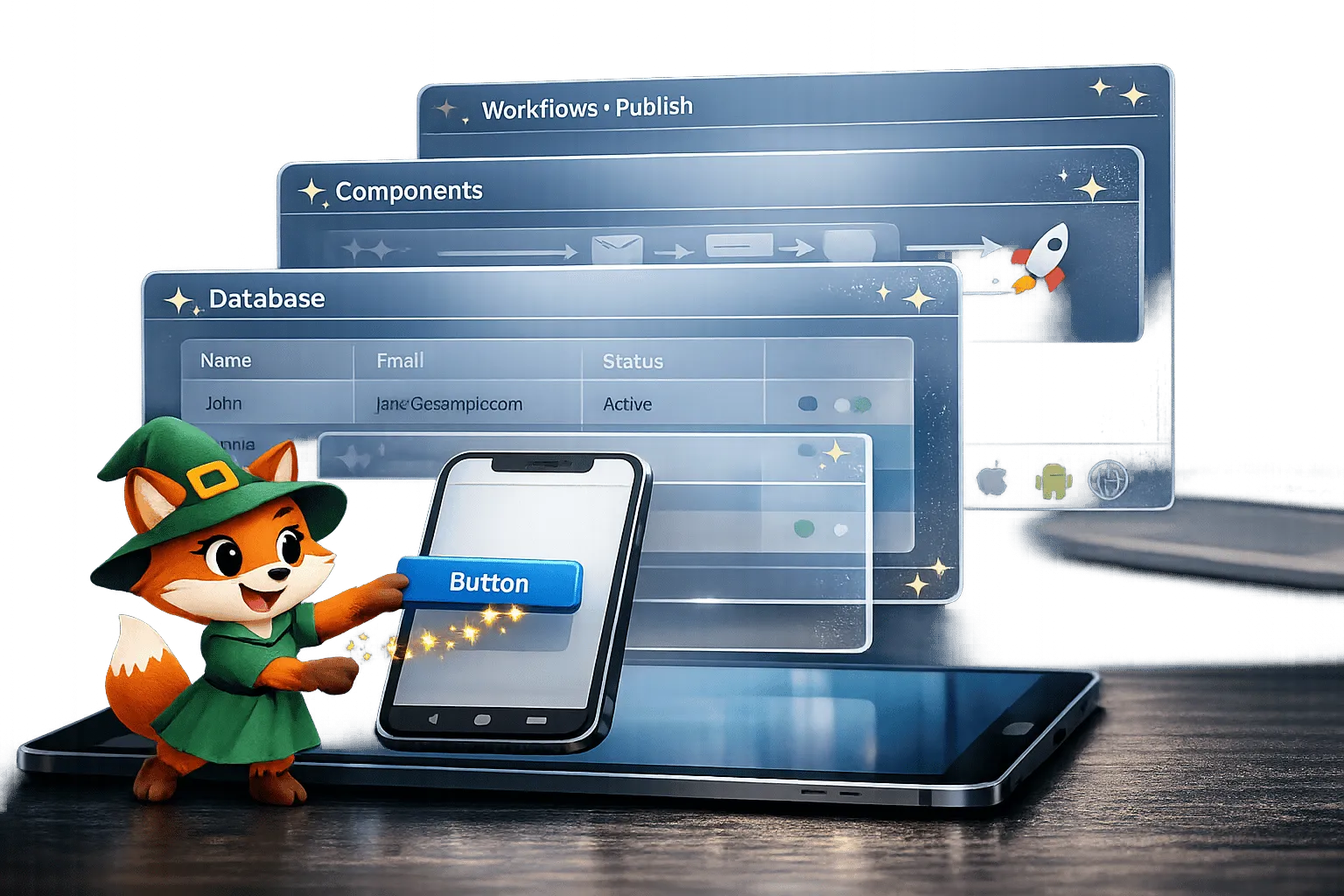
Ada, Adalo's AI builder, lets you describe what you want and generates your app. Magic Start creates complete app foundations from a description, while Magic Add adds features through natural language.
Creating an app no longer requires coding skills, hiring developers, or spending months on complex tools. Adalo, a no-code app builder for database-driven web apps and native iOS and Android apps—one version across all three platforms, published to the Apple App Store and Google Play—uses a drag-and-drop builder that allows anyone to design and launch apps without writing a single line of code. Here's what makes it stand out:
- Build Once, Publish Everywhere: Design your app in one editor, and deploy it to the Apple App Store, Google Play, and the web with one click.
- AI-Powered Tools: Use features like Magic Start to describe your app idea in plain language, and Adalo will generate the app's foundation.
- Affordable Pricing: Starting at $36/month, Adalo offers unlimited database records and no usage-based fees.
- User-Friendly Features: Drag-and-drop interface, responsive previews, and tools like X-Ray for performance optimization make app creation simple.
- Scalable and Reliable: Over 1 million apps built, 2 million user accounts created, and 99%+ uptime.
Whether you're creating a prototype or a full-scale app, Adalo simplifies the process. From managing data to publishing updates, everything is handled in one platform.
Adalo Beginners Crash Course: The Ultimate Guide
How to Navigate the Adalo Interface
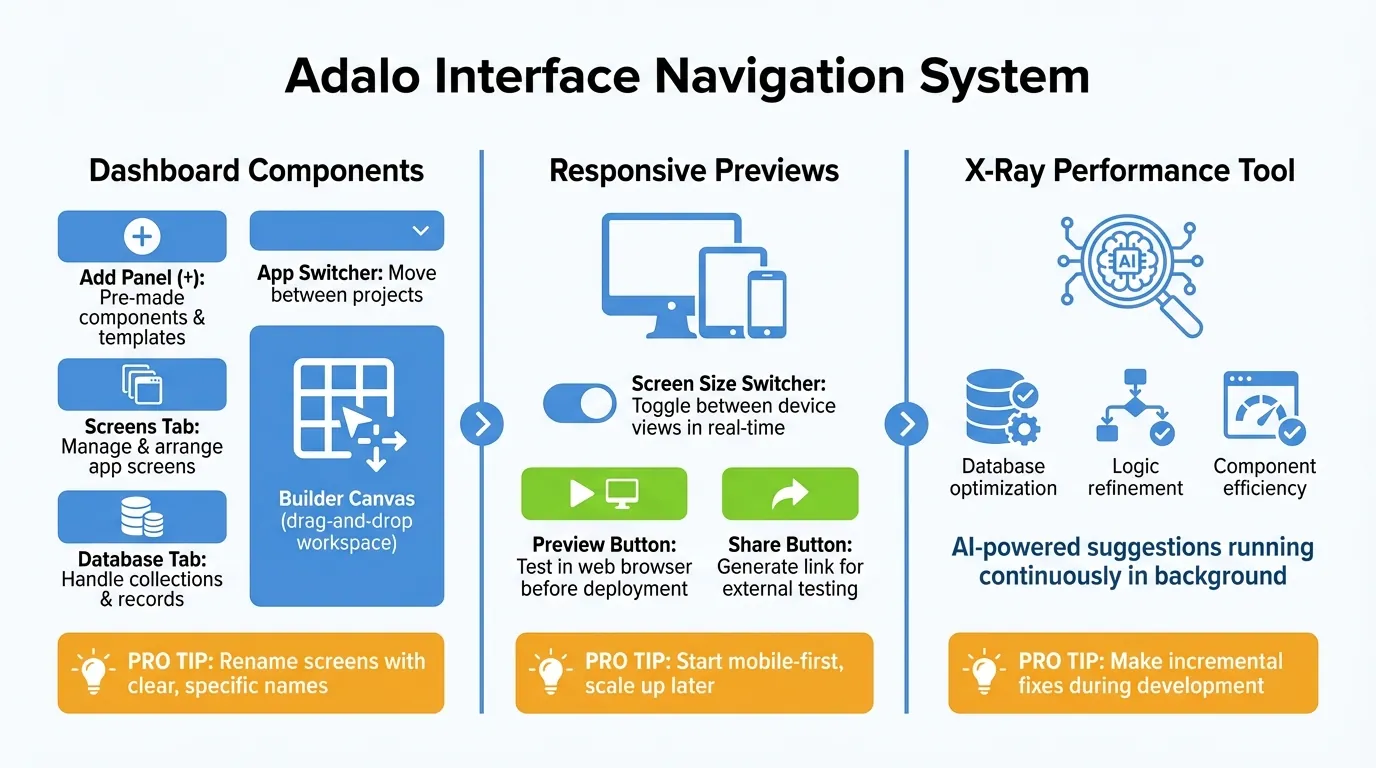
Adalo Interface Navigation Guide: 3 Core Components for App Building
Dashboard Components
The Builder Canvas serves as your primary workspace—a drag-and-drop area where you design every screen of your app. You can zoom in to fine-tune details or zoom out for a broader view of your entire project structure.
On the left side, you'll find three essential tools. The Add Panel (+) provides access to pre-made components and templates. The Screens Tab handles managing and arranging your app's screens. The Database Tab manages collections and records with no caps on storage or record counts on paid plans.
At the top, the App Switcher lets you move between projects or start a new one without leaving the builder. You can drag screen titles to group related screens, making navigation easier as your app grows. For better organization, rename screens in the left panel using clear and specific names that describe their function.
Next, let's examine how responsive previews help you test your design across multiple devices.
Responsive Previews
The Screen Size Switcher, located above each screen in the builder, allows you to toggle between mobile, tablet, and desktop views. This feature shows how your design adapts in real time across different devices—essential since Adalo builds one version that works across web, iOS, and Android.
When you're ready to test, use the Preview Button in the top bar to run your app in a web browser. This allows you to check both functionality and layout before deployment. For external testing, the Share Button generates a link you can send to others, so they can view your app on their devices without needing an Adalo account.
Best practice: Start with a mobile-first design and scale up for larger screens. This approach ensures your app looks polished on the devices where most users will interact with it.
Lastly, use the X-Ray tool to optimize your app's performance.
X-Ray Performance Tool
X-Ray uses AI to analyze your app's database, logic, and components, offering tailored suggestions to keep your app running smoothly as it scales. This tool identifies specific areas for improvement, helping you address potential issues during development rather than after launch.
Since X-Ray runs continuously in the background, it allows you to make incremental fixes, avoiding the need for a large-scale optimization effort later. The AI highlights performance bottlenecks before they become problems—particularly valuable as your user base grows toward the millions of monthly active users that Adalo's modular infrastructure supports.
With this feature, your app stays efficient no matter how many features or users you add. Combined with Adalo's architecture that handles 20 million+ daily requests with 99%+ uptime, X-Ray ensures your app maintains performance at scale.
Adalo's Component Library
Pre-Built Components
Components are the building blocks of your app—everything users interact with on their screens. You'll find them in the Add Panel (the plus button in the left toolbar), neatly organized into categories that cover every part of your app's interface.
- Navigation components like Tab Bars, App Bars, and Side Navigation make it easy for users to move between sections of your app.
- Lists, such as Simple Lists, Card Lists, and Custom Lists, display collections of data from your database. These are perfect for showing products, user profiles, or any repeating content. This is the foundation for creating complex platforms like an Airbnb-style marketplace.
- Buttons (Action Buttons, Icons, Toggles) trigger workflows, navigate to new screens, or adjust settings.
- Forms and Fields (Text Inputs, Date Pickers, File Pickers) allow users to input information that gets saved to your database.
- Simple components like Text, Images, Rectangles, and Video help you create static content and design layouts.
For more advanced features, the Component Marketplace offers tools like Google Maps, Stripe payment integration, QR scanners, and chart kits. These add-ons extend your app's functionality significantly. Marketplace components are available for free or can cost up to about $30 per component, and they're one-time purchases that work across all your apps.
Now, let's dive into how you can customize these components to make your app stand out.
Customizing Components
Adalo's interface makes it simple to tweak components so your app feels personalized and aligns with your brand. Start by dragging a component from the Add Panel onto your screen. Once it's in place, click on it to open the configuration panel on the left, where you can adjust both its appearance and behavior.
In the configuration panel, you can:
- Modify visual attributes like colors, fonts, and sizes
- Attach actions such as navigation, record updates, or external links with just a click
- Rearrange fields in forms, remove unnecessary ones, or set fields to auto-populate certain data without user input
For dynamic functionality, use the "Sometimes Visible" option in the More Menu (three dots). This feature lets you apply conditional logic to components, such as showing an admin button only to specific users or tailoring content based on preferences. You can also use arrow keys for precise positioning.
Want to reuse a customized component on another screen? Just copy it with Cmd/Ctrl + C, click the destination Screen Title, and paste it with Cmd/Ctrl + V. This workflow accelerates development significantly when building apps with consistent design patterns.
Managing Data with Database Collections
Adalo's Collections make it easy to organize and store data like user profiles, listings, messages, and more. Think of them as spreadsheet tables, where rows are individual records and columns define the types of information each record holds. Unlike competitors that impose hard limits or charge based on record counts, Adalo offers unrestricted database storage on paid plans—your data grows with your business without surprise charges.
Creating and Managing Collections
To get started, head to the Database tab, where you can create and manage collections. Every app includes a default Users collection, which handles authentication and stores essential user details like email, password, and full name.
To create a new collection, click "+ New Collection" and name it descriptively, such as "Products" or "Projects." Define the information each record will hold by adding Properties. Adalo supports various property types:
- Text: For names, descriptions, or other written content
- Number: For prices or quantities, supporting up to 15 digits with decimals
- True/False: For toggle values
- Date and Date and Time: For scheduling
- Image and File: For media uploads (up to 50MB each)
- Location: For storing addresses
To avoid duplicating data, use Relationships to link collections. For example, in a project management app, you could connect "Projects" to "Artboards" and then to "Elements." Set this up by adding a property in the "Elements" collection, choosing Relationship as the type, and selecting "Artboards" as the related collection. This creates a one-to-many connection, where multiple elements can belong to a single artboard.
Pro tip: Rename relationship properties in both collections right after creation to keep things organized as your database grows.
You can manage data directly in the database view by clicking "+ Add Record" to manually create entries. Alternatively, let users add data through app forms. For bulk operations, use the CSV import/export feature. When importing, format your data properly: use MM/DD/YYYY or YYYY-MM-DD for dates, write "true" or leave blank for True/False values, and ensure relationship columns match the label of the related record. To maintain performance, limit uploads to batches of 10,000 records or fewer. Once your local collections are ready, external data integration becomes seamless.
Connecting External Data Sources
If your data is already stored in platforms like Airtable or Google Sheets, Adalo allows you to connect it through External Collections, available on Professional, Team, or Business plans.
To connect Airtable, generate a Personal Access Token with the following scopes: data.records:read, data.records:write, and schema.bases:read. In the Database tab, click "+ Add External Collection", select Airtable, and enter your API key and base ID. Configure the required endpoints (Get All, Get One, Create, Update, and Delete), set the "Results Key" for Get All to records, and switch the Update method from PUT to PATCH.
Before connecting, ensure your Airtable base has at least one record with every column filled so Adalo can detect all fields during setup. Once connected, Airtable updates sync with your app in real time, letting you display external data in lists or forms just like native collections.
For Google Sheets, Adalo's SheetBridge feature simplifies the process, bypassing the need for full API configuration. You can also use tools like DreamFactory to connect to systems without APIs, such as legacy ERPs or MS SQL Server databases.
User Authentication and Permissions
Adalo prioritizes security, starting with the Users collection. By default, sensitive fields like Email, Password, and Full Name are restricted to the record creator, ensuring users can only access their own profile information.
For other collections, you can customize access through Collection Permissions. Specify who can Create, View, Update, or Delete records. While the default setting is "Everyone", you can restrict access based on your app's needs. For instance, you might limit a "Projects" collection to "Only the Record Creator", so users can manage only their own projects, or use "Some Logged In Users" to allow access based on relationships—like team members viewing shared projects.
These permissions protect data at the database level, preventing unauthorized access. Unlike conditional visibility, which merely hides components, permissions ensure sensitive data never reaches the user's device.
For more advanced setups, you can configure relationship-based logic up to two levels deep. This supports secure, collaborative workflows while allowing for CSV exports as backups.
Building Actions, Logic, and Workflows
Actions are the glue that connects your app's visual components to its database and navigation. They determine what happens when users interact with buttons, submit forms, or load a screen. With Adalo's AI-assisted building features, you can describe complex workflows in plain language and have the platform generate the underlying logic. Let's dive into how navigation, conditional visibility, and custom actions can make your app interactive and dynamic.
Setting Up Navigation Flows
Navigation flows start with the Link action, which connects screens. To set it up, select a button, add a Link action, and choose "New Screen…" to create and link a new screen. Adalo provides two types of navigation triggers:
- Component actions: Triggered by user interactions, like tapping a button or selecting a list item
- Screen actions: Automatically triggered when a screen loads, such as redirecting users after submitting a form
For messaging screens, you can enable Reverse Scroll to display conversations starting from the bottom, creating a familiar chat-like experience. This logic is essential when building a dating app or social platform.
Dynamic routing takes navigation up a notch. Under "Show Advanced" settings, set an action to happen "Sometimes" based on specific conditions, like form inputs or user properties. For instance, you could redirect users to different screens depending on their subscription level. If you're adding multiple conditional links to a single button, always include one fallback link set to "Always" to ensure smooth navigation.
Conditional Visibility and Logic
Conditional visibility lets your app adapt to user data or its current state. To use this feature, select a component, open the three-dot menu in the left panel, and choose "Change Visibility". For example, you can make a component visible only if "Logged In User > Admin = True."
Adalo supports various operators tailored to data types:
- Contains: For partial text matches
- Is between: For number ranges
- Is within: For location-based logic (miles or kilometers)
For example, in a project management app, you might hide a "Delete" button unless the condition "Logged In User > ID = This Item > Owner > User > ID" is true. Keep in mind that visibility rules don't support aggregations like Sum or Count. For more complex logic, pre-calculate values and store them in the database. For instance, you could display a "Premium Features" panel only when a user's total spending exceeds $100.00.
Building Custom Actions
Custom Actions allow you to integrate your app with external systems for advanced functionality. To create one, select a button and choose Add Action > Custom Action > New Custom Action. From there, you can configure the API method (GET, POST, PUT, PATCH, or DELETE), enter the endpoint URL, and add any required headers, such as Authorization: Bearer YOUR_API_KEY.
You can use Magic Text in the JSON body to send dynamic app data. For example:
{"email": "{{Current User Email}}", "project_name": "{{Text Input Value}}"}After testing, you can add response Outputs (Text, Number, or Date/Time) to use in subsequent actions.
Custom Actions are available with the Professional Plan or higher and are shared across your team. Any edits to a Custom Action automatically update it across all team apps. However, they can't be directly linked to Form component submit buttons. Instead, create custom forms by combining individual Input components with a Button to trigger the action.
AI-Powered App Building with Magic Start and Magic Add
Adalo's AI Builder transforms how you create apps by letting you describe what you want in plain language. Instead of manually configuring every screen and database table, you can generate complete app foundations from simple descriptions.
Magic Start: Generate Complete App Foundations
Magic Start generates complete app foundations from a simple description. Tell it you need a booking app for a dog grooming business, and it creates your database structure, screens, and user flows automatically—what used to take days of planning happens in minutes.
The AI analyzes your description and builds out:
- Database collections with appropriate properties and relationships
- User authentication flows
- Core screens for your app's primary functions
- Navigation structure connecting everything together
This foundation isn't locked—you can modify everything the AI generates using the visual builder. Magic Start accelerates the initial setup phase, getting you to a working prototype faster than starting from scratch.
Magic Add: Expand Your App with Natural Language
Magic Add lets you add features and screens by describing what you want. Need a payment screen? A user profile section? A messaging feature? Describe it in plain language, and Adalo generates the components, connects them to your database, and wires up the logic.
This AI-assisted approach means you spend less time on repetitive configuration and more time refining your app's unique value. The combination of Magic Start and Magic Add represents a fundamental shift in app development—from manual construction to guided creation.
Publishing and Deploying Your App
Once you've built your app's screens, database, and logic, Adalo transforms your design into native code for iOS and Android, plus a Progressive Web App (PWA). Head over to the Launch tab to generate native builds for iOS (.IPA) and Android (.AAB), or publish your PWA instantly. This single codebase approach means you build once and deploy everywhere—a significant advantage over platforms that require separate development for each platform.
One-Click Native Builds
Adalo simplifies the process of creating native builds. For iOS, enter your Bundle ID (double-check for any extra spaces), Apple ID email, and app-specific password. Adalo then generates an .IPA file, ready for TestFlight or App Store submission.
For Android, you'll need to upload your google-services.json file and Firebase Service Account Key, ensuring the Package Name matches. Adalo compiles this into an Android App Bundle (.AAB).
Need a PWA? Simply toggle "Publish to Web" in the Publishing tab to generate a shareable URL and a PWA manifest that users can install directly to their home screens on any device.
Key advantage: Unlike web wrappers that add 2-3 seconds of load time, Adalo compiles to true native code. Your apps perform like traditionally coded applications because they are native applications—not web views wrapped in an app shell.
Submitting to App Stores
The App Store sees over 650 million visitors weekly, making it a prime platform for your app. Getting your app into the stores is often the hardest part of launching a new app or business—it's essential for marketing, distribution, and reaching users where they already shop for apps. Adalo handles this complex submission process so you can focus on your app's features.
Before submitting, have a 1024×1024px icon ready for iOS and a 512×512px icon for Android. You'll also need clear explanations for any permissions your app requests, such as "to upload profile photos", to avoid rejection.
For testing, use TestFlight to invite up to 10,000 external testers on iOS. For Android, Google Play offers Internal and Closed testing tracks. Keep in mind that review times vary: Apple typically takes 24–48 hours (sometimes up to 7 days), while Google Play reviews can take 2–7 days.
Adalo ensures compliance with iOS 26 SDK standards during export, as required starting April 2026.
Unified Updates Across Platforms
Adalo's single visual codebase means updates are seamless across all platforms. Any changes you make in the builder are applied instantly when you hit "Publish." Native apps automatically check for updates when launched, while PWAs update in real time.
For more control, the Manual Publishing feature lets you test updates in a draft environment before going live. Planning a big release? Use phased rollouts to deploy updates gradually over 7 days, giving you time to catch and fix any issues before they impact your entire audience.
Pricing and Value Comparison
Understanding the true cost of app development requires looking beyond the sticker price. Adalo's pricing model stands out for its predictability and included features.
Adalo's Pricing Structure
Starting at $36/month, Adalo offers what competitors charge significantly more for:
- Native iOS and Android apps published to Apple App Store and Google Play Store
- No caps on actions, users, records, or storage
- Zero usage-based charges—app actions removed entirely
- Predictable monthly cost that doesn't spike with success
This pricing model eliminates the anxiety of watching usage meters or calculating whether your app's growth will break your budget.
How Competitors Compare
| Platform | Starting Price | Key Limitations |
|---|---|---|
| Adalo | $36/mo | None—unlimited usage, native apps, app store publishing |
| Bubble | $69/mo | Hard limits + Workload Units (unpredictable usage-based charges) |
| Glide | $25/mo | No mobile apps, spreadsheet templates only, custom domains require $60/mo |
| Softr | $69/mo+ | Scales with users, PWA requires $167/mo plan |
| Thunkable | $189/mo | Required for app store publishing, token limits |
| FlutterFlow | $80/mo/seat | No database included, higher technical barriers |
Adalo offers the lowest price for native app store publishing with the only truly unlimited, predictable pricing model. When your app succeeds and user numbers climb, your costs stay the same.
Conclusion
Adalo's visual builder has transformed how production-ready apps get created. Its drag-and-drop interface allows you to place components exactly where you want them, while AI-powered features like Magic Start and Magic Add accelerate development from days to hours. What used to take months can now be accomplished in weeks or even days.
From managing databases and authentication to handling notifications and publishing apps to app stores, the platform handles the technical complexity. This lets you focus entirely on building features users will love. With over 1 million apps already created and more than 20 million data requests processed daily at 99%+ uptime, the platform scales from simple prototype to apps serving millions of monthly active users.
"The intuitive visual editor takes a complex subject, like coding, and creates a building environment in a common interface for today's software tools. If you've used tools like PowerPoint or Canva, you'll be able to navigate Adalo."
- Adalo
Starting at $36/month with no usage-based fees, Adalo offers predictable pricing as your app grows. Thanks to its single codebase, updates roll out instantly across iOS, Android, and the web—no need for rebuilding or platform-specific tweaks. Features like navigation flows, component customization, data management, and seamless deployment all work together to turn ideas into fully functional native apps.
Whether you're launching a new MVP, improving an existing prototype, or building apps for internal use, Adalo delivers the speed of visual development paired with the performance of native mobile apps.
Related Blog Posts
- How to Launch Your First Mobile App Without Coding
- How to Build Prototypes in Days with No-Code
- How to Build an Employee Onboarding App Without Coding
- How to Build a Responsive Mobile App Without Code
FAQ
Why choose Adalo over other app building solutions?
Adalo is an AI-powered app builder that creates true native iOS and Android apps from a single codebase. Unlike web wrappers, it compiles to native code and publishes directly to both the Apple App Store and Google Play Store. At $36/month with unlimited usage and no hidden charges, it offers the lowest price for native app store publishing among major platforms.
What's the fastest way to build and publish an app to the App Store?
Adalo's drag-and-drop interface combined with AI-assisted building features like Magic Start and Magic Add lets you go from idea to published app in days rather than months. Describe your app concept, and the AI generates your database, screens, and logic. Adalo then handles the complex App Store submission process, so you can focus on features instead of certificates and provisioning profiles.
How much does it cost to build an app with Adalo?
Adalo starts at $36/month with no caps on actions, users, records, or storage. Unlike competitors that charge usage-based fees (Bubble's Workload Units) or require expensive plans for basic features (Thunkable's $189/mo for app store publishing), Adalo's pricing is predictable—your costs stay the same even as your app grows.
Do I need coding experience to use Adalo?
No coding experience is required. Adalo's visual builder uses drag-and-drop components, and AI features let you describe what you want in plain language. If you've used tools like PowerPoint or Canva, you'll be able to navigate Adalo's interface and build functional apps.
How does Adalo's database system work?
Adalo uses Collections to organize data like user profiles, products, and messages—similar to spreadsheet tables. You can define property types including text, numbers, images, dates, and locations, plus create relationships between collections. On paid plans, there are no limits on database records or storage.
Can I connect Adalo to external data sources like Google Sheets?
Yes, Adalo supports External Collections that connect to Airtable and Google Sheets. The SheetBridge feature simplifies Google Sheets integration without complex API configuration. You can also use tools like DreamFactory to connect to legacy systems without APIs.
How long does it take to build an app with Adalo?
With Magic Start generating complete app foundations from descriptions and Magic Add creating features from natural language, you can have a working prototype in hours. Full production apps typically take days to weeks rather than the months required with traditional development.
What's the difference between Adalo and web app builders like Bubble?
Adalo creates true native iOS and Android apps that compile to native code and publish to app stores. Bubble focuses on web applications and charges $69/month with usage-based Workload Units that can spike unpredictably. Adalo's $36/month includes unlimited usage and native mobile capabilities.
Can Adalo apps scale to handle many users?
Yes, Adalo's modular infrastructure supports apps with millions of monthly active users. The platform processes over 20 million daily requests with 99%+ uptime. Unlike app wrappers that hit performance constraints under load, Adalo's architecture maintains performance at scale.
How do I test my app before publishing?
Adalo provides multiple testing options: use the Preview Button to run your app in a browser, generate shareable links for external testers, or distribute iOS builds via TestFlight to up to 10,000 testers. Android offers Internal and Closed testing tracks through Google Play.

Build your app fast with one of our pre-made app templates
Begin Building with no codeRelated Content

Ultimate Guide to No-Code App Development
Build web, iOS, and Android apps faster and cheaper using no-code platforms, AI prototyping, drag-and-drop editors, and native integrations.

How to Build a Mobile App Without Coding (2026 Guide) | Adalo
Learn how to plan, design, and launch iOS & Android apps with Adalo’s no-code builder. This step-by-step guide covers tools, templates, etc.
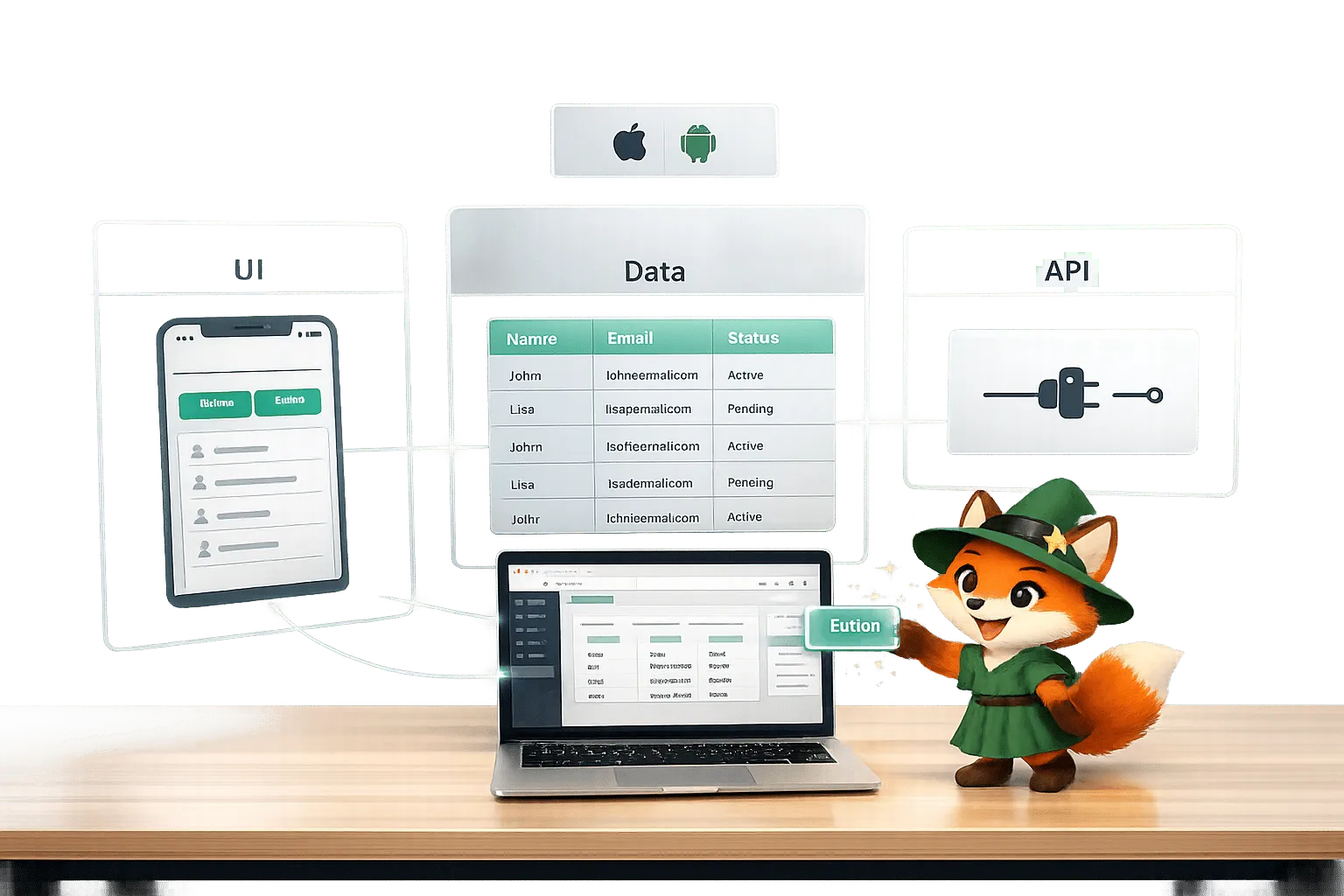
Adalo for Coding Education: Teaching App Development Without Code
Teach app development without code using a visual builder that covers UI, databases, APIs, and native iOS/Android publishing with predictabl

Adalo's AI Builder: From Idea to App in Minutes
Create native iOS, Android, and web apps in minutes without coding: AI builds databases, screens, and user flows. Plans start at $36/month w