


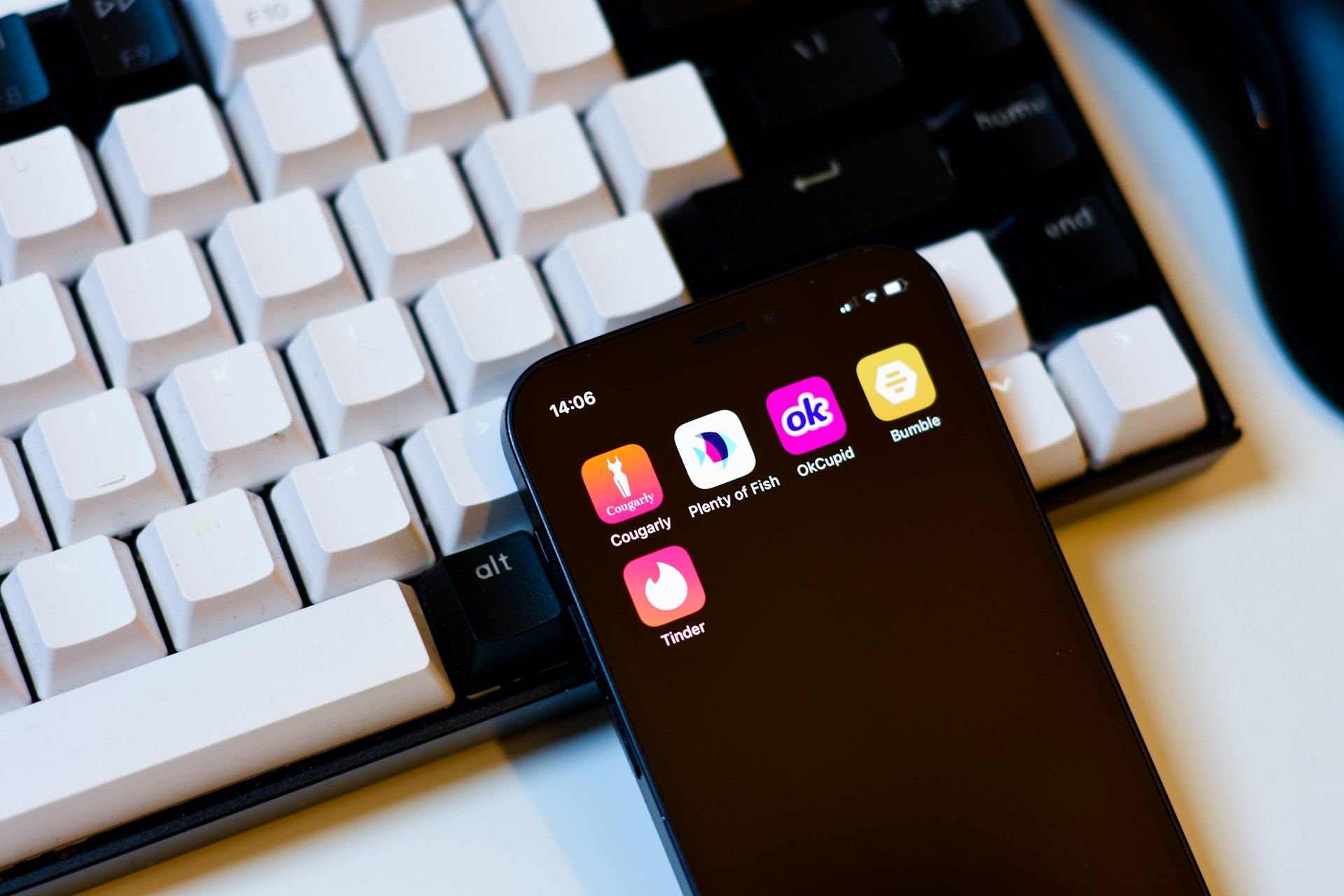
Building a dating app like OkCupid means tackling some of the most demanding features in mobile development: sophisticated matching algorithms, real-time messaging, detailed user profiles with preference filtering, and swipe-based interfaces that feel native on every device. Traditionally, launching across web, iOS, and Android requires separate codebases, specialized developers for each platform, and budgets that push well into six figures—barriers that keep most founders and indie developers locked out of the dating app market entirely.
Adalo eliminates these technical and financial hurdles, putting a fully functional OkCupid clone within reach of non-technical builders. Adalo is a no-code app builder for database-driven web apps and native iOS and Android apps—one version across all three platforms. AI-assisted building and streamlined publishing enable launch to the Apple App Store and Google Play in days rather than months. From complex matching logic to push notifications for new connections, you can design and deploy every feature your dating app needs through a visual interface—no code required.
Why Adalo Is the Smart Choice for Building Your OkCupid Clone
Adalo is a no-code app builder for database-driven web apps and native iOS and Android apps—one version across all three platforms, published to the Apple App Store and Google Play. This makes it uniquely suited for dating app development, where complex user profiles, matching algorithms, and real-time messaging all depend on sophisticated database relationships working seamlessly across every device your users prefer.
For a dating app to succeed, app store presence isn't optional—it's essential. Users expect to find your app in the Apple App Store or Google Play, receive instant push notifications when they get a new match or message, and enjoy a polished native experience. With Adalo, you can deliver all of this from a single build, dramatically reducing development time while maximizing your reach to potential users searching for their next connection.
Building a dating app like OkCupid requires complex features—detailed user profiles, compatibility algorithms, real-time chat, swipe mechanics, and subscription tiers—all of which traditionally demand months of development across multiple codebases for web, iOS, and Android. For founders and indie developers without engineering teams or six-figure budgets, this technical barrier has long made the dating app space feel out of reach.
Adalo, an AI-powered app builder, changes that equation entirely. Build database-driven web apps and true native iOS and Android apps from a single codebase—one version across all three platforms. AI-assisted building and streamlined publishing enable launch to the Apple App Store and Google Play in days rather than months. With Adalo's visual development environment, you can design sophisticated matching logic, build interactive profiles, and deploy a fully functional OkCupid clone without writing a single line of code.
Why Adalo Is Ideal for Building a Dating App Like OkCupid
Dating apps live or die by their database architecture. User profiles, matching algorithms, conversation histories, and preference data all require robust data relationships that scale as your user base grows. Adalo's AI-assisted platform handles this complexity through a visual interface, letting you focus on the user experience rather than backend infrastructure.
For dating apps, native app store distribution is essential—users expect to download from the App Store or Google Play, receive push notifications for new matches and messages, and enjoy a smooth mobile experience. With Adalo, you build once and deploy everywhere, ensuring your OkCupid clone reaches users on their preferred devices while keeping them engaged with timely alerts about potential connections.
Ada, Adalo's AI builder, lets you describe what you want and generates your app. Magic Start creates complete app foundations from a description, while Magic Add adds features through natural language.
This comprehensive tutorial walks you through creating a functional, profile-driven dating app using Adalo's platform. You'll design rich profiles and questionnaires, implement compatibility scoring and swipe discovery, add chat and premium tiers. The same app publishes to web, native iOS, and native Android—all without writing code or rebuilding anything.
Prerequisites and Initial Setup
Step 1: Create Your Adalo Account
- Go to Adalo.com and sign up.
- Start on the Free plan for prototyping; upgrade later as needed. See current pricing for limits and features.
- Verify your email and complete onboarding.
Step 2: Start Your Project
- Click Create New App → Mobile App.
- Name your project (e.g., OkCupidClone).
- Choose Start from Scratch or use Magic Start to generate a complete app foundation from a simple description—tell it you're building a dating app with profiles and matching, and it creates your database structure, screens, and user flows automatically.
Step 3: Configure App Settings
- Targets: iOS, Android, and Web App (PWA).
- Responsive: Enable responsive design to support phones, tablets, and desktop.
- Locale: Set default language and region.
- Branding: Colors, typography, icons, and splash screens.
Designing the Data Model (Profiles, Preferences, Q&A)
Step 4: Enhance the Users Collection
Open Database → Users and add:
- Display Name (Text)
- Date of Birth (Date) → compute age with a Formula
- Gender (Text / options)
- Sexual Orientation (Multi-select Text)
- Bio (Multiline Text, ~500 chars)
- Location (Location) + City (Text)
- Distance Preference (Number, miles/km)
- Age Range Min/Max (Numbers)
- Looking For (Text: Dating, Friendship, etc.)
- Verification Status (Text)
- Premium Member (True/False)
- Account Created (Date & Time – automatic)
- Last Active (Date & Time)
With no record limits on paid plans, your user database can grow without hitting arbitrary caps—critical for dating apps where success means scaling to thousands or millions of profiles.
Step 5: Profile Enhancements (Optional but Useful)
- Photos (up to 6 Image fields or a separate Photos collection)
- Education Level (Text / options)
- Occupation / Company (Text)
- Religion / Politics (Text / options)
- Lifestyle: Drinking, Smoking, Has Kids, Wants Kids (Text / True/False)
- Any other attributes relevant to your niche.
Step 6: Questions (OkCupid-style)
Create Questions collection:
- Question Text (Text)
- Category (Text: Lifestyle, Values, Dating, etc.)
- Type (Text: Multiple Choice, Scale, Yes/No)
- Answer Options (Text; store JSON or pipe-separated choices)
- Weight (Number; importance for scoring)
- Active (True/False)
Step 7: User Answers
Create UserAnswers collection:
- Answer Value (Text)
- Importance (Number: 1–5)
- Created Date (Date & Time)
- User → Users (Many-to-One)
- Question → Questions (Many-to-One)
Authentication & Onboarding
Step 8: Welcome Screen
- Logo + tagline ("Find your most compatible matches").
- Buttons: Sign Up, Log In, Learn More.
Step 9: Multi-Step Registration
Screen 1 – Account
- Email, Password, Display Name → Submit → next.
Screen 2 – Personal
- DOB (compute Age), Gender, Orientation, Location (device or manual).
Screen 3 – Preferences
- Looking For, Age Range dual slider, Distance slider, Relationship Type.
Step 10: Photo Upload & Verification
- Image Picker with 1–6 photos and "Set Primary" toggle.
- Verification flow (optional): selfie prompt using Camera component; store verification image and set Verification Status.
Phone verification: implement via a third-party service (e.g., Twilio Verify) using Custom Actions.
Matching Engine (Scoring, Filters, and Mutual Likes)
Step 11: Matches Collection
- Match Score (Number, 0–100)
- Match Date (Date & Time)
- User 1 Liked / User 2 Liked (True/False)
- Is Mutual (True/False)
- Last Interaction (Date & Time)
- User 1 → Users (Many-to-One)
- User 2 → Users (Many-to-One)
Step 12: Compatibility Scoring
Implement with Formulas + logic:
- Inputs: shared answers, answer compatibility %, distance, age preference fit, profile completeness, recent activity.
- Weight with Question.Weight and UserAnswers.Importance.
- Save Match Score to show as a badge (e.g., "86% compatible").
Use Magic Add to describe new matching criteria in natural language—"add a filter for users who answered the same way on lifestyle questions"—and the AI generates the logic for you.
Step 13: Criteria & Exclusions
Must match (AND):
- Both users within each other's Age Range
- Within Distance Preference
- Gender/Orientation compatibility
- Not blocked/reported
Should match (OR):
- Shared interests/lifestyle values
- Similar education or habits
- Recent activity
Discovery, Profiles, and Swipe UI
Step 14: Discovery (Swipe) Screen
- Add a Card/Stack component bound to Users.
- Filter:
- Not already liked/passed by the current user
- Meets mutual age and distance preferences
- Exclude blocked/reported
- Card content: primary photo, name + age, city/distance, match %.
Gestures & actions:
- Right = Like → create "like" interaction, check for mutual like → if mutual, create Matches record and open It's a Match screen.
- Left = Pass → create "pass" record.
- Up = Super Like (premium) → record and notify.
Step 15: Detailed Profile
- Screen: View Profile
- Sections: photo carousel, basic info, bio, lifestyle tags, "Top answers" to key questions.
- Buttons: Like, Pass, Super Like, Report.
Step 16: Match Celebration
- "It's a Match!" overlay with both photos, match %, and actions: Send Message / Keep Swiping.
Messaging (Conversations & Notifications)
Step 17: Messages Collection
- Message Text (Multiline Text)
- Sent Date (Date & Time)
- Is Read (True/False)
- Message Type (Text: text/image/gif)
- Sender → Users
- Conversation → Conversations
Step 18: Conversations Collection
- Last Message (Text)
- Last Message Date (Date & Time)
- Unread Count User 1 / User 2 (Numbers)
- Is Active (True/False)
- Participant 1 / Participant 2 → Users
Step 19: Chat Screen
- Header with match's photo/name and Unmatch menu.
- Messages list (sort ascending), distinct styling for sent/received.
- Input bar: text, send, image attach (and optional GIF via Custom Action).
- Push notifications for new messages and matches:
Premium Features & Monetization
Step 20: Subscription Tiers
Suggested tiers:
- Basic (Free): limited daily swipes (e.g., 25), standard filters, basic messaging.
- Premium: unlimited swipes, See Who Liked You, advanced filters, Rewind.
- Gold: Premium + Super Likes (daily), monthly Boost, priority support.
Step 21: Payments Implementation
- iOS/Android in-app purchases (digital goods): integrate IAPHUB with Adalo for native IAP flows:
- Stripe for web payments or eligible non-digital services via Marketplace components:
Step 22: Premium Gating
- Conditional visibility for premium UI.
- Usage tracking for daily limit counters, Super Likes, Boosts.
- Upsell modals when a non-premium user taps gated features.
Unlike platforms with usage-based charges that create unpredictable bills as your app grows, Adalo plans include unlimited usage—no bill shock when your dating app goes viral.
Location & Proximity Matching
Step 23: Location Permissions
- Prompt users for permission; provide manual location fallback.
- Store Location (lat/long) and update on app open or at suitable intervals.
Step 24: Distance Filtering
- Store each user's coordinates with the Location property (lat/long are available via Magic Text). Compute straight-line distances using Adalo's Latitude, Longitude, and Special Formulas guide, or call a small external API if you need driving distance.
- To compare two saved locations (e.g., "within X miles/km"), follow Adalo's Comparing Locations walkthrough and apply your app's Distance Preference filter (e.g., 1–100 miles/km; premium could offer "Travel Mode" or a global radius).
Step 25: Location-Driven Features (Optional)
- Nearby Matches, Travel Mode (set a virtual location), Local Events screens.
Safety & Moderation
Step 26: Reports & Blocks
- Reports collection: type (Fake Profile/Harassment/etc.), description, evidence (image), status.
- Blocked Users relation on Users; exclude blocked users from discovery and messages.
- Add a Safety screen with tips, reporting access, and links to policies.
Installing Essential Components
Step 27: Marketplace Components
Visit the Adalo Marketplace:
- Card Stack / Swipe for discovery
- Image Carousel for profile photos
- Maps (for location views)
- Chat UI (or build custom with lists)
- Camera/File upload for verification flows
Testing Your App (Flows, Edge Cases, Payments)
Step 28: Test Users & Data
- Seed 20–30 test profiles covering ages, orientations, locations, and mixed match % values.
- Include edge cases: incomplete profiles, inactive accounts, premium vs. free.
Step 29: Core Flow Tests
- Onboarding: registration, photos, preference setup.
- Discovery: swipe logic, mutual match creation, gated features.
- Chat: message send/receive, notifications, unread counts.
- Payments: purchase, entitlement unlock, renewal, cancellation.
- Safety: report/block flows and visibility exclusions.
Step 30: Preview & Device Testing
- Use Adalo's previewer and test on physical devices for UI and performance.
- Use X-Ray to identify performance issues before they affect users—it highlights slow queries and optimization opportunities.
- Verify conditional visibility, formulas, and all notification triggers.
Optimization, Limitations & Workarounds
Platform Capabilities and Best Practices
Performance considerations
- Large collections and complex relationships benefit from thoughtful screen design.
- Deeply nested lists (lists within lists) increase render time.
- Heavy image/video usage impacts load times and storage.
Following Adalo 3.0's infrastructure overhaul in late 2025, apps run 3-4x faster than before. The modular architecture scales with your app's needs, supporting apps with over 1 million monthly active users.
Real-time considerations
- Continuous background sockets and native live tracking aren't built-in.
- Foreground refresh (polling) is typical; background updates are limited.
Best practice strategies
- Keep each list to ~20–30 items and use "Load more" pagination.
- Offload heavy datasets/logic via External Collections or a lightweight backend API.
- Use Custom Actions to fetch computed results (e.g., distance, recommendations).
- Simulate "real-time" with timed list refresh + push notifications for events.
- Split roles into separate apps (e.g., user vs. admin) to keep screens lean.
- Pre-compress images; prefer carousels over large grids.
Helpful references
Publishing to App Stores & Web
Step 31: iOS Submission
- Apple Developer Program: $99/year.
- Prepare screenshots, privacy policy, and metadata.
- Determine age rating using Apple's questionnaire (many dating apps end up 17+ due to user-generated content).
- Publish guide: Apple App Store
Step 32: Google Play Submission
- Play Console: $25 one-time fee.
- Complete listing, upload AAB/APK, content rating.
- Publish guide: Google Play
Step 33: Web (PWA) Launch
- Choose Adalo subdomain or set a custom domain.
- Configure SSL, analytics, and SEO basics.
- Web publishing
One codebase updates all three platforms simultaneously—when you improve your matching algorithm or add a new feature, web, iOS, and Android users all get the update without separate deployments.
Cost Breakdown and Resources
Adalo Subscription Costs
Adalo's web and true-native mobile builder starts at $36/month with unlimited usage and app store publishing with unlimited updates to apps once published. See Adalo Pricing for current plan details.
How Adalo Compares
| Platform | Starting Price | Key Limitations |
|---|---|---|
| Adalo | $36/month | Unlimited usage, unlimited database records on paid plans |
| Bubble | $59/month | Usage-based Workload Units, record limits, mobile apps are web wrappers |
| FlutterFlow | $70/month per user | Requires separate database setup, low-code (technical users) |
| Glide | $60/month | No App Store/Play Store publishing, data row limits |
Additional Service Costs (as applicable)
- Apple Developer Program: $99/year — Apple Programs
- Google Play Console: $25 one-time — Play Console Help
- Stripe processing fees — Stripe Pricing
- Maps/Geocoding (distance/ETA) — Google Maps Platform Pricing
- In-app purchases — IAPHUB for Adalo
- External databases/APIs — varies by provider
Marketplace Components
- Availability and pricing vary — see the Adalo Component Marketplace
Additional Resources
- Component Marketplace: prebuilt UI and utilities — Marketplace
- Database docs: relationships, formulas, performance — Database Docs
- Custom Actions: connect external APIs and services — Custom Actions Guide
- Push Notifications: triggers and setup — Notifications
- Templates & Learning: App Templates · Learning Hub
Notes: This guide focuses on what's achievable with Adalo's native features and light integrations. Real-time GPS tracking, continuous background updates, and complex server-side algorithms are not native; use Custom Actions, External Collections, or a small backend for those.
For larger-scale apps, prioritize: lean screens, progressive list loading, externalized heavy queries, and strict media optimization. Always verify plan features/limits and store policies at publication time, as they change periodically.
FAQ
Why choose Adalo over other app building solutions?
Adalo is an AI-powered app builder that creates true native iOS and Android apps. Unlike web wrappers, it compiles to native code and publishes directly to both the Apple App Store and Google Play Store from a single codebase—the hardest part of launching an app handled automatically.
What's the fastest way to build and publish an app to the App Store?
Adalo's drag-and-drop interface and AI-assisted building let you go from idea to published app in days rather than months. Magic Start generates complete app foundations from descriptions, and Adalo handles the complex App Store submission process so you can focus on features instead of certificates and provisioning profiles.
Can I build a dating app like OkCupid without coding?
Yes. Adalo's visual development environment lets you design sophisticated matching logic, build interactive profiles with questionnaires, implement swipe discovery, and add real-time messaging—all without writing code. Over 3 million apps have been created on the platform, with the visual builder described as "easy as PowerPoint."
How does compatibility scoring and matching work in Adalo?
Adalo allows you to implement OkCupid-style compatibility scoring using built-in Formulas and database relationships. Create Questions and UserAnswers collections, weight responses by importance, and calculate match percentages based on shared answers, distance, age preferences, and profile completeness. Display the resulting match score as a badge showing users their compatibility percentage.
Which is more affordable, Adalo or Bubble?
Adalo starts at $36/month with unlimited usage and unlimited database records on paid plans. Bubble starts at $59/month with usage-based Workload Units and record limits that can create unpredictable costs as your app scales. Adalo also creates true native mobile apps, while Bubble's mobile solution is a web wrapper.
Which is easier for beginners, Adalo or FlutterFlow?
Adalo is designed for non-technical users with a visual builder that can display up to 400 screens at once. FlutterFlow is "low-code" rather than no-code, targeting technical users who must also set up and manage their own separate database—significant learning complexity that often requires hiring experts for scale optimization.
Can I add premium subscriptions and in-app purchases to my dating app?
Yes. Adalo supports monetization through IAPHUB integration for iOS and Android in-app purchases, and Stripe for web payments. Create tiered subscriptions with features like unlimited swipes, Super Likes, and advanced filters using conditional visibility to gate premium content.
How do I implement location-based matching and distance filtering?
Adalo includes built-in location features for storing user coordinates, computing distances, and filtering matches based on proximity preferences. Prompt users for location permissions, provide manual fallbacks, and use Adalo's Latitude, Longitude, and Special Formulas to calculate distances between users.
What are the performance considerations for a dating app in Adalo?
Following Adalo 3.0's infrastructure overhaul in late 2025, apps run 3-4x faster with modular architecture supporting over 1 million monthly active users. Best practices include keeping lists to 20-30 items with pagination, pre-compressing images, and using X-Ray to identify optimization opportunities before they affect users.
Is Adalo better than Glide for mobile dating apps?
For dating apps requiring App Store and Play Store distribution, yes. Glide does not support Apple App Store or Google Play Store publishing and has data row limits with additional charges. Adalo publishes true native apps to both stores from a single codebase with unlimited database records on paid plans.







