



Why Adalo Works for Building Apps with Xero Data
Adalo is a no-code app builder for database-driven web apps and native iOS and Android apps—one version across all three platforms, published to the Apple App Store and Google Play. This makes it an excellent choice for creating financial management apps that pull real-time data from Xero's accounting platform, allowing you to build once and deploy everywhere your team needs access.
Having your Xero-connected app available on both app stores means your team can check invoices, track expenses, and monitor cash flow from any device—whether at the office or on the go. Push notifications can alert users to overdue payments or newly synced transactions, keeping everyone informed without constantly checking dashboards. Let's walk through how to connect Xero's powerful API to your custom Adalo app.
Want to build an app that works with Xero data without writing code? Here's how you can create a custom app for web, iOS, and Android using Xero's API and Adalo. This guide covers everything from setting up a Xero developer account to designing and deploying your app. You'll learn how to connect real-time financial data, sync invoices, manage expenses, and more—all in one build.
Why Adalo Works for Building Apps with Xero Data
Adalo is an AI-powered app builder for database-driven web apps and native iOS and Android apps—one version across all three platforms, published to the Apple App Store and Google Play. This makes it an excellent choice for creating financial management apps that pull real-time data from Xero's accounting platform, allowing you to build once and deploy everywhere your team needs access.
Ada, Adalo's AI builder, lets you describe what you want and generates your app. Magic Start creates complete app foundations from a description, while Magic Add adds features through natural language.
Having your Xero-connected app available on both app stores means your team can check invoices, track expenses, and monitor cash flow from any device—whether at the office or on the go. Push notifications can alert users to overdue payments or newly synced transactions, keeping everyone informed without constantly checking dashboards. With paid plans offering unlimited database records, you can store years of financial history without worrying about hitting storage caps. Let's walk through how to connect Xero's powerful API to your custom Adalo app.
Key Steps:
- Set up Xero Developer Account: Register for free, generate API credentials, and test with Xero's Demo Company.
- Integrate Xero API with Adalo: Use tools like DreamFactory to manage API calls and securely connect data.
- Design Your App in Adalo: Build screens for invoices, expenses, and dashboards with a drag-and-drop editor and AI-assisted features like Magic Start.
- Add Authentication and Logic: Secure your app with OAuth 2.0 and enable real-time data updates.
- Test and Launch: Validate functionality with demo data, then deploy to web, iOS, and Android without rebuilding.
Adalo lets you build one app and deploy it seamlessly across platforms, saving time and effort. Whether you're a small business owner or a developer, this guide simplifies the process of creating a tailored financial management app. With over 3 million apps created on the platform and a visual builder described as "easy as PowerPoint," you're working with a proven system.
To make this possible, you'll need the right platform that can handle both the database connections and multi-platform deployment. Adalo lets you build database-driven web apps and native iOS and Android apps—published to the App Store and Google Play—from a single editor. The platform's modular infrastructure scales to serve apps with millions of monthly active users, with no upper ceiling.
Build an App in 15 Minutes with the Xero AI Prompt Library
Adalo's AI features can dramatically accelerate your Xero app development. Magic Start generates complete app foundations from a simple description—tell it you need a financial management app for tracking Xero invoices, and it creates your database structure, screens, and user flows automatically. What used to take days of planning happens in minutes.
Once you have your foundation, Magic Add lets you expand functionality through natural language requests. Need an expense tracking screen? Just describe what you want, and the AI adds the components. This approach is particularly powerful for financial apps where you might need invoice lists, payment tracking, and reporting dashboards—each can be generated and customized without starting from scratch.
The AI Builder, due for release in early 2026, promises to take this further with prompt-based app creation and editing throughout the entire development process. For now, Magic Start and Magic Add provide substantial time savings while you retain full control over customization.
Step 1: Set Up Your Xero Developer App
To start integrating with Xero's platform, you'll need a Xero developer account. This account allows you to generate the credentials required for secure API communication. The process is free and supports up to 25 organizations. Here's how to get started.
Create a Xero Developer Account
Your Xero developer account acts as the secure link between your app and Xero, enabling real-time data integration. This foundation is essential before you can leverage Adalo's AI-assisted building features to create your financial management interface.
Begin by signing up for a free account on the Xero Developer Portal. Once logged in, head to the "My Apps" section and create a new OAuth 2.0 application. You'll need to provide an app name and a URL—if you're still in the planning phase, placeholders will work just fine.
After submitting the details, Xero will generate two important credentials: a Client ID (public) and a Client Secret (private). Make sure to copy and securely store the Client Secret immediately, as it will only be displayed once. Use a password manager or an encrypted environment variable to keep it safe.
For testing purposes, enable the Xero Demo Company in your developer account. This sandbox environment includes sample data like invoices, contacts, and transactions, giving you the freedom to test your app without affecting real client data. This is particularly valuable when you're using Adalo's Magic Start to generate your initial app structure—you can immediately test against realistic financial data.
Configure API Scopes and Redirect URI
API scopes determine the specific data your app can access. Only request the permissions your app truly needs. Common scopes include openid, profile, and email for user identity, as well as accounting.transactions for handling invoices, bank transactions, and receipts. If your app requires continuous access without users logging in every 30 minutes, include the offline_access scope to obtain a refresh token.
You'll also need to set a Redirect URI, which is the secure URL where Xero will send users after they authorize your app. For production, use an HTTPS URL, while http://localhost works fine for local testing. Ensure the Redirect URI you configure in the Xero Developer Portal is an exact match to what you use in your code—any discrepancy will cause the authentication process to fail.
Keep in mind that Xero access tokens expire after 30 minutes, while refresh tokens last for 60 days. By carefully selecting your scopes and securely storing your credentials, you'll ensure your app maintains reliable, long-term access to the financial data it requires. Since Adalo's paid plans have no record limit cap on the database, you can confidently sync extensive transaction histories without worrying about storage constraints.
Step 2: Connect Xero Data to Adalo
Once your Xero developer account is set up, the next step is to connect your financial data to Adalo for real-time updates. To do this, you'll integrate Xero's API with Adalo using DreamFactory. This tool handles authentication, data formatting, and API calls, making the process smoother.
Setting Up DreamFactory for API Management
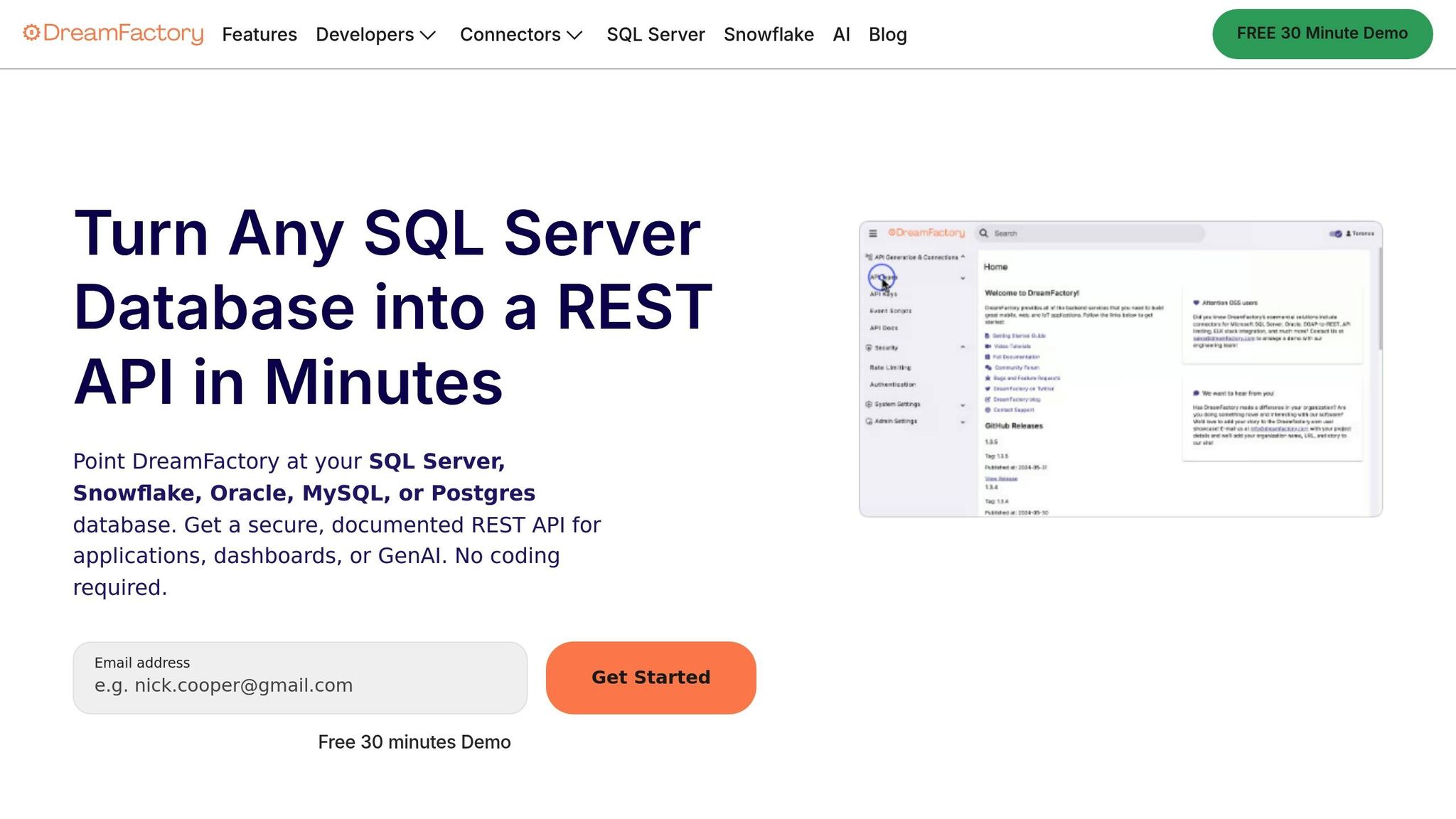
Start by creating a new DreamFactory service. Under "Remote Service", use the HTTP Service connector to set it up. When naming the service (e.g., "Xero_API"), remember that this name becomes part of the namespace for your API URI structure.
Next, retrieve the remote API URL from Xero's documentation and input it into the Config Overview section in DreamFactory. Define the required parameters and specify which HTTP verbs (like GET and POST) are allowed. To secure the API, DreamFactory uses RBAC (Role-Based Access Control) tied to an API key. This key is passed to Adalo in the header as "X-DreamFactory-API-Key."
"DreamFactory specializes in REST API generation... an underrepresented benefit is the ability to mount and manage any third-party API via an HTTP service connector. This gives you the ability to generate documentation and secure an existing API as if it were created natively."
- Spencer Nguyen, Content Moderator, DreamFactory
Enable caching to boost performance and help manage API rate limits. If your app serves multiple Xero organizations (multi-tenant scenarios), make sure your DreamFactory service references the correct tenant ID, which you can retrieve from the Xero connections endpoint. This middleware approach works seamlessly with Adalo's architecture, which processes 20 million+ data requests daily with 99%+ uptime.
Once DreamFactory is configured, you can move on to integrating these endpoints into Adalo as an external collection.
Adding Xero Data as an External Collection in Adalo
With DreamFactory ready, it's time to add your Xero data to Adalo. Go to the Database menu in Adalo, select "Add Collection", and choose "External Collection." Configure the external collection with the following:
- Base URL: Your DreamFactory endpoint (e.g.,
https://api.example.com/api/v2/xero/_table/invoices) - Headers: Include "X-DreamFactory-API-Key" and Xero-specific headers like "Xero-tenant-id" and "Authorization: Bearer [access_token]"
For the "Get All" endpoint, set the Results Key to "resource." DreamFactory organizes record collections under this JSON key. If this field is left blank, Adalo won't recognize the data.
Each JSON object returned by the API needs a unique ID so Adalo can properly list and differentiate records. If Xero's default response doesn't include a clear ID field, you can use DreamFactory's scripting engine to modify the data before it reaches Adalo. This flexibility is crucial for financial apps where you might be pulling thousands of invoices—Adalo's unrestricted database storage on paid plans means you won't hit artificial limits as your data grows.
Testing Data Fetching and Synchronization
Before connecting live data, test the setup using Xero's Demo Company. In Adalo, use the "Run Test" button on the Endpoints screen during the External Collection setup. This will confirm that your API key, Base URL, and Results Key are correctly configured.
"The quickest way to try out the API is to set up your demo company and dive into the API Explorer. Most of the API functionality is supported and you can quickly start playing with real calls against demo data."
- Xero Developer
Run tests for common scenarios, such as retrieving unpaid invoices or financial summaries, to ensure the data syncs as expected. Make sure your test calls include the "Xero-tenant-id" header to verify that the app pulls data from the correct organization. Additionally, validate the API response with a JSON validator (like JSONLint) to confirm proper formatting before finalizing the connection.
Adalo's X-Ray feature can help identify performance issues before they affect users. As you test your Xero integration, X-Ray highlights potential bottlenecks in your data fetching logic, ensuring your financial app remains responsive even when handling large transaction volumes.
The platform simplifies app development by allowing you to deploy your app as a progressive web app (PWA) and as native iOS and Android builds—all from a single platform. This streamlines the launch process and helps you get your app into users' hands faster.
Step 3: Design Your App in Adalo
With your Xero data connected, it's time to dive into designing the screens your users will interact with. Adalo's drag-and-drop visual builder makes it easy to create a fully functional financial management web app—no coding required. Plus, Adalo's AI tools can help set up your database structure and initial screen layouts, giving you a solid starting point.
Build Screens for Financial Management
Start by creating a list screen that displays invoice summaries, including details like InvoiceNumber, Contact.Name, Total, and Status. Link this screen to a detail view where users can see a complete invoice breakdown, including individual line items. For the detail screen, use a repeating section to show details such as item descriptions, quantities, and unit amounts.
If you're starting fresh, Magic Start can generate this entire structure from a description. Tell it you need "an invoice management app that shows invoice lists, details, and payment status," and it creates the database relationships, screens, and navigation automatically. You can then customize every element using the visual editor.
To make your app more user-friendly, use visual cues like conditional visibility or color coding. For example:
- Green for "PAID" invoices
- Orange for "AUTHORISED" invoices
- Red for overdue invoices
You can also add a search function using Xero's SearchTerm parameter, allowing users to quickly locate specific invoices by number or reference. Once your screens are ready, connect them to your database to display real-time data dynamically.
Map Xero Data to Adalo's Database
To ensure your app works seamlessly, map Xero's data to Adalo's database while keeping formatting consistent for U.S. users. For example:
- Format numbers like 1800.00 as $1,800.00 by using a dynamic text variable to add the dollar symbol.
- Convert dates from Xero's
YYYY-MM-DDformat to the U.S. standardMM/DD/YYYY. - Use the
Statusfield to control button visibility. For instance, show a "Pay Now" button only when the invoice status is "AUTHORISED" or "SUBMITTED".
Store unique identifiers such as ContactID and InvoiceID in your database to ensure accurate synchronization and prevent duplicate entries. With Adalo's no data caps on paid plans, you can store complete transaction histories without worrying about hitting limits—essential for financial apps that need to maintain audit trails.
| Xero API Field | Adalo Component | Suggested Formatting |
|---|---|---|
InvoiceNumber |
Text / Header | Display as the main identifier |
Total |
Text | Format as $1,800.00 |
AmountDue |
Text | Use red text if greater than $0 |
DueDate |
Text | Format as MM/DD/YYYY |
LineItems |
Custom List | Nested list in the detail screen |
Status |
Chip / Label | Control button visibility |
With your data mapped correctly, your app will be ready to provide a smooth and accurate user experience.
Design for Multi-Platform Use
To make your app functional across web, iOS, and Android, enable responsive design in Adalo's App Settings. This ensures your layout adjusts well to different screen sizes. Here are a few tips for multi-platform optimization:
- Summary Cards: Use these to display key metrics like Total Balance or Monthly Spending, ensuring they scale properly on all devices.
- Mobile Features: Add swipe actions to list items, letting users quickly edit or delete transactions. A Floating Action Button is great for mobile users to access "Add Transaction" or "Create Invoice" screens instantly.
- Desktop Features: Implement pagination with "Load More" functionality to handle large datasets efficiently. Load 20 to 50 items at a time to maintain smooth performance. For quick access, include a Quick Actions row in the header or sidebar.
Adalo's visual builder can display up to 400 screens at once on a single canvas, making it easy to see your entire app architecture while designing. This bird's-eye view is particularly helpful for financial apps with multiple interconnected screens—invoice lists, detail views, expense tracking, and reporting dashboards can all be visualized and connected in one workspace.
Following the Adalo 3.0 infrastructure overhaul in late 2025, apps are now 3-4x faster than before. This performance improvement is especially noticeable in data-heavy financial applications where users expect instant access to their Xero data.
Step 4: Add Functionality and User Authentication
At this stage, it's time to focus on making your app functional and secure. This involves integrating real-time data from Xero, setting up user authentication, and implementing filters to help users navigate the data with ease.
Set Up Actions and Logic for Real-Time Data
To enable real-time data access, you'll rely on Xero's OAuth 2.0 authentication system. During the authorization flow, your app will exchange a verification code for an access token and a refresh token. To maintain continuous access, include the offline_access scope in your initial request. You'll also need to configure your Adalo logic to send a POST request to:
https://identity.xero.com/connect/tokenThis request should include the parameter grant_type=refresh_token whenever a token refresh is necessary. Once authorization is complete, use Xero's /connections endpoint to retrieve the tenantId. This identifier is essential—it must be included in the xero-tenant-id header for all API requests. To streamline future API calls, store the tenantId in your Adalo user collection.
Finally, integrate these steps with Adalo's authentication system to ensure user data remains secure and accessible only to authorized individuals. The platform's purpose-built architecture maintains performance even as your user base grows—unlike app wrappers that can hit speed constraints under load.
Implement User Authentication and Permissions
For secure logins, combine Adalo's authentication system with Xero's "Sign In with Xero" feature. Request the openid, profile, and email scopes to automatically create user accounts in Adalo based on their Xero profiles. To guard against forgery attacks, always include a unique state parameter in your authorization requests, as Xero advises:
"The state parameter should be used to avoid forgery attacks. Pass in a value that's unique to the user you're sending through authorisation."
Ensure sensitive data, like tokens, is stored securely using encryption, and avoid hardcoding your Client Secret. If your app connects to multiple Xero organizations, implement multi-tenant management by saving each user's tenantId and switching between them as needed. Keep in mind that uncertified apps are capped at 25 tenant connections.
Adalo's infrastructure handles authentication at scale—the platform processes 20 million+ data requests daily while maintaining 99%+ uptime. This reliability is critical for financial applications where users need consistent access to their accounting data.
Add Logic for Filtering and Visualizing Data
With user access secured, shift your focus to organizing and presenting the data. Adalo's visual tools allow you to build filtering logic using an "AND/OR" interface. For example, you can set filters to display invoices based on criteria like date range, status, or amount. A practical filter might show invoices marked "AUTHORISED" with due dates in the next 30 days.
For apps handling large datasets, enable server-side pagination to load records in batches of 50 to 100, ensuring smooth performance. Adding a "Refresh" button that triggers a new API call to Xero can help users access the latest financial data without delays. If your app requires more advanced data processing, middleware tools like n8n or Latenode can help filter and transform Xero data before it reaches Adalo.
To make financial data more digestible, use Adalo's Component Marketplace to integrate charts and summary cards. For instance, you could display metrics like a "$12,450.00 Total Outstanding Balance" and use conditional formatting to highlight overdue invoices in red or paid invoices in green.
X-Ray, Adalo's performance analysis feature, identifies potential issues before they affect users. As you build complex filtering and visualization logic, X-Ray highlights bottlenecks in your data relationships, helping you optimize for speed. This proactive approach to performance is especially valuable for financial apps where slow load times can frustrate users checking time-sensitive invoice data.
Adalo's flexibility allows you to deploy your app as a progressive web app (PWA) or natively to iOS and Android—all from a single build. This ensures a smooth and professional experience for your users.
Step 5: Test, Launch, and Publish Your App
Once you've built and integrated your app, it's time to validate its performance before launching. This step ensures your app works seamlessly in real accounting scenarios and is ready for users across platforms.
Test Your App with Xero Demo Data
Use Xero's Demo Company, pre-loaded with sample data, to test your app. According to Xero's developer documentation:
"The quickest way to try out the API is to set up your demo company and dive into the API Explorer. Most of the API functionality is supported and you can quickly start playing with real calls against demo data."
To get started, enable the Demo Company in your Xero developer account. During the OAuth 2.0 authorization process, select the Demo Company as the tenant. This allows you to test the entire connection process—authorization, data fetching, and more—without risking actual business data. Use Xero's API Explorer to simulate test calls and ensure your app handles edge cases like negative numbers, decimals, and empty fields. If you're using Custom Connections for premium integrations, you can link them to the Demo Company for free during development.
Adalo's Preview feature and QR code are great tools for testing your app on web, iOS, and Android. Make sure filters display the correct invoices, calculations are accurate with proper currency formatting, and data shows up as expected across all platforms. Use X-Ray during testing to identify any performance issues before they reach your users—it highlights slow queries and inefficient data relationships that could cause problems at scale.
Deploy Across Platforms with Adalo's Single Build
After thorough testing, you can deploy your app to web, iOS, and Android—all from a single build. This is where Adalo's approach differs significantly from competitors that require separate builds or use web wrappers for mobile.
For web deployment, head to the "Publish" menu in Adalo and select "Web App." You can publish your app to a free Adalo subdomain or use a custom domain if you're on a paid plan.
For mobile deployment, Adalo creates true native apps for the Apple App Store and Google Play—not web-based wrappers. This distinction matters for financial apps where performance and security are paramount. Native compilation means your Xero app runs with the full performance of the device, rather than being constrained by a browser layer.
Before submitting your app, prepare an app icon, screenshots for different screen sizes, and a concise description. You'll need an Apple Developer account ($99/year) for iOS and a Google Play Console account ($25 one-time fee) for Android. Adalo's $36/month starting price includes unlimited app store publishing with unlimited updates—no additional charges when you push bug fixes or new features.
Publish to App Stores and Monitor Performance
Use Adalo's step-by-step submission workflow to publish your app to the Apple App Store and Google Play. This process includes uploading your app icon, screenshots, and writing a compelling store listing before submitting your app for review. The platform handles the complex certificate management and provisioning profiles that typically require developer expertise.
Once your app is live, monitor its performance and user feedback through app store reviews and Adalo's built-in tracking tools. Keep an eye on how users interact with Xero data to ensure filters work smoothly and calculations remain accurate. Be prepared to address edge cases, such as handling null values or large data sets.
If your app needs to connect with more than 25 Xero organizations, you'll need to apply for Xero App Partner certification to lift this restriction. For apps serving multiple businesses, Adalo's modular infrastructure scales to serve 1 million+ monthly active users with no upper ceiling—essential for financial management apps that might grow to serve entire accounting practices.
All Adalo plans now include unlimited usage with no usage-based charges. This means no bill shock as your Xero app gains traction—whether you have 100 users or 100,000, your monthly cost remains predictable. This contrasts with platforms like Bubble, where Workload Units can create unpredictable costs as usage scales.
Conclusion
This guide has walked you through the process of integrating Xero data into your custom app step by step. From setting up your Xero developer account to deploying your app, you now have a clear roadmap to create a tailored solution. Along the way, you connected data using API integration tools, designed an intuitive app interface with AI assistance, implemented authentication and logic, and tested your app for seamless functionality. The result? A production-ready tool that handles invoices, expenses, and financial reports, customized to meet your specific needs.
By combining Xero's powerful API with Adalo's AI-powered app builder, you've eliminated the need for extensive coding or a dedicated development team. This approach can save time and reduce errors—automating data entry can cut bookkeeping time by up to 70% and decrease invoice errors by over 90%. With Xero's platform trusted by over 4 million small businesses and 200,000+ accountants and bookkeepers worldwide, you're leveraging a system with proven reliability.
Your custom app now delivers real-time financial insights across devices, whether your team is at their desks or on the move. Thanks to Adalo's single-build functionality, updates are instantly reflected on web, iOS, and Android platforms. This ensures your app remains aligned with your workflow, offering a personalized solution instead of a generic tool.
Key Takeaways
- Start by testing your app with Xero's Demo Company to avoid working with live financial data prematurely.
- Use OAuth 2.0 with the
offline_accessscope to establish secure, long-lasting connections. - Leverage Magic Start and Magic Add to accelerate development, then customize with the visual editor.
- You can connect up to 25 Xero organizations before requiring App Partner certification.
Adalo's platform lets you deploy your app as a Progressive Web App and as native iOS and Android apps—all from a single build. This streamlined approach ensures your app is ready for production without the hassle of separate rebuilds.
Related Blog Posts
- Building an E-commerce App: No-Code Platform Guide
- How to Create an Invoice App
- How to Create Your Own CRM Fit For Purpose
- How To Create An App Using Quickbooks data
FAQ
Why choose Adalo over other app building solutions?
Adalo is an AI-powered app builder that creates true native iOS and Android apps—not web wrappers. It compiles to native code and publishes directly to both the Apple App Store and Google Play Store from a single codebase. This means one build serves web, iOS, and Android, with unlimited app store updates included. The hardest part of launching an app—getting it into the stores—is handled automatically.
What's the fastest way to build and publish an app to the App Store?
Adalo's drag-and-drop interface combined with AI-assisted building features like Magic Start lets you go from idea to published app in days rather than months. Magic Start generates complete app foundations from a description, and Adalo handles the complex App Store submission process—certificates, provisioning profiles, and store guidelines—so you can focus on your app's features.
How can I securely connect Xero data to my app?
Authenticate with OAuth 2.0 by registering your app in the Xero Developer Portal to get a client ID and secret. Use these credentials to generate secure tokens, storing them encrypted rather than hard-coded. Request only the scopes your app needs (like accounting.transactions), always use HTTPS with TLS 1.2+, and include the offline_access scope for refresh tokens that maintain connections without constant re-authentication.
How much does it cost to build a Xero financial app with Adalo?
Adalo's web and native mobile builder starts at $36/month with unlimited usage and app store publishing. There are no usage-based charges or record limits on paid plans—your costs stay predictable as your app scales. You'll also need an Apple Developer account ($99/year) for iOS and a Google Play Console account ($25 one-time) for Android publishing.
Can I test my Xero integration without using real financial data?
Yes, Xero provides a Demo Company sandbox environment pre-loaded with sample invoices, contacts, and transactions. Enable it in your Xero developer account and select it during OAuth authorization to test all API functionality safely. Use Xero's API Explorer to simulate calls and verify your app handles edge cases before connecting live business data.
How many Xero organizations can my app connect to?
Uncertified apps can connect up to 25 Xero organizations (tenants). If your app needs to serve more organizations, apply for Xero App Partner certification to remove this limitation. For multi-tenant scenarios, store each user's tenantId in your Adalo database to properly route API requests to the correct organization.
Will my Xero app work on both mobile devices and desktop browsers?
Yes, Adalo's responsive design ensures your app adapts to different screen sizes across web, iOS, and Android from a single build. You can optimize for mobile with swipe actions and floating action buttons while adding desktop-friendly features like pagination and sidebar navigation—all without rebuilding for each platform.
How can I manage Xero's API rate limits and keep my app's data in sync?
Xero allows 5,000 API calls per connection, so batch requests, request only necessary data, and use pagination for large datasets. Combine pull-based polling with Xero's webhooks for real-time updates on events like new invoices. Cache responses locally in Adalo and refresh only when changes are detected. If you hit rate limits, handle the "Too Many Requests" response by pausing and retrying after a brief delay.
How does Adalo compare to Bubble for building financial apps?
Adalo creates true native mobile apps from a single codebase, while Bubble's mobile solution is a web wrapper. Adalo starts at $36/month with unlimited usage and no record limits on paid plans. Bubble starts at $59/month with usage-based Workload Unit charges and record limits that can create unpredictable costs. For financial apps requiring reliable mobile performance, Adalo's native compilation provides better speed and scalability.
Do I need coding experience to build a Xero app with Adalo?
No coding experience is required. Adalo's visual builder is described as "easy as PowerPoint," and AI features like Magic Start generate complete app foundations from plain English descriptions. You can build invoice lists, expense tracking, and financial dashboards using drag-and-drop components. Over 3 million apps have been created on the platform by users of all technical backgrounds.







