


Why Adalo Works for Building OracleDB-Connected Apps
Adalo is a no-code app builder for database-driven web apps and native iOS and Android apps—one version across all three platforms, published to the Apple App Store and Google Play. This makes it an excellent choice for creating apps that leverage OracleDB's powerful data management capabilities, allowing you to build enterprise-grade applications without writing complex code.
When your OracleDB-connected app is ready for distribution, having native app store presence ensures your users can easily discover and download it. Push notifications keep users engaged with real-time updates from your database, whether you're alerting them about inventory changes, customer updates, or critical business metrics. This seamless connection between OracleDB's robust backend and Adalo's intuitive frontend means you can go from concept to published app in a fraction of the traditional development time.
If you want to build an app connected to OracleDB quickly, Adalo makes it possible without extensive coding skills. By integrating OracleDB as your backend, you can securely manage and display data like customer records or inventory in your app. Here's how:
- OracleDB as the Backend: Provides secure, scalable data management with features like JDBC over SSL, wallet-based authentication, and automated performance tuning via Oracle Autonomous Data Warehouse.
- Adalo for Frontend: Connects to OracleDB through REST APIs using its External Collections feature. This enables full CRUD operations, dynamic data binding, and app deployment to both iOS and Android without rebuilding.
- Setup Process: Requires OracleDB credentials, middleware tools (like ORDS), and Adalo's Professional plan. After linking OracleDB data, you can bind it to app components like lists and forms.
- Performance Tips: Use pre-filtered views, enable pagination, and optimize API calls to handle large datasets efficiently.
- Security Measures: Implement TLS encryption, restrict user permissions, and use data masking for sensitive information.
Adalo simplifies app-building by letting you design, test, and deploy apps with OracleDB integration in days, saving time and reducing costs.
Why Adalo Works for Building OracleDB-Connected Apps
Adalo is an AI-powered app builder for database-driven web apps and native iOS and Android apps—one version across all three platforms, published to the Apple App Store and Google Play. This makes it an excellent choice for creating apps that leverage OracleDB's powerful data management capabilities, allowing you to build sophisticated database-driven applications without writing complex code.
When your app needs to display real-time data from OracleDB—whether it's customer records, inventory systems, or business analytics—having native app store distribution ensures your users get the best possible experience. Push notifications can alert users to important data changes, while native performance keeps your app responsive even when handling large datasets from your Oracle backend.
What makes this approach even more powerful is the flexibility of the platform itself. With over 3 million apps created on Adalo and a visual builder described as "easy as PowerPoint," you can connect enterprise-grade Oracle databases to polished mobile experiences without the traditional development overhead. Paid plans include no database record limits, meaning your OracleDB-connected app can scale alongside your business data without hitting artificial caps.
Step 1: Prepare for OracleDB Integration
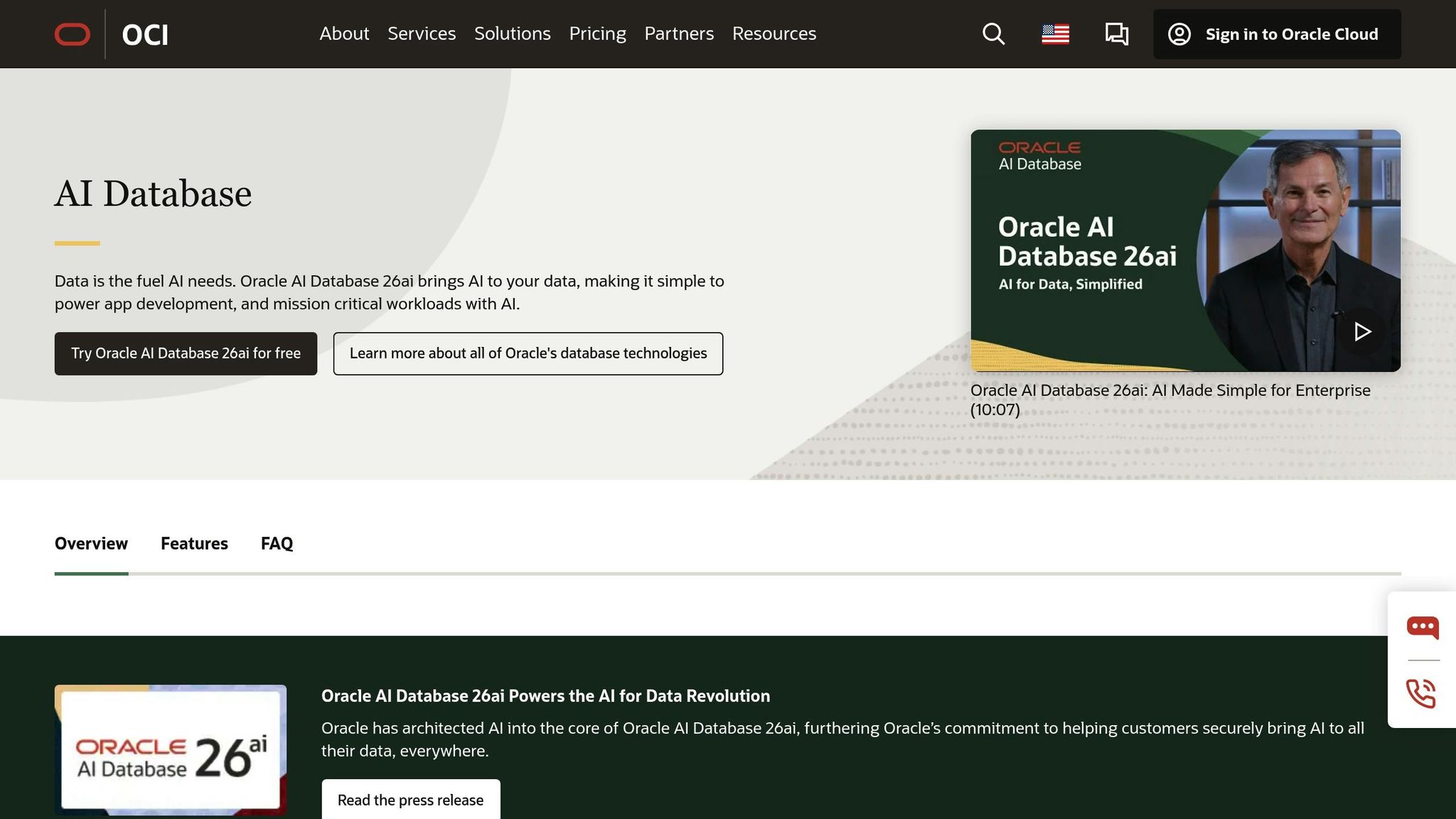
Before diving into the integration process, make sure you have all the necessary technical details at hand. This will help avoid potential hiccups during the setup.
System Requirements and Credentials
To begin with, you'll need an Adalo Professional plan or higher, as connecting to external databases requires this level of access. On the Oracle side, ensure you're running the latest 26ai Release Update.
Your OracleDB instance must be externally accessible, and you'll need specific connection parameters, including:
- Database server hostname or IP address
- Port number (default is 1521)
- Service Name or SID
- Username and password for the database schema
For Oracle Autonomous Databases, use your schema username for authentication. Additionally, confirm that your Oracle instance is configured to accept inbound connections from external servers. For AWS RDS users, set "Publicly Accessible" to "Yes" and adjust inbound rules to allow connections from the necessary IP addresses. If you're using secure connections with mTLS, have your wallet file (e.g., cwallet.sso), wallet password, and required configuration files ready to go.
Once you've confirmed access and gathered your credentials, move on to pinpointing specific connection details.
Gather Connection Details
Before proceeding, make sure you've identified the exact connection parameters for your setup. For Oracle Autonomous Data Warehouse connections, it's best to use the "low" profile as the database service name for optimal performance.
If you're integrating with Oracle Autonomous Database (ADB-S), ensure your client version supports hostname-based DN matching. Supported versions include 18.19+, 19.2+, 21+, or 23.4+. To avoid synchronization issues, use NVARCHAR2 columns with a UNIQUEID() as the initial value for primary keys.
Step 2: Connect OracleDB to Adalo
Now that you have your credentials and connection details, it's time to link OracleDB to your Adalo app. Adalo doesn't support direct SQL connections, so you'll need to use its External Collections feature. For this, your OracleDB must be accessible through a REST API that delivers data in JSON format. Middleware tools like ORDS or DreamFactory are commonly used to expose OracleDB as a JSON API.
Set Up OracleDB as a Data Source
To begin, open your Adalo app and navigate to the Database tab on the left-hand toolbar. Under the "External Collections" section, click Add Collection. Assign a clear name to your collection, such as "Orders" or "Customers", and input the Base URL of your OracleDB REST API. For example: https://api.example.com/api/v2/oracle/_table/tablename.
Next, set up your API authorization. Click Add Item under the Headers or Query Parameters section. For instance, you might add a header named Authorization with a value like Bearer [Your_Token]. Then, define the endpoint actions for your collection:
- Get All Records: Fetch all entries (specify the Results Key if necessary).
- Get One Record: Typically append
/{id}to your Base URL. - Create, Update, Delete: Use the appropriate HTTP methods - POST for Create, PATCH for Update (to avoid overwriting partial data), and DELETE for Delete.
It's important to note that Adalo requires numeric IDs as primary keys for external collections. It doesn't currently support text-based IDs, UUIDs, or special characters in identifiers. Additionally, if your middleware returns records nested under a JSON key (like "records" or "resource"), specify this key as the Results Key in the Get All Records configuration. This ensures Adalo can correctly interpret and display the data.
After entering these details, test your connection to confirm everything is working before finalizing the setup.
Test the Connection
To verify your configuration, click Run Test. Adalo will attempt to fetch data from your API, and if successful, it will display a sample JSON response. This step not only confirms connectivity but also helps Adalo automatically detect and map your database properties based on the API's response. This can save you time on manual setup.
If the test fails, an error message will appear (e.g., "401 Unauthorized" or "404 Not Found"). Double-check your authorization header, Base URL, and any network permissions. If the test runs but no records are returned, ensure the Results Key matches the structure of your API's JSON response. Once the test passes and your data properties are visible, click Done to save the collection. The new collection will now appear in your database list, ready to be integrated with your app components.
Step 3: Manage and Display OracleDB Data in Your App
Once your OracleDB external collection is connected and tested, the next step is to bring that data into your app's interface. This process transforms raw OracleDB data into a functional and user-friendly interface.
Fetch and Filter Data
Start by adding a List component to your app and setting its data source to your OracleDB external collection. Configure the endpoint to automatically fetch all records. To narrow down the displayed results, apply filters—for example, filtering records where the status is "Pending."
If you're working with large datasets, enable native pagination in the list settings. This feature loads records in smaller chunks instead of pulling thousands of rows at once, which can slow down your app's performance. Additionally, you can set up sorting rules directly within the list component, such as sorting products by "Cost - Low to High". Configuring pagination and sorting early on ensures smoother performance for your app.
Following the Adalo 3.0 infrastructure overhaul in late 2025, the platform now runs 3-4x faster than previous versions. This performance boost is particularly noticeable when fetching and displaying large OracleDB datasets, as the modular infrastructure scales dynamically with your app's needs.
Bind Data to App Components
Once your list is set up, bind OracleDB fields to visual components in your app. Use Magic Text to connect a text field to a specific OracleDB property. For example, you could merge the first_name and last_name fields to display a customer's full name in a single line. This dynamic binding ensures that updates in your OracleDB data are immediately reflected in your app.
To create a more interactive experience, enable a Click Action on list items. Link the action to a new screen, and Adalo will automatically pass the "Current Record" data to that screen. This lets users tap on a list item to view detailed information about a specific order, customer, or product—all without the need for extra API calls.
The visual builder makes this process intuitive. Adalo's canvas can display up to 400 screens at once if needed, giving you a comprehensive view of your app's architecture while you work. This bird's-eye perspective helps you understand how OracleDB data flows through different screens and user journeys.
Optimize App Performance with OracleDB
Handling large datasets efficiently is key to maintaining a responsive app. One way to do this is by creating pre-filtered views in OracleDB or a middleware layer. This reduces the amount of data transferred and helps you stay within API rate limits, which are often capped at around five requests per second.
When updating data, use the PATCH method instead of PUT. PATCH only sends the fields that have changed, keeping payload sizes smaller and preventing accidental overwrites or deletions. For data that is frequently accessed or doesn't change often, consider caching it in Adalo's internal database. This reduces the number of external API calls and improves load times. If your app includes images, store them as URLs instead of transferring large image files with every record.
Adalo's X-Ray feature helps identify performance issues before they affect users. It highlights potential bottlenecks in your app's data flow, allowing you to optimize queries and component configurations proactively. This is especially valuable when working with external databases like OracleDB, where network latency and query complexity can impact user experience.
Finally, once your app is ready, deploy it as a Progressive Web App (PWA) or natively to iOS and Android platforms—no rebuilding required!
Step 4: Security and Best Practices
Once your app is set up to display OracleDB data, securing the connection becomes a top priority. Cybersecurity threats, including insider breaches, can lead to significant risks and financial losses.
Protect Sensitive Data
Start by following the principle of least privilege: only grant users the minimum access required for their roles. Avoid using administrative accounts to connect OracleDB to Adalo. Instead, create a dedicated database user with permissions restricted to the specific tables and operations your app needs.
To safeguard data, enable Transparent Data Encryption (TDE) for data stored on disk and use TLS v1.2 or higher for data transmitted over the network. If you're leveraging Oracle Autonomous Database, secure TCPS connections are already preconfigured.
Replace default credentials immediately—change administrative passwords like "SYS" to strong, unique strings of at least eight characters. Configure account lockouts after three failed login attempts to deter brute-force attacks. For sensitive information, such as Social Security numbers or credit card details, use data masking or redaction to show only partial data (e.g., the last four digits).
To defend against SQL injection, always use bind variables in your API endpoints instead of directly inserting user inputs into SQL queries. Enable Unified Auditing in OracleDB to track critical actions like privilege changes, failed logins, and schema modifications. Additionally, apply Oracle's Critical Patch Updates as soon as they're released, as attackers often exploit new vulnerabilities quickly.
With security measures in place, you can then focus on optimizing database performance to ensure your app can handle increasing data demands efficiently.
Scale and Tune Performance
To maintain responsive performance, prioritize database-level optimizations. For instance, use the q parameter in API calls to apply filters directly at the database level, reducing the amount of data fetched and improving app responsiveness.
Adjust the array fetch size to balance the amount of data retrieved per request. For frequently accessed but rarely updated data, create indexed views in OracleDB to speed up query execution. Additionally, register your database with Oracle Data Safe to identify vulnerabilities and monitor security configurations. Conduct security assessments at least once every 90 days.
For added protection, restrict database access to specific IP addresses using Access Control Lists, and set up a Virtual Cloud Network (VCN) with private subnets to isolate your database from public internet access. This network-level isolation provides an extra barrier against unauthorized intrusions.
Adalo's modular infrastructure scales to serve apps with over 1 million monthly active users, with no upper ceiling. Unlike app wrappers that hit speed constraints under load, Adalo's purpose-built architecture maintains performance at scale. This means your OracleDB-connected app can grow from a handful of users to enterprise-level traffic without requiring a platform migration.
Adalo enables you to deploy your app as a Progressive Web App (PWA) or natively to iOS and Android app stores, ensuring your app is production-ready without requiring a rebuild from scratch.
Comparing Adalo to Other App Builders for OracleDB Integration
When building an OracleDB-connected app, choosing the right platform matters. Here's how Adalo compares to alternatives for this specific use case.
Adalo vs Bubble for Database Apps
Bubble is a visual web app builder with extensive customization options, but that flexibility often comes at a cost. Bubble's mobile solution is a wrapper for web apps, which can introduce performance challenges at scale and means updates don't automatically sync across web, Android, and iOS deployments.
Bubble's pricing starts at $59/month with usage-based charges through Workload Units—calculations that can be unclear and lead to unexpected bills. Record limits also apply based on plan tier. Adalo's web and true-native mobile builder starts at $36/month with unlimited usage and no record caps on paid plans. App Actions, the previous usage-based charge, have been removed from all Adalo plans, eliminating bill shock entirely.
For OracleDB integration specifically, both platforms require middleware to expose Oracle data as REST APIs. However, Adalo's native compilation means your data-heavy Oracle queries won't be bottlenecked by web wrapper overhead on mobile devices.
Adalo vs FlutterFlow for Enterprise Data
FlutterFlow is a low-code platform aimed at technical users. While it offers powerful customization, users need to manage and set up their own external database—a significant learning curve, especially when optimizing for scale. The FlutterFlow ecosystem is rich with experts precisely because so many users need help, often spending significant sums chasing scalability.
FlutterFlow's builder also limits your view to 2 screens at once, slowing down development speed. Adalo's canvas can display up to 400 screens simultaneously, giving you a comprehensive view of your app architecture. FlutterFlow pricing starts at $70/month per user for easy app store publishing, but this still doesn't include a database—you'll need to source, set up, and pay for that separately.
For OracleDB projects, Adalo's integrated approach means less infrastructure management and faster time to deployment.
Adalo vs Glide for Data-Driven Apps
Glide excels at spreadsheet-based apps with its template-focused approach, making it fast to build and publish. However, this creates generic, simplistic apps with limited creative freedom. Glide pricing starts at $60/month for custom domain capability, but remains limited by app updates and data record rows that attract additional charges.
Critically, Glide does not support Apple App Store or Google Play Store publishing. For OracleDB-connected apps that need native mobile distribution, this is a significant limitation. Adalo handles the complex App Store submission process, so you can focus on your app's features rather than wrestling with certificates and provisioning profiles.
Conclusion
Creating an app using OracleDB data can be a surprisingly quick process. By following the steps in this guide—from setting up your connection details and linking OracleDB to Adalo, to binding your data to app components and ensuring proper security—you could have a working app up and running in just a few days. OracleDB's reliability and scalability add to the overall performance, making it a solid choice for your app's backend.
With OracleDB handling thousands of users seamlessly and Adalo's visual builder simplifying the process of managing data, this method not only saves development time but also reduces costs and minimizes manual data entry.
"No-code development lets nonprogrammers build simple yet productivity-enhancing business applications... These apps go from idea to usability in hours or days, up to a few weeks at most." - Alan Zeichick, Senior Writer, Oracle
The rise of AI-assisted tools like Adalo, combined with robust databases like OracleDB, has opened up app development to a broader audience. Now, business users and citizen developers can turn their ideas into functional apps without needing to learn complex programming languages like Java or C++. This partnership between OracleDB and Adalo truly streamlines the entire app-building process.
Related Blog Posts
- How To Enable Employees To Build The Apps They Need
- How to Create an Invoice App
- How to Create Your Own CRM Fit For Purpose
- How To Create An App using MYOB data
FAQ
Why choose Adalo over other app building solutions?
Adalo is an AI-powered app builder that creates true native iOS and Android apps. Unlike web wrappers, it compiles to native code and publishes directly to both the Apple App Store and Google Play Store from a single codebase—the hardest part of launching an app handled automatically. Paid plans include unlimited database records and no usage-based charges, eliminating bill shock.
What's the fastest way to build and publish an app to the App Store?
Adalo's drag-and-drop interface and AI-assisted building let you go from idea to published app in days rather than months. The platform handles the complex App Store submission process, so you can focus on your app's features and user experience instead of wrestling with certificates, provisioning profiles, and store guidelines.
How do I securely connect Adalo to OracleDB?
Enable encrypted communication using Oracle's TLS/TCPS protocols and download the Oracle wallet file containing SSL/TLS certificates. Create a dedicated Oracle user with restricted permissions (SELECT, INSERT, UPDATE only as needed), implement role-based access control in Adalo, and regularly rotate credentials while monitoring connection activity.
How can I improve app performance when using OracleDB data?
Fine-tune your queries by reducing unnecessary joins and using indexed columns. Leverage caching for frequently accessed data, paginate large datasets to load records in smaller chunks, and enable connection pooling to reduce overhead. Adalo's X-Ray feature helps identify performance bottlenecks before they affect users.
What do I need to connect OracleDB to Adalo?
You'll need an Adalo Professional plan or higher, your OracleDB credentials (hostname, port, service name, username, and password), and middleware tools like ORDS or DreamFactory to expose your Oracle data as a REST API. Your OracleDB instance must be externally accessible and configured to accept inbound connections.
Which is more affordable, Adalo or Bubble?
Adalo starts at $36/month with unlimited usage and no record caps on paid plans. Bubble starts at $59/month with usage-based Workload Unit charges and record limits. Adalo has removed all usage-based charges, eliminating unexpected bills that can occur with Bubble's Workload Unit calculations.
Which is faster to build with, Adalo or FlutterFlow?
Adalo's visual builder can display up to 400 screens at once, giving you a comprehensive view of your app architecture. FlutterFlow limits your view to 2 screens at a time. Additionally, FlutterFlow requires you to set up and manage your own external database, adding significant complexity and learning time.
Can I publish my OracleDB-connected app to both iOS and Android?
Yes, Adalo lets you build one version of your app and deploy it as a Progressive Web App (PWA) or natively to both iOS and Android platforms without rebuilding. This cross-platform capability means your users can access your OracleDB data through whichever platform works best for them.
How long does it take to build an OracleDB-connected app?
With Adalo's visual builder and External Collections feature, you can have a working OracleDB-connected app in just a few days. The platform handles the complex parts of app development and App Store submission, so you can focus on designing your data displays and user experience.
Is Adalo better than Glide for mobile apps?
For native mobile apps, yes. Glide does not support Apple App Store or Google Play Store publishing, limiting you to web-based apps. Adalo publishes true native iOS and Android apps from a single codebase. Glide also has record limits and update restrictions that attract additional charges, while Adalo's paid plans include unlimited records.







