



Why Adalo Is Perfect for Turning Google Sheets Into Real Apps
Your spreadsheet already holds valuable data—now it's time to turn it into something your team or customers can actually use. Adalo is a no-code app builder for database-driven web apps and native iOS and Android apps—one version across all three platforms, published to the Apple App Store and Google Play. This makes it the ideal solution for transforming your existing Google Sheets data into fully functional mobile apps without writing a single line of code.
When your app lives in the App Store or Google Play, it becomes instantly accessible to anyone with a smartphone. Users can receive push notifications when data changes, access information offline in the field, and interact with your spreadsheet data through a polished interface designed for mobile. Meanwhile, you keep managing everything from the Google Sheets environment you already know—the best of both worlds.
Why Adalo Works for Building Apps with Google Sheets
Spreadsheets are everywhere. They track inventory, manage customer lists, coordinate field teams, and run entire operations. But when you need that data in a mobile app—something your team can use in the field, or customers can download from the App Store—the gap between spreadsheet and app feels enormous.
Adalo, an AI-powered app builder, closes that gap. It transforms your Google Sheets data into native iOS and Android apps that publish directly to the Apple App Store and Google Play Store from a single codebase. Your users get a polished mobile experience with push notifications and offline access, while you continue managing everything from the familiar spreadsheet interface you already know.
The integration works through SheetBridge, which provides seamless two-way syncing between your spreadsheet and app. Every row becomes a record, every column becomes a field, and changes flow both directions in near real-time. This guide walks you through the complete process—from organizing your data to publishing your finished app.
Here's the process in a nutshell:
- Organize Your Data: Use clear column headers, unique IDs, and consistent data types. Avoid empty rows, merged cells, or special characters in headers.
- Set Up Permissions: Ensure your Google account has editing rights. Temporarily allow broad access during development but secure permissions before launch.
- Connect to Adalo: Use SheetBridge for seamless two-way syncing. Every row in your sheet becomes a record in Adalo.
- Build App Features: Add lists, forms, and filters to display and interact with your data. Use conditional logic for role-based access or data validation.
- Enable CRUD Operations: Allow users to add, edit, and delete records directly in the app, with changes reflected in real-time in your Google Sheet.
- Test and Deploy: Verify syncing, offline functionality, and user roles. Publish as a web app or submit to app stores for mobile deployment.
Adalo simplifies app creation by allowing you to build once and deploy to both iOS and Android app stores without rebuilding. This approach saves time and money, making it ideal for businesses looking to streamline workflows or test MVP app development ideas. With paid plans offering unlimited database records and no usage-based charges, you won't face surprise bills as your app grows. Keep in mind that Google Sheets works best for datasets under 50,000 rows and can handle up to 10 million cells—but Adalo's infrastructure can scale well beyond that when you're ready to migrate to a full database.

6-Step Process to Build an App Using Google Sheets as Database
Setting Up Your Google Sheets for App Integration
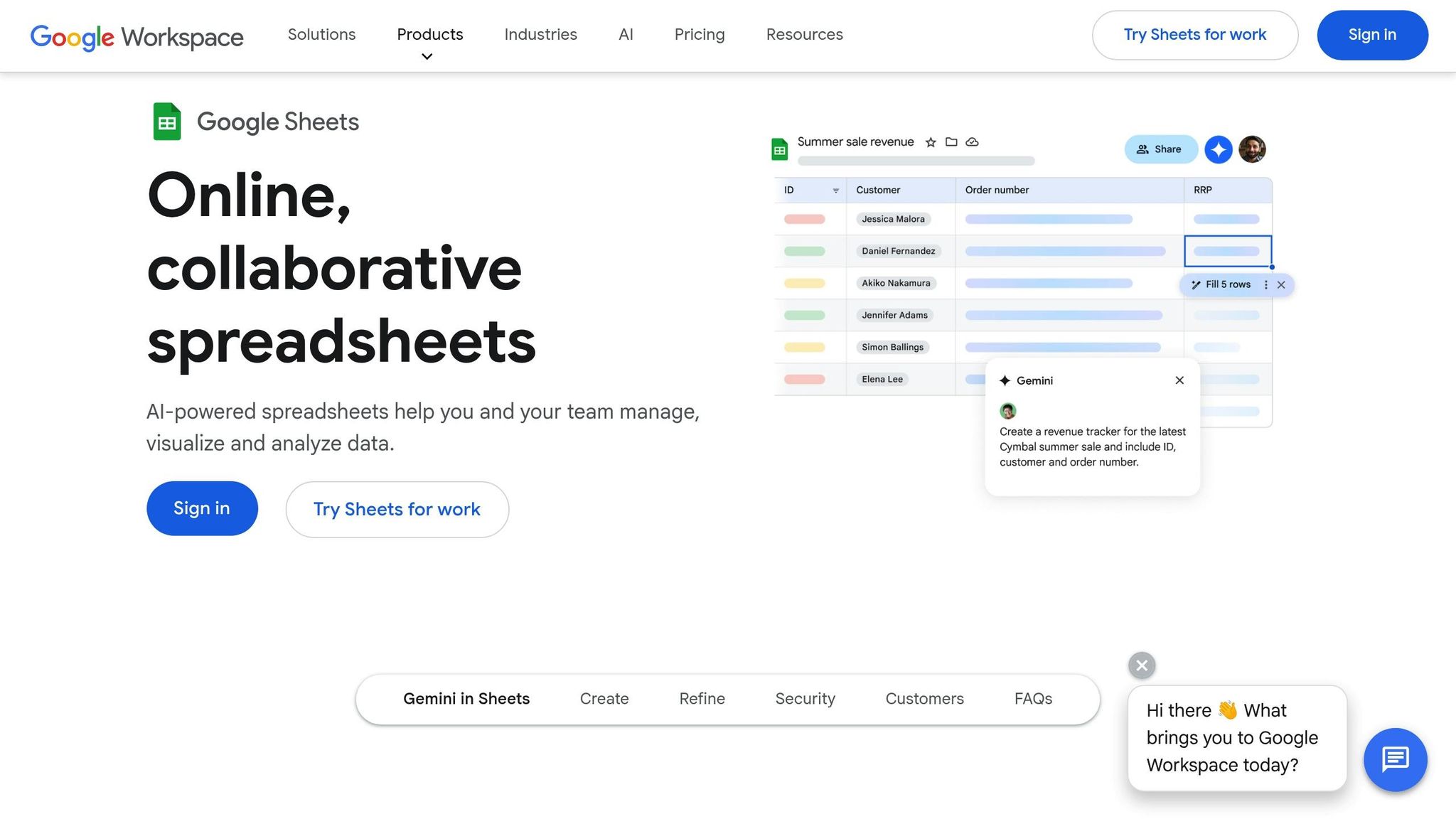
Before connecting your Google Sheets to Adalo, it's crucial to organize your data properly. A well-structured sheet ensures your app functions as intended and syncs without errors.
Organizing Data in Google Sheets
Start by setting up clear column headers in the first row. Use underscores instead of spaces or special characters—think Customer_Name or Order_Date. This avoids parsing errors when Adalo processes your data. Make sure to include a unique identifier column, like ID or Order_Number, to differentiate records.
Consistency is key. Each column should stick to a single data type. For example, if a column is for dates, don't mix in text or numbers. Similarly, if a column tracks prices, ensure all entries are numeric. Avoid merged cells, delete empty rows, and unhide any hidden columns to prevent integration hiccups. For more complex datasets, consider splitting your data into separate sheets, such as "Customers" and "Orders."
| Feature | Requirement for Adalo Compatibility |
|---|---|
| Row 1 | Must contain column headers |
| Merged Cells | Must be removed |
| Unique ID | Required for record identification |
| Special Characters | Avoid in headers; use underscores |
| Data Types | Must remain consistent within each column |
| Empty Rows | Should be deleted |
Use Data Validation rules to minimize errors when entering data manually. If you're working with formulas, keep them in separate columns instead of mixing them with raw data. For apps that handle large datasets, consider archiving older records (e.g., those older than 12 months) in a dedicated "Archive" sheet.
Once your data is organized, you'll need to configure your Google account to allow full synchronization.
Preparing Your Google Account
Your Google account must have Editor or Owner permissions—view-only access won't work. Adalo requires the ability to create, update, and delete records for seamless data synchronization.
During development, set your spreadsheet's sharing permissions to "Anyone with the link can edit." However, once your app goes live, tighten these permissions to protect your data. Be sure to copy and save the long string in your spreadsheet URL (found after docs.google.com/spreadsheets/d/) as it may be needed for manual API mapping. Always back up your spreadsheet before connecting it to external tools to safeguard your data during the initial sync process.
Connecting Google Sheets to Adalo
Once your spreadsheet is organized and your Google account is ready, it's time to connect it to Adalo. Understanding database basics for building a mobile app will help you structure this connection effectively. Adalo integrates with Google Sheets using SheetBridge, Zapier, or External Collections. Among these, SheetBridge stands out for its quick, two-way integration with minimal setup.
Authenticating and Granting Permissions
To get started, head over to sheetbridge.adalo.com and log in with your Adalo account. Click on "Connect Google Sheets" to allow Adalo access to your Google account. You'll need to grant permissions for Adalo to read, create, update, and delete records in your spreadsheets. Once done, SheetBridge will display a list of your spreadsheets stored on Google Drive.
If you're using the External Collections method (available with Professional plans starting at $52/month), you'll need to publish your Google Sheet to the web. To do this, go to File > Share > Publish to web in Google Sheets. Then, take the provided URL and convert it into a JSON endpoint, enabling API-level access.
Selecting and Linking Your Spreadsheet
After authentication, SheetBridge automatically detects your spreadsheet's schema. This includes column names, data types, and any relationships. Review the mapping to ensure everything aligns properly (e.g., Customer_Name as text, Order_Date as date).
For Zapier users, you'll need to set up a trigger like "New or Updated Spreadsheet Row" and manually map each column to its corresponding field in Adalo.
With SheetBridge, each sheet is transformed into an Adalo collection, and every row becomes a record. If you're working with multiple sheets, such as "Customers" and "Orders," relationships between them are automatically recognized based on shared unique identifiers. This setup process typically takes around 30 minutes.
Real-Time Synchronization
One of SheetBridge's strengths is its near-instant bidirectional syncing. Any changes made in your app are reflected in Google Sheets within seconds, and updates in the sheet sync back to the app automatically. For apps with heavy traffic, SheetBridge uses incremental syncing, which updates only the changed records. This helps you stay within Google's API limit of 300 requests per minute.
Keep in mind that Google Sheets supports up to 10 million cells, but performance can slow down with extremely large datasets. When you outgrow spreadsheet limitations, Adalo's built-in database offers no record caps on paid plans—you can migrate your data and continue scaling without switching platforms. Additionally, Adalo apps have offline capabilities, caching changes locally when there's no internet connection. Once the app reconnects, these changes are synced back to Google Sheets.
Building App Features with Google Sheets Data
Once you've connected your Google Sheets to Adalo, you're ready to start creating app features by linking your data to visual components. The platform's visual builder—described by users as "as easy as PowerPoint"—lets you drag elements like lists, forms, or charts onto your canvas and connect them using the "Data" tab. Each row in your spreadsheet becomes a usable, interactive record. From there, you can display, filter, and apply conditional controls to craft a dynamic and functional app.
Displaying and Filtering Data
Lists are a straightforward way to showcase multiple records from your spreadsheet. After adding a list component to your screen, link it to your Google Sheets collection and decide which columns to display—like customer names, order dates, or status fields. For extensive datasets with over 5,000 rows, enable the "Load items as user scrolls" option. This keeps your app running smoothly and avoids exceeding Google's API request limits. If you're just starting out, you might want to learn how to build a web app from scratch.
Want to add search functionality? Place a search bar above your list and configure it to scan specific fields in your spreadsheet, such as Customer_Name, Email, or Company. You can fine-tune the search logic to match phrases that "contain," "start with," or are an "exact match."
Filters give users more control over the data they see. Add input elements like dropdown menus, date pickers, or toggles, and set filter conditions in your list's properties. You can combine multiple conditions using AND/OR logic. For example, you might show orders where the Status is "Pending" and the Total is over $1,000.
Using Conditional Logic
Conditional logic lets you control which app components are visible based on specific values in your Google Sheets. For example, you can display a "Low Stock" warning when inventory drops below 10 units or hide a "Restock" button when stock levels are sufficient. These settings are easy to configure using the "Change Visibility" options, which allow you to create rules like "when inventory is below 10."
This logic is also useful for role-based access control. If your spreadsheet includes a Role column, you can set your app to show different data to different users. For instance, managers might see all records, while field staff only view their assigned tasks. You can also implement a "soft delete" system by updating a Status field to "Deleted" instead of removing rows entirely, then filtering out those records from the app's display.
A boutique retailer with multiple locations used conditional logic to manage inventory alerts. When stock levels fell below a set threshold, the app triggered low-stock warnings. This reduced stockouts by 40% and improved inventory accuracy from 75% to 95%. Out-of-stock items were automatically hidden from customer-facing screens, while managers received reorder alerts.
Conditional logic can also enhance data validation. For instance, you can prevent users from submitting forms until all required fields are filled or display error messages when certain conditions aren't met—like when a number exceeds a set limit or a mandatory field is left blank. This ensures that only clean, validated data is synced back to your Google Sheets, avoiding issues like "NaN" errors or null values.
Managing Data: Create, Read, Update, Delete (CRUD)
Bring your app to life by allowing users to add, edit, and delete records. These essential operations, collectively known as CRUD (Create, Read, Update, Delete), turn a static app into a dynamic and interactive experience. With Adalo, setting this up is straightforward and code-free. By enabling CRUD functionality, your app can seamlessly handle dynamic data.
Creating New Records
To add new data, start by using a Form Screen. This screen lets you include input fields such as text, numbers, dates, or dropdown menus, which can be directly mapped to your spreadsheet columns (e.g., Customer_Name, Order_Date, Total). When users submit the form, configure the "Submit" button with a Create action that sends the data to your Google Sheets collection. Thanks to real-time bidirectional syncing, the new row will appear in your spreadsheet almost instantly.
To ensure data accuracy, mark key fields as Required and enforce specific data types. This helps prevent incomplete or incorrectly formatted entries. Additionally, always include a unique ID column (like ID or UUID) so the app can easily identify and manage individual records.
Updating and Deleting Data
For editing records, set up an Edit Screen that automatically pre-fills fields with data from the "Current Item." Configure the "Save" button to update the record. The app will use the unique ID to find the correct row in your Google Sheets and replace the old values with the updated ones.
When it comes to deletions, you have two options: a hard delete, which permanently removes the row, or a soft delete, which updates a Status field to values like "Inactive" or "Deleted." For soft deletes, you can filter your app's lists to hide records with these statuses, keeping the user interface tidy while preserving an audit trail. To prevent accidental deletions, always include a confirmation dialog before executing delete actions. These CRUD features make managing data in your app both efficient and user-friendly.
Testing and Deploying Your App
Before launching your app, it's crucial to confirm that everything works as intended. Adalo provides several testing options, including browser previews, mobile device testing, and web previews, to help you validate your app's functionality. Start by checking bidirectional sync—create a record in your app and verify that it appears in your connected Google Sheet. Then, update a value directly in the spreadsheet and confirm that the change is reflected in the app. This ensures that data flows seamlessly between the app and the spreadsheet. These tests build on your earlier CRUD and integration setup.
It's also important to test specific scenarios. For example, enable airplane mode on a physical device to check offline functionality and see if data syncs automatically once the connection is restored. Test form submissions with invalid data to make sure error handling works as expected. If your app includes role-based permissions, log in with different test accounts to confirm that users only have access to the screens and data relevant to their roles.
Once testing is complete, you're ready to deploy your app. For web apps, you can publish instantly to a free Adalo subdomain (e.g., yourapp.adalo.com). If you're on a paid plan, you can connect a custom domain by configuring DNS settings with a CNAME record. For mobile apps, deployment involves additional steps. You'll need to enroll in the Apple Developer Program ($99/year) and create a Google Play Developer account ($25 one-time fee). Apple typically reviews apps within 24–48 hours, while Google Play's review process takes 3–7 days. Be sure to prepare the required assets, such as app icons (ranging from 20pt to 1024pt for iOS, and a 512x512px icon plus a 1024x500px feature graphic for Android) and a privacy policy URL.
| Platform | Method | Review Time | Requirements |
|---|---|---|---|
| Web | Subdomain or Custom Domain | Instant | DNS CNAME configuration (for custom domains) |
| iOS | Apple App Store | 24–48 Hours | Apple Developer Membership ($99/yr), Privacy Policy |
| Android | Google Play Store | 3–7 Days | Google Play Account ($25 one-time), Store Assets |
Keep in mind that web app updates go live immediately, but updating a mobile app requires submitting the new version for review by Apple or Google. To use custom domains and publish to app stores, you'll need at least the Adalo Starter Plan at $36/month—which includes unlimited app updates once published and no usage-based charges.
How Adalo Compares to Other Spreadsheet App Builders
Several platforms let you build apps from spreadsheet data, but they differ significantly in what you can actually ship. Here's how Adalo stacks up against common alternatives.
Glide is heavily template-focused, which makes it fast to build and publish—but creates generic, simplistic apps with limited creative freedom. While Glide is a go-to for spreadsheet-based apps, it doesn't compare to the convenience of SheetBridge, which turns a Google Sheet into an actual database for the easiest control without database-related learning. Glide pricing starts at $60/month for custom domains, but you're still limited by app updates and data record rows, which attract additional charges. Most importantly, Glide does not support Apple App Store or Google Play Store publishing—your app stays web-only.
Softr is another spreadsheet-focused builder, but pricing starts from $167/month to publish an actual Progressive Web App, which is still restricted by records per app and records per datasource. Like Glide, Softr does not support native iOS and Android app creation or app store publishing.
Bubble offers more customization than most alternatives, but that flexibility often results in slower applications that suffer under increased load. Bubble's mobile solution is a wrapper for the web app, introducing potential performance challenges at scale. Their pricing starts at $59/month with usage-based Workload Units that can create unpredictable bills. One app version doesn't automatically update web, Android, and iOS apps deployed to their respective stores.
| Platform | Starting Price | App Store Publishing | Database Limits | Usage Charges |
|---|---|---|---|---|
| Adalo | $36/month | Yes (iOS & Android) | Unlimited on paid plans | None |
| Glide | $60/month | No | Row limits + charges | Yes |
| Softr | $167/month | No | Record limits | Yes |
| Bubble | $59/month | Wrapper only | Workload limits | Yes |
The key differentiator: Adalo creates true native iOS and Android apps that publish directly to the App Store and Play Store from a single codebase. With no record limits on paid plans and no usage-based charges, you won't face surprise bills as your app grows. Following the Adalo 3.0 infrastructure overhaul in late 2025, apps run 3-4x faster with modular infrastructure that scales to over 1 million monthly active users.
Conclusion
Creating an app using Google Sheets as a database with Adalo offers a practical path from spreadsheet to fully functional mobile app in days rather than months. By following this guide, you've learned how to organize your data with clear headers, authenticate your Google account, link your spreadsheet through SheetBridge, and build features using filtering and conditional logic. You've also implemented full CRUD operations and tested your app before deployment.
The time and cost savings are substantial. By integrating spreadsheets with Adalo's visual builder, development time can be reduced by up to 90% compared to traditional coding, while costs can be cut by approximately 70%. With pricing starting at $36/month and no usage-based charges, you can deploy your app in weeks while keeping your data synced in real time.
Before publishing, ensure your data is clean and verify that syncing works as expected. Test thoroughly to confirm that new and updated records appear correctly in both your app and spreadsheet. Keep in mind that Google Sheets has a 10 million cell limit, and performance can decline with datasets exceeding 50,000 to 100,000 rows. If your app outgrows spreadsheet capabilities, Adalo provides a clear upgrade path to its built-in database with no record caps—so you can scale without starting from scratch.
Whether you're building a project tracker, inventory system, or field operations app, this workflow empowers you to create practical mobile experiences without coding. Over 3 million apps have been created on the platform, and the visual builder's simplicity combined with the familiarity of Google Sheets allows you to prototype quickly, adapt based on feedback, and maintain your app by simply updating your spreadsheet.
Related Blog Posts
- How to Launch Your First Mobile App Without Coding
- How to Create Your Own CRM Fit For Purpose
- How To Create An App using OracleDB Data
- How To Create An App using MS SQL Data
FAQ
Why choose Adalo over other app building solutions?
Adalo is an AI-powered app builder that creates true native iOS and Android apps from a single codebase. Unlike web wrappers or template-restricted builders, it compiles to native code and publishes directly to both the Apple App Store and Google Play Store. With unlimited database records on paid plans and no usage-based charges, you get predictable costs as your app scales.
What's the fastest way to build and publish an app to the App Store?
Ada, Adalo's AI builder, lets you describe what you want and generates your app. Magic Start creates complete app foundations from a description, while Magic Add adds features through natural language.
Adalo's drag-and-drop interface—described as "as easy as PowerPoint"—lets you go from idea to published app in days. The platform handles the complex App Store submission process, so you can focus on features and user experience instead of wrestling with certificates, provisioning profiles, and store guidelines. AI-assisted building features like Magic Start generate complete app foundations from simple descriptions.
Does data sync in real-time between my Google Sheets and Adalo app?
Yes, when using SheetBridge to connect Google Sheets to Adalo, you get near-instant bidirectional syncing. Changes made in your app appear in Google Sheets within seconds, and updates to the spreadsheet automatically sync back to the app. SheetBridge also uses incremental syncing for high-traffic apps to stay within Google's API limits.
What are the data limits when using Google Sheets as an app database?
Google Sheets supports up to 10 million cells, but performance works best for datasets under 50,000 rows. For larger datasets, consider archiving older records to a separate sheet and enabling pagination features like "Load items as user scrolls." When you outgrow spreadsheet limitations, Adalo's built-in database offers no record caps on paid plans.
Can users add, edit, and delete records directly from my app?
Yes, Adalo supports full CRUD (Create, Read, Update, Delete) operations. Users can submit forms to create new records, edit existing entries through pre-filled edit screens, and delete records with confirmation dialogs. All changes sync automatically to your Google Sheets in real-time.
How do I control which data different users can see in my app?
Adalo's conditional logic allows you to implement role-based access control by using a "Role" column in your spreadsheet. You can configure visibility settings so managers see all records while field staff only view their assigned tasks. This same logic can display warnings, hide buttons, or show different content based on any data values in your sheets.
Which is more affordable, Adalo or Glide?
Adalo starts at $36/month with unlimited database records and no usage-based charges. Glide starts at $60/month but includes row limits and additional charges for data records. More importantly, Glide doesn't support App Store or Play Store publishing—your app stays web-only—while Adalo publishes native apps to both stores.
Which is better for mobile apps, Adalo or Bubble?
Adalo creates true native iOS and Android apps that publish directly to app stores from a single codebase. Bubble's mobile solution is a wrapper for web apps, which can introduce performance challenges at scale. Adalo's pricing ($36/month) also includes unlimited usage, while Bubble's Workload Units can create unpredictable bills.
How long does it take to build a Google Sheets app?
Most users can connect their spreadsheet and build a functional app within a few hours. The SheetBridge setup process typically takes around 30 minutes, and Adalo's visual builder lets you add screens, lists, and forms by dragging and dropping components. Full deployment to app stores adds 1-7 days for review.
Do I need coding experience to build an app with Adalo?
No coding experience is required. Adalo's visual builder uses drag-and-drop components, and the interface has been described as "as easy as PowerPoint." You connect data sources, configure logic, and design screens entirely through the visual editor. Over 3 million apps have been created on the platform by users without coding backgrounds.







