


Real-time data sync transforms how apps handle information, ensuring updates happen instantly across platforms. Whether tracking deliveries, collaborating in teams, or monitoring dashboards, this capability eliminates manual refreshes and keeps information current. Adalo, a no-code app builder for database-driven web apps and native iOS and Android apps—one version across all three platforms, published to the Apple App Store and Google Play, simplifies this process with tools like External Collections and Custom Actions. These features connect your apps to databases like Airtable, Firebase, or Google Sheets—one build publishes to web, iOS App Store, and Android Play Store simultaneously.
By automating data updates, businesses can save up to 15 hours weekly and reduce errors significantly. Adalo's infrastructure processes over 20 million daily requests with 99%+ uptime, making it reliable for scaling apps. Setting up real-time sync typically takes 30–60 minutes, with options for direct connections, webhooks, or scheduled updates. For advanced needs, tools like DreamFactory enable API generation for legacy databases, while bidirectional sync ensures seamless integration.
Why Adalo Works for Real-Time Data Sync
Adalo's architecture makes it particularly well-suited for real-time data synchronization. The platform's 3.0 infrastructure overhaul delivered 3-4x faster performance compared to previous versions, with modular infrastructure that scales alongside your app's needs. Paid plans include unlimited database records—no caps, no surprise charges—which matters significantly when syncing large datasets from external sources.
Unlike platforms that charge based on usage or limit record counts, Adalo's straightforward pricing means you can sync as much data as your app requires without worrying about overage fees. The Professional plan ($52/month) unlocks External Collections and Custom Actions, giving you everything needed to build responsive, real-time applications.
Setting Up Real-Time Data Sync in Adalo

Complete Guide to Setting Up Real-Time Data Sync in Adalo
The setup process involves three main methods: connecting external collections directly, using webhooks for instant updates, and scheduling data refreshes through custom actions. Each approach serves different use cases, and you can combine them for comprehensive sync coverage.
Connecting External Collections
External Collections let you link your app to databases like Airtable, Firebase, Google Sheets, or Xano via JSON REST APIs. These connections form the backbone of real-time sync. To set this up, you'll need to configure five key endpoints: Get All Records, Get One Record, Create a Record, Update a Record, and Delete a Record, using a Bearer Token for authentication.
If you're working with Airtable, keep in mind that Personal Access Tokens (PAT) replaced API keys starting in early 2026, so older tutorials using API keys are now outdated.
When setting up your endpoints, here are two important things to remember:
- If the API returns an array (such as Airtable's "records"), you'll need to specify the Results Key so Adalo can map the data correctly.
- Use the PATCH method for the Update endpoint instead of PUT. PATCH updates only specific fields, while PUT overwrites the entire record.
To ensure Adalo detects all fields properly, create a dummy record with complete data before testing. Adalo only maps fields that already contain data during the initial test. Also, note that Adalo doesn't support direct image file uploads through External Collections. Instead, store image URLs as text and map them to Image components in your app.
| Endpoint Action | Recommended Method | URL Structure |
|---|---|---|
| Get All Records | GET | Base URL |
| Get One Record | GET | Base URL + /{id} |
| Create Record | POST | Base URL |
| Update Record | PATCH | Base URL + /{id} |
| Delete Record | DELETE | Base URL + /{id} |
Keep Airtable's rate limits in mind—5 requests per second per base—and remember that it only returns up to 100 records per request. If your app needs to handle more data, you'll need to set up pagination or use middleware to manage the flow. Adalo's no record limits on paid plans means you can store as much synced data as needed without hitting platform-imposed caps.
For even faster updates, you can pair External Collections with webhooks.
Using Webhooks for Real-Time Updates
While External Collections pull data when a screen loads, webhooks allow external systems to push updates directly into your app. This is particularly useful for features like live notifications or collaborative tools where instant updates matter.
To send data from Adalo to an external system, you can set up a Custom Action to send a request to a webhook URL provided by the service you're integrating with. For receiving updates, middleware tools like Zapier or Make can act as bridges. For instance, if a record changes in Airtable, middleware can trigger a webhook that uses the Adalo API to create or update a record in your app's database.
When working with webhooks, ensure you're using the correct token in the "Bearer YOUR_TOKEN" format for authentication. Also, standardize dates to the YYYY-MM-DD and ISO 8601 formats (e.g., 2022-07-04T02:00:00Z). Airtable's rate limits still apply here—exceeding 5 requests per second will result in 429 "Too Many Requests" errors.
If your app requires periodic updates instead of instant ones, custom actions can help schedule data refreshes.
Scheduling Data Refreshes with Custom Actions
Adalo doesn't have a built-in scheduler for automated actions, but you can create manual refresh options or use external tools for scheduled updates.
For manual refreshes, you can add a button to your app that's configured with a Custom Action. This button can trigger a GET request to your external API, allowing users to fetch the latest data whenever they need it. For automated updates, you can configure a Custom Action to trigger a webhook using tools like Zapier or Make.
This method works well for periodic updates, such as refreshing inventory levels or updating dashboard metrics at specific times, like the start of a business day. While Zapier's free plan can handle basic integrations, frequent automated updates may require a paid plan for higher task limits and faster processing speeds.
Advanced Techniques for Real-Time Data Integration
Integrating legacy databases without built-in APIs can be challenging, but there are effective ways to bridge the gap. Two standout techniques include generating APIs with DreamFactory and setting up bidirectional sync using webhooks.
Using DreamFactory for API Generation
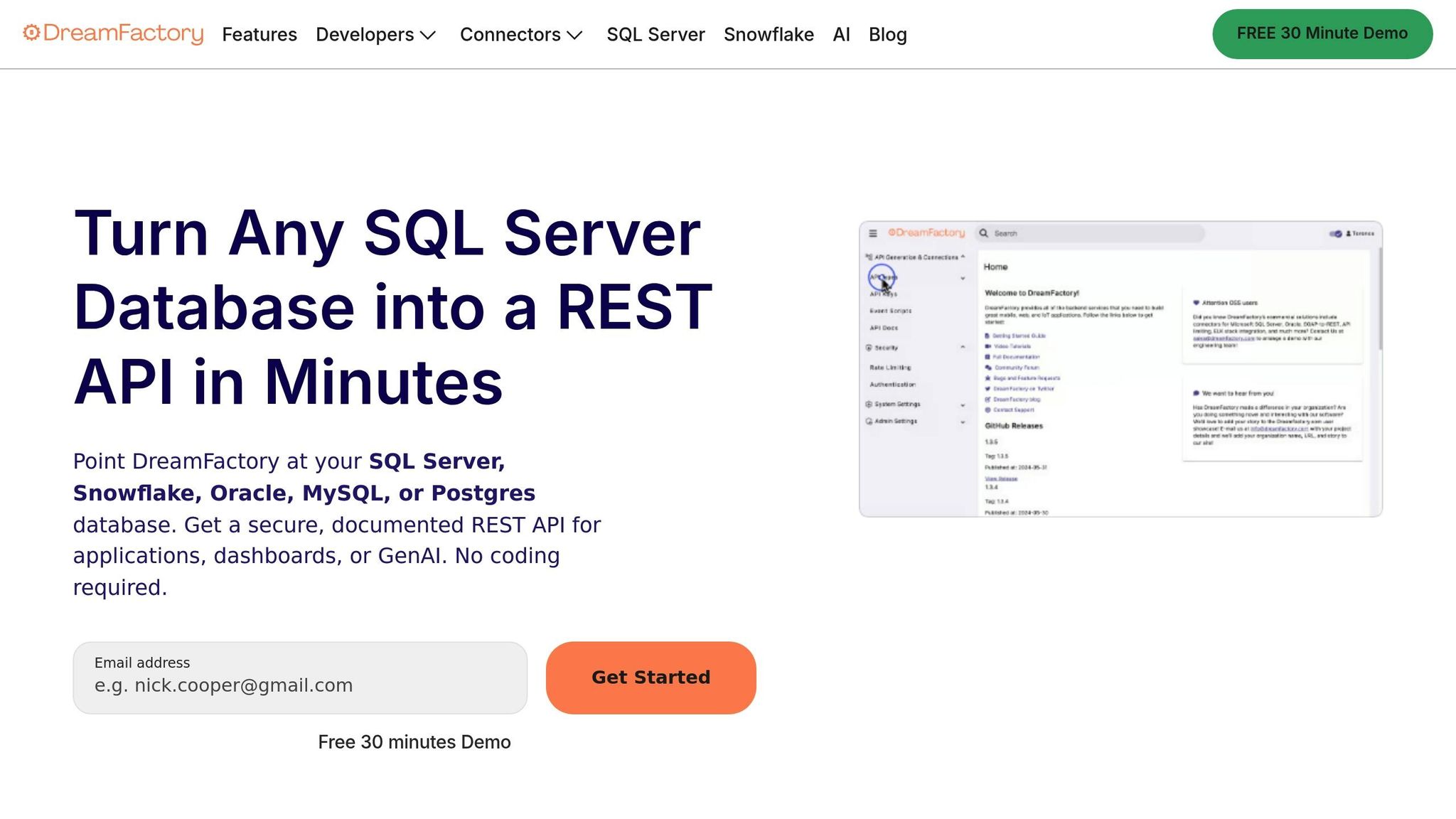
DreamFactory is an open-core platform that simplifies API creation for over 20 database types, including MySQL, PostgreSQL, SQL Server, and Snowflake. This is particularly helpful for legacy systems that lack modern connectivity. Instead of overhauling your entire infrastructure, DreamFactory allows you to build an API layer on top of your existing database.
Here's how to configure DreamFactory with Adalo:
- Set up an External Collection in Adalo by entering your Base URL and API key.
- Add a header named
X-DreamFactory-API-Keywith your API key value. - In the "Get All Records" endpoint, set the Results Key to
resourceto ensure Adalo parses the JSON correctly.
Before testing, make sure your database contains at least one fully populated record. Adalo uses pre-populated fields to map data to app components. Once connected, you can use Magic Text to bind fields like first_name or hire_date directly to your app's interface.
Here's an example: A mobile employee directory app was built using a MySQL database with 4 million records spread across six tables. DreamFactory generated the API, while the X-DreamFactory-API-Key header and resource Results Key ensured seamless JSON parsing. With Adalo's unrestricted database storage, the app handled this large dataset without hitting platform limits.
Important Notes:
- Adalo supports only numeric IDs for External Collections, so text-based IDs or UUIDs won't work.
- DreamFactory's open-core features are free, but Adalo's External Collections require at least a Professional plan ($52/month billed annually).
| Feature | Requirement/Setting for DreamFactory in Adalo |
|---|---|
| Adalo Feature | External Collections |
| Authentication Header | X-DreamFactory-API-Key |
| Results Key | resource |
| Supported Databases | MySQL, PostgreSQL, SQL Server, Snowflake, etc. |
| Adalo Plan Required | Professional, Team, or Business |
While API generation is crucial, achieving real-time sync often requires a two-way data flow.
Setting Up 2-Way Sync with Webhooks
External Collections let your app pull data from external systems, but true real-time integration demands bidirectional sync. This enables your app to send updates to external databases and receive changes automatically.
- Outbound Sync: Configure the Create and Update endpoints using the PATCH method, which is ideal for partial updates.
- Inbound Sync: Use a bridge like Zapier or Make to handle changes from external systems. When an external record is updated, a webhook triggers the bridge to use Adalo's API for creating or updating records in your app.
To avoid formatting errors:
- Use the YYYY-MM-DD format for dates.
- Follow ISO 8601 for date-time values (e.g.,
2022-07-04T02:00:00Z).
For better control, you can use Custom Actions instead of general database triggers. This allows you to tie sync events to specific user actions, such as button clicks or screen transitions. Adalo's 3-4x faster performance since the 3.0 infrastructure update means these sync operations complete quickly, even under heavy load.
While Zapier's free plan can handle basic integrations, frequent updates often require a paid plan for higher task limits and faster execution.
Testing and Troubleshooting Real-Time Sync
Before rolling out your app to production, it's crucial to confirm that data flows seamlessly between Adalo and your external sources. Adalo's built-in preview tools can simplify this process.
Testing Sync in Adalo Preview Mode
Start by clicking the Run Test button in the External Collection setup modal. If the connection is successful, you'll see a green indicator along with a preview of actual records from your source. This confirms that your API credentials and base URL are correctly configured.
Next, test all four CRUD operations—Create, Read, Update, and Delete—within Adalo's preview environment. For this to work, your external source must have at least one complete record with data in every column. Adalo only imports columns containing data, so empty fields won't show up.
To test updates, modify a single field (e.g., change a name in Airtable) and refresh the Adalo preview. The updated data should appear within 5–10 seconds. If an update inadvertently clears other fields, switch to the PATCH method immediately.
For larger datasets, keep in mind that Airtable only returns up to 100 records per request. If your data exceeds this limit, you'll need to implement pagination to handle the additional records. Adalo itself has no data caps on paid plans, so the limitation comes from the external API, not the platform.
Once testing is complete, move on to troubleshooting any potential sync issues.
Common Issues and Solutions
Sync problems often arise from data formatting errors, which can lead to 500 Internal Server Errors. To avoid these, ensure the following:
- Numbers include only digits and decimal points (no symbols or letters).
- Dates follow the format YYYY-MM-DD.
- Date-time values use ISO 8601 (e.g., 2022-07-04T02:00:00Z).
- Boolean fields are explicitly set to true or false (in lowercase).
Authentication issues are another common stumbling block. These may occur if the authorization header is missing the "Bearer " prefix or if outdated API keys are used instead of Personal Access Tokens. For Airtable integrations, ensure the Results Key is set to "records" exactly as required.
If your app freezes or slows down during multi-user testing, it could be due to 429 Too Many Requests errors. Airtable limits API requests to 5 per second per base. To avoid hitting this limit, reduce the frequency of API calls—filtered views in your external source can help minimize unnecessary requests.
Here's a quick reference table for common errors and their fixes:
| Error Code | Meaning | Recommended Solution |
|---|---|---|
| 401 Unauthorized | Authentication failure | Add "Bearer " to your token or update your credentials. |
| 404 Not Found | Incorrect URL | Double-check the base URL and table name; remove query parameters. |
| 429 Too Many Requests | Rate limit exceeded | Use filtered views or lower the frequency of API calls. |
| 500 Internal Server Error | Data formatting issue | Verify that date, number, and boolean formats meet Adalo's requirements. |
Deploying Real-Time Sync for Production Apps
When deploying a production app, ensuring that your sync is scalable, performs efficiently, and stays responsive under pressure is key. Beyond that, continuous monitoring is essential to keep everything running smoothly.
Optimizing Sync for Scalability
For high-traffic apps, external databases like Xano or Firebase can handle the load more effectively. When updating data, it's a good idea to use PATCH requests to modify only the fields that have changed. This approach minimizes unnecessary data transfer.
If you're working with large datasets, pre-filtered views can make a big difference. For example, in Airtable, you could create views like "Low Stock Items" or "Featured Products" to transfer only the most relevant records. This strategy not only reduces latency but also helps you stay within Airtable's API rate limits, which cap requests at 5 per second per base.
Another way to keep your app efficient is by adjusting fetch intervals. Instead of syncing data continuously in the background, you can use Custom Actions with Webhooks to trigger syncs only when specific user actions occur—like clicking a "Refresh" button. This targeted approach conserves resources and ensures the app responds when it matters most.
Adalo's modular infrastructure scales to serve apps with millions of monthly active users, with no upper ceiling. Unlike app wrappers that hit speed constraints under load, Adalo's purpose-built architecture maintains performance at scale. With the right data relationship setups, apps built on the platform can scale beyond 1 million MAU without degradation.
Once your sync is optimized, the next step is to focus on ongoing monitoring and maintenance.
Monitoring and Maintaining Sync After Launch
After your app goes live, keeping an eye on API rate limits, caching strategies, and schema changes is crucial. Exceeding API limits can lead to slowdowns or even sync failures. To avoid this, consider caching data that's frequently accessed but rarely updated. For instance, you can store such data in Adalo's internal database and sync it periodically instead of refreshing it with every screen load.
Be prepared for external schema changes, like adding a new column in Airtable. When this happens, manually re-run the connection test in Adalo's External Collection setup to ensure the new fields are recognized and your sync remains uninterrupted.
Security is another critical aspect. Regularly update your Personal Access Tokens (PATs) and ensure they only have the permissions necessary, such as data.records:read and data.records:write. Always keep tokens secure—don't expose them in public repositories or within client-side code.
Finally, consider the impact of server locations on performance for international users. Latency can vary across regions, so monitor performance globally. Optimize elements like image sizes and on-screen logic to ensure your app loads quickly, no matter where users are located. Adalo's X-Ray feature can help identify performance issues before they affect users, making it easier to maintain optimal sync performance across your entire user base.
Comparing Adalo to Alternatives for Real-Time Sync
When building apps that require real-time data synchronization, platform choice significantly impacts both development speed and long-term scalability. Here's how Adalo compares to common alternatives:
Bubble offers extensive customization but comes with trade-offs. Their web and mobile wrapper offering starts at $59/month with usage-based charges and limits on records due to Workload Units. The mobile solution wraps the web app, which can introduce performance challenges at scale. One app version doesn't automatically update web, Android, and iOS deployments simultaneously. Adalo's approach—starting at $36/month with unlimited usage and true native mobile compilation—provides a more predictable cost structure and unified deployment.
Glide excels at spreadsheet-based apps with its template-focused approach, making it fast to build and publish. However, this creates generic, simplistic apps with limited creative freedom. Pricing starts at $60/month for custom domain capability, but it's still limited by app updates and data record rows that attract additional charges. Glide doesn't support Apple App Store or Google Play Store publishing. For spreadsheet-based needs, Adalo's SheetBridge feature turns Google Sheets into an actual database with easier control and no database-related learning curve.
FlutterFlow is a low-code option for technical users, not a true no-code solution. Users need to manage and set up their own separate database, which requires significant learning complexity—especially when optimizing for scale. Their builder limits view to 2 screens at once, whereas Adalo can display up to 400 screens simultaneously on one canvas. Pricing starts at $70/month per user for app store publishing, but that still doesn't include a database, which must be sourced, set up, and paid for separately.
Note that most third-party platform ratings and comparisons predate Adalo's 3.0 infrastructure overhaul in late 2025, which delivered the 3-4x performance improvements and unlimited database records that define the current platform.
Related Blog Posts
- How to Create Your Own CRM Fit For Purpose
- How to Create An App using Google Sheets as the actual Database?
- How to Turn Excel Data into an App?
- Scaling No-Code Apps for Large Data Sets
FAQ
Why choose Adalo over other app building solutions?
Adalo is an AI-powered app builder that creates true native iOS and Android apps from a single codebase. Unlike web wrappers, it compiles to native code and publishes directly to both the Apple App Store and Google Play Store. With unlimited database records on paid plans and no usage-based charges, you get predictable costs as your app scales.
What's the fastest way to build and publish an app to the App Store?
Adalo's drag-and-drop interface and AI-assisted building let you go from idea to published app in days rather than months. The platform handles the complex App Store submission process, so you can focus on features and user experience instead of wrestling with certificates, provisioning profiles, and store guidelines.
What databases can I connect to Adalo for real-time sync?
Adalo supports connections to popular databases like Airtable, Firebase, Google Sheets, and Xano via JSON REST APIs. For legacy databases without built-in APIs, you can use DreamFactory to generate APIs for MySQL, PostgreSQL, SQL Server, Snowflake, and over 20 other database types.
How do I handle API rate limits when syncing data?
To avoid hitting API rate limits like Airtable's 5 requests per second cap, use pre-filtered views to transfer only relevant records and trigger syncs on specific user actions rather than continuously. You can also cache frequently accessed data in Adalo's internal database and sync it periodically instead of refreshing with every screen load.
What's the difference between External Collections and webhooks in Adalo?
External Collections pull data when a screen loads, making them ideal for displaying database content in your app. Webhooks allow external systems to push updates directly into your app, enabling features like live notifications and collaborative tools. For true bidirectional sync, you can combine both approaches.
What Adalo plan do I need for real-time data sync features?
You'll need at least Adalo's Professional plan ($52/month billed annually) to access External Collections and Custom Actions for real-time sync. This plan unlocks the ability to connect to external databases and create the automated data flows needed for responsive, real-time applications.
Which is more affordable, Adalo or Bubble?
Adalo starts at $36/month with unlimited usage and no record limits on paid plans. Bubble starts at $59/month with usage-based charges through Workload Units and record limitations. Adalo's pricing is more predictable, especially as your app scales and data grows.
Is Adalo better than Glide for mobile apps?
For native mobile apps published to app stores, yes. Glide doesn't support Apple App Store or Google Play Store publishing, while Adalo compiles true native iOS and Android apps from a single codebase. Glide excels at quick spreadsheet-based web apps, but Adalo offers more creative freedom and native mobile capabilities.
How long does it take to set up real-time data sync?
Setting up real-time sync in Adalo typically takes 30-60 minutes. This includes configuring External Collections with your database endpoints, setting up authentication, and testing the connection. More complex setups with webhooks and bidirectional sync may take a few hours.
Can I migrate from another platform to Adalo?
Yes, you can migrate to Adalo from other platforms. External Collections make it straightforward to connect to existing databases, and Adalo's visual builder—described as "easy as PowerPoint"—helps you recreate your app's interface quickly. Over 3 million apps have been created on the platform.







