


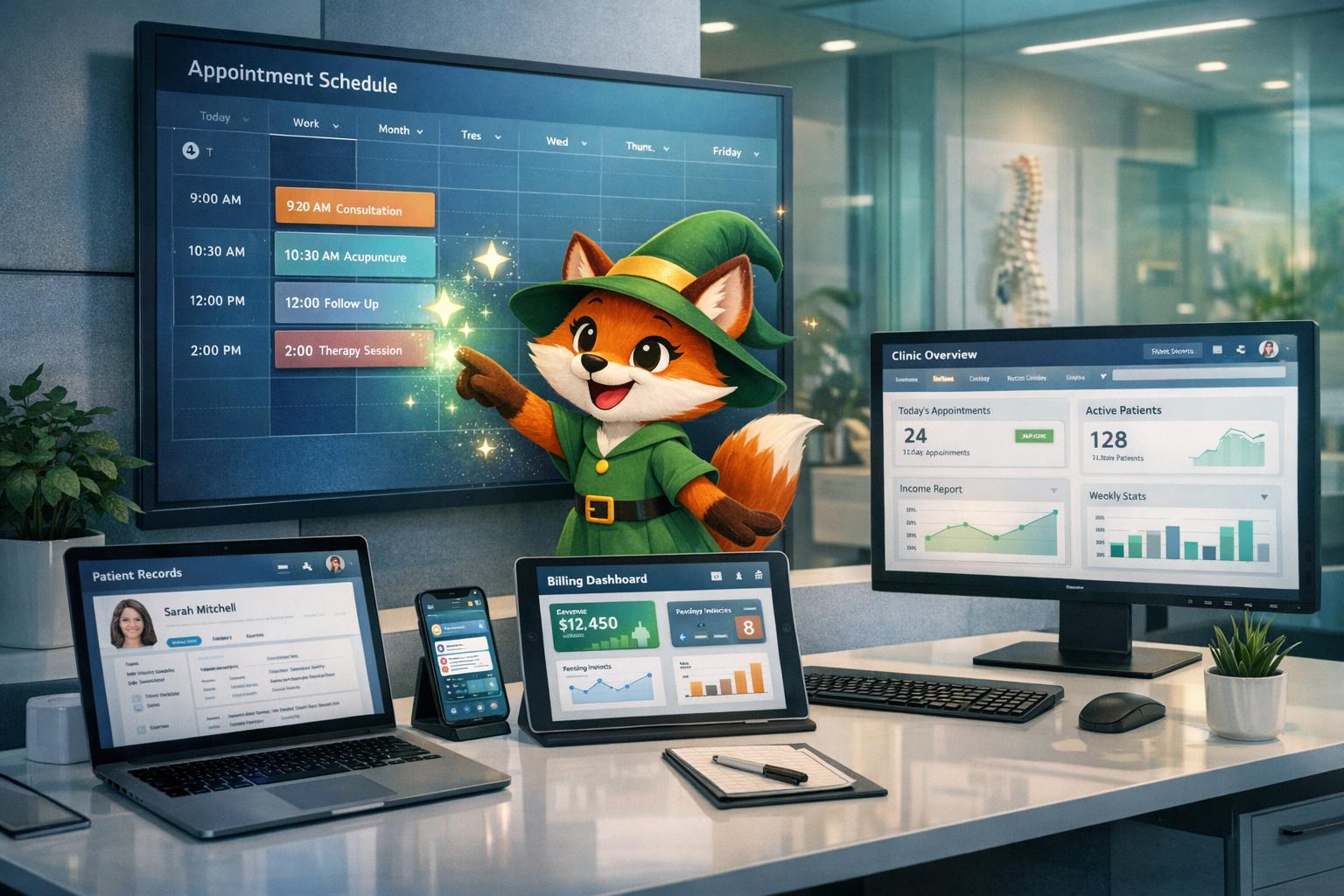
Why Adalo Is Perfect for Building Clinic Management Apps
Adalo is a no-code app builder for database-driven web apps and native iOS and Android apps—one version across all three platforms, published to the Apple App Store and Google Play. This cross-platform capability is essential for integrated medicine clinics, where staff need desktop access for administrative tasks while patients prefer mobile apps for booking appointments and accessing their health information on the go.
Having your clinic management app available in both app stores means patients can easily download it to their smartphones and receive push notifications for appointment reminders, prescription refills, and important health updates. This direct communication channel significantly reduces no-shows and improves patient engagement—critical factors for any successful healthcare practice. Let's explore how to build your own clinic management solution step by step.
Managing a clinic can be overwhelming without the right tools. From appointment scheduling to patient records and billing, outdated methods waste time and risk errors. A clinic management app simplifies these tasks by centralizing operations into one platform. Patients can book appointments, staff can access records instantly, and automated reminders reduce no-shows.
Adalo, an AI-powered app builder, makes building such an app straightforward. With its drag-and-drop interface, you can create and deploy a single app for web, iOS, and Android—no coding required. Key features include:
- Appointment Scheduling: Use a calendar to manage bookings and send reminders.
- Patient Records: Securely store medical histories and documents.
- Billing and Payments: Integrate with Stripe for seamless transactions.
- Inventory Tracking: Monitor medicine stock and set reorder alerts.
Ada, Adalo's AI builder, lets you describe what you want and generates your app. Magic Start creates complete app foundations from a description, while Magic Add adds features through natural language.
Adalo also supports AI-assisted tools like Magic Start and Magic Add to quickly structure your app, and its responsive design ensures usability across devices. For U.S. clinics, you can customize date formats (MM/DD/YYYY), currency ($), and measurements (lbs, °F). While Adalo isn't HIPAA-compliant by default, connecting to external databases ensures legal compliance.
This article dives into how to build and scale your clinic app step-by-step using Adalo's platform.

How to Build a Clinic Management App with Adalo: Step-by-Step Process
Why Adalo Works for Building a Clinic Management App
Adalo is an AI-powered app builder for database-driven web apps and native iOS and Android apps—one version across all three platforms, published to the Apple App Store and Google Play. This unified approach is particularly valuable for integrated medicine clinics, where staff need desktop access for administrative tasks while practitioners and patients benefit from mobile convenience for on-the-go scheduling and record retrieval.
Having your clinic management app available on both app stores means patients can easily download it to their phones, receive push notifications for appointment reminders, and access their health information anytime. For clinic staff, this translates to fewer missed appointments, streamlined communication, and a more professional patient experience—all without writing a single line of code.
With over 3 million apps created on the platform and infrastructure processing 20 million+ daily requests, Adalo's backend has proven itself in production environments. The platform's modular architecture scales to support apps with over 1 million monthly active users, with no upper ceiling—critical for clinics planning to grow their patient base over time.
What Can You Build in Adalo?
Setting Up Your Adalo Account and Clinic Database
To get started, head over to adalo.com and sign up for free—no credit card required. Once you're logged in, create a new app by clicking the "App Switcher" in the middle of the Top Bar and selecting "Create a New App." You can either start from scratch or use one of Adalo's pre-built templates, like the "Appointment Booking" template, which comes with scheduling and admin tools already set up.
After creating your app, you'll see a workspace divided into three key areas:
- The Builder Canvas in the center, where you design your app's screens.
- The Left Toolbar, which lets you add components and manage your database.
- The Top Bar, where you can preview your app and tweak its settings.
To access your database, click the Database tab in the Left Toolbar. Every new app includes a default "Users" collection, which you can modify to fit your clinic's needs.
Creating the Database Collections
Your clinic's database will be organized into collections, which are essentially groups of related data. For a clinic management app, you'll need at least four core collections: Patients, Appointments, Inventory, and Billing. With Adalo's paid plans offering no record limits, you can store as many patient records and appointments as your clinic requires without worrying about hitting data caps.
-
Customizing the Users Collection
Begin by updating the default Users collection to include both patients and doctors. Add a "User Type" property (text) to specify whether a user is a "Patient" or "Doctor." You can also add the following properties:- Full Name (text)
- Phone Number (text)
- Date of Birth (date)
- Address (text)
-
Appointments Collection
Create a new collection called Appointments. Add these properties:- Appointment Date (date)
- Appointment Time (date/time)
- Status (options: Pending, Confirmed, Completed, or Cancelled)
- Meeting Link (text)
-
Inventory Collection
For managing medicines and supplies, create an Inventory collection with these properties:- Medicine Name (text)
- Quantity (number)
- Dosage Info (text)
- Reorder Level (number)
-
Billing Collection
Finally, set up a Billing collection to handle financial records. Include:- Invoice ID (text)
- Amount (number with the $ symbol)
- Payment Status (true/false checkbox)
- Date Paid (date in MM/DD/YYYY format)
Here's a quick reference table for your collections:
| Collection | Key Properties | Format Examples |
|---|---|---|
| Users (Patients/Doctors) | Full Name, Phone, DOB, User Type | Text, (555) 123-4567, 03/15/1985, "Patient" |
| Appointments | Appointment Date, Time, Status | 01/17/2026, 2:30 PM, "Confirmed" |
| Inventory | Medicine Name, Quantity, Reorder Level | "Amoxicillin 500mg", 150, 50 |
| Billing | Invoice ID, Amount, Payment Status | "INV-2026-001", $125.00, Paid ✓ |
Using AI-Assisted Generation for App Structure
Adalo offers AI-powered tools like Magic Start and Magic Add to simplify the setup process. Magic Start generates complete app foundations from descriptions—tell it you need "a clinic management app with patient records and appointment scheduling," and it creates your database structure, screens, and user flows automatically. What used to take days of planning happens in minutes.
Magic Add extends this capability by letting you add features through natural language requests. Need to add a prescription tracking module? Simply describe what you want, and the AI generates the necessary collections, properties, and screen layouts tailored to your needs.
To use these features, choose the AI-assisted options when creating your app or adding new collections. The AI-generated structure is fully customizable, so you can adapt it to meet US-specific requirements. For instance, you can:
- Adjust date formats to MM/DD/YYYY.
- Ensure currency fields display the $ symbol.
- Rename relationship properties like "User" to more specific terms such as "Attending Physician" or "Patient."
For the best experience, avoid opening multiple browser tabs while working on your app. This minimizes the risk of data loss and keeps everything running smoothly.
Designing User Dashboards for Patients and Doctors
Once your database is set up, you can use Adalo's drag-and-drop Builder Canvas to design a Home Screen that directs users to either a patient or doctor dashboard based on their User Type. The navigation should be customized so users only see features relevant to them. Here's how you can create dashboards tailored to each group.
Patient Dashboard Features
For the patient dashboard, include a Form component tied to the Users collection, allowing patients to update their profiles. Add fields for Height (in inches), Weight (in lbs), and Temperature (in °F), and clearly label them to avoid confusion about units. You can also include a Date of Birth field that automatically displays in the MM/DD/YYYY format.
Integrate a Calendar component linked to the Appointments collection, filtering available time slots to match a doctor's working hours. Use a Simple or Card List to show the logged-in patient their upcoming appointments. To enhance the experience, add a Success screen or include a Lottie animation after a booking is confirmed, giving patients immediate visual feedback. Also, set up a "Request Notification Permission" action when the app is launched for the first time to enable push notifications for appointment reminders.
Doctor Dashboard Features
The doctor dashboard is designed to manage schedules and access patient information efficiently. Use the Calendar component here as well, but configure it to display appointments where the Doctor matches the Logged In User. Add Statistics Cards at the top of the dashboard to show real-time data such as "Today's Appointments", "Pending Requests", and "Upcoming Sessions", using Adalo's formula functions.
Create a "Manage Availability" screen where doctors can toggle working days and use time pickers to set start and end hours. Save this data in an Availability Slots collection to avoid scheduling conflicts. To access patient records, include a List component that shows upcoming patients. When a doctor selects a patient from the list, navigate to a "Patient Details" screen. This screen can pull data from both the Appointments and Users collections, displaying patient history and notes. Additionally, you can integrate Adalo's User Chat feature template to allow doctors and patients to communicate directly within the app, keeping conversations organized and secure.
"With Adalo, you can build your app feature-by-feature with fully designed screens, a database, and all the interactivity that works right out of the box." - Adalo
Once both dashboards are set up, refine your layout to ensure the app runs smoothly across all devices.
Making the Design Responsive
To ensure your app looks great on any device, choose the "Mobile, Tablet, and Desktop" layout type when setting it up. Adalo's responsive engine will automatically adjust your design to fit different screen sizes. You can fine-tune layouts for specific devices by clicking the screen title in the builder and selecting a layout from the dropdown menu.
Some components may need custom adjustments to scale or reposition properly between desktop and mobile views. Use the Hidden Components feature to tailor the interface—for example, showing a full calendar on desktop while displaying a simplified list view on mobile. Regularly test your design using the Preview button in the top bar to see how it adapts across various screen sizes.
It's important to note that Adalo isn't HIPAA-compliant by default. If your app will handle sensitive patient data in the US, you'll need to connect to an external HIPAA-compliant database via External Collections or APIs. This ensures you meet legal requirements while still benefiting from Adalo's visual builder for the front end.
Adding Core Features: Scheduling, Records, and Billing
With your dashboards ready, it's time to focus on the core functionalities that keep a clinic running efficiently. These features revolve around managing appointments, patient records, and billing processes. By leveraging clean database structures and user-friendly components, you can create a smooth and integrated workflow for your clinic.
Appointment Scheduling
Start by installing the Calendar component from the Adalo Marketplace. This tool connects directly to your Appointments collection, displaying available time slots based on the doctor's schedule. To avoid double-bookings, set up a "Time Slots" helper collection that filters out already-booked times. Once a patient selects a slot, guide them to a confirmation page capturing all the appointment details.
Use color-coded badges to visually represent appointment statuses—green for Confirmed, yellow for Rescheduled, and red for Cancelled. Provide users with dedicated screens for rescheduling or canceling appointments as needed.
To minimize no-shows, integrate Adalo with Zapier or Make to send automated SMS or email reminders when appointments are booked or approaching. Store all appointment times in UTC format and include a "Time Zone" property in your Users collection to display times accurately based on each patient's location. For doctors, enable an "Agenda View" within the Calendar component, allowing them to see their full daily schedule at a glance when clicking on a specific day.
Patient Records Management
Create a secure and organized system for patient records using Collections and Properties. Set up a "Medical History" collection with a one-to-many relationship to the Users collection, enabling each patient to have multiple history entries. Use the File property type to upload and store medical documents, PDFs, and images (up to 50MB per file). This feature also lets patients upload insurance documents or IDs directly.
To ensure consistency, enforce standardized formats like MM/DD/YYYY for dates and require critical fields such as allergies. Use conditional logic in your forms to streamline the process—for example, if a patient indicates they have allergies, a text field for additional details will automatically appear. This not only simplifies the user experience but also ensures all necessary information is captured.
"Data must be encrypted when it is being stored in your system to avoid data breaches." - NexHealth
For clinics in the US handling Protected Health Information (PHI), it's crucial to connect your system to a HIPAA-compliant external database. Adalo's External Collections feature makes this integration straightforward while keeping your front-end development simple.
Billing and Inventory Tracking
To streamline payments, integrate Stripe for processing transactions. Create a "Transactions" collection with fields like Transaction ID, Amount (in USD), Currency, Status (Pending, Completed, Failed), and Type (Payment or Refund). Link these transactions directly to patient records for a seamless experience. Stripe's standard US processing fees are 2.9% + $0.30 per successful transaction.
For invoicing and financial management, connect Zapier to QuickBooks. This setup can automate the creation of PDF invoices and ensure financial records stay synced. If your clinic accepts in-person payments, add the QR Code Generator component from the Adalo Marketplace to create scannable payment requests for patients.
To manage medical supplies effectively, build an inventory tracking system. Set up a "Medical Inventory" collection with properties such as Item Name, Current Stock Level, and Reorder Threshold. Configure alerts to notify staff when stock levels fall below the threshold, helping prevent shortages of critical supplies. Use Statistics Cards to display real-time inventory data on dashboards, and add a List component so staff can easily update quantities as items are used or restocked. Studies show that automated inventory systems can reduce workflow errors by up to 65% in healthcare settings.
| Collection | Key Properties | Purpose |
|---|---|---|
| Transactions | Transaction ID, Amount ($), Status, Type | Track payments and refunds |
| Medical Inventory | Item Name, Stock Level, Reorder Threshold | Monitor supplies and equipment |
| Appointments | Start Time, End Time, Status, Meeting Link | Manage scheduling and bookings |
Customizing the App for US Requirements
Once your database and user interface are ready, it's time to fine-tune the app to meet US-specific standards. Adalo's Magic Text interface makes it easy to apply these configurations. For billing amounts, use the Currency format in Magic Text to automatically add the "$" symbol along with proper separators (e.g., $1,234.56). Similarly, for dates, select the pencil icon on Date properties and choose the MM/DD/YYYY format, which aligns with the standard US middle-endian style.
When configuring patient records, set fields for weight in pounds (lb), height in feet and inches (ft/in), and body temperature in Fahrenheit (°F) using Number properties. For the Calendar component, switch to a 12-hour clock format with AM/PM and set Sunday as the first day of the week to reflect US conventions. These adjustments ensure your app feels intuitive and localized for users in the United States.
| Format Type | US Standard | Adalo Configuration |
|---|---|---|
| Currency | $1,234.56 | Magic Text > Number Format: Currency |
| Date | MM/DD/YYYY | Magic Text > Date Format |
| Time | 2:05 PM | Calendar Component: 12-hour clock |
| Decimals | Period (.) | Database Property: Number |
Connecting External Systems with DreamFactory
Many clinics rely on older systems or external databases that need to integrate seamlessly with your app. DreamFactory simplifies this process by providing a REST API bridge that connects Adalo with databases like MySQL, PostgreSQL, and SQL Server—even if those systems lack native APIs. This is especially useful for clinics managing Protected Health Information (PHI) that must remain in HIPAA-compliant external databases instead of Adalo's backend.
"To align with U.S. formatting standards, configure DreamFactory to use the MM/DD/YYYY date format, display currency as $1,234.56, and apply commas for thousand separators with periods for decimals." – Kevin Hood, Solutions Engineer, DreamFactory
When setting up the connection, make sure the "Results Key" in your external collection settings is set to resource, as DreamFactory organizes JSON record collections under this key. Use the header X-DreamFactory-API-Key to securely authenticate your API key. For date fields, apply the formula TO_DATE({value}, 'MM/DD/YYYY HH:MI:SS AM') in DreamFactory's Schema tab to ensure data is returned in the correct US format.
DreamFactory's automated API generation not only simplifies integration but can also save enterprises up to $201,783 annually in development costs, while maintaining strict security through Role-Based Access Control (RBAC) and detailed API logging. With proper data formatting and reliable integrations, you'll safeguard data integrity while delivering a smooth experience.
Setting Up Push Notifications and Reminders
Automated notifications can greatly reduce patient no-shows and improve clinic efficiency. Start by enabling notification permissions when the app launches, ensuring users opt in to receive push alerts. Once permissions are granted, you can set reminders for appointments, medication schedules, and billing due dates directly within Adalo.
For more advanced notifications, connect your app to tools like Zapier or Make. These platforms allow you to send SMS or email reminders, formatting dates as YYYY-MM-DD and using ISO 8601 format (e.g., 2022-07-04T02:00:00Z) to avoid errors. Create Zaps that trigger when an appointment is scheduled or 24 hours before it occurs, sending personalized messages to patients. You can also integrate Google Calendar through Zapier or offer downloadable .ics files for patients who use Apple Calendar or Outlook.
Testing, Deploying, and Scaling Your Clinic App
Testing for Functionality and Performance
Before launching your clinic app, test it thoroughly across iOS, Android, and web platforms—don't just rely on web previews. Use Adalo's Staging Preview to see how your app looks and functions on specific devices like the iPhone 13 Pro or Samsung Galaxy S20. Shareable links can also be generated, allowing stakeholders to test workflows and provide feedback before the app goes live.
To ensure smooth development, save your progress using Design Versions. These snapshots let you experiment with new features while maintaining the ability to revert to a stable version if needed. For identifying bugs, tools like Beta Family (Android) and TestFlight (iOS) are invaluable before submitting your app for approval.
Adalo's X-Ray feature helps identify performance issues before they affect users. This diagnostic tool highlights potential bottlenecks in your app's data relationships and component configurations, allowing you to optimize for speed before launch. As noted in Adalo's documentation:
"Make sure you fully test your components before you publish. This saves a lot of headaches on everyone's part."
Once testing is complete and your app meets all functionality and performance benchmarks, it's time to prepare for deployment.
Publishing to App Stores and Web
Adalo's "build once, publish anywhere" approach simplifies deployment. From a single codebase, you can publish your clinic app to the web, the Apple App Store, and Google Play Store. For web apps, you have the option to host on an Adalo subdomain (e.g., yourclinic.adalo.com) or connect a custom domain, which typically costs between $10 and $45 annually.
Publishing native apps requires accounts with Apple and Google. An Apple Developer account costs $99 per year, while a Google Play developer account involves a one-time fee of $25. Before submitting, gather all necessary assets like app icons, screenshots, descriptions, and a privacy policy URL.
For iOS apps, send builds to TestFlight first. This allows a small group of patients and staff to beta test features before the public launch. Apple manually reviews all app submissions and provides detailed feedback if changes are needed, while Google's automated scans often result in faster approvals. With Adalo, the compilation and publishing process takes less than 7 minutes, supported by 99%+ uptime reliability.
Starting at $36/month, Adalo's paid plans include unlimited app store publishing with unlimited updates to apps once published—no usage-based charges or surprise bills. This predictable pricing is particularly valuable for healthcare applications where consistent availability is non-negotiable.
Once your app is live, it's essential to ensure it can handle increasing demand as your clinic grows.
Scaling with Adalo's Hosted Backend
Adalo's backend is designed to grow alongside your clinic. Following the Adalo 3.0 infrastructure overhaul in late 2025, the platform is now 3-4x faster and features modular infrastructure that scales automatically with your app's needs. This means no record limits on paid plans—your clinic can store as many patient records, appointments, and billing entries as needed without hitting data caps.
The platform's architecture supports apps with over 1 million monthly active users, with no upper ceiling. Unlike web app wrappers that can experience performance degradation under load, Adalo's purpose-built native compilation maintains speed and responsiveness as your user base expands. Apps collectively process over 20 million data requests daily, demonstrating proven capacity for high-traffic, real-world healthcare scenarios.
For more advanced needs, such as integrating external pharmacy systems or managing thousands of patient files, you can connect to external backends like Xano or integrate existing databases through APIs. Built-in analytics help you monitor growth, while Manual Publishing lets you roll out updates without interrupting live service.
If your clinic requires specialized scaling solutions or custom components, Adalo offers a marketplace where you can hire certified experts to optimize your app's performance as your user base expands.
Related Blog Posts
- How To Create a Medical App using SQL Server
- Things To Know When Creating a Medical App in the United States
- How to Create a Barber Booking App
- How to Create any Appointment App
FAQ
Why choose Adalo over other app building solutions?
Adalo is an AI-powered app builder that creates true native iOS and Android apps from a single codebase. Unlike web wrappers, it compiles to native code and publishes directly to both the Apple App Store and Google Play Store. Starting at $36/month with unlimited usage and no record limits, it offers predictable pricing without the surprise bills common with usage-based platforms.
What's the fastest way to build and publish an app to the App Store?
Adalo's drag-and-drop interface combined with AI-assisted features like Magic Start and Magic Add lets you build complete apps in days rather than months. Magic Start generates your entire app foundation from a description, while Adalo handles the App Store submission process—compilation and publishing takes less than 7 minutes.
Can I easily build a clinic management app without coding experience?
Yes, Adalo's visual builder has been described as "easy as PowerPoint." Using the drag-and-drop interface, you can create appointment scheduling, patient records management, billing integration, and inventory tracking features all in one platform without writing any code.
Is Adalo HIPAA-compliant for handling patient data?
Adalo isn't HIPAA-compliant by default, but you can achieve compliance by connecting to external HIPAA-compliant databases via External Collections or APIs. This approach lets you use Adalo's visual builder for the front end while storing Protected Health Information (PHI) securely in a compliant external database.
How can I set up appointment reminders to reduce no-shows?
You can integrate Adalo with tools like Zapier or Make to send automated SMS or email reminders when appointments are booked or approaching. Additionally, enabling push notifications within the app ensures patients receive timely alerts directly on their devices.
Can I integrate payment processing into my clinic management app?
Yes, you can integrate Stripe for seamless payment processing directly within your Adalo app. Create a Transactions collection to track payments and refunds, and connect Zapier to QuickBooks for automated invoicing and financial record synchronization.
How do I customize the app for US-specific formats like dates and currency?
Adalo's Magic Text interface makes it easy to configure US standards—use Currency format for billing amounts to display the $ symbol with proper separators, and select MM/DD/YYYY for date fields. You can also set weight in pounds, height in feet/inches, and temperature in Fahrenheit for patient records.
How many patient records can my clinic app store?
Adalo's paid plans have no record limits—you can store unlimited patient records, appointments, and billing entries. The platform's modular infrastructure scales to support apps with over 1 million monthly active users, making it suitable for clinics of any size.
How long does it take to build a clinic management app?
With Adalo's AI-assisted tools, you can have a functional clinic management app ready in days. Magic Start generates your complete app foundation from a description, and Magic Add lets you add features through natural language requests—what used to take weeks of planning happens in minutes.
What does it cost to build and publish a clinic management app?
Adalo's paid plans start at $36/month with unlimited usage, unlimited database records, and unlimited app store publishing updates. You'll also need an Apple Developer account ($99/year) and Google Play developer account ($25 one-time fee) to publish to app stores.







