


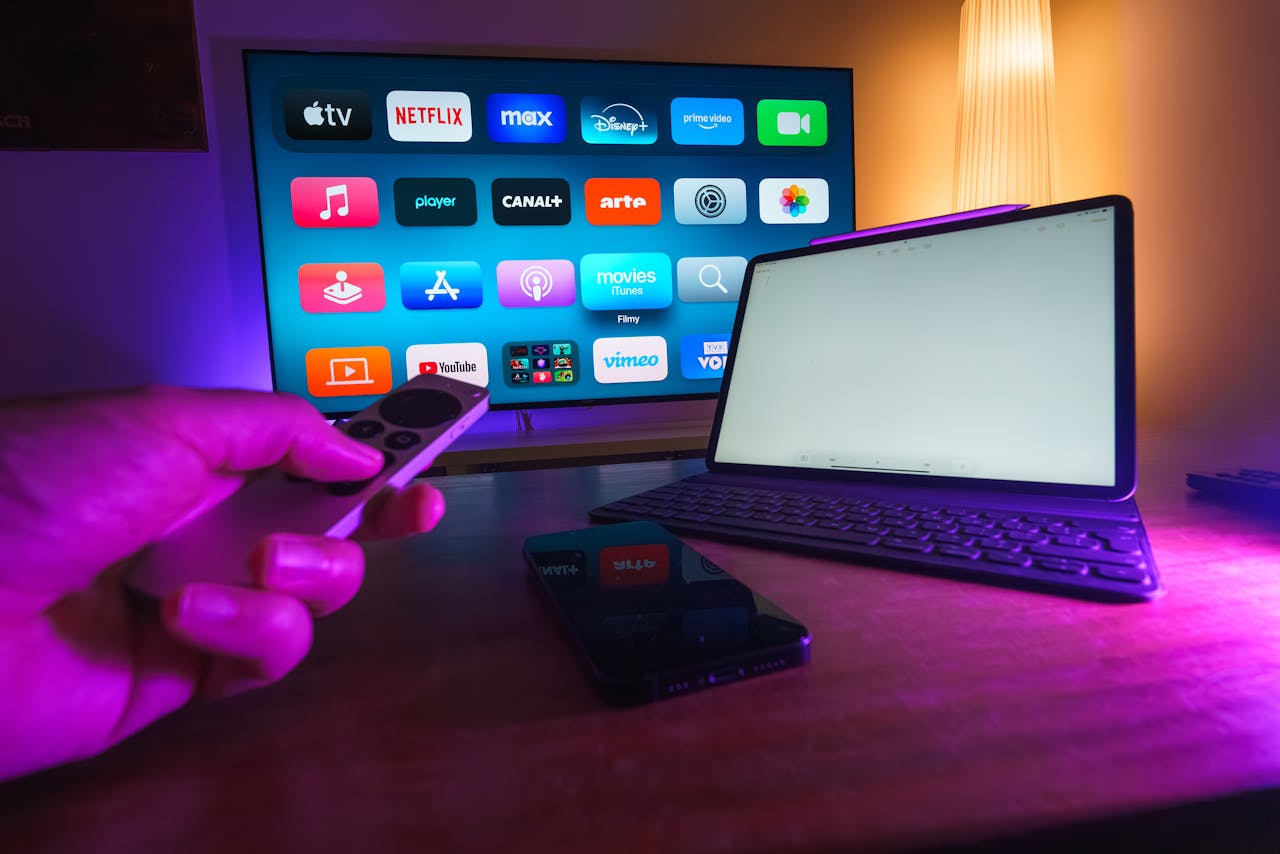
Why Adalo Works for Building a Streaming App
Adalo is a no-code app builder for database-driven web apps and native iOS and Android apps—one version across all three platforms, published to the Apple App Store and Google Play. This makes it the ideal platform for creating a Hulu-style streaming service that needs to reach users across multiple devices while managing complex data relationships between content, user profiles, watchlists, and subscription tiers.
For a video streaming app to succeed, app store distribution is essential—it's where your audience already searches for entertainment options. With Adalo, you can leverage push notifications to alert subscribers about new releases, keep users engaged with personalized recommendations, and manage recurring subscription payments seamlessly. The platform publishes the same app to web, native iOS, and native Android without rebuilding, making it ideal for mass distribution through app store marketplaces.
Building a video streaming app like Hulu used to require a development team, months of work, and a significant budget. Today, you can create a fully functional streaming platform—complete with video playback, subscription payments, multi-user profiles, and cross-platform publishing—without writing code. Adalo, an AI-powered app builder, makes this possible by generating native iOS and Android apps alongside a responsive web version from a single build.
For a video streaming app to succeed, app store distribution is essential—it's where your audience already searches for entertainment options. With Adalo, you can leverage push notifications to alert subscribers about new releases, keep users engaged with personalized recommendations, and manage recurring subscription payments seamlessly. The platform's agnostic builder publishes the same app to web, native iOS, and native Android without rebuilding, making it ideal for mass distribution through app store marketplaces.
This comprehensive tutorial walks you through building a fully functional video streaming platform. You'll create a Hulu-style app with video playback, multi-user profiles, subscription payments, watchlists, and cross-platform publishing—all using visual drag-and-drop tools that work as easily as PowerPoint.
Why Adalo Works for Building a Streaming App
Adalo is an AI-powered app builder for database-driven web, iOS, and Android apps published directly to the Apple App Store and Google Play Store. This makes it the ideal platform for creating a Hulu-style streaming service that needs to reach users across multiple devices while managing complex data relationships between content, user profiles, watchlists, and subscription tiers.
The platform's modular infrastructure scales to serve apps with millions of monthly active users, with no upper ceiling. Unlike app wrappers that hit performance constraints under load, Adalo's purpose-built architecture maintains speed at scale. With the Adalo 3.0 infrastructure overhaul launched in late 2025, apps now run 3-4x faster than before, and paid plans include unlimited database records—critical for streaming platforms that accumulate massive viewing history and content libraries.
Ada, Adalo's AI builder, lets you describe what you want and generates your app. Magic Start creates complete app foundations from a description, while Magic Add adds features through natural language.
Magic Start can generate your complete app foundation from a simple description. Tell it you need a streaming app with subscription tiers and multi-profile support, and it creates your database structure, screens, and user flows automatically—what used to take days of planning happens in minutes.
Key Takeaways
- Build a production-ready streaming app in 2-5 weeks using Adalo's visual builder, with one codebase publishing to web, iOS, and Android
- Implement subscription payments with Stripe integration and leverage unlimited database records on paid plans for content libraries and viewing history
- Launch your streaming platform for $36/month (annual billing) with no usage-based charges or bill shock
Prerequisites and Initial Setup
Step 1: Create Your Adalo Account and Project
- Navigate to Adalo.com and click "Start Building For Free"
- Sign up using email or Google account
- Choose "Create New App" from your dashboard
- Select "Responsive App (Adalo 2.0)" for cross-platform compatibility
- Name your app (e.g., "StreamHub" or "WatchBox")
- Pick a color scheme—dark theme works well for streaming platforms
What you get: Access to Adalo's builder with unlimited test apps. Over 3 million apps have been created on the platform, with the visual builder described as "easy as PowerPoint."
Step 2: Choose Your Video Hosting Service
Before building, decide on external video hosting since Adalo's 40MB practical limit makes hosting videos directly impractical:
Option 1: YouTube
- Upload videos as "Unlisted" (hidden from search)
- Copy video URLs for database
- Best for: Quick prototypes and MVPs
Option 2: Vimeo
- Set videos to "Hide from Vimeo" privacy
- Professional player controls
- Best for: Professional streaming apps
- Note: Embeds may not work on native Android
Option 3: AWS S3 + CloudFront
- Upload .mp4 files with H.264 compression
- Generate public URLs
- Best for: Enterprise control and scalability
Building the Database Structure
Step 3: Create the Videos Collection
- Click the Database icon in the left sidebar
- Click "+ Add Collection"
- Name it "Videos"
- Add these properties (click "+ Add Property" for each):
- Title (Text)
- Description (Text - Multiline)
- Video URL (Text - this holds your external video link)
- Thumbnail (Image - compress to <200KB for performance)
- Duration (Number - in minutes)
- Release Year (Number)
- Is Featured (True/False - for homepage banner)
- View Count (Number)
- Content Rating (Text - G, PG, PG-13, R, TV-MA)
Step 4: Enhance the Users Collection
- Click on "Users" collection (automatically created)
- Add these custom properties:
- Phone Number (Text)
- Profile Image (Image)
- Subscription Status (Text - Values: "Active", "Inactive", "Cancelled")
- Subscription Tier (Text - Values: "Basic", "Standard", "Premium")
- Subscription End Date (Date & Time)
- Display Name (Text)
Step 5: Create the Profiles Collection
This enables multi-profile support like Hulu's family sharing:
- Click "+ Add Collection"
- Name it "Profiles"
- Add properties:
- Profile Name (Text)
- Avatar (Image or Text - for avatar selector)
- Is Kids Profile (True/False)
- Language Preference (Text)
Step 6: Create the Categories Collection
- Click "+ Add Collection"
- Name it "Categories"
- Add properties:
- Category Name (Text - e.g., "Action", "Drama", "Comedy")
- Icon (Image)
- Display Order (Number)
Step 7: Create the Watch History Collection
- Click "+ Add Collection"
- Name it "Watch History"
- Add properties:
- Progress (Number - seconds watched)
- Last Watched (Date & Time - Automatic)
- Completed (True/False)
Step 8: Create the Watchlist Collection
- Click "+ Add Collection"
- Name it "Watchlist"
- Add properties:
- Added Date (Date & Time - Automatic)
Step 9: Set Up Database Relationships
This is where Adalo's relational database capabilities shine. With no record limits on paid plans, your streaming platform can accumulate years of viewing history without hitting storage constraints:
- In Videos collection:
- Add relationship to Categories: Many-to-One (many videos in one category)
- In Profiles collection:
- Add relationship to Users: "Account Owner" Many-to-One (many profiles per user)
- In Watch History collection:
- Add relationship to Profiles: Many-to-One
- Add relationship to Videos: Many-to-One
- In Watchlist collection:
- Add relationship to Profiles: Many-to-One
- Add relationship to Videos: Many-to-One
Expected result: Your database now mirrors Hulu's content structure with proper relationships between users, profiles, videos, and viewing data. With the right data relationship setups, Adalo apps can scale beyond 1 million monthly active users.
Creating User Authentication
Step 10: Build the Welcome Screen
- Rename the default screen to "Welcome"
- Add your app Logo Image at the top
- Add Text component: "Stream unlimited movies and shows"
- Add two Buttons:
- "Start Your Free Trial" → Link to new screen "Signup"
- "Sign In" → Link to new screen "Login"
Step 11: Create the Signup Screen
- Add new screen "Signup"
- Add Form component:
- Connect to Users collection
- Include fields: Email, Password, Full Name, Phone Number
- Add Text explaining subscription tiers:
- Basic: $7.99/month (with ads)
- Standard: $14.99/month (ad-free, HD)
- Premium: $19.99/month (4K, 5 profiles)
- Add Dropdown for tier selection
- On submit button:
- Create user account
- Navigate to "Payment Setup" screen
Step 12: Build Login Screen
- Add new screen "Login"
- Add Form with Email and Password inputs
- Add login action on submit
- On successful login → Navigate to "Profile Selection"
Step 13: Create Profile Selection Screen
- Add new screen "Profile Selection"
- Add Custom List of Profiles:
- Filter: "Account Owner = Logged In User"
- Display in grid layout (2 columns)
- Show for each profile:
- Avatar image
- Profile name
- Kids profile indicator
- Add "Add Profile" button (show only if profile count < 5)
- On profile click → Set "Current Profile" → Navigate to "Home"
Step 14: Build Add Profile Form
- Add new screen "Add Profile"
- Add Form connected to Profiles:
- Profile Name (Text Input)
- Avatar (Image Picker or preset avatars)
- Is Kids Profile (Toggle)
- On submit:
- Link profile to Logged In User
- Navigate back to "Profile Selection"
Designing the Home Screen
Step 15: Create the Main Home Interface
- Add new screen "Home"
- Add App Bar component:
- Logo on left
- Search icon (link to "Search" screen)
- Profile avatar on right (link to "Account Settings")
Step 16: Build Featured Content Banner
- Add Custom List component:
- Connect to Videos collection
- Filter: "Is Featured = True"
- Limit: 1 item
- Display as full-width banner
- Inside list item:
- Image: Bind to Video → Thumbnail (full height)
- Text: Video → Title (large, bold)
- Text: Video → Description (2 lines max)
- Button: "Play" → Navigate to "Video Player" screen
Step 17: Add Horizontal Content Rows
Following the Netflix clone approach:
- Add Text component: "Continue Watching"
- Below it, add Horizontal List:
- Connect to Watch History collection
- Filter: "Profile = Current Profile AND Completed = False"
- Sort: "Last Watched (Newest First)"
- Show 10 items
- For each item, display:
- Video thumbnail with progress bar overlay
- Video title
- "Continue" button
- Repeat this pattern for different rows:
- "Trending Now" (Videos sorted by View Count)
- "Action Movies" (Videos filtered by Category)
- "Drama Series" (filtered list)
- "Recently Added" (sorted by Release Year)
Step 18: Optimize List Performance
Critical for smooth scrolling—and with Adalo 3.0's infrastructure running 3-4x faster, your content rows will load quickly:
- Select each video list
- Go to Advanced Options
- Enable "Load Items as User Scrolls"
- Set initial load to 10-15 items
- Compress all thumbnails to under 200KB
Building the Video Playback Screen
Step 19: Create Video Player Screen
- Add new screen "Video Player"
- Add Video Component at the top:
- Set video source to "Current Video → Video URL"
- Enable "Show Controls"
- Set "Show Full Video (Don't Crop)"
- Height: 40% of screen
Important: The video component requires .mp4 format with H.264 compression. YouTube URLs need the separate YouTube component from the marketplace.
Step 20: Add Video Details Section
Below the video player:
- Text: Current Video → Title (large, bold)
- Text: Current Video → Release Year · Duration · Content Rating
- Text: Current Video → View Count + " views"
- Button: "Add to My List" (conditional: show if not in watchlist)
- Action: Create Watchlist record linking Current Video + Current Profile
- Button: "Remove from My List" (conditional: show if in watchlist)
- Action: Delete matching Watchlist record
Step 21: Implement Progress Tracking
This enables resume watching:
- Add Custom Action on screen load:
- Check if Watch History record exists for Current Profile + Current Video
- If exists: Update "Last Watched" to Current Time
- If not: Create new Watch History record
- Add timer action (updates every 30 seconds):
- Update Watch History → Progress to video current timestamp
- On video complete:
- Update Watch History → Completed = True
Step 22: Add Related Content Section
- Below video details, add Text: "More Like This"
- Add Horizontal List:
- Connect to Videos
- Filter: "Category = Current Video → Category"
- Exclude: Current Video
- Limit: 10 items
- Display thumbnails with titles
Setting Up Subscription Payments
Step 23: Install Stripe Component
- Go to Adalo Marketplace
- Search for "Stripe"
- Click Install on the Stripe Payment component
- You'll need Stripe API keys (free Stripe account required)
Step 24: Create Payment Setup Screen
- Add new screen "Payment Setup"
- Add three plan cards (use rectangles and text):
Basic Plan Card:
- Text: "Basic" (title)
- Text: "$7.99/month" (price)
- Text: "Watch with ads • 1 screen • 720p"
- Button: "Select Basic"
Standard Plan Card:
- Text: "Standard" (title)
- Text: "$14.99/month" (price)
- Text: "Ad-free • 2 screens • 1080p"
- Button: "Select Standard"
Premium Plan Card:
- Text: "Premium" (title)
- Text: "$19.99/month" (price)
- Text: "4K Ultra HD • 4 screens • Downloads"
- Button: "Select Premium"
Step 25: Configure Stripe Payment
On each "Select" button:
- Navigate to "Payment Form" screen
- Pass the selected tier and price as parameters
- On "Payment Form" screen:
- Add Stripe Payment Component
- Set amount to passed price parameter
- Configure for subscription mode
- Enable "Save payment method for future"
- On successful payment:
- Update Logged In User:
- Subscription Status = "Active"
- Subscription Tier = selected tier
- Subscription End Date = 30 days from now
- Navigate to "Profile Selection" screen
- Update Logged In User:
Step 26: Build Payment Methods Screen
- Add "Payment Methods" screen
- Add List showing saved payment methods
- Display card type and last 4 digits
- Add "Add New Card" button
- Add "Update Billing" option
Adding Advanced Features
Step 27: Build Search Functionality
- Create "Search" screen
- Add Text Input for search query
- Add Custom List of Videos:
- Filter: "Title Contains Search Input"
- Show thumbnails and titles
- Display results in grid layout
Step 28: Create Categories Browse Screen
- Add "Browse" screen
- Add Horizontal List of Categories at top
- Add Custom List of Videos below:
- Filter by selected category
- Grid layout (3 columns on tablet/desktop)
Step 29: Implement Rating System
Following the Udemy clone pattern:
- Create "Ratings" collection with:
- Rating Value (Number, 1-5)
- Comment (Text)
- Relationship to Videos (Many-to-One)
- Relationship to Profiles (Many-to-One)
- Add star rating component to Video Player screen
- Calculate average rating with formula
Step 30: Build Account Settings
- Create "Account Settings" screen
- Add sections:
- Manage Profiles (link to Profile Selection)
- Membership & Billing (show current plan, cancel option)
- Playback Settings (quality preferences)
- Notification Preferences
- Sign Out button
Step 31: Add Watch History Screen
- Create "Watch History" screen
- Add List of Watch History records:
- Filter: "Profile = Current Profile"
- Sort: "Last Watched (Newest First)"
- For each item show:
- Video thumbnail
- Title
- Date watched
- Progress bar
- "Continue Watching" or "Watch Again" button
Testing Your Streaming App
Step 32: Add Test Data
- Create 3-4 test user accounts with different subscription tiers
- Upload 20-30 sample videos to your hosting service
- Add video records to database with URLs
- Create multiple profiles per user
- Add sample watch history and watchlist items
Step 33: Test Core User Flows
Verify these paths work correctly:
- New User Journey:
- Signup → Select plan → Enter payment → Create profile → Browse content
- Existing User Journey:
- Login → Select profile → Continue watching → Play video
- Content Discovery:
- Search for videos → Browse by category → Add to watchlist
- Playback Flow:
- Play video → Track progress → Resume watching → Complete video
Step 34: Preview and Debug
- Use Adalo's web previewer for desktop testing
- Download the Adalo app for mobile testing
- Test video playback on iOS and Android
- Verify subscription payments with Stripe test cards
- Check conditional visibility rules
- Test all navigation flows
Use X-Ray to identify any performance issues before they affect users—it highlights potential bottlenecks in your app's data queries and component rendering.
Publishing Your Streaming Platform
Step 35: Publish to Web
- Click Publish in top right
- Choose Web App
- For custom domain (requires Starter plan at $36/month annual):
- Add your domain in settings
- Configure DNS records as shown
- Wait for SSL certificate (automatic)
- Click "Publish Now"
Your web app is now live and accessible at your custom domain.
Step 36: Publish to iOS App Store
Requirements:
- Apple Developer account: $99/year
- App icons (1024x1024px)
- App Store screenshots
- Privacy policy URL
Steps:
- In Adalo, go to Publish → iOS
- Upload app icons and launch screens
- Fill in app details
- Click "Submit to Adalo" (Adalo handles build process)
- Once built, submit to App Store Connect
- Wait for Apple review
Step 37: Publish to Google Play Store
Requirements:
- Google Play Developer account: $25 one-time fee
- App icons and screenshots
- Privacy policy
Steps:
- In Adalo, go to Publish → Android
- Upload required assets
- Configure app details
- Submit to Adalo for build
- Download APK and upload to Google Play Console
- Complete store listing and publish
One build publishes to all three platforms—web, iOS, and Android—with unlimited updates once published. No need to rebuild or maintain separate codebases.
Scaling Your Platform
As your streaming app grows, you'll want to optimize performance and potentially upgrade your plan. With Adalo's infrastructure processing 20 million+ daily requests and maintaining 99%+ uptime, your platform has room to scale.
When to Upgrade Plans
Starter to Professional ($36/moor $52/month annually):
- You need more than 1 published app
- You want 5 collaborators for team building
- You need Custom Actions for external APIs
- You require 25GB storage vs 5GB
Professional to Team ($250/mo or $160/month annually):
- You're scaling to 5 published apps
- You need Xano integration for advanced backend
- You want 10 editor seats
- You need priority support
All paid plans include unlimited database records and no usage-based charges—your monthly cost stays predictable regardless of how many users watch content or how much viewing history accumulates.
Optimizing for More Users
Follow these best practices for smooth performance at scale:
- Enable pagination on all video lists
- Compress images to under 200KB
- Use External Collections to connect Airtable or Xano for larger databases
- Avoid lists-within-lists which slow rendering
- Cache frequently accessed data in user properties
Why Adalo Is Ideal for Streaming Platforms
Adalo stands out as the ideal solution for launching a Hulu-style streaming platform. Unlike competitors that focus on web apps only or use mobile wrappers, Adalo creates true native iOS and Android apps alongside your web version—all from a single build. This means your streaming service reaches users everywhere, just like Hulu, with native performance on every device.
The platform's built-in relational database has already powered apps serving millions of end users, proving it can handle the complex relationships between users, profiles, videos, watch history, and subscriptions that streaming platforms require. When you need to scale beyond Adalo's database, seamless integrations with Xano and Airtable let you expand capacity without rebuilding your app.
Payment processing is straightforward with native Stripe integration, letting you implement subscription tiers, free trials, and payment management without custom code. Combined with responsive design that automatically adapts to any screen size, you can launch a professional streaming platform in weeks instead of months—and for $36/month instead of tens of thousands in development costs.
Start building your streaming platform today with Adalo's free plan and see how quickly you can turn your vision into a working app.
FAQ
Why choose Adalo over other app building solutions?
Adalo is an AI-powered app builder that creates true native iOS and Android apps from a single codebase. Unlike web wrappers, it compiles to native code and publishes directly to both the Apple App Store and Google Play Store—the hardest part of launching an app handled automatically. Paid plans include unlimited database records and no usage-based charges, so your costs stay predictable as you scale.
What's the fastest way to build and publish an app to the App Store?
Adalo's drag-and-drop interface and AI-assisted building tools let you go from idea to published app in days rather than months. Magic Start generates complete app foundations from descriptions, and Adalo handles the complex App Store submission process so you can focus on features and user experience instead of certificates and provisioning profiles.
Can I build a streaming app like Hulu without coding?
Yes. Adalo provides video components, user authentication, subscription payment integration with Stripe, and relational database features to manage content, user profiles, watchlists, and viewing history—all through a visual drag-and-drop interface described as "easy as PowerPoint."
How do I handle video hosting for my streaming app?
Since Adalo has a 40MB file limit for direct uploads, use external video hosting services like YouTube (unlisted videos), Vimeo, or AWS S3 with CloudFront. Upload your videos to your chosen platform, then store the video URLs in your Adalo database to stream content through the video component.
Can I implement subscription payments and multiple pricing tiers?
Yes. Adalo integrates natively with Stripe for subscription payments. You can create multiple subscription tiers (Basic, Standard, Premium), process recurring payments, save payment methods, and manage billing—all configured through the visual builder without writing payment processing code.
How much does it cost to launch a streaming app with Adalo?
You can launch a streaming platform starting at $36/month on Adalo's Starter plan with annual billing. You'll also need an Apple Developer account ($99/year) for iOS publishing and a Google Play Developer account ($25 one-time fee) for Android. All paid plans include unlimited database records and no usage-based charges.
Can my streaming app support multiple user profiles like Hulu or Netflix?
Yes. Adalo's relational database makes it easy to implement multi-profile support. Create a Profiles collection linked to Users, allowing each account to have multiple profiles with individual avatars, viewing history, watchlists, and kids profile settings—just like major streaming services.
How long does it take to build a streaming app with Adalo?
You can build a production-ready streaming app in 2-5 weeks using Adalo's visual builder. Magic Start accelerates the initial setup by generating your database structure and screens from a description, and the platform's pre-built components for video playback, payments, and user authentication reduce development time significantly.
Will my Adalo streaming app scale as my user base grows?
Yes. Adalo's modular infrastructure scales to serve apps with millions of monthly active users, with no upper ceiling. The Adalo 3.0 infrastructure overhaul makes apps run 3-4x faster than before, and paid plans have no record limits—critical for streaming platforms that accumulate massive viewing history and content libraries.
Can I publish to the App Store and Google Play from the same build?
Yes. One Adalo build publishes to web, iOS App Store, and Google Play Store simultaneously. Updates to your app automatically apply across all platforms without rebuilding or maintaining separate codebases—unlike wrapper-based solutions that require separate maintenance for each platform.







