


Syncing data on Android is essential but comes with strict rules to ensure your apps don’t drain battery or hog resources. Here’s what you need to know:
For developers and non-developers alike, platforms like Adalo, a no-code app builder for database-driven web apps and native iOS and Android apps—one version across all three platforms, published to the Apple App Store and Google Play, simplify the process of building apps that handle data synchronization seamlessly. However, when diving into native Android development, understanding these sync rules becomes crucial.
- Time Limits: Background tasks are capped at 10 minutes. Foreground services for data sync can run only up to 6 hours daily.
- Minimum Intervals: Periodic syncs can’t run more often than every 15 minutes.
- Power Constraints: Syncs can be restricted to Wi-Fi, charging devices, or when the battery isn’t low.
- Preferred Tools: Use WorkManager for modern apps - it aligns with Android’s power-saving systems.
- Push Notifications: Replace constant polling with Firebase Cloud Messaging for real-time updates.
- Error Handling: Use retry logic and optimize database operations to avoid failures or delays.
SyncAdapter is the older framework, but WorkManager is now the go-to choice for handling sync tasks efficiently. Whether you’re syncing messages, backups, or updates, understanding these rules ensures your app performs well without frustrating users.
Master WorkManager in Android: The Ultimate Guide for Developers
How Android Manages Sync Operations
Android's synchronization framework ensures data stays up-to-date while balancing battery life and device performance. Here's a closer look at the SyncAdapter architecture and the system's constraints that shape its behavior.
SyncAdapter Architecture
At the heart of Android's sync system is the SyncAdapter, which handles data transfers between devices and servers. To implement it, you'll need several components:
- A Sync Adapter class that extends
AbstractThreadedSyncAdapter - A bound service exposing an
IBinder - An XML metadata file defining account types and flags
- An Account Authenticator and a Content Provider
The heavy lifting happens in the onPerformSync() method, which runs on a background thread. This design consolidates network tasks into single sessions, reducing how often the system activates network interfaces.
Important: For modern apps, WorkManager is the preferred choice over the legacy SyncAdapter framework due to its compatibility with newer power management systems.
System-Imposed Sync Constraints
While SyncAdapter simplifies data transfers, Android imposes strict rules to manage system resources.
-
Execution Limits: Background tasks have a 10-minute time limit. Apps targeting Android 15 or higher face additional constraints -
dataSyncforeground services can only run for 6 hours within a 24-hour period. Once this limit is reached, the system triggersService.onTimeout(), giving the app a brief window to callstopSelf()before an exception occurs. -
Condition-Based Syncs: Sync operations can be configured to run only under specific conditions, such as:
NetworkType.UNMETERED(Wi-Fi only)RequiresCharging(device plugged in)DeviceIdle(when the user is inactive)BatteryNotLoworStorageNotLow
- Minimum Intervals: Periodic syncs cannot occur more often than every 15 minutes, aligning with the JobScheduler API's minimum interval.
- Wake Lock Restrictions: If your app holds a partial wake lock for over an hour while the screen is off, the system may notify users to restrict your app.
-
Broadcast Limitations: Modern Android versions no longer support implicit broadcasts like
CONNECTIVITY_ACTIONto prevent multiple apps from waking up simultaneously and draining the battery.
Types of Sync Operations
Android provides various sync methods tailored to different app requirements. Choosing the right method ensures your app stays responsive while conserving battery life.
Periodic Syncs and Timing Restrictions
Periodic syncs are perfect for recurring tasks like backing up data, uploading logs, or refreshing content feeds. To conserve battery, Android batches these sync requests across apps. However, there's a minimum interval of 15 minutes for periodic syncs.
You can define a flex interval within each cycle, allowing tasks to run anytime toward the end of the cycle. For example, a 15-minute flex on an hourly sync lets Android align your sync with other system tasks, further reducing power usage.
Keep in mind, these operations are deferred during Doze mode or Battery Saver. They resume during maintenance windows when the device is idle. On the other hand, manual or event-driven syncs bypass these restrictions for immediate execution.
Manual and Expedited Syncs
Manual syncs cater to immediate needs triggered by user actions or specific events. Examples include refreshing a feed or sending a chat message. Unlike periodic syncs, these operations start right away without waiting for the next scheduled interval.
To initiate a manual sync using the SyncAdapter framework, use SYNC_EXTRAS_MANUAL to override settings like auto-sync. Add SYNC_EXTRAS_EXPEDITED for immediate execution. Apps using WorkManager can prioritize tasks by calling setExpedited() to minimize delays caused by power management.
Expedited syncs are less restricted by battery-saving features but are subject to quotas determined by your app's standby bucket. If your app exceeds its quota, expedited tasks may be downgraded to regular background jobs or dropped entirely. To handle this, specify an OutOfQuotaPolicy, such as RUN_AS_NON_EXPEDITED_WORK_REQUEST. Use expedited syncs sparingly for critical actions like processing payments, sending urgent messages, or initiating subscriptions, as their quotas are stricter than those for standard background tasks.
| Feature | Periodic Sync | Manual / Expedited Sync |
|---|---|---|
| Trigger | Time-based intervals (e.g., every hour) | User action or high-priority event |
| Latency | Flexible; can be deferred by the system | Immediate start |
| Minimum Interval | 15 minutes | None (event-driven) |
| Power Restrictions | Subject to Doze and App Standby | Less affected by Doze/Battery Saver |
| Ideal Use | Backups, syncing news, uploading logs | Sending messages, payment processing |
Network and Resource Limitations
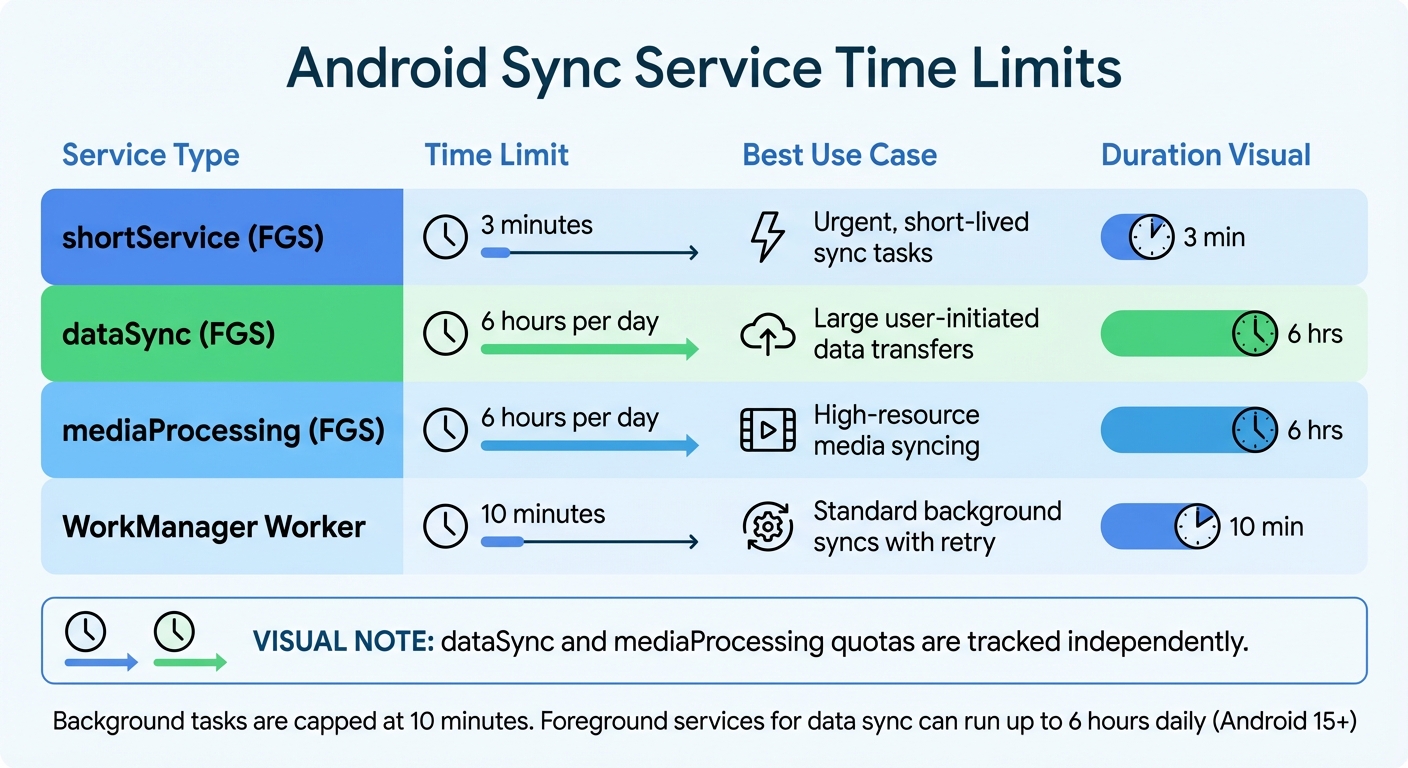
Android Sync Constraints: Time Limits and Service Types Comparison
Android ensures efficient sync performance while conserving battery life by carefully managing network access and system resources. By understanding these limitations, you can design apps that sync effectively without draining the battery or causing user frustration.
Network Availability and Bandwidth Checks
Before starting a sync, it's crucial to confirm that the network meets the necessary conditions. Use ConnectivityManager.registerNetworkCallback with a NetworkRequest to monitor network availability. This approach replaces older, deprecated broadcast methods and provides real-time updates through the onAvailable() callback when the desired network becomes accessible.
For larger sync operations, verify that the network isn't throttled or metered by checking for NET_CAPABILITY_NOT_BANDWIDTH_CONSTRAINED using NetworkCapabilities. This helps avoid unexpected data charges. If your app needs to defer syncs until the device connects to Wi-Fi, you can use WorkManager to set declarative constraints like NetworkType.UNMETERED.
Keep in mind that standard background workers are limited to 10 minutes, after which the system will terminate the sync and schedule a retry. For tasks requiring more time, consider breaking them into smaller segments or using a foreground service with proper user notifications. Android also enforces strict rules on service execution times to maintain system efficiency.
Foreground Service Time Limits
With Android 15, new time limits for foreground services used in sync operations have been introduced. dataSync and mediaProcessing services are capped at 6 hours per 24-hour period. These limits are tracked independently, meaning a dataSync service has its own 6-hour quota separate from mediaProcessing.
If your service reaches the 6-hour limit, the system invokes Service.onTimeout(int, int). At this point, you have only a few seconds to call stopSelf() gracefully; failing to do so results in a RemoteServiceException. Attempting to start a dataSync service after exceeding its quota triggers a ForegroundServiceStartNotAllowedException. However, if users bring your app to the foreground, the timer resets, allowing you to refresh the execution quota.
For tasks that need less time, the shortService type must complete within 3 minutes. Whenever possible, use WorkManager for sync operations, as it efficiently manages modern system constraints.
| Service Type | Time Limit | Best Use Case |
|---|---|---|
| shortService (FGS) | 3 minutes | Urgent, short-lived sync tasks |
| dataSync (FGS) | 6 hours per day | Large user-initiated data transfers |
| mediaProcessing (FGS) | 6 hours per day | High-resource media syncing |
| WorkManager Worker | 10 minutes | Standard background syncs with retry |
Solutions and Best Practices
Smart strategies and fallback mechanisms can help maintain smooth synchronization, even with Android's inherent limitations.
Using Push Notifications for Real-Time Updates
Instead of constantly polling the server for updates, consider using Firebase Cloud Messaging (FCM) or Google Cloud Messaging (GCM) to trigger syncs only when there are actual data changes. This method is far more efficient, conserving battery life, reducing network strain, and eliminating unnecessary queries. When a change occurs, a push notification can wake your app and initiate a background fetch using WorkManager.
To further optimize, transfer only what’s necessary. Implement delta syncs, which update only the specific fields that have changed instead of downloading entire datasets. For instance, if a user updates their profile picture, sync just the new image URL rather than the entire user profile. When sending sync triggers to multiple devices, stagger their initiation by a few seconds to ease the load on servers and networks.
| Sync Trigger | Best Use Case | Battery Impact |
|---|---|---|
| FCM / GCM | Server-side data changes | Low (Efficient) |
| ContentObserver | Local device data changes | Medium |
| Periodic Interval | Regular, non-urgent updates | Medium |
| On Demand | Manual user-initiated refresh | High (Avoid as primary) |
By relying on push-triggered syncs, these methods reduce the need for continuous polling and lay the groundwork for efficient error handling.
Error Handling and Retry Logic
WorkManager imposes standard execution deadlines. To avoid resource waste when a sync is interrupted, always override onStopped() or check isStopped() to release resources like database handles and network connections promptly. For failed syncs, implement exponential backoff to prevent overwhelming the network.
Database operations can slow things down during sync. Running individual SQL queries in a loop is about 1,000 times slower than executing a single optimized query. To speed things up, use Write-Ahead Logging (WAL) and batch multiple insertions into a single transaction. Additionally, setting the PRAGMA synchronous mode to NORMAL while using WAL can significantly speed up commits without risking data corruption during app crashes.
To prevent redundant operations, use enqueueUniqueWork() or enqueueUniquePeriodicWork() to ensure only one instance of a specific sync task runs at a time.
Handling Disabled Auto-Sync
Efficient triggers and error handling are crucial, but dealing with disabled auto-sync settings is equally important for uninterrupted data flow.
When users disable auto-sync globally or for your app, you can still maintain functionality with manual triggers. Use ContentResolver.requestSync() to programmatically initiate synchronization - this bypasses the global auto-sync setting and runs immediately. For critical updates, this method ensures timely data refreshes.
To determine if an account is syncable, check the sync status with ContentResolver.getIsSyncable(). If auto-sync is off, provide clear UI feedback and offer a manual "refresh" button as a fallback. If using WorkManager instead of SyncAdapter, enqueueUniqueWork() can prevent duplicate sync tasks triggered manually.
For apps using a Content Provider, register a ContentObserver to monitor local data changes and call requestSync() to keep the server updated, even if periodic syncs are disabled. Pair this with FCM push notifications to trigger requestSync() and fetch fresh data, ensuring two-way synchronization regardless of the auto-sync setting.
Conclusion
Android's sync constraints are designed to safeguard battery life, memory, and overall user experience. However, they challenge developers to carefully plan how and when data synchronizes between devices and servers. Modern apps typically rely on WorkManager for managing background sync tasks with specific constraints, such as unmetered networks, charging states, or idle devices. This ensures synchronization happens efficiently without overloading system resources.
To build on these constraints, a strong app strategy is crucial. Using local storage as a single source of truth supports seamless offline performance. By having the UI interact with on-device storage while a background sync engine reconciles data with the network, your app remains responsive even in areas with poor connectivity. As mobile architect Sudhir Mangla explains:
"Offline-first is therefore not only a resilience strategy - it's a performance one"
- Sudhir Mangla
Automating sync processes through tools like Firebase Cloud Messaging or ContentObserver callbacks is far more efficient than relying on manual refresh mechanisms. Pair this with delta synchronization - which updates only changed data - and implement exponential backoff retry logic to handle temporary failures smoothly.
Related Blog Posts
- Real-Time Data Sync for No-Code Apps
- Offline vs. Real-Time Sync: Managing Data Conflicts
- Event-Driven Sync for Offline-First Apps
- How to Sync Data Across Web and Mobile Apps
FAQs
How does WorkManager help Android apps save battery life?
WorkManager is a tool designed to help Android apps use battery power more efficiently by managing background tasks smartly. It schedules tasks to run only under certain conditions, like when the device is charging, connected to Wi-Fi, or in an idle state. This approach cuts down on unnecessary resource use and helps conserve battery life.
By focusing on deferrable and asynchronous tasks, WorkManager ensures critical operations are completed without disrupting the user experience or putting extra strain on the device's battery.
What’s the difference between periodic and manual syncs on Android?
Periodic syncs happen automatically at regular intervals, keeping data current without requiring any action from the user. This approach works well for tasks like updating calendars or retrieving new emails in the background.
Manual syncs, however, are initiated by the user or the app itself, usually when an immediate update is necessary. For instance, tapping a "Refresh" button in an app triggers a manual sync. Each method caters to specific needs, depending on how the app is designed and what the user expects.
Why is Firebase Cloud Messaging a better choice than constant polling for developers?
Firebase Cloud Messaging (FCM) offers a smarter alternative to constant polling by enabling server-initiated push notifications. Instead of the client repeatedly checking for updates, FCM ensures updates are pushed directly when needed.
This method significantly cuts down on unnecessary network activity, saving both bandwidth and device battery life. The result? Real-time updates that keep apps synchronized and responsive without draining resources or adding system strain. It’s an efficient way to enhance user experience while maintaining optimal performance.







