


Periodic Background Sync allows apps to update content in the background, ensuring users see the latest information without waiting. Whether it's news, weather, or user data, this feature minimizes delays and improves the experience by syncing during stable connectivity. Here's how it works across platforms:
Platforms like Adalo, a no-code app builder for database-driven web apps and native iOS and Android apps—one version across all three platforms, published to the Apple App Store and Google Play, make it easier to implement periodic background sync across multiple platforms. By providing a unified development environment, these tools help ensure consistent sync functionality without requiring separate implementations for each operating system.
- Web: Uses the Periodic Background Sync API within service workers. Syncs depend on user engagement and browser decisions, requiring HTTPS and PWA installation.
- Android: Relies on WorkManager for scheduling tasks, with constraints like battery life and network type. Doze mode and Standby Buckets affect timing.
- iOS: Uses Background App Refresh and silent push notifications. Syncs are brief and depend on system predictions of user behavior.
Each platform has unique constraints, but tools like Adalo simplify cross-platform development by providing a single codebase for web, iOS, and Android apps. This ensures consistent sync functionality without needing separate implementations.
How Periodic Background Sync Works on Different Platforms
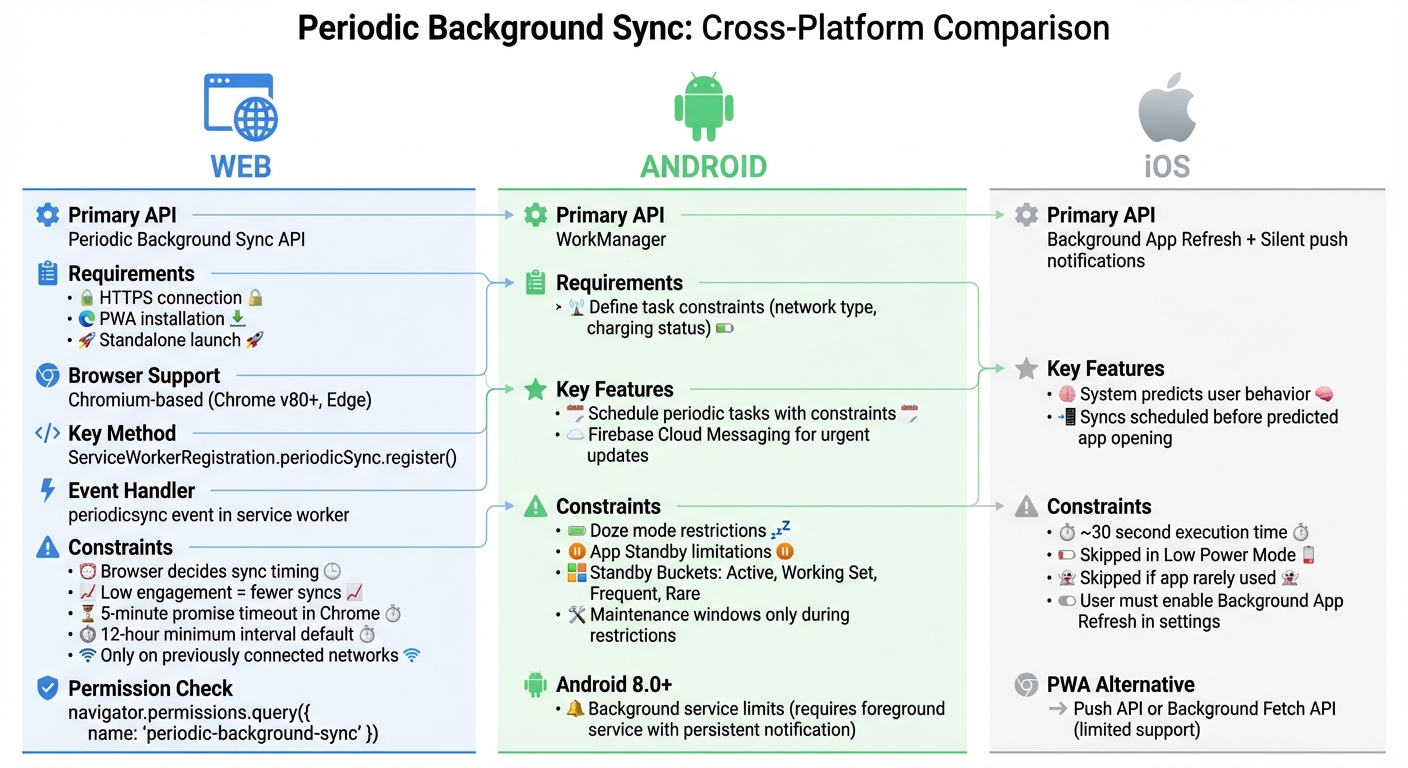
Periodic Background Sync Implementation Across Web, Android, and iOS Platforms
Each platform has its own approach to managing background synchronization, with unique APIs and constraints. Knowing these differences is key to creating a reliable, cross-platform sync experience.
Web Implementation
The Periodic Background Sync API operates within a service worker and requires a secure HTTPS connection, PWA installation, and standalone launch. It's supported on Chromium-based browsers like Chrome (v80+) and Edge. To set up a sync, you call register() on ServiceWorkerRegistration.periodicSync, providing a unique tag (e.g., "content-sync") and a minInterval.
However, the browser ultimately decides when to trigger sync events. For apps with low user engagement, sync events may not fire as often. When a sync event does occur, the service worker handles it using a periodicsync event. To ensure the task completes, use event.waitUntil() to keep the worker active. Permissions can be checked with navigator.permissions.query({ name: 'periodic-background-sync' }). Keep in mind that sync events usually occur only on networks the device has previously connected to.
Next, Android takes a different approach to managing background synchronization.
Android Implementation
On Android, WorkManager is the go-to tool for scheduling periodic tasks. It allows developers to define constraints, such as requiring an unmetered network or ensuring the device is charging. However, Android's Doze mode and App Standby can delay background tasks by restricting execution to maintenance windows. Apps are also categorized into Standby Buckets - Active, Working Set, Frequent, or Rare - based on user activity, which further affects when tasks can run.
For urgent updates, Firebase Cloud Messaging (FCM) can deliver high-priority messages that wake the app, bypassing these restrictions. Starting with Android 8.0, background services face additional limits unless they run as foreground services, which require a persistent notification.
iOS, on the other hand, takes a different route for handling periodic sync.
iOS Implementation
On iOS, Background App Refresh and silent push notifications handle periodic sync. The system predicts when users will open the app and schedules sync events just beforehand, ensuring fresh content is ready. However, execution time is brief - usually around 30 seconds - and may be skipped if the device is in Low Power Mode or if the app is rarely used. Users must also enable Background App Refresh in their device settings for these syncs to occur.
For PWAs on iOS, support for the Periodic Background Sync API is limited. Instead, these apps often rely on the Push API (which requires user-visible notifications) or the Background Fetch API for larger downloads.
This breakdown shows how web, Android, and iOS platforms each impose unique constraints and methods for background sync. Adapting your approach to fit each platform is essential for seamless functionality.
Best Practices for Reliable Background Sync
Retry Logic and Error Handling
When a sync fails, you can prompt the browser to retry by using event.waitUntil() with a promise. In Chrome, this promise has to resolve within 5 minutes, or the service worker will be terminated. By default, the periodicsync event doesn’t include automatic retries unless the browser decides to override this behavior.
To handle errors effectively, differentiate between transient and permanent failures. For transient issues, like network timeouts, reject the promise so the browser can retry. For permanent errors, such as a 404 response, resolve the promise to avoid unnecessary retries. Since sync events restart from the beginning instead of picking up where they left off, design your sync logic to be idempotent - this ensures it runs safely multiple times without causing issues.
Finally, make sure your implementation keeps resource usage low to avoid unnecessary strain on the device.
Optimizing Battery and Resource Usage
Browsers already optimize sync events to conserve battery, but your code should also be mindful of efficiency. For instance, Chrome will terminate service workers that remain idle for more than 30 seconds or execute synchronous JavaScript for over 30 seconds. Keep sync tasks lightweight - only fetch the data that’s absolutely necessary. For larger downloads, like videos or podcasts, use the Background Fetch API instead of Periodic Background Sync. This approach avoids timeouts and provides users with visible progress updates.
Additionally, check navigator.connection.saveData to determine if the user prefers reduced data usage. Use the Storage Manager API to confirm there’s enough available space before caching substantial content. Keep in mind, low user engagement can lead to reduced sync frequency.
Platform-Specific Considerations
Each platform comes with its own set of requirements and limitations. For web-based sync, Periodic Background Sync requires HTTPS, PWA installation, and user approval for the periodic-background-sync permission. You can verify permissions by calling navigator.permissions.query({ name: 'periodic-background-sync' }). In Chrome, there’s a default minimum interval of 12 hours (43,200,000 milliseconds) between sync events across all origins. Sync events also tend to trigger only on networks the device has previously connected to.
For iOS, where Safari doesn’t support the Periodic Background Sync API, alternatives like native Background App Refresh or silent push notifications are your best options. On Android, periodic tasks are managed by WorkManager, but it operates within the restrictions of Doze mode and App Standby, which limit background activity.
Building Cross-Platform Apps with Unified Sync
Adalo's Single-Codebase Architecture
Developing for multiple platforms often means dealing with different sync APIs and extended timelines. Adalo simplifies this by letting you create a single app that works seamlessly on web (including PWAs), iOS, and Android - all from one codebase.
With this unified setup, any sync logic you implement - like refreshing user data, updating content, or connecting with external databases - functions consistently across all platforms. There’s no need to rewrite or adjust code for each operating system, streamlining the entire process.
Built-In Tools for Sync and Data Management
Adalo takes care of data synchronization with its built-in backend tools. Features like "Change Data" actions ensure your app's database stays updated across platforms without requiring additional sync services or managing multiple API endpoints.
Push notifications are another standout feature, enabling background updates even when the app isn’t active. These notifications can trigger service workers or background processes to refresh data, keeping everything current. Combined with Adalo's integrated database, this guarantees data consistency.
For apps that rely on external data sources, Adalo offers connections to platforms like Airtable, Google Sheets, MS SQL Server, and PostgreSQL. Even systems without APIs can be linked using DreamFactory integration. This flexibility ensures your app can tap into existing data seamlessly.
This streamlined approach not only simplifies development but also lays the groundwork for smoother testing and debugging, which will be discussed in the following section.
Testing and Debugging Periodic Sync
Once you've implemented periodic sync, the next step is thorough testing to ensure consistent performance across all platforms. Each platform provides tools to simulate sync events, monitor performance, and identify potential issues early on. Here's how you can approach testing and debugging for web, Android, and iOS.
Testing on the Web
Chrome DevTools makes it easy to test periodic background sync without waiting for the actual intervals. Head to the Application panel and track local activity in the Periodic Background Sync section. You can monitor registrations, sync events, and unregistrations here, with the recording persisting for days.
To manually trigger a sync event, navigate to the Service Workers section in DevTools. Enter the specific tag name for your sync event and click Periodic Sync. After registration, validate your sync tags using the periodicSync.getTags() method.
Keep in mind that Chrome uses a site engagement score to determine how often sync events occur. If the score is zero, sync events won't fire. During development, check about://site-engagement/ to confirm that your test environment meets the required engagement levels. Also, note that periodic sync is only supported in installed Progressive Web Apps (PWAs), not in regular browser tabs.
Once you're satisfied with the web testing, shift your focus to Android for deeper logging and debugging.
Debugging on Android
For Android, WorkManager provides detailed logging capabilities to track background sync operations. Using Android Studio's Logcat, filter for WorkManager entries to analyze task execution, identify failures, and observe system adjustments related to battery usage and connectivity. Since WorkManager respects Doze mode and App Standby settings, testing on physical devices under different power conditions will give you a better understanding of how sync behaves in practical scenarios.
To test how your app handles connectivity issues, use Developer Options to simulate network interruptions. For instance, toggle airplane mode or restrict background data to see if your retry logic works as expected. WorkManager's built-in constraints also make it easier to ensure that sync tasks align with available system resources.
After Android testing, move to iOS to fine-tune sync behavior using Xcode.
Testing on iOS
Xcode offers tools for debugging background tasks, allowing you to simulate sync events without waiting for the system's intervals. From the Debug menu, select Simulate Background Fetch to manually trigger sync events.
iOS imposes restrictions on background sync based on device usage and battery levels. Testing on actual devices is crucial for accurate results. Use Xcode's Energy Log to monitor how your sync tasks affect battery consumption. Keep in mind that iOS may delay or skip sync events entirely if the device is in Low Power Mode or if user engagement is low.
Conclusion
Periodic background sync helps apps deliver content right when users need it. By pre-fetching data during active connectivity, apps can ensure instant content availability - even on unreliable mobile networks or when switching between Wi-Fi and cellular. As Cecilia Cong explains, "Periodic background sync lets you show fresh content when a progressive web app or service worker-backed page is launched. It does this by downloading data in the background when the app or page is not being used".
Different platforms handle background sync in unique ways. For web apps, Service Workers and HTTPS are essential, with Chrome linking sync frequency to site engagement scores. On Android, WorkManager provides fine-tuned controls, like syncing only over Wi-Fi. Meanwhile, iOS uses BGAppRefreshTask, which operates as a heuristic system that adapts to battery levels and user behavior. Navigating these diverse technical requirements - including permissions, lifecycle events, and resource limitations - can make cross-platform development a real challenge.
This is where Adalo's single-codebase architecture changes the game. Instead of writing separate logic for Service Workers (Web), Kotlin/WorkManager (Android), and Swift/BGAppRefreshTask (iOS), Adalo allows you to build once and deploy everywhere. It takes care of platform-specific quirks - like Chrome’s installation requirements or iOS’s unpredictable sync behavior - so you don’t have to. No need to manually manage event.waitUntil() in Service Workers or troubleshoot delayed syncs on iOS. With Adalo, updates are applied across web, iOS, and Android simultaneously, letting you focus on features rather than platform-specific headaches.
Beyond sync, Adalo offers integrated tools like database management, push notifications, and external data connections, enabling you to launch production-ready apps in record time. Whether you're creating an MVP, moving beyond a prototyping tool, or building apps for internal operations with Adalo Blue, the platform equips you with everything you need. Its unified approach, backed by rigorous cross-platform testing, lets you channel your energy into creating, not troubleshooting.
Related Blog Posts
- Event-Driven Sync for Offline-First Apps
- How to Sync Data Across Web and Mobile Apps
- Cross-Platform Data Storage: Key Challenges
- Android Sync Constraints: What Developers Need to Know
FAQs
What are the differences in implementing periodic background sync on web, Android, and iOS platforms?
Periodic background sync varies significantly across the web, Android, and iOS due to differences in platform features and implementation approaches.
On the web, periodic background sync is enabled through the Periodic Background Sync API in Chromium-based browsers like Chrome. This feature allows apps to update data in the background at set intervals using service workers. However, it’s still in an experimental phase, works only in secure environments, and is limited to certain browsers.
Android stands out for its robust support of periodic background sync. Native APIs allow apps to handle background tasks at specific intervals, even when the app isn’t actively running. Developers can easily integrate these features using native tools or cross-platform frameworks.
For iOS, the approach is more restrictive. While native periodic sync isn’t available, developers can rely on alternatives like background fetch or silent push notifications. These methods, however, lack the precision and flexibility found on Android or the web.
To sum up, Android offers the most adaptable options, the web is improving but still limited, and iOS demands creative solutions for managing background data updates.
What should developers know about implementing periodic background sync in cross-platform apps?
Periodic background sync comes with some important requirements and constraints that developers should keep in mind. For starters, it only functions in secure contexts (HTTPS), which ensures both data security and user privacy. It also relies on service workers, allowing tasks to run in the background even when the app isn’t actively being used.
To use this feature, developers need to register sync tasks with a unique tag and set a minimum interval for how often they should execute. However, since the API is still considered experimental and isn’t supported by all browsers, checking compatibility is crucial. Developers should also prepare fallback solutions for environments where it isn’t available. These limitations are designed to maintain security, reliability, and adherence to modern web standards.
How does Adalo make it easier to implement Periodic Background Sync in cross-platform apps?
Adalo makes cross-platform app development simpler with its Periodic Background Sync feature. This allows your app to refresh data in the background at set intervals, so users always have up-to-date content - even when they’re offline or not actively using the app.
Thanks to Adalo’s single-codebase system, you can create and launch apps for web, iOS, and Android at the same time. The background sync functionality works seamlessly across all platforms, cutting down on development time and ensuring a consistent experience for users on any device.







