
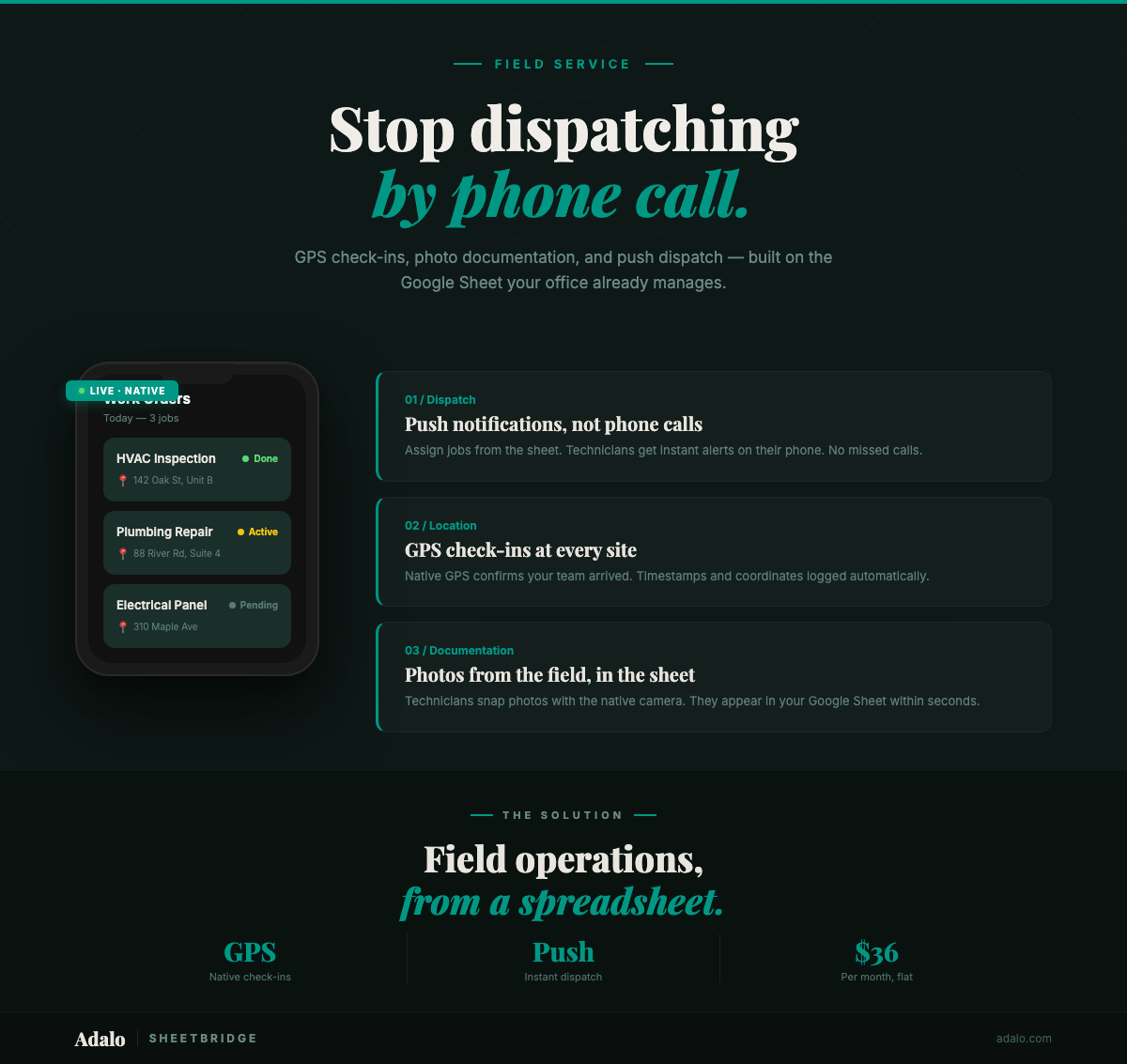
Your field technicians are driving between job sites with a printed spreadsheet on the passenger seat. When they finish a job, they call the office to report completion. Someone in the office updates the Google Sheet, then texts the next assignment to the tech. Photos of completed work get texted to a manager who manually attaches them to the right row. By the time everyone's synced up, the day is half over and the data is already stale.
This workflow is common in HVAC, plumbing, electrical, cleaning, pest control, and property management companies. It technically works — until you're managing more than a handful of technicians and the communication overhead starts eating into billable hours. (If you're new to turning spreadsheets into apps, start with our complete Google Sheets to native app guide.)
Why Spreadsheet-Based Dispatch Falls Apart
Google Sheets is a reasonable starting point for tracking work orders. Columns for customer name, address, job type, assigned tech, status — it's straightforward. But spreadsheets have no concept of a field worker standing at a job site, and that gap creates real operational pain:
- No GPS verification — You have no way to confirm a tech actually arrived at the job site, which matters for SLA compliance and billing accuracy
- Dispatch delays — Assigning new jobs requires calling, texting, or waiting for techs to check their email. Minutes lost per dispatch add up across dozens of daily assignments.
- Photo documentation bottleneck — Before-and-after photos get lost in text threads, aren't attached to the right work order, and disappear when someone changes phones
- Status lag — The office doesn't know a job is complete until the tech calls in. Customers waiting for updates get told "we'll check and call you back."
- Double data entry — Techs write notes on paper, then someone in the office transcribes them into the spreadsheet. Errors at every step.
Field service businesses running on spreadsheets typically spend 15–20 hours per week on coordination overhead — phone calls, texts, manual updates, and reconciliation. That's a part-time employee's worth of effort just keeping information flowing.
How SheetBridge + Adalo Solve It
SheetBridge connects your Google Sheets work order data to Adalo, which builds native iOS and Android apps published to the App Store and Google Play. Your spreadsheet stays as the central record. Your techs get a purpose-built mobile app. Your office sees updates in real time.
The result:
- GPS check-ins — Techs tap "Arrived" and the app logs their GPS coordinates against the job site address. Proof of arrival, no phone calls needed.
- Push notification dispatch — New job assignments hit the tech's phone as a native push notification. No checking email, no missed texts.
- Photo documentation — Techs capture before-and-after photos directly in the app using the native camera. Photos are automatically attached to the correct work order.
- Real-time status updates — When a tech marks a job complete, the Google Sheet updates within seconds. The office knows instantly. The customer can be notified immediately.
- Bidirectional sync — Office staff can continue working in Google Sheets. Changes made in either direction sync within seconds through SheetBridge.
Step-by-Step Walkthrough
Step 1: Structure Your Google Sheet
Organize your work order spreadsheet with clean column names using underscores. Remove merged cells and ensure consistent data types. Recommended columns:
Work_Order_ID— unique identifier for each jobCustomer_NameandCustomer_PhoneAddress— full job site addressJob_Type— service category (repair, install, inspection)Assigned_Tech— technician name or IDStatus— Pending, En Route, On Site, CompleteScheduled_DateandScheduled_TimeNotes— job description and special instructionsCheckin_LatandCheckin_Lng— populated by the app on arrivalCompletion_Photo_URL— populated by the app
Step 2: Connect via SheetBridge
Link your Google Sheet to Adalo through SheetBridge. OAuth authentication takes one click, and SheetBridge auto-detects your schema. Setup takes 15–30 minutes, and bidirectional sync is active immediately.
Step 3: Build the Tech-Facing App
Using Adalo's drag-and-drop builder or Magic Start (describe your app to Ada, Adalo's AI), create the screens your field workers need:
- My Jobs dashboard — Today's assignments filtered by the logged-in tech, sorted by scheduled time
- Job detail screen — Customer info, address (tappable for navigation), job notes, and action buttons
- GPS check-in — "I've Arrived" button that captures device GPS coordinates and timestamps the arrival
- Photo capture — Native camera integration for before, during, and after photos, attached to the work order
- Completion form — Quick fields for work performed, parts used, time spent, and customer signature
Step 4: Build the Office Dashboard
Create a separate view (or a separate app on Adalo's web platform) for dispatchers and managers:
- Live status board — All active work orders with real-time status from tech check-ins
- Dispatch screen — Assign new jobs to techs, who receive instant push notifications
- Photo review — Browse completion photos by work order without digging through text messages
- Reporting — Jobs completed per day, average time on site, tech utilization
Step 5: Configure Push Notifications
Set up native push notifications for critical events:
- New job assignment → tech's phone
- Schedule change or cancellation → tech's phone
- Job completed → office/manager notification
- Customer follow-up reminder → tech's phone
These are native device notifications that appear on the lock screen. They don't require the app to be open and they don't depend on browser support.
Step 6: Publish and Deploy
Publish the tech app to the Apple App Store and Google Play. Your technicians download it like any other app, sign in, and see their assignments. The web version runs simultaneously for office staff. One Adalo project, three platforms — all synced to your Google Sheet.
Why a Native App Matters for Field Service
Field service is one of the use cases where the gap between a native app and a PWA is most pronounced:
- GPS check-ins require native device APIs. Accurate location capture — especially in areas with spotty connectivity — depends on native GPS access. PWAs rely on browser location APIs that are less reliable and require the browser to be actively open.
- Push notifications for dispatch are critical. When a new job needs to be assigned immediately, the tech needs to see it now — not the next time they open a browser tab. Native push notifications work reliably on both iOS and Android. PWA push notifications remain unsupported or inconsistent on iOS.
- Photo documentation needs native camera access. Capturing high-resolution before-and-after photos, attaching them to specific work orders, and uploading them reliably requires native camera integration. Browser-based camera access is limited in quality and consistency.
- App Store presence builds customer confidence. When clients ask "do you have an app?", sending them to the App Store carries more credibility than a bookmarked web page.
Field workers don't sit at desks. Their tool needs to work like a tool — fast, reliable, and always ready. That's what native delivers.
See the full use case: Field Reports — a detailed look at building a field service app with GPS check-ins, photo documentation, and real-time sync.
Who This Is For
This approach applies to any service business dispatching workers to job sites from a spreadsheet:
- HVAC and plumbing companies — Dispatch, check-in, photo documentation of repairs
- Cleaning services — Job scheduling, completion verification, client communication
- Property management — Maintenance requests, inspection documentation, vendor coordination
- Pest control — Route management, treatment documentation, follow-up scheduling
- Electrical and general contracting — Work order tracking, permit documentation, time logging
Frequently Asked Questions
How quickly can I build a field service app?
Most businesses have a functional app within a day or two. SheetBridge connection takes 15–30 minutes. Building screens with Adalo's visual multi-screen canvas or Ada, Adalo's AI builder, takes a few hours. Testing and publishing can happen the same week. Compare that to the 3–6 months and $40,000+ for custom development.
Can my office staff keep using Google Sheets?
Absolutely. SheetBridge provides bidirectional sync, so your office team can continue working in the spreadsheet they're comfortable with. Changes from either side sync within seconds. There's no migration — just an added interface for the field.
How accurate is the GPS check-in?
The app uses the device's native GPS, which provides accuracy within a few meters in typical conditions. The check-in logs latitude, longitude, and a timestamp — enough to verify a tech was at the correct job site at the right time.
What happens in areas with poor cell signal?
Adalo native apps are designed to handle intermittent connectivity gracefully. Data queues locally and syncs when the connection is restored. For most field service workflows, brief connectivity gaps don't disrupt the technician's ability to work.
How much does it cost?
Adalo's free plan supports up to 500 records, which works for small operations. Paid plans start at $36/month with unlimited records. For a team of 5–15 field workers, you're looking at a fraction of the cost of platforms like ServiceTitan or Jobber, while keeping your Google Sheets workflow intact.
Can customers see their job status?
Yes. You can build a customer-facing version of the app or a web portal that shows real-time job status. When a tech checks in or marks a job complete, the customer sees it immediately — no more "we'll call you back with an update."
What is Adalo?
Adalo is the AI-powered no-code app builder with a visual multi-screen canvas. Design, build, and publish database-driven apps to the Apple App Store, Google Play Store, and web from a single project — no code, no developers required. Ada, Adalo's AI builder, generates screens from descriptions with Magic Start, and Magic Add layers on new features with natural language. Start building at app.adalo.com/signup.
Get Started
Your Google Sheet already has the data. Your techs already have phones. The missing piece is the app that connects them — with GPS check-ins, push dispatch, and photo documentation built in.
Learn how SheetBridge turns your spreadsheet into an app, or start building for free. For more on building internal tools without code, explore the Internal Tools App Builder and see why Adalo ranks among the best no-code app builders. For SheetBridge configuration details, check the SheetBridge documentation.

Build your app fast with one of our pre-made app templates
Begin Building with no codeRelated Content
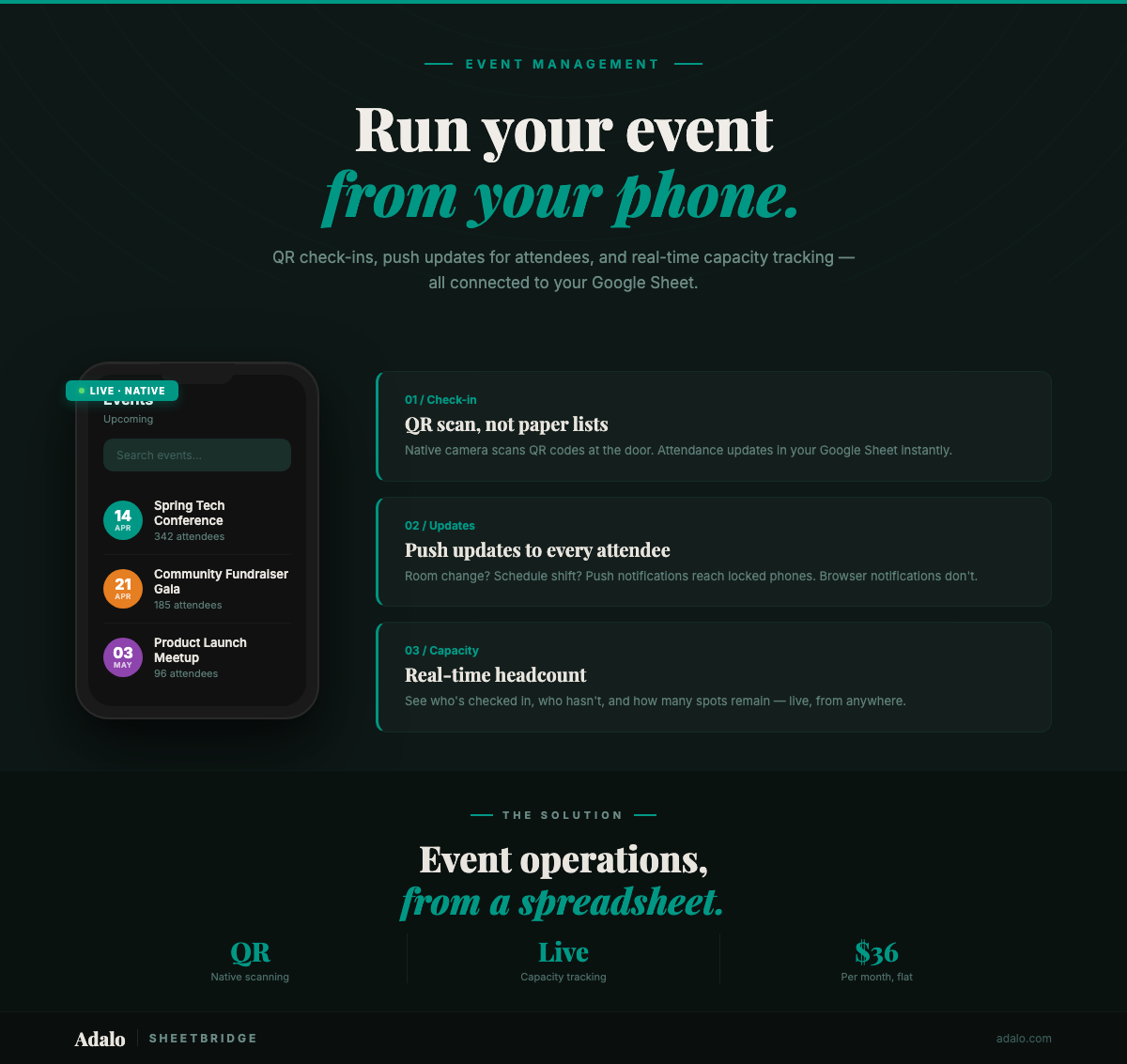
Google Sheets Event App in 30 Minutes
Turn your Google Sheets event tracker into a native event management app with QR check-ins and push notifications. No code required. Start for $36/month.
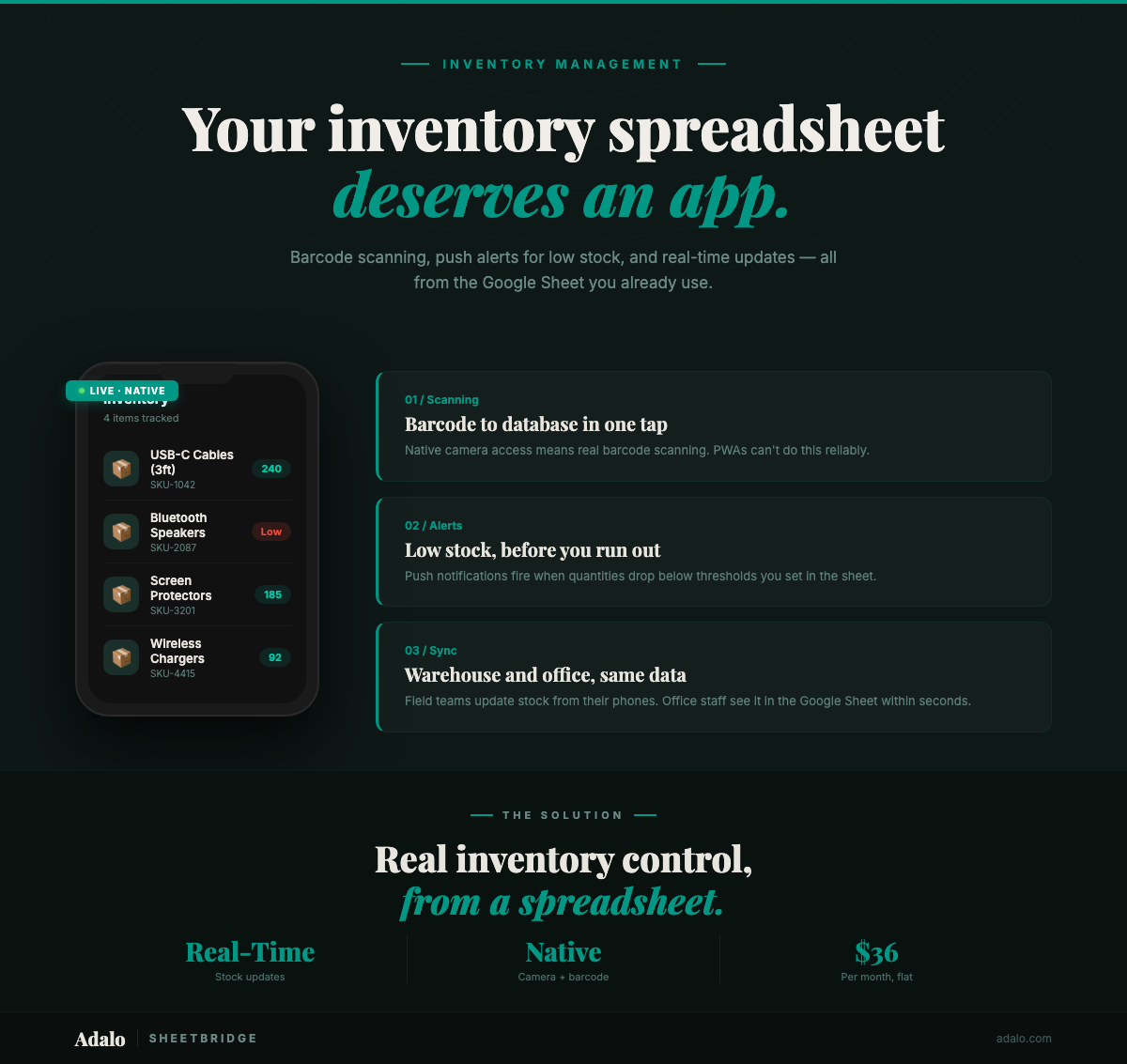
Build a Native Inventory App from Google Sheets
Convert your Google Sheets inventory tracker into a native mobile app with barcode scanning, push notifications, and real-time sync using Adalo and SheetBridge.

How to Build a Booking & Appointments App from Google Sheets with Adalo
Learn how to build a booking and appointments app from Google Sheets using Adalo with no code and real-time updates.

How to Build a Field Service App from Google Sheets with Adalo
Learn how to build a field service app from Google Sheets using Adalo—no code, fast setup, and mobile-ready workflows.