


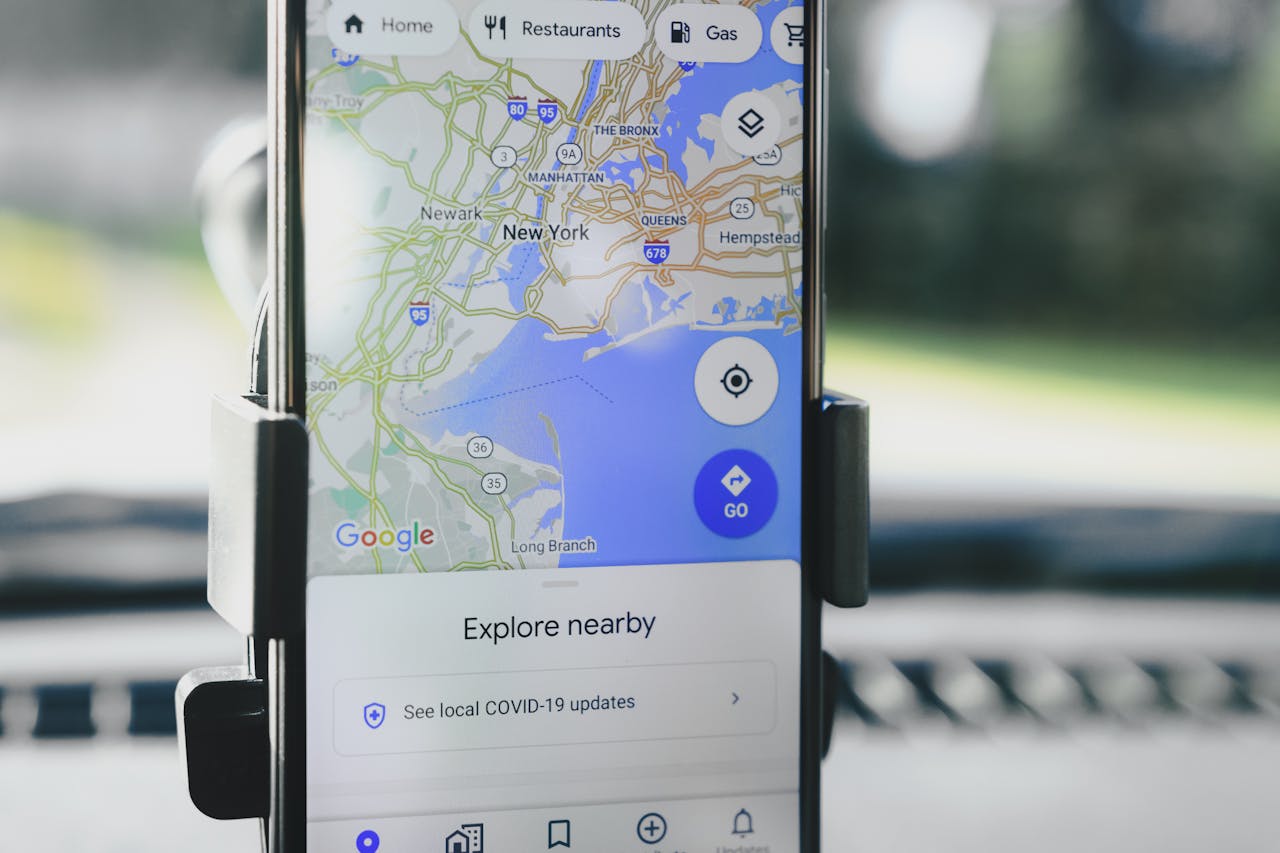
Why Adalo Works for Building a Maps Application
Adalo is a no-code app builder for database-driven web apps and native iOS and Android apps—one version across all three platforms, published to the Apple App Store and Google Play. This cross-platform capability is exactly what a maps application demands—users expect to plan routes on their desktop and access the same saved locations seamlessly from their phone while on the go.
Publishing to native app stores unlocks features that web-only maps can't match. Push notifications alert users when they're near saved places, and native GPS integration delivers faster, more accurate positioning than browser-based alternatives. For a location-based app to truly compete with established players, it needs to live where users expect to find it: in the App Store and Google Play.
Building a Google Maps-style application might seem like a project reserved for development teams with deep pockets and months of runway. The reality? You can create a functional location-based app with search, place discovery, and user positioning features—all without writing code.
Adalo, an AI-powered app builder, makes this possible by combining drag-and-drop simplicity with native iOS and Android compilation. One build publishes to web, the Apple App Store, and Google Play Store simultaneously. For a maps application that users need to access on the go, this cross-platform capability is essential—your users can plan trips on desktop and discover nearby places on mobile, all from the same codebase.
This comprehensive tutorial walks you through building a Google Maps-style application step by step. While some features like real-time tracking and turn-by-turn navigation aren't possible within the platform, you'll create a fully functional mapping app with location search, place markers, saved locations, and distance calculations. The same app works across web, native iOS, and native Android—no rebuilding required.
Why Adalo Works for Building a Maps Application
Location-based apps demand reliable performance and seamless user experiences. Adalo's infrastructure, completely overhauled with the 3.0 release in late 2025, delivers 3-4x faster performance than previous versions. This matters when your app needs to load map markers, calculate distances, and respond to user interactions without lag.
The platform's modular architecture scales to serve apps with millions of monthly active users, with no upper ceiling. Paid plans include unlimited database records—critical for maps apps that accumulate places, reviews, search history, and user data over time. Unlike platforms with record caps or usage-based charges, you won't face unexpected bills as your user base grows.
Having your maps app available in the app stores means users can quickly pull it up with a tap, receive push notifications about saved locations or points of interest, and enjoy a smooth native experience with integrated location services. Adalo handles the complex App Store submission process, so you can focus on building features rather than wrestling with certificates and provisioning profiles.
Prerequisites and Initial Setup
Step 1: Create Your Adalo Account
- Go to Adalo.com and sign up
- Click "Create New App"
- Choose Responsive App (Adalo 2.0). Mobile App also works; Responsive is recommended for modern layouts
- Name your app (e.g., "MapsClone")
- Select "Start from Scratch"
Ada, Adalo's AI builder, lets you describe what you want and generates your app. Magic Start creates complete app foundations from a description, while Magic Add adds features through natural language.
Magic Start can generate complete app foundations from descriptions—tell it you're building a location-based discovery app, and it creates your initial database structure, screens, and user flows automatically. What used to take days of planning happens in minutes.
Step 2: Configure App Settings
- Choose primary colors (Google Maps uses blue/white)
- Select light theme for map visibility
- Pick a clean, modern font (Roboto works well)
- Click "Continue" to enter editor
Step 3: Get Your Google API Key
- In Google Cloud Console, create/select a project
- Enable: Maps JavaScript API, Places API, Geocoding API (and if you'll build native apps, also Maps SDK for iOS and Maps SDK for Android)
- Go to APIs & Services → Credentials → Create credentials → API key
- In Adalo, open App Settings → API Keys and paste the key
- On your map, paste the same key in the Maps component's API Key field
Learn how to get your Google API Key
Setting Up the Database
A well-structured database is the foundation of any maps application. With Adalo's no data caps on paid plans, you can build comprehensive data models without worrying about hitting storage limits as your app grows.
Step 4: Enhance the Users Collection
- Click Database icon in left sidebar
- Select the default "Users" collection
- Add these properties (click "+ Add Property"):
- Current Location (Location)
- Home Address (Location)
- Work Address (Location)
- Saved Places (Relationship to Places - Many to Many)
- Preferred Map Type (Text - default: "roadmap")
- Location Sharing (True/False - default: false)
- Last Location Update (Date & Time)
Learn more about Location Property Type
Step 5: Create Places Collection
- Click "+ Add Collection"
- Name it "Places"
- Add properties:
- Name (Text)
- Location (Location) - Primary address
- Category (Text) - Values: "restaurant", "gas", "hotel", etc.
- Photo (Image)
- Rating (Number - 1-5)
- Price Level (Text) - "$", "$$", "$$$", "$$$$"
- Phone Number (Text)
- Website (Text - URL)
- Hours (Text - Multiline)
- Description (Text - Multiline)
- Created By (Relationship to Users)
- Created At (Date & Time - Automatic)
Step 6: Create Search History Collection
- Click "+ Add Collection"
- Name it "Search History"
- Add properties:
- Search Query (Text)
- Search Location (Location)
- Search Type (Text) - "place", "address", "coordinate"
- Timestamp (Date & Time - Automatic)
- Selected Result (Relationship to Places)
Step 7: Create Reviews Collection
- Click "+ Add Collection"
- Name it "Reviews"
- Add properties:
- Rating (Number)
- Comment (Text - Multiline)
- Photos (Image)
- Created At (Date & Time - Automatic)
- Helpful Count (Number - default: 0)
Step 8: Create Routes Collection (For saved directions)
- Click "+ Add Collection"
- Name it "Routes"
- Add properties:
- Start Location (Location)
- End Location (Location)
- Waypoints (Text - for JSON array)
- Distance (Number) - in kilometers
- Estimated Time (Number) - in minutes
- Route Name (Text)
- Is Favorite (True/False)
Step 9: Set Up Relationships
- In Search History:
- Add "User" → Users (Many to One)
- In Reviews:
- Add "Place" → Places (Many to One)
- Add "Author" → Users (Many to One)
- In Routes:
- Add "User" → Users (Many to One)
- Add "Start Place" → Places (Many to One)
- Add "End Place" → Places (Many to One)
Learn more about Databases
Building the Main Map Interface
Step 10: Create Map Screen
- Add new screen "Map"
- Make it the home screen
- Delete default App Bar
- Set background color to white
Step 11: Add Maps Component
- Open the Marketplace (left sidebar)
- Search "Maps" and click Add (installs immediately)
- Drag the Maps component onto your Map screen and make it full-bleed
Learn how to integrate Maps Component
Step 12: Configure Map Settings
- Select the Maps component
- API Key: paste your Google API key
- What does this map show?
- Choose Single Marker (one address) or Multiple Markers (from a collection)
- Map Style: pick Roadmap, Hybrid, Satellite, or Terrain (this is a component setting, not bound via Magic Text)
- (Optional) Custom Style JSON for a styled map
Step 13: Add Map Markers
- In Maps settings, open What does this map show? → Multiple Markers
- Records: select your Places collection
- Address for each marker: bind the Location (or address fields via Magic Text)
- (Optional) Filter the records (e.g., by Category)
- (Optional) Max number of records and Sort (e.g., by Rating)
- Add a Click Action on marker press (e.g., go to Place Details)
Step 14: Create Search Overlay
- Add Rectangle at top of screen
- Style: White background, shadow, rounded corners
- Add Text Input inside:
- Placeholder: "Search Google Maps"
- Icon: Search icon on left
- Add Icon Button (GPS/location icon)
- Action: Update Logged In User → Current Location → Current Device Location
Implementing Search Functionality
Step 15: Build Search Results Screen
- Add a Search Results screen
- Add a Custom List of Places
- Filter: Name contains the text input value (from the previous screen)
- If you use a Location Input (Step 17), you can also filter by distance (see Step 16)
- Each list item: image, name, category/rating, and a distance label
Step 16: Add Distance Calculations
- In the list item, add a Text component
- Set Magic Text to:
KILOMETERS(Current Device Location Latitude, Current Device Location Longitude, Current Place Location Latitude, Current Place Location Longitude) - Format as: X.X km away
Location Formulas documentation
Step 17: Implement Location Search
- On your Map (or a dedicated Search) screen, add a Location Input
- Bind it to Search History → Search Location (optional)
- Turn on Autocomplete and optionally Show current location
- Add a Search button that:
- (a) Creates a Search History record (optional), then
- (b) Navigates to Search Results (or refreshes Map) with the chosen location in params
Magic Add lets you describe features in natural language—"add a search filter for restaurant categories" generates the component and logic automatically.
Step 18: Configure Search Filters
- Add a Dropdown (or segmented control) labeled "Category"
- Options: Restaurants, Gas, Hotels, ATMs, Parking
- Apply the dropdown's value directly in your Places list Filter:
- Category equals [Dropdown > Value]
- (Optional) add a second filter using Comparing Locations to keep results within a chosen distance
- Add a Clear Filters button that sets the dropdown back to "All"
Creating Location Features
Step 19: Request Location Permissions
- After login (e.g., on Home/Map), add an Action → Permissions → Request Location Permissions
- If granted → continue; if denied → show an explanation screen with a retry
- Note: Users must be logged in for permission actions to work
Learn how to access User's Location
Step 20: Build "My Location" Button
- Add a floating Icon Button on the Map screen
- Action: Change Data → Update Logged-In User → Current Location = Current Device Location
- Lists/markers that are filtered relative to the user's location will refresh on tap. (The Maps component does not expose actions to change map center or zoom.)
Step 21: Create Saved Places
- Add new screen "Saved Places"
- Add tabs: Home, Work, Favorites
- For Home/Work:
- Add Location Input component
- Save to User's Home/Work Address
- For Favorites:
- Show list of Saved Places relationship
- Add/remove places with bookmark icon
Step 22: Implement Place Details
- Add new screen "Place Details"
- Add components:
- Image (full width hero image)
- Text (place name, large)
- Rating component
- Text (address, phone, website)
- Map (small, showing single location)
- Add action buttons:
- Directions (link to external maps)
- Save place
- Share
Building Navigation Features (Limited)
Step 23: Create Directions Screen
- Add new screen "Get Directions"
- Add two Location Input components:
- Start location (default: Current Location)
- End location
- Add transport mode selector:
- Car, Walk, Transit, Bike (visual only)
- Note: Cannot calculate actual routes
Step 24: Add Distance Display
- Below inputs, add Text component
- Show straight-line distance:
Distance: KILOMETERS(Start Latitude, Start Longitude, End Latitude, End Longitude) km - Add disclaimer: "Straight-line distance"
Step 25: External Navigation Links
- Add "Start Navigation" button
- Create URL with Magic Text:
https://maps.google.com/maps?saddr=[Start Lat],[Start Long]&daddr=[End Lat],[End Long] - Action: Open website (external browser)
Adding User Features
Step 26: Build Profile Screen
- Add new screen "Profile"
- Display user information:
- Profile photo
- Name and email
- Home/Work addresses
- Saved places count
- Add settings section:
- Map type preference
- Location sharing toggle
- Search history management
Step 27: Create Location Sharing
- Add toggle in Profile
- When enabled:
- Update User → Location Sharing → True
- Update User → Current Location periodically
- Note: Only updates on user actions, not real-time
Step 28: Implement Search History
- On Profile, add "Search History" link
- Create Search History screen
- Show list of Search History records:
- Grouped by date
- Show query and timestamp
- Click to repeat search
- Add clear history button
Implementing Business Features
Step 29: Add Place Reviews
- On Place Details screen
- Add Custom List for Reviews:
- Filter by Current Place
- Sort by Created At (newest first)
- Show:
- Author name and photo
- Star rating
- Comment text
- Review photos
Step 30: Create Review Form
- Add "Write Review" button
- Create Review Form screen:
- Rating input (1-5 stars)
- Text Input (multiline comment)
- Image Picker (optional photos)
- On submit:
- Create Review record
- Update Place average rating
- Navigate back
Step 31: Build Business Hours Display
- In Places, add properties for structured hours (e.g., Mon Open (Time), Mon Close (Time), … for each day)
- On Place Details, show an expandable Hours section bound to those fields
- Show current status using visibility rules/conditions:
- Show "Open now" (green) when Current time is between today's open/close
- Otherwise show "Closed" (red) and Next opening time
Optimizing Performance
X-Ray, Adalo's built-in performance analyzer, identifies potential issues before they affect users. Run it periodically as you build to catch problems early.
Step 32: Limit Map Markers
- Limit markers (Max number of records) and keep list items light
- Use distance-based filtering for markers
- Add a "Search this area" button that always shows; on tap, re-run your list filters based on the map's visible center the user selected (e.g., via a Location Input or saved coordinate)
Step 33: Implement Caching Strategy
- Prefer coordinates (lat/long) you already store over re-geocoding addresses to reduce API calls
- Store frequently accessed locations:
- Recent searches
- Viewed places
- Common destinations
- Use stored coordinates instead of addresses
Step 34: Configure API Usage
- Use smaller thumbnails and keep list items light
- Monitor usage in Google Cloud and tune queries/filters
- Set up billing alerts at 80% of free tier
Learn more about Estimating API Usage
Working with Platform Limitations
Step 35: Handle Missing Features
Cannot Implement:
- No built-in turn-by-turn routing or traffic layers inside the component
- No real-time background location tracking; update location via actions when users interact
- Map events (drag/idle) aren't exposed as triggers. (Use buttons like "Search this area" to re-query.)
Workarounds:
- Use external map links for navigation
- Update location only on user interaction
- Show static distance calculations
- Link to Google Maps for advanced features
Step 36: Platform-Specific Considerations
iOS:
- Location permission is requested by your Request Location Permissions action; handle denial gracefully
- App Store submission requires a privacy policy explaining location use
Android:
- Adalo configures manifests during builds; you don't edit the manifest directly
- Test location accuracy across devices
PWA/Web:
- Browser handles location permissions; HTTPS is required for geolocation
Testing and Launch
Step 37: Test Core Features
- Test on multiple devices:
- Location permission flow
- Map loading and markers
- Search functionality
- Distance calculations
- Test edge cases:
- No location permission
- No internet connection
- Many markers performance
Step 38: Monitor API Usage
- Check Google Cloud Console daily
- Track usage patterns:
- API calls per user
- Most expensive operations
- Peak usage times
- Optimize based on data
Step 39: Prepare for Publishing
- Adalo plans start at $36/month with unlimited usage and app store publishing—no usage-based charges or surprise bills
- Configure app store settings
- Add required policies:
- Privacy policy (location data usage)
- Terms of service
- Set up support email
Step 40: Launch Considerations
- Start with limited user base
- Monitor API costs closely
- Gather user feedback on limitations
- Include a Privacy Policy that explains location use; for iOS, add required permission text when submitting if prompted
Additional Resources
- Adalo Location Documentation
- Airbnb in 25 Minutes Course
- Location Master Class
- Component Marketplace
- YouTube Tutorials
Important Considerations
Cost Breakdown:
- Adalo plans start at $36/month with unlimited usage and no record limits (check current Pricing)
- The Maps component is an Adalo Marketplace component; pricing varies by listing
- Google API costs: $250/mo free credit
Marketplace Components:
- The Maps component is an Adalo Marketplace component; pricing varies by listing
- Additional components available for enhanced functionality
API Cost Management:
- Prefer stored coordinates over re-geocoding addresses
- Cache recent searches & popular places to reduce calls
- Monitor usage in Google Cloud; set billing alerts
- See Estimating API Usage for Adalo-specific guidance
Note: This Google Maps clone provides core mapping and location search functionality within Adalo's constraints. While it won't match Google Maps' advanced features like real-time navigation or traffic data, it serves as a solid foundation for location-based discovery apps, business directories, and local search platforms. With Adalo's infrastructure supporting apps with over a million monthly active users, your maps app can scale as your user base grows.
FAQ
Why choose Adalo over other app building solutions?
Adalo is an AI-powered app builder that creates true native iOS and Android apps. Unlike web wrappers, it compiles to native code and publishes directly to both the Apple App Store and Google Play Store from a single codebase—the hardest part of launching an app handled automatically. With unlimited database records on paid plans and no usage-based charges, you won't face surprise bills as your app grows.
What's the fastest way to build and publish an app to the App Store?
Adalo's drag-and-drop interface combined with AI-assisted building lets you go from idea to published app in days rather than months. Magic Start generates complete app foundations from descriptions, and Adalo handles the complex App Store submission process—certificates, provisioning profiles, and store guidelines are managed for you.
Can I build a Google Maps-style app without coding?
Yes. Using Adalo's built-in map components, location database features, and drag-and-drop interface, you can create a functional location-based app with search, place discovery, and user positioning features. The same build works across web, iOS, and Android platforms without writing code.
What mapping features can I build with Adalo?
You can build location search, place markers, saved locations, distance calculations, place details with reviews, and user positioning. Real-time turn-by-turn navigation, live traffic data, and background location tracking aren't possible within the platform—but you can link to external maps apps like Google Maps for those advanced features.
Do I need a Google API key for maps functionality?
Yes. You'll need to enable Maps JavaScript API, Places API, and Geocoding API in Google Cloud Console, plus the Maps SDKs for iOS and Android if building native apps. Google provides $250/mo in free API credits, which covers most apps starting out.
How much does it cost to build a maps app with Adalo?
Adalo plans start at $36/month with unlimited usage, unlimited database records, and app store publishing included. The Maps component from the Marketplace has its own pricing. Google API costs are separate but include $250/mo free credit. Unlike platforms with usage-based charges, Adalo's pricing is predictable.
How do I handle location permissions and user privacy?
Adalo provides built-in actions to request location permissions after users log in. Handle permission denials gracefully with explanation screens and retry options. For app store submission, you'll need a privacy policy explaining location data usage—especially important for iOS which requires clear privacy disclosures.
Can my maps app scale to handle many users?
Yes. Adalo's modular infrastructure, completely overhauled with the 3.0 release in late 2025, scales to serve apps with millions of monthly active users with no upper ceiling. The platform is 3-4x faster than previous versions, and paid plans include unlimited database records—critical for maps apps that accumulate places, reviews, and search history over time.
How can I manage Google API costs effectively?
Store and reuse coordinates rather than repeatedly geocoding addresses, cache recent searches and popular places, and limit the number of map markers displayed at once. Monitor usage in Google Cloud Console and set billing alerts at 80% of your free tier to avoid unexpected charges.
Can I publish the same app to web, iOS, and Android?
Yes. One build in Adalo publishes to web, the Apple App Store, and Google Play Store simultaneously. You don't need to rebuild anything for different platforms—your maps app works natively across all three from a single codebase.







