
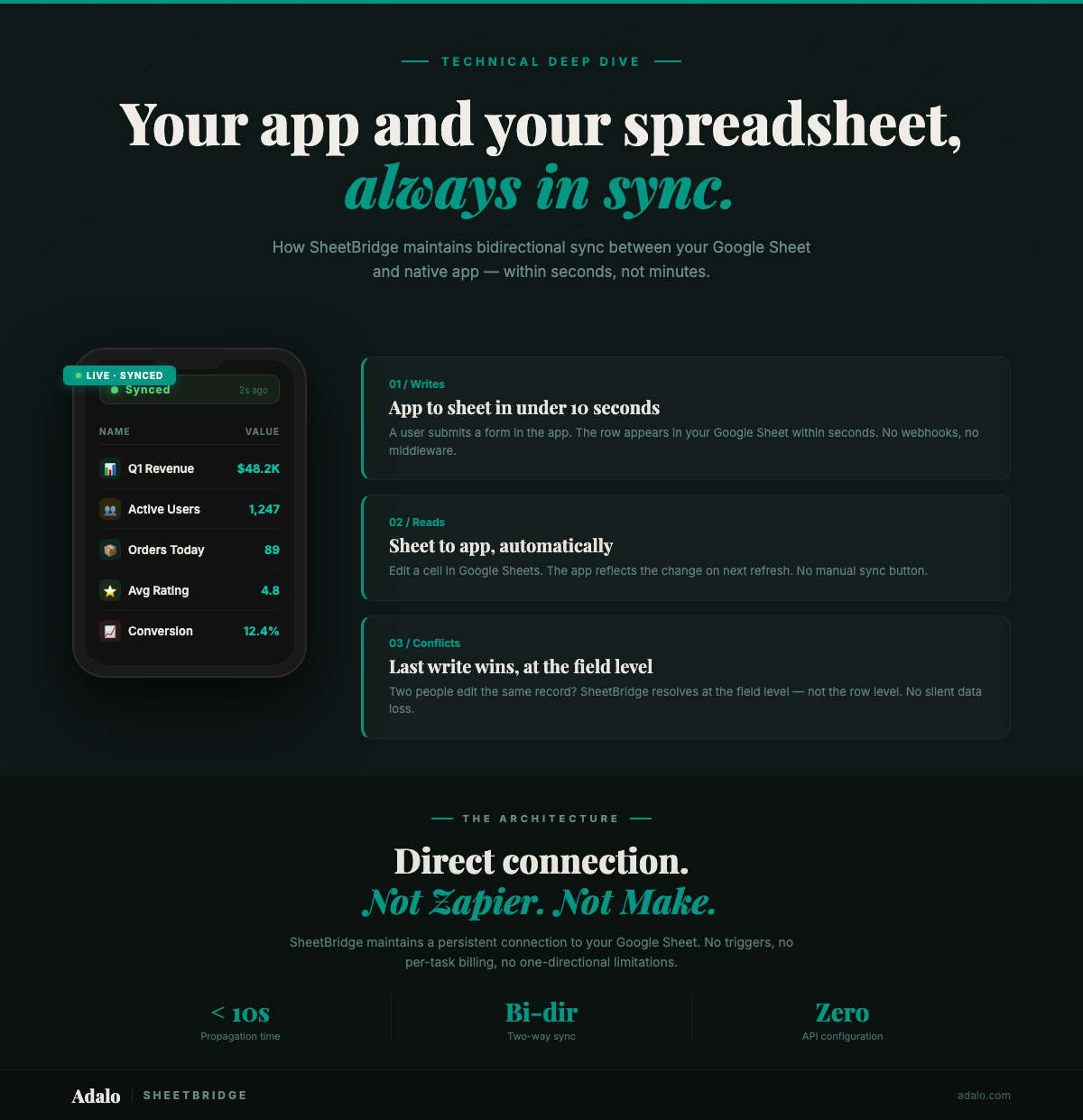
SheetBridge connects your Google Sheet to your Adalo app with a direct, bidirectional sync — the foundation for building a production-grade Google Sheets app. Changes in the spreadsheet show up in the app. Changes in the app show up in the spreadsheet. No Zapier. No Make. No webhook configuration. Here's exactly how it works under the hood — and what happens in the edge cases you're already thinking about.
How Does Real-Time Sync Work?
SheetBridge maintains a persistent connection between your Google Sheet and your Adalo app. When you connect a sheet through the SheetBridge setup flow, it maps each column in your spreadsheet to a corresponding field in your app's data structure.
The sync operates on a polling model with short intervals — SheetBridge checks for changes frequently, so updates propagate within seconds rather than minutes. This is different from a webhook-based approach where you'd need to configure triggers for every type of change.
What gets synced:
- New rows added to the spreadsheet appear as new records in the app.
- Edited cells update the corresponding field in the app.
- Deleted rows remove the record from the app.
- New records created in the app add a row to the spreadsheet.
- Field edits in the app update the corresponding cell in the sheet.
Data types are preserved across the sync. Dates stay as dates. Numbers stay as numbers. Text stays as text. SheetBridge reads the column formatting from your Google Sheet and maps it to the appropriate component type in your Adalo app.
What Happens When You Edit the Spreadsheet?
When someone edits a cell in your Google Sheet — whether directly in the browser, via a Google Apps Script, or through another integration — SheetBridge detects the change on its next sync cycle and pushes the update to your Adalo app.
A practical example: You run a field services company. Your dispatcher updates a job's status in the Google Sheet from "Scheduled" to "In Progress." Within seconds, the technician's mobile app reflects the updated status. No manual refresh required — the app pulls the latest data automatically.
For a concrete example of real-time sync in action, see the Inventory Tracker use case, where warehouse staff update stock counts in the app and changes appear in Google Sheets within seconds.
This also works for bulk edits. If your operations manager pastes 50 new rows of inventory data into the sheet, all 50 records appear in the app on the next sync cycle. There's no per-row delay or queuing — the batch comes through together.
Column structure changes require a resync in SheetBridge. If you add a new column to your sheet, you'll map it to a new field in the SheetBridge configuration so the app knows how to display it.
What Happens When You Edit in the App?
When an app user updates a record — say, a delivery driver marks an order as "Delivered" and adds a signature timestamp — SheetBridge writes that change back to the Google Sheet. The corresponding row updates with the new values.
This bidirectional flow means your Google Sheet always reflects the current state of your app data, and vice versa. Teams that use the spreadsheet for reporting and the app for field operations get a single source of truth without manual data entry or CSV exports.
New records work the same way. When a user submits a form in the app — a new lead, a new inspection report, a new work order — SheetBridge appends a new row to the bottom of the connected Google Sheet with all the submitted data.
Can Multiple People Edit at Once?
Yes, and this is where conflict resolution matters. SheetBridge handles concurrent edits with a last-write-wins strategy at the field level, not the row level. Here's what that means in practice:
- User A edits the "Status" field of Record #42 in the app.
- User B edits the "Notes" field of Record #42 in the Google Sheet at the same time.
- Both changes are preserved because they touched different fields.
If two people edit the same field of the same record simultaneously, the last write to reach SheetBridge is the one that sticks. In practice, true simultaneous edits to the same field are rare — and the seconds-level sync speed minimizes the window for conflicts.
For teams with high-concurrency workflows, structuring your spreadsheet so that different roles edit different columns reduces conflict risk to near zero. For example, field technicians update status and notes in the app, while office staff update scheduling and billing columns in the sheet.
How Is This Different from Zapier or Make?
Zapier and Make are trigger-based automation platforms. They watch for a specific event (e.g., "new row added to Google Sheet") and then execute an action (e.g., "create a record in another tool"). This approach has three structural limitations for app sync:
- One-directional per zap. Each Zapier zap or Make scenario handles one direction. Bidirectional sync requires two separate automations, and you have to build loop-prevention logic so updates don't ping-pong between systems.
- Trigger-based, not continuous. Zapier's free tier polls every 15 minutes. Paid tiers poll every 1-2 minutes. That's not real-time — it's near-time at best. If a field technician checks the app 30 seconds after a dispatcher updates the sheet, they might still see stale data.
- Per-task pricing. Every row synced is a "task" that counts against your Zapier or Make quota. A team syncing 500 records per day burns through task limits fast, and costs scale linearly with volume.
SheetBridge takes a fundamentally different approach: it's a direct, persistent connection between your Google Sheet and the app you build on Adalo's visual multi-screen canvas. Sync is bidirectional by default. There's no per-task billing. And because it's built into the Adalo platform, there's no third-party middleware to configure, monitor, or troubleshoot.
The practical difference: with Zapier, you build two automations, configure error handling, monitor task usage, and hope the polling interval is fast enough. With SheetBridge, you connect your sheet once and both systems stay in sync automatically.
FAQ
How fast does SheetBridge sync changes?
Changes propagate within seconds in both directions. SheetBridge uses a short-interval polling model that detects and syncs updates far faster than trigger-based tools like Zapier (which poll every 1-15 minutes depending on your plan).
Do I need to set up anything in Google Sheets for SheetBridge to work?
No special configuration is needed in your Google Sheet. You connect your sheet through the SheetBridge setup in Adalo, authorize access to your Google account, select the sheet and tab you want to use, and map columns to app fields. Your existing spreadsheet structure works as-is.
What happens if I reorder or rename columns in my Google Sheet?
SheetBridge tracks columns by their mapped position. If you rename a column header, the sync continues working because the mapping is based on the connection you configured, not the header text. If you reorder columns or insert new ones, you should check your SheetBridge configuration to make sure mappings are still correct.
Is there a row limit for synced spreadsheets?
SheetBridge supports large datasets, but performance is best when your sheet stays under a few thousand rows. For very large datasets, consider archiving completed or inactive rows to a separate tab. Google Sheets itself has a 10-million-cell limit per spreadsheet.
Can I sync multiple sheets or tabs to one app?
Yes. You can connect multiple sheets or multiple tabs within a single spreadsheet to different collections in your Adalo app. Each connection is configured independently, so you can have one tab for "Clients" and another for "Work Orders," each powering a different part of your app.
What is Adalo?
Adalo is the AI-powered no-code app builder with a visual multi-screen canvas. Design, build, and publish database-driven apps to the Apple App Store, Google Play Store, and web from a single project — no code, no developers required. Ada, Adalo's AI builder, generates screens from descriptions with Magic Start, and Magic Add layers on new features with natural language. Start building at app.adalo.com/signup.
Start Syncing Your Spreadsheet
Ready to connect your spreadsheet? Read our complete Google Sheets to native app guide for a full step-by-step walkthrough, explore more about using Google Sheets as a database, or start building for free.

Build your app fast with one of our pre-made app templates
Begin Building with no codeRelated Content
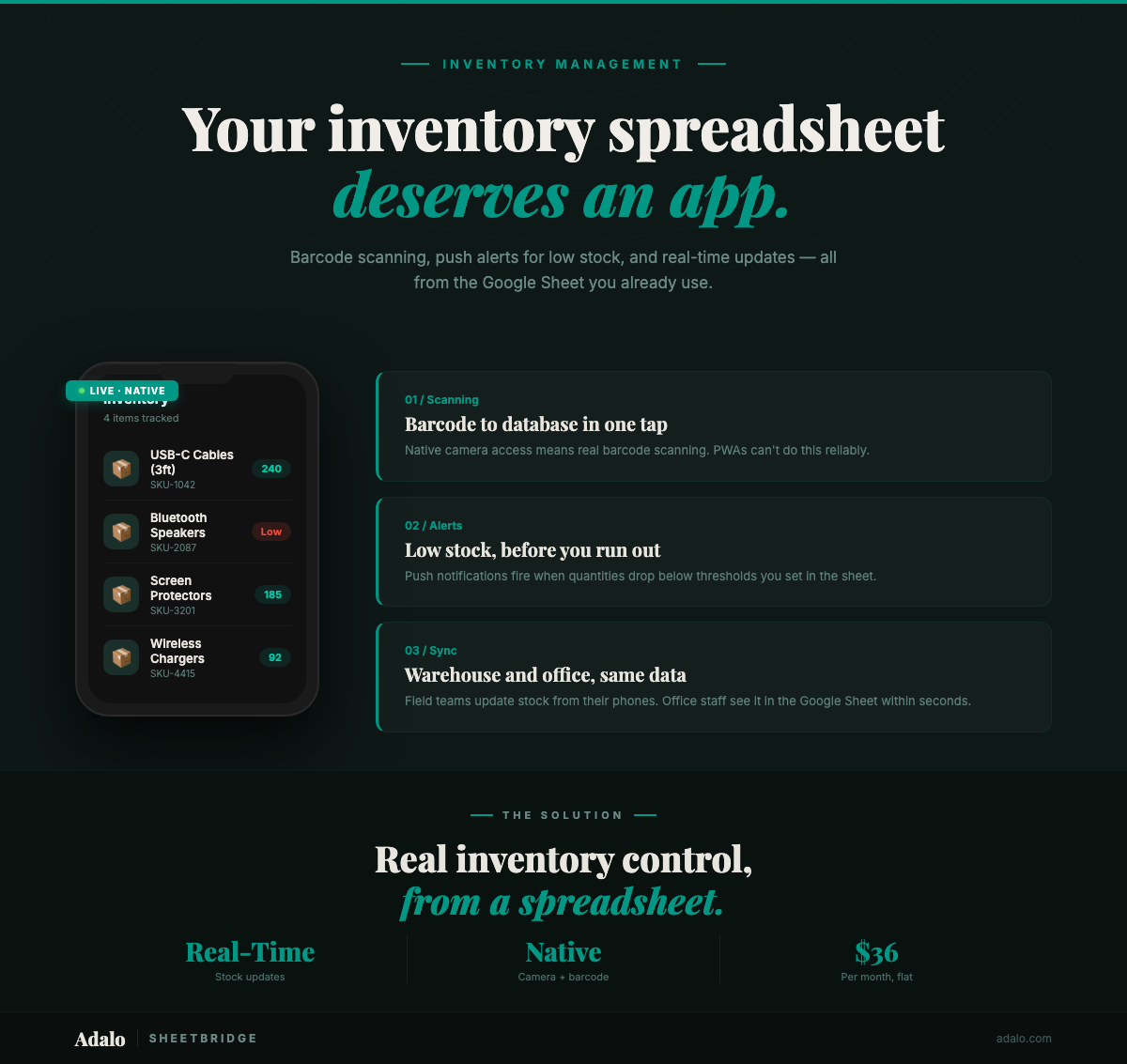
Build a Native Inventory App from Google Sheets
Convert your Google Sheets inventory tracker into a native mobile app with barcode scanning, push notifications, and real-time sync using Adalo and SheetBridge.
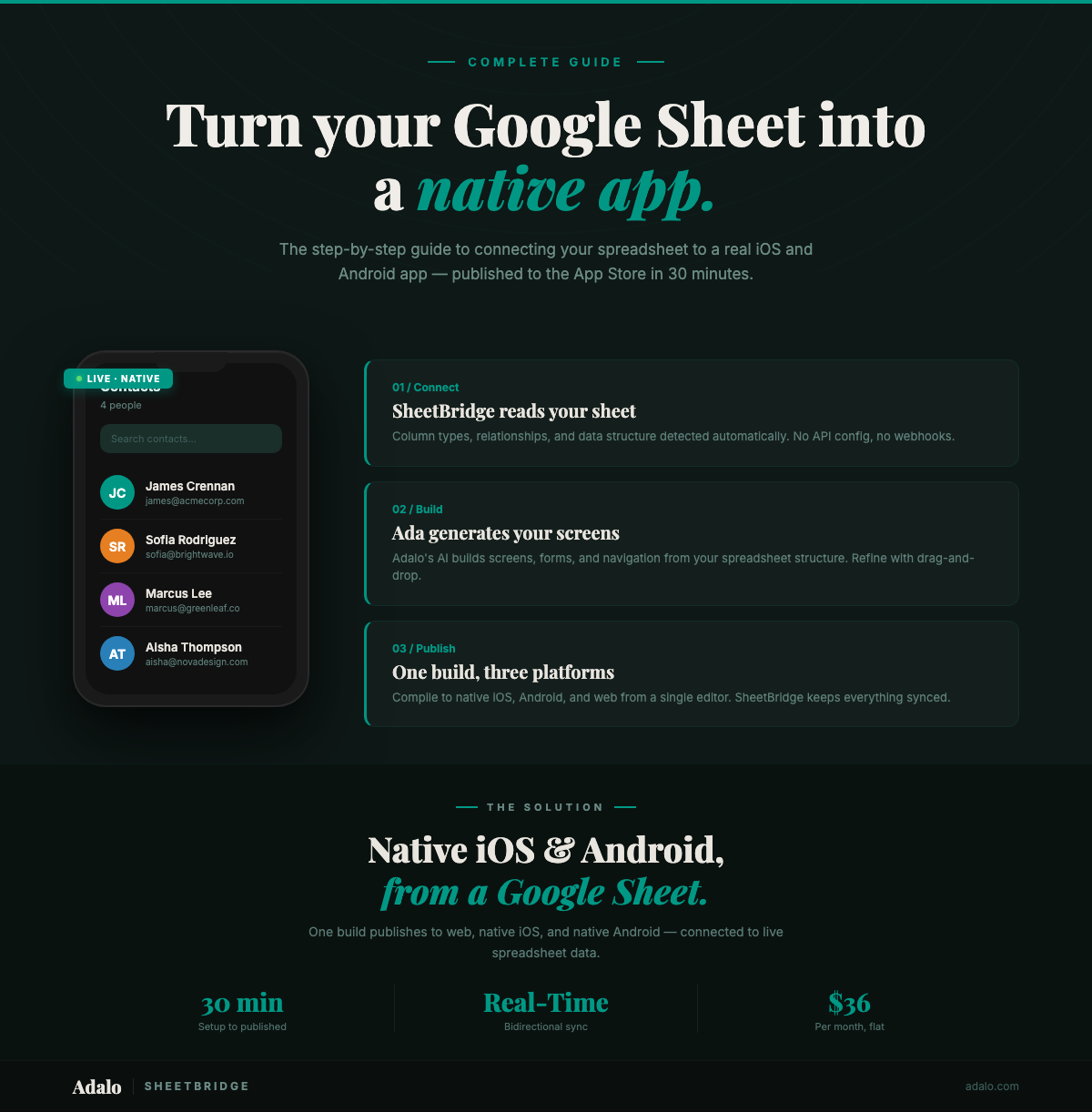
Google Sheets to Native App: Complete Guide
Turn your Google Sheets to app in 30 minutes — native iOS or Android, not a web wrapper. Step-by-step guide using SheetBridge with real-time bidirectional sync.

How to Build a Booking & Appointments App from Google Sheets with Adalo
Learn how to build a booking and appointments app from Google Sheets using Adalo with no code and real-time updates.

How to Build a Mobile Expense Tracker App from Google Sheets with Adalo
Learn how to build a mobile expense tracker app from Google Sheets using Adalo's no-code builder with real-time tracking and native app publishing.